

System File Checker SFC is Windows’ built-in utility for automatically detecting and repairing corrupted system files, ensuring optimal stability and performance for your device.
System files form the critical foundation of Windows operations. These structures manage data storage, access protocols, and integrity validation on your disk. Corrupted system files can trigger errors, crashes, or data loss. Common causes include sudden power loss, disk sector failures, or interrupted updates.
Windows includes System File Checker SFC as an automated repair solution. This utility scans critical system files and replaces damaged versions with healthy copies from the system cache. The process maintains operating system consistency and reliability without manual intervention.
Pro tip: Always run SFC with administrator priviledges to access protected system files.
Step-by-Step Guide: Repair Windows System Files Using SFC
Follow this structured procedure to execute System File Checker SFC correctly. Each step is designed for clarity, suitable for IT professionals and advanced users alike.
Phase 1: Launch Command Prompt With Admin Rights
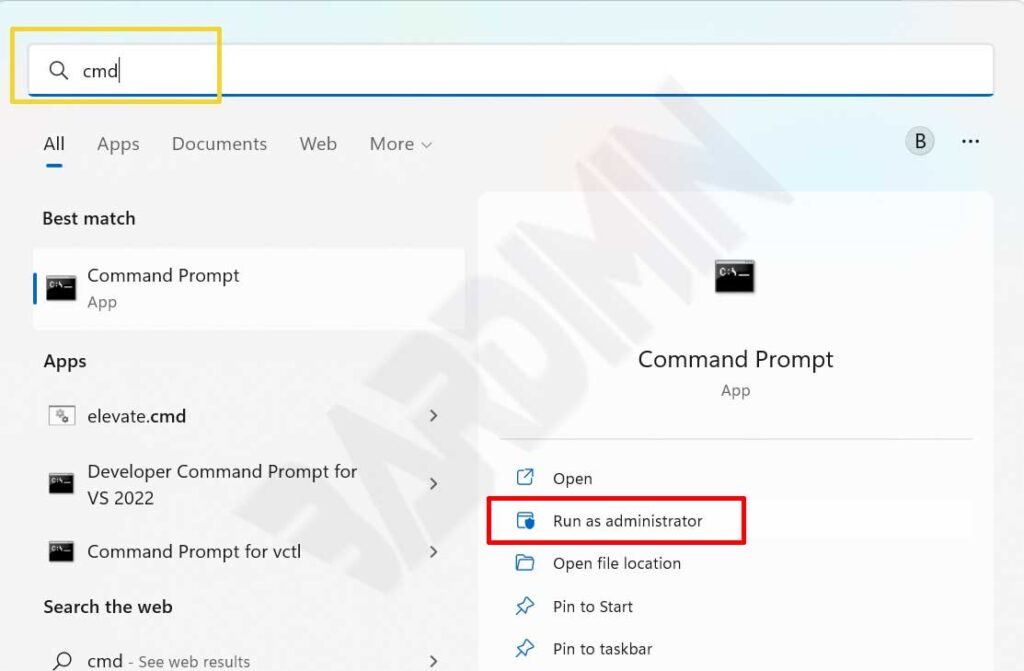
- Click the search icon on your Windows taskbar
- Type cmd into the search field
- Right-click Command Prompt from the results
- Select Run as administrator from the menu
- Confirm the UAC prompt by clicking Yes
Phase 2: Execute the SFC Scan Command
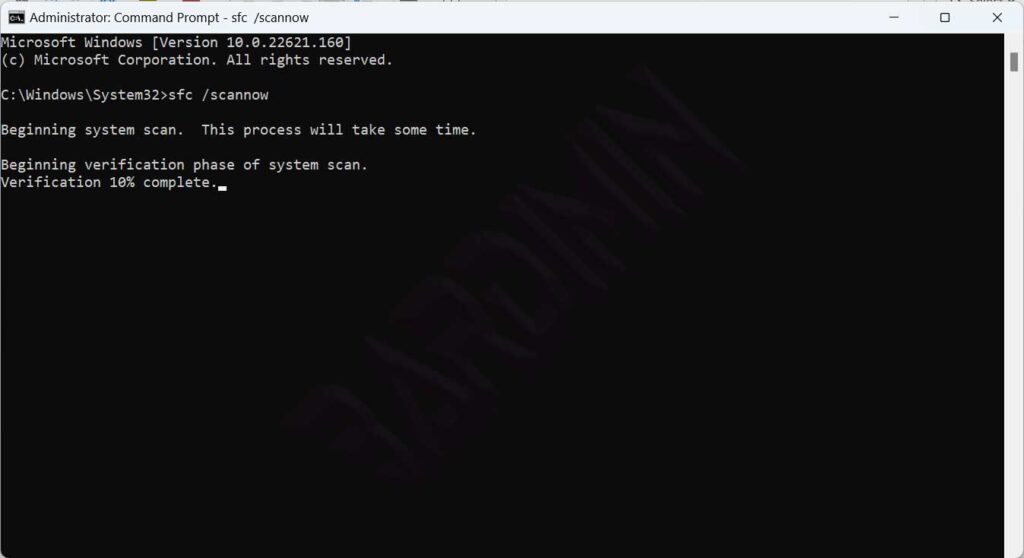
- Ensure the cursor is blinking in the Command Prompt window
- Type the command sfc /scannow precisely
- Press the Enter key to initiate the scan
- Wait patiently until the scan reaches one hundred percent
- Review the result message displayed by the system
Phase 3: Verify Results and Restart Your System
- Read the output message from Windows Resource Protection
- Note the repair status reported by the utility
- Close the Command Prompt window after completion
- Restart your device to apply all file changes
- Test system stability by launching critical applications
Decoding the Three Possible SFC Scan Outcomes
System File Checker SFC generates three distinct output types. Understanding each result helps you determine the appropriate next steps. Here is a detailed explanation of every scenario.
Outcome 1: Windows Resource Protection found no integrity violations. Your system files are healthy. No further repair action is required at this stage.
Outcome 2: Windows Resource Protection found corrupt files and successfully repaired them. The system automatically replaced damaged files with healthy versions. Restart your device to apply changes.
Outcome 3: Windows Resource Protection found corrupt files but could not fix some of them. This situation requires advanced intervention using the DISM utility.
Advanced Fix: Repair Windows Image Using DISM
Deployment Image Servicing and Management (DISM) serves as the advanced solution when SFC proves insufficient. This utility repairs the Windows image that supplies system files. DISM operates at a more fundamenal component level.
DISM requires a stable internet connection because it downloads reference files from Microsoft servers.
Executing DISM Commands: The Correct Sequence
- Open Command Prompt with administrator privileges
- Run Dism /Online /Cleanup-Image /CheckHealth first
- Proceed with Dism /Online /Cleanup-Image /ScanHealth
- Finish with Dism /Online /Cleanup-Image /RestoreHealth
- Wait for each process to complete before continuing
Dism /Online /Cleanup-Image /CheckHealth
Dism /Online /Cleanup-Image /ScanHealth
Dism /Online /Cleanup-Image /RestoreHealth
After DISM completes, run sfc /scannow again for final verification. This step confirms all system files are now in optimal condition. Restart your device to apply all changes thoroughly.
Proactive Strategies: Prevent System File Corruption
IT professionals and gamers require stable systems for maximum productivity. Implement these prevention practices to maintain long-term Windows health. Small investments today prevent major downtime tomorrow.
- Use an UPS to prevent sudden power loss during data writes
- Avoid forcing PC shutdown while Windows updates are installing
- Run regular antivirus scans to detect system-corrupting malware
- Use chkdsk periodically to verify disk integrity
- Create system restore points before installing new applications
- Schedule monthly SFC scans via Windows Task Scheduler
System stability is not accidental, but the result of routine maintenance and deep understanding of Windows utilities.
For gamers, healthy system files mean optimal game performance without unexpected crashes. System File Checker SFC helps maintain smooth gaming experiences. Invest five minutes in routine scans, gain hours of uninterrupted play.
Pro technique: Extract SFC logs for technical documentation. Use findstr /c:”[SR]” %windir%\Logs\CBS\CBS.log >”%userprofile%\Desktop\sfclogs.txt” to generate a concise report.
For official updated guidance, visit Microsoft Support. Verified sources provide solutions for diverse Windows system repair scenarios.
Final Takeaway: Maintain Peak System Performance
System File Checker SFC remains the most reliable diagnostic tool for Windows file integrity. Combine it with DISM and chkdsk for a holistic maintenance strategy. Professionals and gamers can trust these utilities to keep device performance at its peak.
Perform routine scans every month. Early damage detection prevents complex issues later. With proper procedures, you ensure Windows runs stably, securely, and ready to support daily productivity demands.
