

Western Digital Dashboard is the official software utility that enables professionals to monitor drive health, analyze performance in real time, and perform firmware updates on Western Digital storage products. With a graphical interface optimized for Windows 10 and 11, this tool helps technicians and advanced users maintain peak drive efficiency and extend device lifespan through proactive SMART monitoring and capacity management.
Modern storage environments demand rigorous oversight, and Western Digital Dashboard addresses this requirement with a unified set of diagnostic instruments. Unlike generic operating system utilities, this application is purpose-built to interpret the specific hardware characteristics of WD drives. It delivers detailed information including model number, total capacity, firmware revision, and current health status derived from continuously updated SMART data.
The real advantage of Western Digital Dashboard lies in its translation of complex technical metrics into intuitive visual formats. Real-time performance charts, color-coded health indicators, and proactive problem notifications transform raw drive telemetry into acionable insights. By leveraging all available features, technicians can detect early signs of degradation and schedule replacements or repairs before complete failure occurs.
Core Diagnostics and Monitoring Features
Western Digital Dashboard consolidates several essential tools that enable thorough evaluation of storage device condition. These capabilities are organized into distinct tabs for straightforward navigation and data interpretation.
- SMART Status Details: Displays all SMART attributes alongside manufacturer-defined thresholds, allowing early identification of parameters approaching critical levels.
- Drive Information: Presents complete device identity, including serial number, firmware version, connection interface, and total data written over the drive’s lifetime.
- Short and Extended Self-Tests: Executes internal diagnostic routines of varying duration to verify the integrity of the storage medium.
- Sanitize and Secure Erase: Offers permanent data removal methods compliant with industry standards, suitable for recycling or ownership transfer scenarios.
Routine SMART verification is a preventive measure that can alert you to latent issues before they evolve into irreversible data loss.
Real-Time Performance Monitoring in Detail
The Performance Monitor module within Western Digital Dashboard provides an instantaneous view of drive throughput and transaction activity. This feature proves particularly valuable during benchmarking sessions or when diagnosing unexpected performance drops. The data reflects the actual workload the drive is handling at any given second.
Performance Monitor employs a Performance Chart with a horizontal axis that scrolls from right to left. The visible time window covers the last five minutes, offering sufficient context to spot activity bursts or idle stretches. The vertical axis represents two selectable metrics, each suited to different analysis needs.
The first metric is Megabytes per second (MB/s), which quantifies actual data throughput. This information is crucial for professionals working with large files, such as video editors or database administrators. The second metric, I/O operations per second (IOPS), counts individual read and write transactions. IOPS becomes a vital indicator under random workload patterns, for instance when running virtual machines or multi-user application servers.
To activate Performance Monitor, navigate to the Performance tab in the main panel. Select the target drive from the device list, then click the gear icon to toggle between MB/s and IOPS according to your diagnostic requirements. The graph begins populating immediately and updates continuously as long as the window remains open.
Safe Firmware Updates with Western Digital Dashboard
Updating drive firmware is a delicate operation that demands careful preparation. Western Digital Dashboard simplifies the procedure through a guided interface, but users must still appreciate the implications of each step. Updated firmware typically contains stability fixes, performance enhancements, or security patches released by Western Digital’s engineering team.
Under normal circumstances, a firmware update does not affect existing data on the drive. Even so, Western Digital explicitely recommends performing a full backup before proceeding. The chance of failure is extremely small, but external factors such as a sudden power loss or third-party software conflicts can trigger undesirable outcomes. A recent backup serves as your ultimate safety net.
First, ensure the system is connected to a stable power source, especially for laptop users. Next, close all non-essential applications to minimize background I/O activity. Inside the Dashboard, go to the Tools tab and select Firmware Update. The application will check for the latest version on Western Digital servers and display the release notes when available.
Click the Update button to begin the process. A progress bar indicates the stages from download, checksum verification, to writing the firmware onto the drive. During the writing phase, never power off the computer or disconnect the drive. Once complete, a system restart is required to finalize the changes.
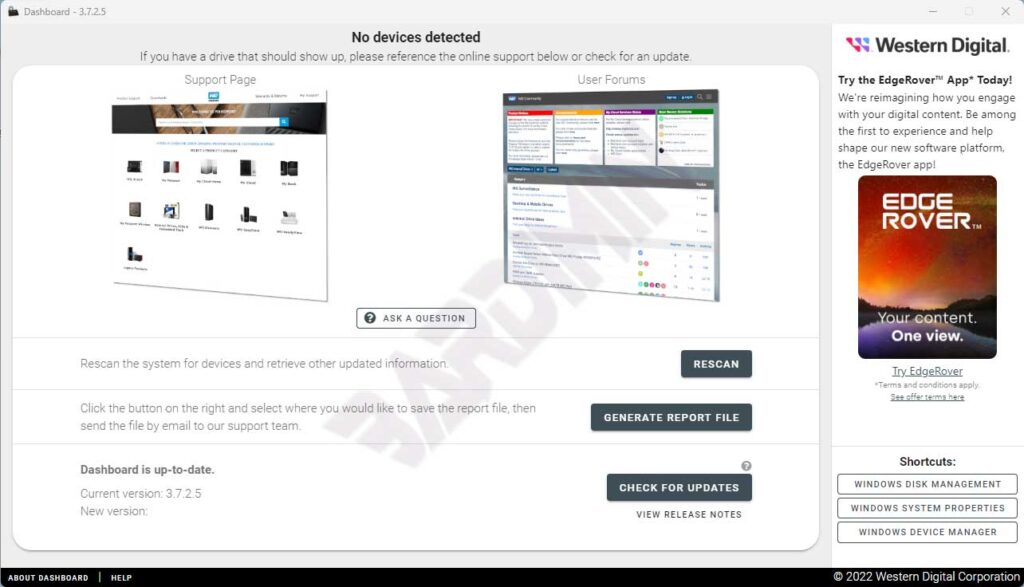
WDC Dashboard 3.7.2.5 Release Highlights
Version 3.7.2.5 introduces multiple refinements that improve stability and broaden compatibility for Western Digital Dashboard. This update addresses several community-reported issues while polishing existing functionality based on field feedback.
- Fixed a rare startup crash caused by Windows returning an invalid string from the boot drive.
- All erase options are now forced through the embedded Linux toolkit, providing a more stable and fully featured environment for drive sanitization.
- Enabled Format on supported devices when the security state is Frozen.
- Addressed an issue causing extended load times after running Sanitize on certain device models.
- Resolved detection problems for P40 devices and improved Dashboard performance when connected to legacy USB ports.
- Corrected a P50 device issue that could display stale data or invalid LBA counts.
- Game Mode 2.0 file watcher is now limited to local drives, with behavior adjusted to activate only on the drive launching the game.
- Fixed a condition where Game Mode 2.0 could remain in an incorrect state when set to AUTO and the system was rebooted.
- Volumes without assigned drive letters or labels no longer appear in the Dashboard, resulting in a cleaner interface.
- Enhanced messaging for write cache settings and NVMe SMART data to improve user clarity.
For complete technical details, visit the official Western Digital Dashboard product page. This resource also provides archives of earlier releases for comparative review.
Supported Operating Systems
Western Digital Dashboard officially supports the latest Microsoft Windows environments. Compatibility is thoroughly tested on the following configurations:
- Windows 11 (32-bit and 64-bit editions)
- Windows 10 (32-bit and 64-bit editions)
Dual 32-bit and 64-bit architecture support ensures that hardware of varying specifications can run the Dashboard without issues. Users still relying on Windows 8.1 or earlier versions should consider upgrading to gain full compatibility and the newest security features.
Download and Installation Steps
Obtaining and setting up Western Digital Dashboard is a straightforward process. The installer is distributed directly from Western Digital’s official servers, guaranteeing file authenticity and integrity.
Navigate to the Western Digital Dashboard page or use the direct link below to download the setup file. After the download completes, run DashboardSetup.exe and follow the on-screen prompts. The installer automatically detects any previous Dashboard version and offers upgrade or clean installation options.
Once the installation finishes, launch the application from the Start menu or desktop shortcut. On first run, the Dashboard scans all connected Western Digital drives and displays a health overview in seconds.
Best Practices for Long-Term Drive Reliability
Sustaining peak drive performance over time demands more than passive surveillance. Combining regular use of Western Digital Dashboard with sound operational habits will maximize storage dependability. The following routines are strongly recommended:
First, schedule a SMART check at least once a month. Attributes such as Reallocated Sectors Count and Reported Uncorrectable Errors serve as early indicators of media wear. If these values show an upward trend even while still below threshold, promptly prepare a replacement drive and migrate critical data.
Second, utilize Performance Monitor when introducing new workloads or after system configuration changes. Verify whether throughput and IOPS align with expected specifications. A significant drop may signal excessive fragmentation, thermal constraints, or interference from background processes.
Third, keep an eye on drive operating temperature through the Status tab. Modern NVMe drives can experience thermal throttling when temperatures exceed certain limits, directly impacting read and write speeds. Ensure adequate airflow inside the chassis, especially in systems with multiple drives installed in close proximity.
Fourth, check for firmware updates at least every three months. Western Digital occasionally releases revisions that resolve compatibility issues with specific motherboard chipsets or enhance stability under particular workload scenarios. Delaying updates may leave the drive running on suboptimal parameters.
By consistently following these four steps, technicians can establish an effective preventive maintenance routine. Western Digital Dashboard provides every necessary instrument to execute this strategy within a single, lightweight, and free software package.
Conclusion
Western Digital Dashboard delivers a comprehensive solution for professionals and technicians who depend on Western Digital storage in their daily activities. From SMART attribute tracking and live performance graphs to step-by-step firmware updates, all aspects of drive management are presented through a cleanly organized interface. The application’s free availability for Windows 10 and 11 users further solidifies its position as an indispensable component of any technician’s toolkit. Download the latest version from the official Western Digital site and start optimizing your digital storage reliability today.
