

Reduce Memory clears wasted cache and instantly frees up RAM on Windows without a restart. This portable tool restores peak system responsiveness for advanced users, IT technicians, and professionals who demand stability under heavy workloads.
Running multiple demanding applications quickly fills physical memory. Windows stores temporary data in a file system cache that accelerates common tasks, yet that same cache can silently consume free RAM. When the memory manager holds pages that are no longer needed, the system becomes sluggish. Shutting down programs does not always release every allocated page from a process’s working set. A dedicated memory cleaner like Reduce Memory solves this problem with a single click.
Reduce Memory calls official Windows API functions to trim the working set of user-mode processes. It discards idle pages and moves them to the modified or standby page lists, instantly reclaiming usable RAM. The technique is safe because every evicted page can be repopulated from disk or the pagefile on demand. No restart, no logoff, and no data loss. Just a clean memory map and a responsive desktop.
What Is Reduce Memory?
Reduce Memory is a lightweight, portable utility developed by Sordum.org. It was built exclusively for Windows and does not require any installation. You simply download a small ZIP archive, extract its contents, and launch the executable. The interface is deliberately minimal: a single window displays current RAM load as a percentage, accompanied by a few clearly labeled buttons. Everything else happens behind the scenes, making it an ideal RAM cleaner for Windows that stays out of your way.
All modern Windows editions are supported, from Windows XP up to Windows 11, in both 32‑bit and 64‑bit builds. Because the program runs portably, technicians often keep it on a USB flash drive for instant deployment. There is no background service, no driver installation, and no registry entries left behind. Reduce Memory interacts exclusively with documented memory‑management APIs exposed by the operating system.
Key Features
- Instant memory reduction. Press the Reduce Memory button and the tool immediately trims the working set of every user‑space process. Usable RAM jumps back in seconds.
- System cache cleanup. The Clear System Cache option executes internal Windows routines that purge the standby list without extra third‑party utilities.
- Scheduled automatic optimization. Set a timer in seconds; Reduce Memory will tidy up RAM periodically, keeping the system crisp even during unattended workloads.
- Process exclusions. Critical processes such as database servers or virtual machines can be shielded from trimming, preventing unwanted performance dips.
- Silent mode & tray operation. Launch hidden to the notification area, auto‑start with Windows, and monitor via a tray icon. No desktop clutter.
- Command‑line support. Parameters like
-reduceand-autoenable full scripting and Task Scheduler integration for power users.
How Reduce Memory Works Under the Hood
When you click the main cleanup button, Reduce Memory enumerates running processes and calls the EmptyWorkingSet API for each one. This function instructs Windows to remove as many private pages as possible from the process’s working set. Evicted pages are placed on the standby list or written to the pagefile. If a program accesses that data later, the system pulls it back with a soft page fault. The process itself never loses data; it only releases physical RAM that was sitting idle.
The Clear System Cache feature works differently. It leverages the SetSystemFileCacheSize API to temporarily shrink the file system cache, effectively draining the standby list. For advanced users, this is a clean, one‑click alternative to manually running tools like RAMMap and then emptying the standby list via its hidden menu. Reduce Memory combines both capabilities in a single, no‑fuss window.
Downloading and Running Reduce Memory
Start by visiting the official developer site at Sordum.org and grab the latest Reduce Memory package. The download comes as a ZIP file under 1 MB. After extraction, place the folder anywhere you like. No installer launches; just double‑click ReduceMemory.exe. Windows may ask for User Account Control approval because the tool manages system memory, so confirm the prompt.
For everyday convenience, pin a shortcut to your taskbar or Start menu. Since the entire application is portable, you can move the folder to a cloud‑synced directory or a technician’s toolkit USB. If you ever decide to remove it, delete the folder and nothing remains in the registry.
Complete Usage Guide
Manual RAM Cleanup
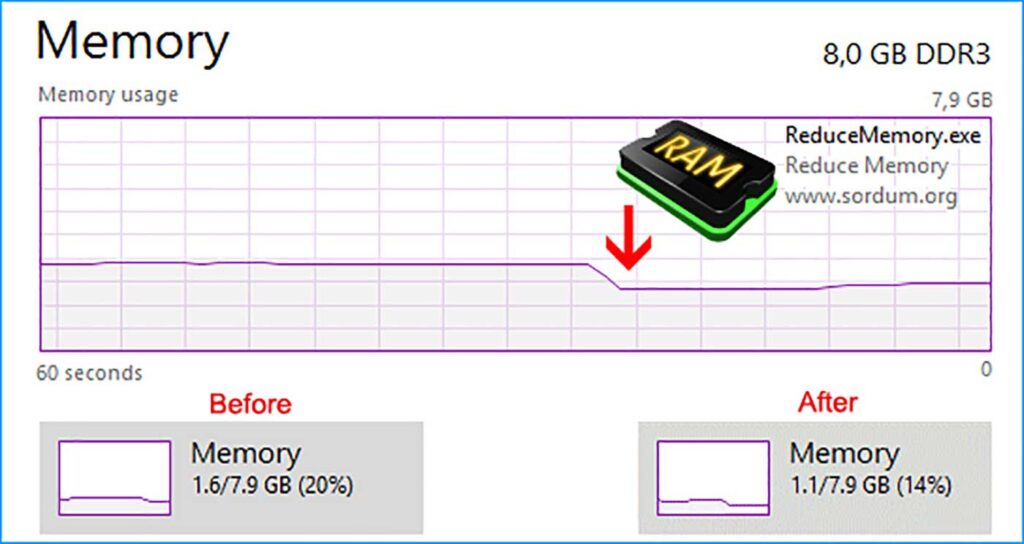
The simplest way to reclaim memory is clicking the Reduce Memory button. Watch the percentage drop within seconds. Open Task Manager before and after to see the “In Use” figure fall significantly. This manual approach is perfect right before launching a heavy application or a competitive game.
Automatic Optimization
Go to the Options menu and tick Optimize memory every. Enter a value in seconds, such as 300 for five‑minute intervals. The utility will silently keep RAM in check while you focus on real work. This mode shines during long renders, large file transfers, or overnight maintenance tasks.
Avoid setting the interval too short. Trimming memory every few seconds forces constant pagefile writes, which raises disk I/O. A sweet spot lies between 60 and 600 seconds, depending on your typical workload intensity.
Excluding Sensitive Processes
Some applications, particularly SQL servers and hypervisors, dislike having their working sets aggressively trimmed. Reduce Memory includes an exclusion list inside Options → Exclude Processes. Type the executable name (e.g., sqlservr.exe or vmwp.exe) and add it. All excluded processes are skipped during both manual and automatic cleanups, preserving their performence.
Running in the System Tray
Enable Start hidden and Minimize to tray. Reduce Memory will launch without opening its main window and sit in the notification area. A glance at the tray icon shows current memory pressure. Right‑click the icon for a quick menu with cleanup commands and settings. This setup keeps the desktop clean while retaining full control.
Command‑Line Options and Automation
Power users can script Reduce Memory with a handful of command‑line arguments:
- -reduce : performs one memory cleanup and exits automatically.
- -auto : launches the program with automatic optimization already active.
- -hide : sends the main window straight to the system tray.
- -exclude “process.exe” : adds a temporary exclusion for that session.
Scheduling with Task Scheduler
Combine the arguments with Windows Task Scheduler to create a fully hands‑free cleanup routine:
- Open Task Scheduler and choose Create Basic Task.
- Give the task a name, like “Reduce Memory Auto Clean”, and click Next.
- Select a trigger, e.g., Daily, and set it to repeat every 1 hour.
- For the action, pick Start a program.
- Browse to ReduceMemory.exe in the Program/script field.
- In the Add arguments box, type
-reduce -hide. - Finish the wizard and ensure the task runs with highest privileges.
Now your workstation or server will enjoy fresh RAM every hour without any user interaction. This approach is a staple in technician toolkits and lab environments where consistent performance is non‑negotiable.
Benefits for Advanced Users, Professionals, and Technicians
Advanced users who juggle virtual machines, emulators, or memory‑hungry games see the biggest gain. After a long session, memory fragmentation can cause micro‑stutter. Reduce Memory brings the system back to near‑fresh‑boot state without closing active projects.
Professionals running dozens of browser tabs, design software, and office suites often encounter “out of memory” warnings. Scheduled optimization keeps enough free RAM available for spontaneous rendering or video calls. No more urgent clean‑up before an important presentation.
Technicians rely on portable, zero‑footprint utilities. Before replacing hardware or reinstalling Windows, they run Reduce Memory first. In many cases, what appeared to be a dying machine was simply crippled by poor memory managment. The tool often saves a service call.
A single click on Clear System Cache eliminates stutter without changing any driver or game setting.
Practical Tips for Maximum Efficiency
- Monitor with Task Manager. Compare the “In Use” value before and after cleanup to gauge how much memory you truly recovered.
- Pair with startup discipline. Reduce background apps that launch at boot; the less memory pressure, the faster the cleanup works.
- Don’t treat it as a RAM upgrade. The utility only optimizes available capacity. For extreme workloads, adding physical RAM remains essential.
- Export your exclusion list. If you move between machines, back up the configured process list so you don’t have to recreate it every time.
- Find your interval sweet spot. Start at 120 seconds, then adjust up or down until the system feels consistently responsive.
Scheduled, silent cleanups keep Windows memory in top shape all day long without interrupting work.
Alternatives and How Reduce Memory Compares
Other utilities exist: Memory Cleaner, RAMMap by Sysinternals, and the hidden “Empty Standby List” feature in Windows Task Manager. RAMMap offers deep memory‑map analysis but is overkill for a quick cleanup. The built‑in standby list clear requires extra clicks and is easy to forget. Reduce Memory unifies both speed and convenience. It delivers the same kernel‑level clearing in a tiny, portable window that never requires configuration beyond the first use.
Conclusion
Reduce Memory is the hassle‑free answer to reclaiming wasted RAM on any Windows machine. With instant cleaning, intelligent automation, and safe process exclusions, this slender utilty has an outsized impact on everyday productivity. Download it, try a manual cleanup, and schedule an automatic task. You will feel the difference in your workflow immediately.
