

File Sharing Permissions Windows controls file and folder access through NTFS and share permissions, ensuring local and network data security with precise configuration for professionals, technicians, and gamers.
Incorrect file sharing permisions setup can expose security vulnerabilities or block legitimate access. Windows operating system provides two primary access control layers. These layers work together to protect sensitive data effectively. Deep understanding of this mechanism is essential. Especially for system administrators or advanced users. This guide covers core differences, permission types, and effective combination strategies. Information reflects current industry best practices.
Understanding NTFS Permissions
NTFS or New Technology File System serves as the standard file system for modern Windows. NTFS permissions manage access to files and folders stored on NTFS-formatted volumes. This control applies to both local users and network-based access. By default, permissions inherit from parent folders to subfolders and contained files. However, inheritance can be disabled based on specific requirements.
The primary advantage of NTFS permissions lies in their granularity. You can assign distinct access rights to individual users or groups. This enables precise implementation of the least privilege principle. This principle grants only the minimum access required to complete assigned tasks.
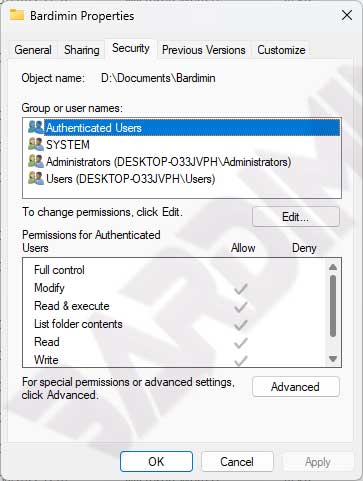
NTFS Permission Types and Functions
| Permission | Allowed Access |
|---|---|
| Read | View file contents, attributes, ownership, and applied permission lists. |
| Write | Modify file content, change attributes, view ownership and permission settings. |
| Read & Execute | Run executable files including scripts, plus all Read permission capabilities. |
| Modify | Edit, delete files, and perform all actions allowed by Read, Write, and Execute. |
| Full Control | Change permissions, take ownership, and execute all other NTFS file actions. |
Share Permissions for Network Access
Share Permissions control access to folders shared over the local network. This control does not apply to users accessing files locally on the host machine. Share permissions apply globally to all content within the shared folder. You cannot set different access rights for individual subfolders within a single share.
Share Permissions offer simpler control compared to NTFS. Only three levels exist: Read, Change, and Full Control. This system works with various file systems including NTFS, FAT, and FAT32. However, its flexibility remains limited for complex security scenarios.
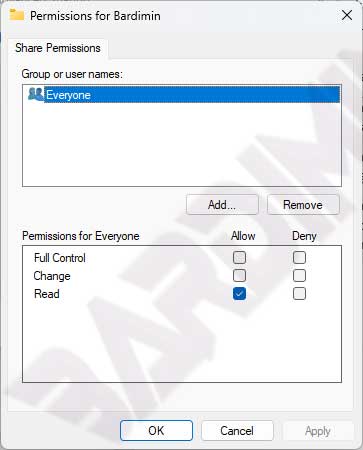
Share Permission Types
| Permission | Allowed Access |
|---|---|
| Read | View file and folder contents, plus run executable programs. |
| Change | Read access plus add, edit, and delete files or folders within the share. |
| Full Control | Change access plus modify NTFS permissions on files and folders in the shared directory. |
Strategies for Combining Both Permission Systems
Both permission systems can operate together for layered access control. However, Windows applies the most restrictive permission wins rule. This means the stricter access right between NTFS and Share Permissions becomes the effective limit.
Golden rule: Assign Everyone – Full Control on Share Permissions, then manage granular security entirely through NTFS permissions.
Practical guidelines for combined configuration:
- Local access uses only NTFS permissions to determine user access levels.
- Remote access via network applies both systems. The stricter permission becomes effective.
- User permissions combine additively with group permissions where the user holds membership.
- Explicit permissions set directly on files or folders override inherited permissions from parent containers.
- Explicit Deny permissions take highest priority over explicit Allow permissions.
File Sharing Security Best Practices
Microsoft recommendations advise configuring Share Permissions with Everyone – Full Control. Then apply granular control through NTFS permissions. This approach simplifies management while maintaining strict security. IT teams can focus on precise NTFS settings without duplicating rule complexity.
The least privilege principle must apply to every scenario. Grant only the minimum access needed to complete tasks. Avoid using the Everyone group for sensitive data. Use role-based security groups for structured management.
Regular permission audits remain critically important. Organizational structures and access needs evolve over time. Routine reviews prevent accumulation of excessive rights that could be misused. Tools like Permissions Reporter can help automate this audit process.
Practical Configuration Steps for Technicians
Follow this sequence for secure and measurable setup:
- Create logical folder structures aligned with departments or projects.
- Configure NTFS permissions on root folders using relevant security groups.
- Disable inheritance if needed, then apply explicit permissions.
- Open Advanced Sharing, check Share this folder, then set Permissions to Everyone – Full Control.
- Verify access from different user accounts to confirm configuration matches expectations.
For gamers sharing game libraries over the network, ensure only game folders are shared. Never grant Full Control acces to entire system drives. Use dedicated accounts with limited rights for sharing acces.
Verification and Permission Troubleshooting
After configuration, perform thorough verification. Open Command Prompt as administrator. Run icacls "C:\Path\To\Folder" to view NTFS permission lists. This command displays ACL details accurately.
Also use net share to check currently shared folders. Ensure only necessary folders remain exposed to the network. Remove unused shares to reduce attack surface.
If users encounter access denied errors, check both permission layers. Start with Share Permissions, then review NTFS permissions. Remember, the stricter permission applies. Use Event Viewer to track security events related to file access.
Pro Tip: Always test configurations in staging environments before production deployment. Use test accounts with varied access rights to validate each scenario. Document every permission change for future audit purposes.
Proper configuration prevents security incidents while enabling smooth collaboration. Review official Microsoft documentation for latest feature updates. Implement changes gradually in production environments. Always test in staging before deploying to primary systems.
Deep understanding of File Sharing Permissions Windows represents core competency for IT professionals. Optimal configuration protects digital assets while supporting team productivity. Apply this guide to build robust and secure file sharing infrastructure.