

The $WinREAgent folder is a Windows system directory created automatically during updates to enable recovery if failures ocur. This folder typically remains at 0 KB post-update and is safe to delete for reclaiming disk space.
Windows generates temporary files and folders during every update or upgrade cycle. One frequently encountered directory is the $WinREAgent folder. Located on your Windows installation drive, this folder remains hidden by default. Many users wonder about its purpose. They also question whether deletion is safe. This article explains the $WinREAgent folder in detail. You will understand its function. You will also learn safe management practices.
What Is the $WinREAgent Folder
The $WinREAgent folder is a directory created automatically by Windows Recovery Environment. Creation occurs during system update or upgrade operations. This folder contains temporary files. These files serve as a recovery mechanism. The mechanism activates if the update process encounters problems or fails.
Windows Recovery Environment, or WinRE, is a system recovery feature. This feature helps fix startup issues. WinRE also restores systems from backup images. It can revert Windows to a previous configuration. The $WinREAgent folder plays a vital role supporting WinRE functions. This support occurs throughout the update process.
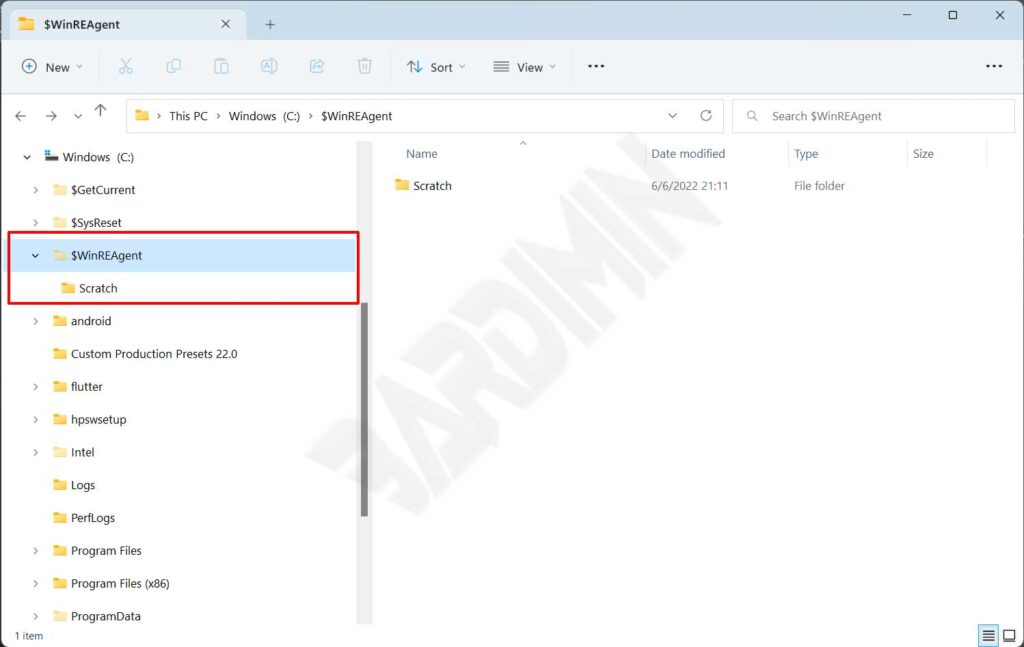
Structurally, the $WinREAgent folder usually contains a subfolder named Scratch. This subfolder is also typically empty. The folder has hidden and system attributes. You will not see it under normal conditions. Enable the Hidden items option in File Explorer to display it.
Important Note: The $WinREAgent folder generally shows 0 KB size after updates complete. This indicates all temporary files processed correctly. No issues occured during the update.
Function and Operation of the $WinREAgent Folder
The $WinREAgent folder serves several critical functions in the Windows ecosystem. First, it acts as a staging area. This area holds files needed during updates. Second, the folder stores important configuration data. This data enables system rollback if updates fail.
During upgrades to newer Windows versions, this folder may contain larger recovery files. A common example is upgrading to Windows 11. These files allow reverting to your previous Windows version. The rollback window typically spans 10 days after upgrade completion.
This folder’s operation integrates with Windows Update. Integration also occurs with Windows Recovery Environment. The system detects potential issues during updates. WinRE then uses files within the $WinREAgent folder. The system recovers to a stable previous state if needed.
When Does the $WinREAgent Folder Appear
The $WinREAgent folder appears automatically in these scenarios:
- During Windows Feature Update installations
- When upgrading Windows versions, such as Windows 10 to Windows 11
- During significant Quality Update installations
- When Windows Update encounters errors requiring recovery
This folder always resides at the root of your Windows installation drive. The typical location is C:\$WinREAgent. The folder remains hidden by default. You must enable Hidden items in File Explorer. This option allows you to view the folder.
Is It Safe to Delete the $WinREAgent Folder
The most common user question concerns deletion safety for this folder. The answer depends on your system condition. Your Windows Update status also determines safety.
Safe Conditions for Deletion:
- The $WinREAgent folder shows 0 KB size, indicating successful update completion
- Windows runs stably without issues after the latest update
- More than 10 days have passed since your last Windows upgrade
- You do not plan to rollback to a previous Windows version
Unsafe Conditions for Deletion:
- An update or upgrade process is currently active
- The folder contains recovery files less than 10 days old post-upgrade
- Your system shows issues after update and you may need rollback
- Windows Update displays pending or in-progress status
Warning: Deleting the $WinREAgent folder before update completion may prevent system recovery. Potential boot failure could also ocur.
How to Safely Delete the $WinREAgent Folder
You have confirmed the $WinREAgent folder is safe for deletion. Follow these definitive steps:
Method 1: Manual Deletion Via File Explorer
- Open File Explorer and navigate to your C: drive
- Click the View tab on the ribbon menu
- Check the Hidden items box to show hidden folders
- Locate the $WinREAgent folder at the C: drive root
- Right-click the folder and select Delete
- Open Recycle Bin and empty it for permanent removal
Method 2: Using Command Prompt as Administrator
- Press Windows + X on your keyboard
- Select Command Prompt (Admin) or Windows PowerShell (Admin)
- Enter this command:
rmdir /s /q C:\$WinREAgent - Press Enter to execute the deletion command
The Command Prompt method requires administrator privileges. Ensure no Windows Update processes are running. This prevents system conflicts during folder deletion.
Troubleshooting $WinREAgent Folder Issues
Some users report problems with the $WinREAgent folder. The folder won’t delete or keeps reappearing. Here are solutions for common issues:
Folder Won’t Delete: You receive an error message when attempting deletion. A system process likely still uses the folder. Restart your computer in Safe Mode. Try deleting the folder again after entering Safe Mode.
Folder Keeps Reappearing: This usually indicates a failed Windows Update. The system automatically retries the update. Run Windows Update Troubleshooter to fix underlying issues. The troubleshooter detects and repairs update errors.
Folder Size Grows Large: The $WinREAgent folder shows unusual size. Sizes exceeding several MB suggest stuck recovery files. Wait 10 days after upgrade completion. You can also use Disk Cleanup to remove old update files.
Best Practices for Windows System Folder Management
You want to maintain optimal Windows system performance. Here are recommended best practices for professionals:
- Regularly clean temporary folders using Disk Cleanup
- Ensure at least 20 GB free space before Windows upgrades
- Backup important data before major updates or upgrades
- Allow Windows Update to finish completely before manual restarts
- Enable Storage Sense for automated temporary file cleanup
Therefore, understanding system folders like $WinREAgent is essential. This knowledge helps you manage Windows systems more effectively. Proper management also enhances operational system security.
Conclusion
The $WinREAgent folder is a critical component in Windows recovery infrastructure. This folder protects your system during update and upgrade processes. It is generally safe to delete after updates finish. The condition is stable system operation without issues.
However, confirm no update processes are active first. Also verify you do not need rollback functionality before deletion. Understanding the $WinREAgent folder’s function and operation helps you manage Windows storage better. System stability remains protected without compromise.
For more information about Windows Recovery Environment, visit official Microsoft documentation at Microsoft Learn. This source provides trusted technical guidance for IT professionals.
