

LanSpy delivers reliable network auditing and port scanning for system administrators. This tool enables rapid identification of open ports, remote processes, and local infrastructure security gaps through an intuitive interface.
Maintaining full visibility across local network devices remains a primary challenge for modern IT teams. Administrators often struggle to detect unauthorized services exposed to the public. They also face issues with workstations running suspicious background processes. Reliable diagnostic tools are therefore critical for maintaining corporate data integrity and system stability.
LanSpy answers these exact challenges effectively. As a premier network port scanner, this software combines multiple utilities into one compact package. Technicians can perform port scanning, security audits, and remote process monitoring seamlessly. You no longer need to install numerous separate applications for basic network diagnostics.
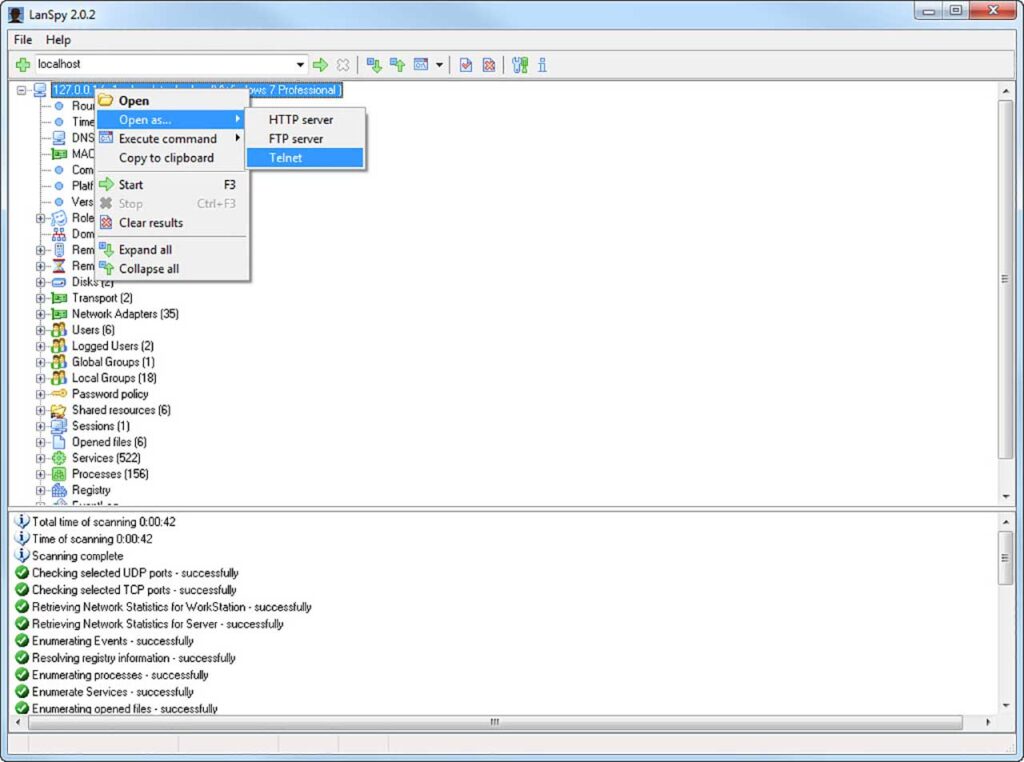
Core Capabilities in Network Scanning
This network auditing tool offers an extensive feature set for extracting system information. Every module serves specific needs for network administrators conducting routine investigations.
Collectible System Information
The tool reads various metadata from remote workstations efficiently. Obtained data covers device identity, network configuration, and target security status.
- Device Identity: Domain name, NetBIOS name, MAC address, and server details.
- Network Configuration: Domain data, workgroups, domain controllers, and transport protocols.
- User Information: Active users, logged-in sessions, global groups, and local groups.
- System Resources: Disk space, system time, running services, active processes, and registry keys.
- Security Metrics: Security options, shared resources, active sessions, open files, and event logs.
Remote registry reading is a standout feature rarely found in similar tools. Administrators can verify system configurations without initiating remote desktop sessions. This approach saves significant time and network bandwidth.
TCP and UDP Port Scanning Mechanisms
Port scanning forms the heart of network diagnostic functions. The mechanism involves sending probe packets to target addresses. Target responses indicate open, closed, or firewall-filtered port statuses.
TCP Port Scanning
The TCP protocol utilizes a three-way handshake mechanism. The scanner sends a SYN packet to the target port. Open ports respond with a SYN-ACK acknowledgment. The scanner then sends an RST packet to close the connection.
This approach enables rapid detection without burdening target systems. The scanner accurately identifies services listening on specific ports. This information remains crucial for mapping network attack surfaces.
UDP Port Scanning
The UDP protocol lacks a handshake mechanism like TCP. Scanners send empty UDP packets to target ports. Closed ports trigger ICMP Port Unreachable messages from the target system.
UDP scanning is generally slower than TCP due to timeout waits. However, this method remains essential for detecting connectionless services. Examples include DNS, DHCP, and SNMP protocols.
Good network visibility forms the fundamental foundation of effective and proactive cybersecurity strategies.
Technical Procedures for Network Auditing
Executing network audits requires a methodical approach for accurate results. Follow these technical steps to maximize tool functionality in production environments.
Important Note: Always ensure you have written authorization before scanning production networks. Unauthorized scanning might trigger intrusion detection alarms and disrupt business operations significantly.
Step 1: Defining Target Ranges
Enter your local network IP range into the available input field. Precise range specification accelerates the scanning process considerably. Use CIDR notation like 192.168.1.0/24 for specific subnet auditing.
Specific target determination also reduces false positive risks. Scanning entire public IP ranges without filters creates overwhelming noise. Focusing on internal subnets yields highly relevant security audit results.
Step 2: Configuring Scan Parameters
Adjust TCP and UDP scanning parameters according to your investigation needs. Specifying exact port ranges speeds up the process significantly. Target port 22 for SSH or port 445 for SMB services.
You must also adjust timeout settings based on network characteristics. High latency networks require longer timeouts to prevent false negatives. Excessively long timeouts will however slow down overall scanning speed.
Step 3: Analyzing Scan Results
The main panel displays scanning results in real time. Every open port indicates a listening service accepting incoming connections. Identifying improperly exposed services becomes your primary priority.
Document every finding in a structured format immediately. Record IP addresses, port numbers, service names, and software versions completely. This data forms the basis for system hardening recommendations.
Remote Process and Resource Monitoring
Monitoring processes running on target computers provides immense value. Administrators can detect malware or unauthorized software without physical workstation access.
Detecting Suspicious Activity
Processes with unknown names or temporary directory locations often indicate malware presence. Administrators must compare active process lists against established baselines regularly.
Monitor resource consumption for every single process carefully. Processes consuming excessive CPU or memory might indicate cryptocurrency mining. Further investigation remains neccessary to confirm process legitimacy.
User session monitoring allows administrators to see shared resource access. Administrators must disconnect unknown sessions immediately to prevent unauthorized access. Monitoring shared resources also prevents critical data leakage effectively.
System Requirements and Specifications
Verify your environment meets minimum requirements before installation. The application runs optimally on Windows operating systems. The intuitive user interface suits technicians from diverse backgrounds.
| Component | Requirement |
| Operating System | Windows XP or newer |
| Processor | 1 GHz or faster |
| Memory | 512 MB RAM minimum |
| Disk Space | 50 MB free space |
| Network | LAN or WAN connection |
Ensure your firewall permits necessary outbound connections for scanning. Some strict environments might block specific probe packets. Consult your security team to whitelist the scanning workstation appropriately.
Multi-language support includes English, Russian, Italian, Polish, and Dutch. Developers optimized scanning algorithms for speed without burdening network bandwidth. Low system resource consumption ensures background auditing capabilities.
Best Practices for Network Security
Diagnostic tool utilization must accompany strict operational procedures. IT teams need clear policies regarding scanning execution. Documenting every audit session remains mandatory for compliance purposes.
Store audit results in encrypted formats to maintain data confidentiality. Generated reports contain sensitive topology and security vulnerability information.
Restrict report access strictly to authorized security personnel. Conduct routine scans to detect unauthorized infrastructure changes. Network configurations frequently change with new device additions.
Furthermore, integrate these scans into your regular maintenance schedule. Monthly assessments help identify newly introduced vulnerabilities. Quarterly deep dives provide broader strategic insights for IT leadership.
Routine audits ensure all changes comply with organizational security policies. Integrating scan results with SIEM systems improves real-time threat detection.
Download and Installation
You can download this software directly from the official developer website. The installation process runs automatically and requires only a few clicks. Diagnostic modules become immediately available without complex configurations.
Launch the application after installation and enter your local IP range. Explore every available module to understand full device capabilities. Proper mastery significantly improves corporate network security posture.
Additional Reference: Visit the official LanSpy page for more feature details. Complete documentation helps you maximize device utilization effectively. You can recieve further support through their official channels.
