

Bloatware or junk apps remain a problem in Windows 10 and Windows 11, reducing performance and consuming storage space. This comprehensive guide explains effective methods to remove bloatware in both operating systems using trusted tools, restoring your device’s speed and responsiveness.
Bloatware refers to pre-installed applications on new systems that are unnecessary for most users. These apps come from device manufacturers (OEM) or Microsoft itself, often slowing down startup, consuming RAM, and wasting SSD or HDD space.
This issue persists in both Windows 10 and Windows 11. Windows 11 even introduces new apps like Clipchamp, Spotify, and Facebook that you might not need. For professionals, technicians, and gamers, bloatware can hinder productivity and smooth gaming experiences.
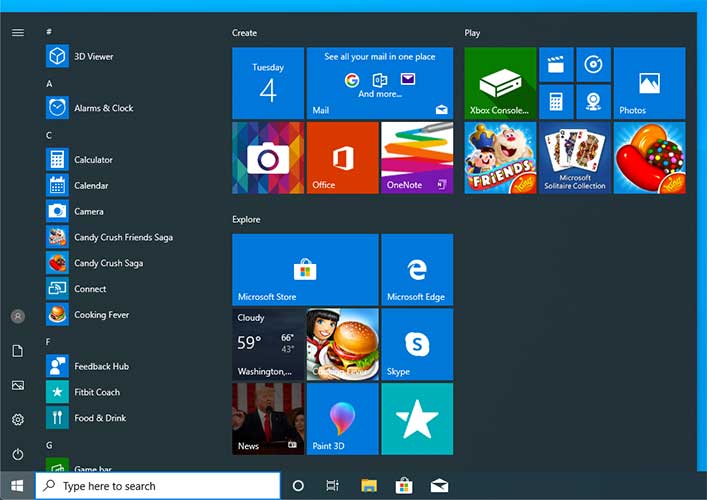
Bloatware Differences: Windows 10 vs Windows 11
Although similar, there are differences in the types and handling of bloatware in both operating systems.
| Aspect | Windows 10 | Windows 11 |
|---|---|---|
| Typical Bloatware Examples | Candy Crush Saga, Minecraft, Facebook, Netflix, Bing Apps | Clipchamp, Spotify, Instagram, Facebook, Disney+, TikTok |
| Primary Source | OEM Manufacturers & Microsoft Store | Microsoft Store & Built-in Microsoft Features |
| System Integration | Less Integrated, Easier to Remove | More Integrated (e.g., Widgets), Harder to Remove |
| Performance Impact | Significant on RAM & Storage | Significant on RAM, Storage & Background Services |
How to Remove Bloatware in Windows 10 and 11
Here are effective methods to clean your system of unnecessary applications, applicable to both Windows versions.
Method 1: Using Windows10Debloater (Compatible with Win 10 & 11)
This open-source tool remains relevant and has been updated to support Windows 11.
- Download Latest Tool: Visit the Windows10Debloater GitHub repository and download the latest version.
- Extract Files: Extract the ZIP to a folder like
C:\Debloat. - Open PowerShell as Admin: Right-click Start → “Windows Terminal (Admin)” or “PowerShell (Admin)”.
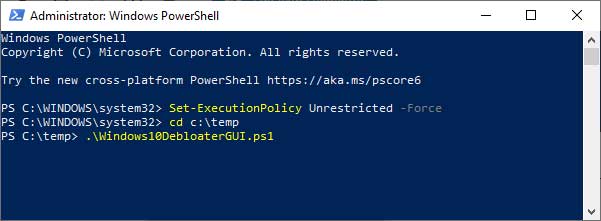
- Allow Script Execution: Type this command and press Enter:
Set-ExecutionPolicy Unrestricted -Force - Navigate to Folder: Go to the extraction folder:
cd C:\Debloat - Run GUI Script: Type:
.\Windows10DebloaterGUI.ps1 - Choose Cleaning Option: Click “Remove All Bloatware” for thorough cleaning. The tool automatically detects your operating system.
Method 2: Manual via Windows Settings & PowerShell
For more selective removal, you can use manual methods.
- Windows 10/11 Settings:
Open Settings → Apps → Installed Apps. Search for the app you want to remove (like “Candy Crush” or “Spotify”), click the three dots next to it, and select Uninstall. - PowerShell (For Built-in Appx):
Open PowerShell as Admin, then use this command:
ReplaceGet-AppxPackage *packagename* | Remove-AppxPackage*packagename*with the target app name (e.g.,*spotify*).
Method 3: Prevent Bloatware During Fresh Installation
When installing Windows 10 or 11 from official media, use these tricks to minimize bloatware:
- During internet connection step, select “I don’t have internet” then “Continue with limited setup”. This prevents Windows from downloading additional bloatware packages.
- Use Windows ISO from Microsoft’s official website, not recovery images from laptop manufacturers.
- Consider using Windows 11/10 AME (Ameliorated), a community-modified version already cleaned of bloatware, telemetry, and unnecessary features. (For advanced users).
Important Reminder: Before mass bloatware removal, create a System Restore Point first. Some built-in apps like “Microsoft Store” or “Windows Calculator” might be needed for certain functionalities. Only remove apps you understand and truly don’t use.
Positive Impacts After Removing Bloatware
- Faster Startup Time: System no longer loads unnecessary background apps.
- Lower RAM Usage: More memory available for productive applications or games.
- Increased Storage Space: Can gain tens of GB of free space on SSD.
- More Responsive System: Smoother app switching and multitasking.
- Better Privacy: Reduces apps collecting telemetry data.
By following this guide, you can optimize both Windows 10 and Windows 11 by removing burdensome bloatware. Choose the method that matches your technical comfort level, and enjoy a lighter, faster operating system focused on your needs.
