

Voice typing transforms speech into text in real-time, accelerating workflow for professionals, technicians, and gamers through high-accuracy transcription and hands-free control.
Voice typing leverages artificial intelligence to convert spoken words into written text. This technology proves invaluble for creating lengthy documents or capturing ideas rapidly. However, optimal performance requires proper configuration understanding. This guide covers complete voice typing setup across two leading platforms.
System Requirements and Initial Setup
Before starting, ensure your device meets basic technical requirements. Google Docs voice typing needs Chrome or Edge browser in latest version. A stable internet connection of at least 1 Mbps is mandatory since speech processing occurs on cloud servers. Additionally, a properly functioning microphone is crucial.
On Windows 11, voice typing integrates directly with the operating system. However, language support remains limited. English provides the most accurate dictation results on Windows. Therefore, select your platform based on language needs and usage context.
Pro tip: Use a headset with external microphone for best transcription results. Position the microphone 6-8 inches from your mouth to reduce noise. This signifcantly improves speech recognition accuracy.
Using Voice Typing in Google Docs
Google Docs offers robust voice typing capabilities. Support for over 100 languages is available. This feature suits professionals working with multilingual documents. Here are the correct configuration and usage steps.
- Open Chrome browser and navigate to https://docs.google.com/
- Sign in to your Google account if not already connected.
- Create a new document by clicking the plus icon. Or select an available template.
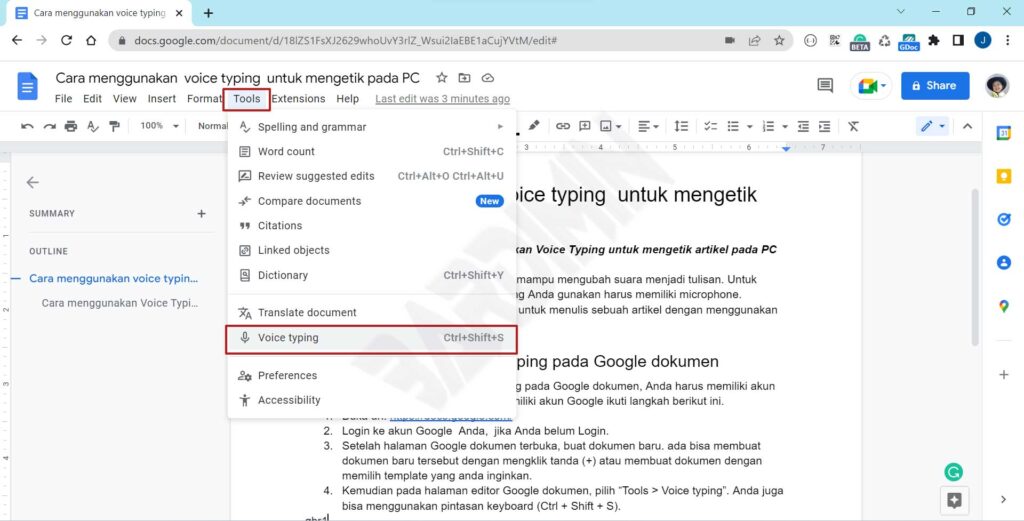
- In the editor menu, choose Tools then click Voice typing. Use Ctrl + Shift + S shortcut for quick access.
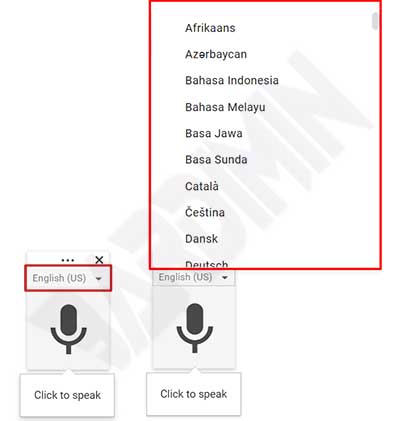
- On the microphone icon, click dropdown to select your preferred language.
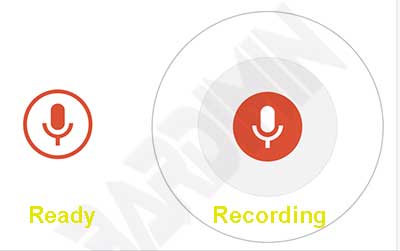
- Click the microphone icon. When it turns red with circular animation, the system is ready to record your speech.
Voice Commands and Formatting Controls
Mastering voice commands boosts voice typing efficiency. Google Docs recognizes various commands for formatting, navigation, and editing. Here are essential commands to memorize.
| Voice Command | Function |
|---|---|
| Period | Adds a period (.) |
| Comma | Adds a comma (,) |
| New paragraph | Creates new line with paragraph spacing |
| Bold | Makes selected text bold |
| Delete that | Removes last typed text |
However, command accuracy depends on pronunciation clarity. Speak at moderate pace with clear articulation. Avoid filler words like “um” or “uh”. These can disrupt transcription. Moreover, use brief pauses between sentences. This helps the system identify sentence boundaries more effectively.
Voice typing is not a replacement for manual typing. Rather, it complements your workflow and boosts productivity when applied with proper strategy.
Using Voice Typing in Microsoft Word via Windows 11
Microsoft Word lacks native voice typing feature. However, Windows 11 provides system-wide voice typing. This feature works in any application, including Word. It utilizes Microsoft online speech recognition services.
Note that Windows voice typing accuracy does not match Google Docs yet. Language support is also more limited. English delivers best results. Therefore, evaluate your language requirements before choosing this platform.
Windows 11 voice typing activation steps:
- Open Microsoft Word and create a new document.
- Place cursor in the text area you want to fill.
- Press Windows + H keys on your keyboard.

- Click the Microphone icon to start dictation. Speak clearly and the system will convert speech to text.
Accuracy Optimization and Troubleshooting
Voice typing accuracy depends on environmental factors and device configuration. Here are strategies to improve transcription quality. Also, solutions for common issues that may arise.
Optimal Microphone Configuration
Position microphone 6-8 inches from your mouth. Use pop filter if available to reduce plosive noise. Adjust input level in system settings to avoid clipping. Or keep it too low. Moreover, ensure your audio drivers stay updated.
Speaking Techniques for Best Results
Speak with consistent tempo and clear articulation. Avoid talking too fast or too slow. Use natural pauses between sentences. For technical terms or proper names, spell them phonetically if needed.
Common Issue Resolution
If voice typing does not activate, check microphone permissions in browser or operating system. Ensure stable internet connection since processing happens online. Clear browser cache if feature becomes unresponsive. For Windows, restart speech recognition service via Settings.
Pro tip for gamers: Use voice typing while streaming or creating game guides. This feature lets you note strategies without leaving gameplay. Highly practial for gaming content creators.
Conclusion and Usage Recommendations
Voice typing delivers significant efficiency for professionals, technicians, and gamers. Need for rapid text content creation gets fulfilled. Google Docs provides higher accuracy and broad language support. Meanwhile, Windows 11 voice typing suits quick dictation across various applications.
Choose platform based on language needs and work context. Always optimize microphone configuration and speaking technique for best results. With consistent practice, voice typing becomes a valuable productivity tool. Within your digital workflow.
For more information on Windows accessibility features, visit Microsoft official support page. Google Docs guidance is available at Google help center.