

Live Captions Windows 11 converts any audio into real-time subtitles, enabling users to understand spoken content without an internet connection.
Modern computing demands accessible audio processing tools. This native feature processes sound locally on your device. Therefore, sensitive data never leaves your hardware. Additionally, technicians can document complex procedures accurately. Professionals gain clarity during international conferences. Gamers comprehend voice chat without relying on headphones. The system delivers reliable transcription across all media types.
Critical Note: Your system requires version 22H2 or newer. The feature currently supports only English US audio. Update your operating system before proceeding.
How to Activate Live Captions Windows 11
The activation process follows a straightforward system workflow. Users navigate through specific settings menus. Consequently, the tool downloads required language models automatically. Follow each step precisely to avoid configuration errors.
- Press WIN + I to launch the Settings dashboard.
- Select the Accessibility category from the left sidebar.
- Click the Captions tab to reveal transcription controls.
- Locate the Live Captions toggle and switch it to the on position.
- Wait for the system prompt requesting a language model download.
- Press the Download button to begin the installation process.
- Allow the background service to extract necessary files.
- Verify the activation status once the progress indicator disappears.
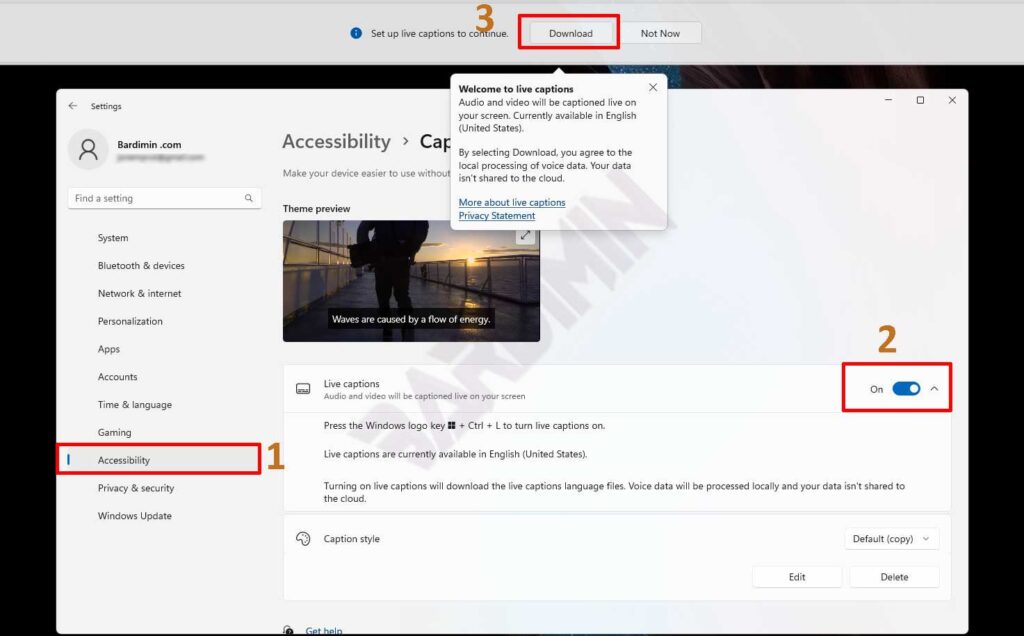
Initial setup requires a stable network conection. However, the transcription engine operates completely offline afterward. Consequently, professionals maintain full privacy during sensitive calls. Moreover, local processing eliminates cloud latency issues. You can rely on this architecture for consistent performance. The system allocates minimal CPU resources during operation.
Customizing Subtitle Appearance in Windows 11
Visual customization directly impacts reading efficiency. Users must adjust text contrast for optimal legibility. The interface provides several preset configurations. Additionally, you can construct personalized profiles for specific environments. Follow these instructions to modify the subtitl rendering engine.
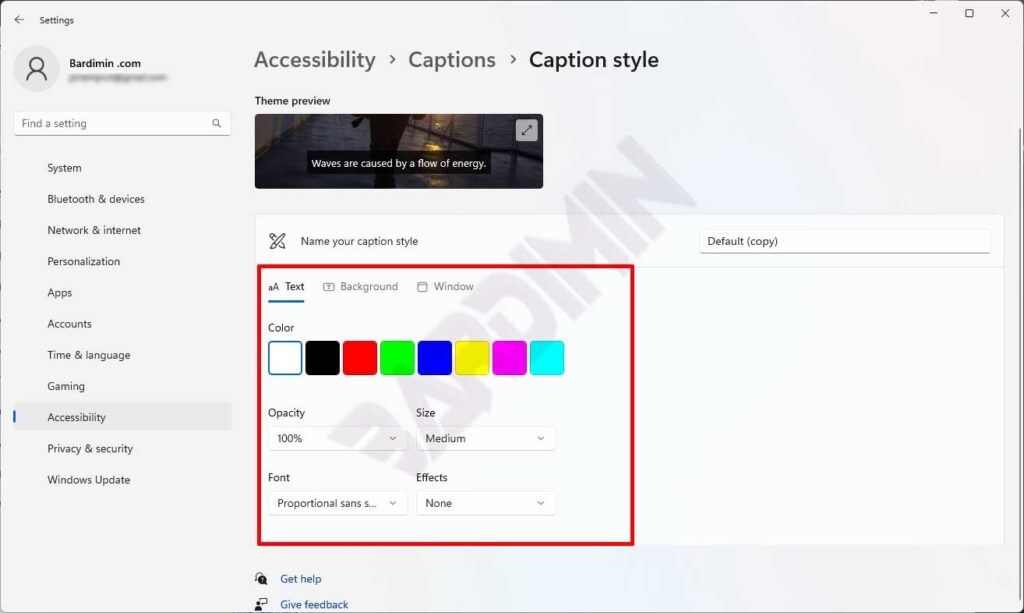
- Review the default themes including White on Black and Yellow on Blue.
- Select the Edit button to open the advanced styling panel.
- Modify the font size parameters to match your viewing distance.
- Adjust text color and opacity values for maximum readability.
- Apply subtle drop shadows to enhance contrast against dynamic backgrounds.
- Save your configuration as a custom preset for rapid switching.
Initial releases support only English US audio processing. Microsoft will expand language support through future system updates.
Operating Live Captions in Daily Workflows
Efficient deployment requires familiarity with keyboard shortcuts. Users can toggle the panel instantly during meetings. Consequently, workflow interruptions remain minimal. Master these operational steps to maximize productivity across applications.
- Press WIN + Ctrl + L to launch the transcription overlay.
- Drag the panel border to reposition the text window.
- Choose top, bottom, or floating alignment based on your layout.
- Enable the profanity filter to maintain professional communication standards.
- Select microphone input if you need to transcribe personal speech.
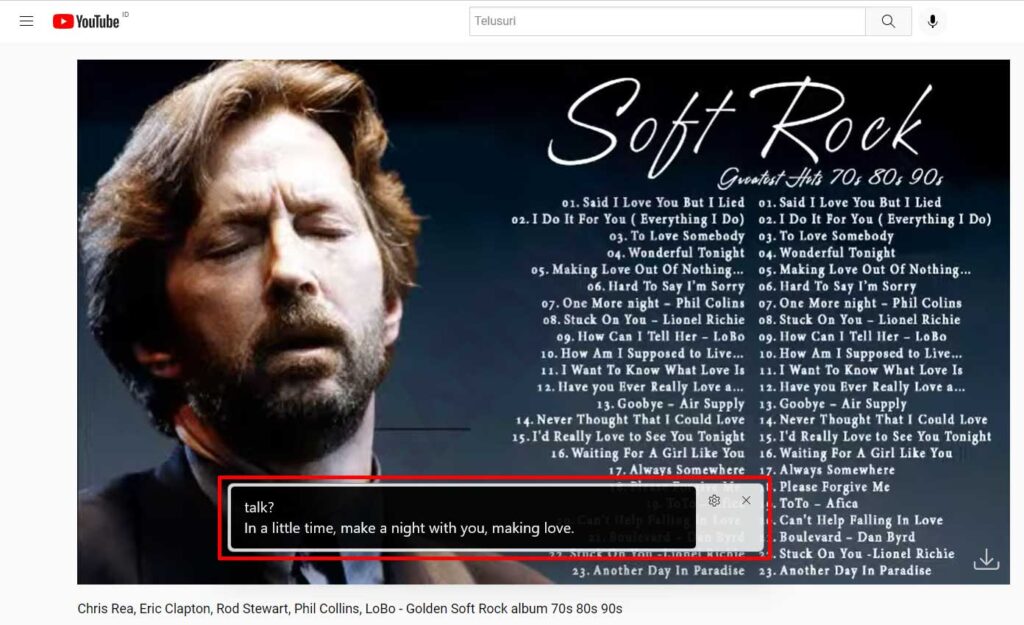
- Play any audio source and observe the automatic text generation.
- Resize the window dynamically during complex multimedia presentations.
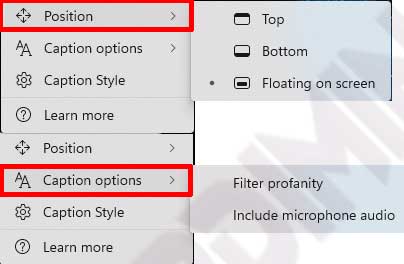
Technical Recommendation: Utilize the floating mode during multi-monitor setups. This configuration prevents interface overlap with critical software windows.
Consider a standard troubleshooting scenario. Open a technical training video. Activate the overlay immediately. The system captures dialogue through the primary audio interace. Consequently, engineers receive accurate command documentation without manual typing. This workflow significantly reduces administrative overhead.
Professional Benefits Across User Segments
Different industries leverage this tool for specific operational advantages. Corporate teams improve meeting accessibility significantly. Field technicians capture verbal instructions accurately during maintenance procedures. Competitive gamers track voice communications while monitoring system metrics. The architecture supports diverse professional requirements seamlessly.
- Inclusive Design: Supports users with auditory processing differences effectively.
- Data Sovereignty: Local processing guarantees strict privacy compliance.
- Universal Compatibility: Functions across all standard audio playback applications.
- Offline Reliability: Maintains full functionality without network dependency.
- Resource Efficiency: Optimized algorithms minimize CPU and memory overhead.
Microsoft continuously refines the underlying neural networks. Future updates will introduce broader language coverage and enhanced accuracy metrics. Therefore, administrators should enable automatic Windows Update delivery. Visit the official Microsoft support portal for technical release documentation.
This native feature represents a major accessibility advancement. Organizations gain a reliable transcription tool without third-party software. Professionals achieve higher compliance with workplace standards. The integration process remains simple and highly efficient. Enable this capability immediately to optimize your daily computing environment.
