

Windows PATH variable enables the operating system to locate executable files from Command Prompt without specifying full file paths, streamlining workflows for developers, technicians, and gamers who rely on command-line tools daily.
The PATH variable serves as a fundamental component within the Windows operating system. It maintains a list of directories where Windows searches for executable programs. When configured correctly, you can run commands like python or git from any location. This capability significantly enhances operational efficiency.
Many professional users encounter issues when tools fail to register in their terminal environment. The primary cause involves program directories missing from the PATH configuration. Therefore, developing a thorough understanding of variable management proves essential. This guide walks you through safe and effective configuration methods.
Important Notice: Modifying system variables requires Administrator privileges. Ensure you understand the implications of changes before proceeding with this procedure.
Understanding PATH Variable Structure
The PATH variable operates through a sequential search mechanism. When you enter a command in the terminal, Windows examines each directory listed in PATH. The system executes the first file matching the command name. If no match exists, an error message appears stating “not recognized”.
Each entry within PATH remains separated by semicolons. Standard format typically includes %SystemRoot%\system32. The %SystemRoot% variable generally points to C:\Windows. Utilizing such variables provides installation flexibility across diferent system configurations.
Understanding this search hierarchy matters significantly. Directories listed earlier receive higher execution priority. Consequently, if two programs share identical names but reside in diferent locations, Windows executes the first one found. Therefore, managing PATH entry order requires careful attention.
Configuration Method via Control Panel
This approach suits general users best. Changes apply permanently across the entire system. Follow these steps meticulously to avoid configuration errors.
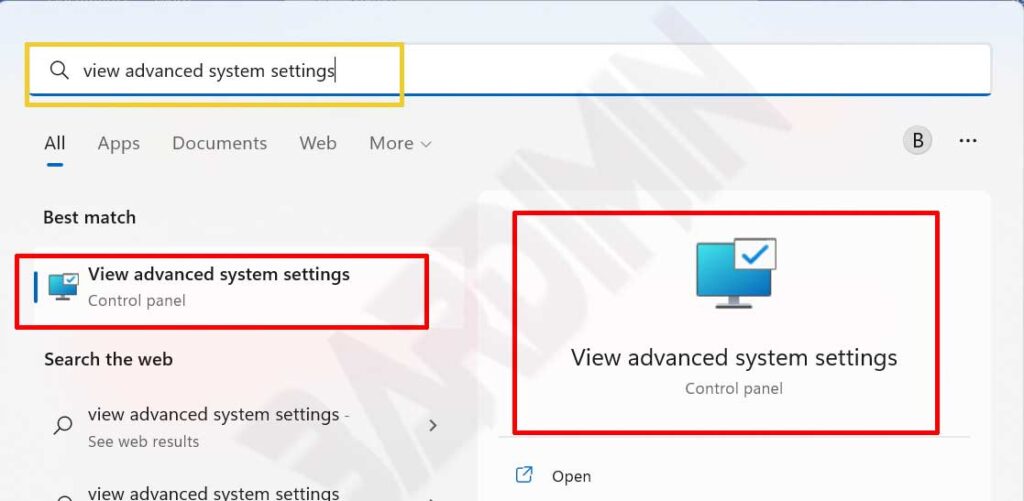
- Open the Start menu and type “view advanced system settings”. Select the appearing application to launch the System Properties window.
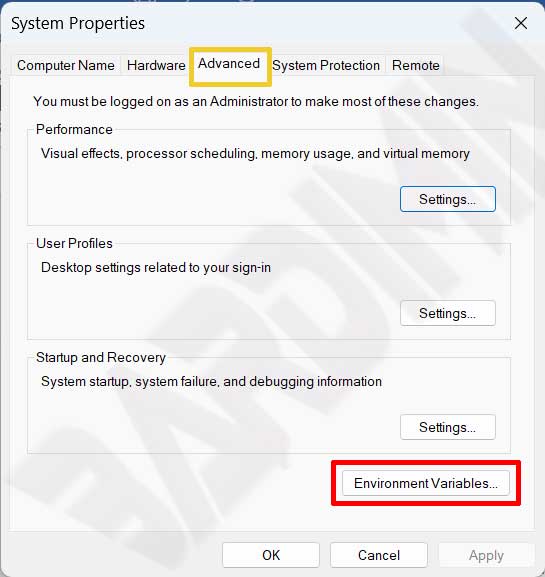
- Navigate to the “Advanced” tab. Locate the lower section of the window. Click the “Environment Variables” button to proceed with configuration.
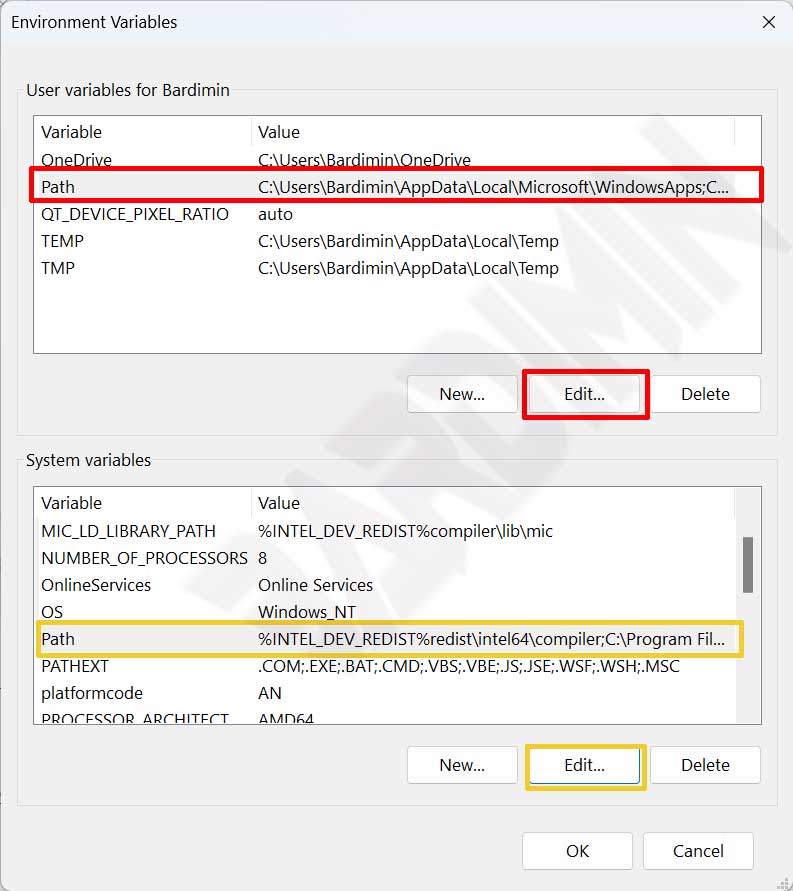
- Identify either “User variables” or “System variables” sections. Select the “Path” entry then click the “Edit” button to modify the directory list.
The key distinction involves application scope. User variables affect only the currently logged-in account. Conversely, System variables impact all users on that computer. Choose according to your specific access requirements.
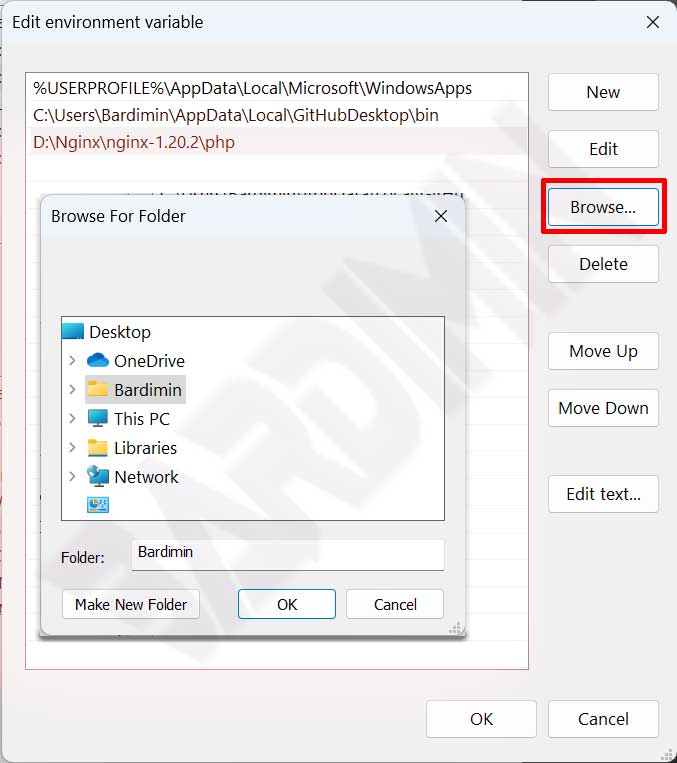
- Click the “New” button to add a fresh path entry. Navigate to the folder containing your executable (.exe) files. Click “OK” across all windows to save your modifications.
After completing configuration, test by opening a new terminal instance. Type the command that previously failed recognition. If the system now executes it properly, your PATH update succeeded.
Alternative Configuration via Command Prompt
Advanced users frequently prefer command-line methods. This approach accelerates script automation tasks. However, you must run CMD as Administrator for changes to persist permanently.
Command for User Variables
Use the setx syntax to append paths to your current user profile. This command does not require system restart to take effect.
setx path "%PATH%;C:\path\to\directory\"
Command for System Variables
Add the /M flag to apply changes at the system level. Verify you possess administrative privileges before executing this command.
setx /M path "%PATH%;C:\path\to\directory\"
Best Practices for PATH Management
Disorganized PATH settings can degrade terminal response times. Therefore, apply cleanliness principles when managing these variables. Avoid unnecessary directory entry duplication.
- Prioritize order: Place frequently accessed directories near the list top. Windows searches files sequentially from beginning to end.
- Use relative variables: Leverage
%SystemRoot%to maintain configuration validity if installation drives change. - Backup before editing: Copy original PATH values to a text file before major modifications. This simplifies recovery if errors occur.
- Verify changes: Open a fresh terminal and type
echo %PATH%to confirm new directories appear in the list.
Pro Tip: Restart terminal applications after modifying PATH. Already-running processes will not load newly updated environment variables.
Troubleshooting Common Issues
Sometimes commands remain unrecognized despite proper PATH configuration. The most frequent cause involves outdated terminal sessions not reloading variables. Additionally, syntax typing errors occur regularly.
Double-check directory paths you added previously. Ensure those folders genuinely contain the intended executable files. Apply quotation marks when paths include spaces. This prevents parsing errors within the system.
If problems persist, try running where program_name inside CMD. This command displays the executed file location. Results help verify whether the system references the correct file.
For additional references regarding environment variables, visit official Microsoft documentation or trusted resources like Computer Hope. Current information remains crucial considering ongoing operating system updates.
Summary: Mastering the Windows PATH variable grants complete control over your digital work environment. Installing new tools becomes smoother. Technician and developer productivity increases noticeably. Begin optimizing your system today.
