

Microsoft Deployment Toolkit (MDT) remains a robust automation solution for Windows deployment across enterprise networks, even after its official retirement in January 2026 and the removal of installers from Microsoft channels. This guide details the MDT configuration process—building a Deployment Share, importing WIM images, designing Task Sequences, and enforcing full automation through CustomSettings.ini and Bootstrap.ini—while providing practical workarounds for compatibility issues with the latest Windows ADK.
Maintaining operating system consistency across an organization demands a reliable, automated deployment strategy. Manual installation is no longer viable when managing hundreds or thousands of devices. Microsoft Deployment Toolkit serves as a free, flexible framework that enables technicians to perform automated Windows deployment over the network.
The toolkit supports Windows 11, Windows 10, Windows Server 2025, and earlier versions. MDT leverages the Windows Assessment and Deployment Kit (ADK) and Windows Preinstallation Environment (WinPE) to execute a sequence of installation tasks. However, a critical change occurred: Microsoft officially ended MDT support on January 6, 2026, and the installation files have been removed from the official Download Center. Existing installations still function, but there are no further updates, bug fixes, or compatibility guarantees. The official announcement can be found on the Microsoft MDT retirement page.
MDT Status as of 2026: Your existing MDT setup continues to work. However, because the installer is no longer available through official sources, organizations without an archived copy should immediately plan a migration to modern alternatives such as Windows Autopilot or Configuration Manager OSD. The open‑source PowerShell Deployment (PSD) Extension also offers a forward‑looking path.
Initial Setup and Component Installation
Before configuring MDT, you must install two core components. If you already possess the MDT 8456 installer, proceed with that file; otherwise, concentrate on the supported alternatives described below.
- Microsoft Deployment Toolkit (MDT) version 8456 – The official download link has been retired. If you do not have the installer, the most sustainable path is to adopt a still‑supported solution. For those who already hold the binary, the remainder of this guide remains fully applicable.
- Windows Assessment and Deployment Kit (ADK) for Windows 11, version 24H2 or 26H1 – Available from the official Microsoft ADK page.
- Windows PE add-on for the matching ADK – Must be installed after the ADK to enable WinPE functionality.
MDT 8456 remains functional with Windows 11 and Server 2025 when the appropriate workarounds are applied. Avoid using ADK version 1809 (Windows 10) because it lacks support for modern chipset and hardware drivers. Meanwhile, the community‑driven PowerShell Deployment (PSD) Extension rewrites MDT’s legacy VBScript logic in modern PowerShell, providing a bridge to the future. More details are available in the Friends of MDT (PSD) repository.
Preparing a Windows Image (WIM)
MDT requires a Windows image in WIM (.wim) format. You can extract this file from a DVD, an official Windows ISO, or a Microsoft volume‑licensing portal. After mounting or extracting the ISO, locate install.wim inside the \sources\ directory.
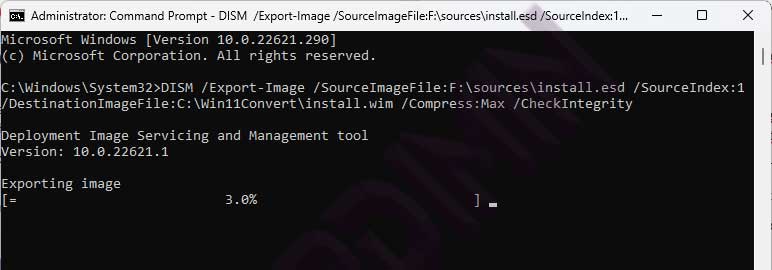
Modern images occasionally ship only an install.esd file. ESD files must be converted to WIM. Open an elevated command prompt and use the Deployment Image Servicing and Management (DISM) tool:
DISM /Get-WimInfo /WimFile:F:\sources\install.esd
The command lists available Windows editions and their index numbers. Note the desired index, then export the image:
DISM /Export-Image /SourceImageFile:F:\sources\install.esd /SourceIndex:1 /DestinationImageFile:C:\Win11Image\install.wim /Compress:Max /CheckIntegrity
Configuring Microsoft Deployment Toolkit (MDT)
With the WIM image ready, you build a Deployment Share and configure the core MDT components. The Deployment Share acts as a central repository that holds all deployment resources.
Creating a New Deployment Share
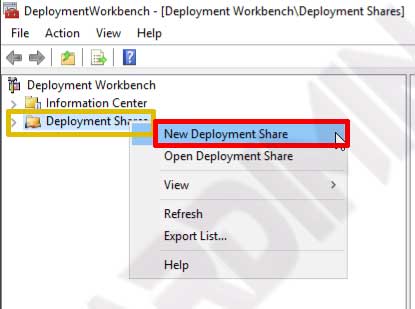
- Launch Deployment Workbench from the Start menu.
- In the left pane, right‑click Deployment Share and select New Deployment Share.
- Specify a local path (for example,
C:\DeploymentShare) and a network share name. Complete the wizard.
Importing an Operating System
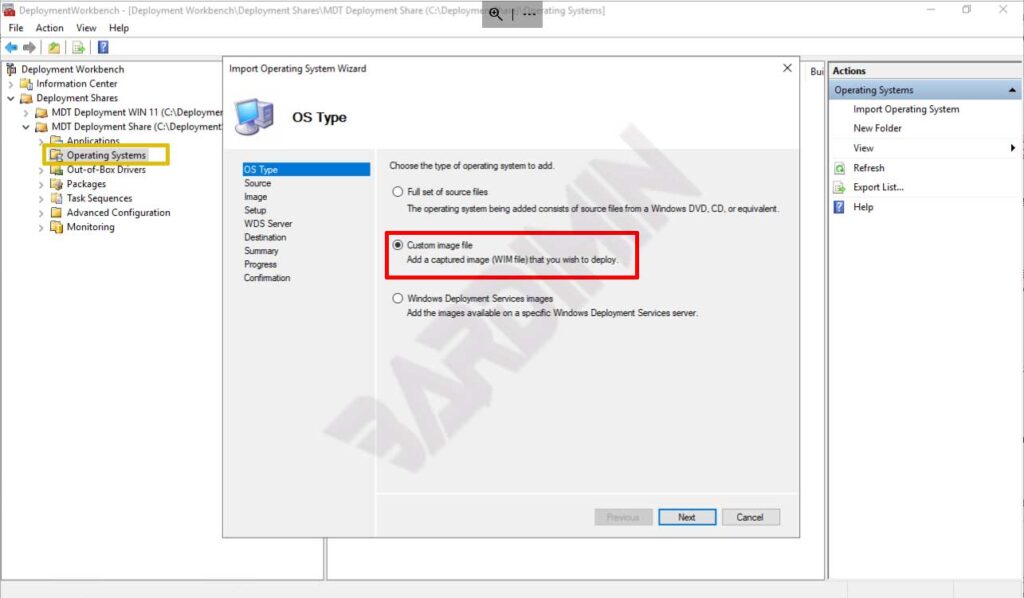
- Under your Deployment Share, right‑click Operating Systems and choose Import Operating System.
- Select Custom image file to use the WIM file you prepared.
- Browse to
install.wimand finish the import.
Adding Applications and Task Sequences
MDT can automatically install applications immediately after the operating system is deployed. Under the Applications node, add installers such as Microsoft 365, web browsers, or antivirus software. You must supply the correct silent install command line so that each application installs without user interaction.

The Task Sequence is the heart of the automation. This ordered list controls every deployment step: disk partitioning, driver injection, OS installation, and final configuration. Create a new Task Sequence by right‑clicking the Task Sequences folder and selecting New Task Sequence. The wizard guides you through choosing a template—typically Standard Client Task Sequence—and the OS image you already imported.
A carefully designed Task Sequence determines deployment success. Test each step in a lab environment before rolling it out to production.
Full Automation with Rules
The real power of MDT lies in its ability to eliminate manual intervention through the CustomSettings.ini and Bootstrap.ini configuration files. These files contain rules that control every aspect of the deployment process.
To access the rule editor, right‑click your Deployment Share, select Properties, and open the Rules tab. Here you define default values for numerous settings, including:
- SkipWizard: Bypasses welcome screens and unnecessary dialogues.
- SkipDomainMembership: Automatically joins the machine to an Active Directory domain.
- SkipTaskSequence: Executes a specific Task Sequence without displaying a menu.
- SkipAdminPassword: Sets the local administrator password automatically.
- EventService: Directs deployment logs to the MDT monitoring service.
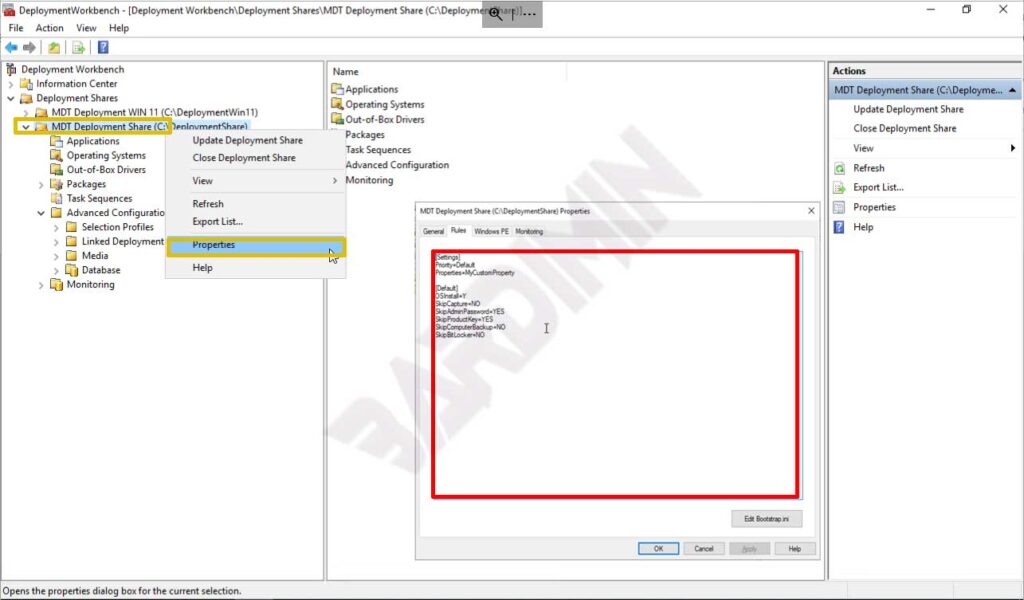
Below is a minimal rule set that automates most of the process, including a credential‑free connection to the deployment share:
[Settings]
Priority=Default
[Default]
DeployRoot=\\ServerMDT\DeploymentShare$
UserDomain=domain.lokal
UserID=DeployAccount
UserPassword=AccountPassword
SkipBDDWelcome=YES
SkipDomainMembership=YES
JoinDomain=domain.lokal
More advanced rules can set time zones, language preferences, install applications based on device model, and generate computer names from serial numbers. After modifying the rules, always run Update Deployment Share so that the new WinPE boot image incorporates all the changes.
Troubleshooting Common Compatibility Issues
Using MDT with the latest Windows ADK triggers several known issues. The two most frequent are boot image creation failures caused by the removal of WinPE x86, and errors while generating catalog files for WIM images. Apply the following solutions:
1. WinPE x86 Not Found: Beginning with ADK for Windows 11 22H2, Microsoft removed the 32‑bit WinPE folder. Older MDT versions still look for that directory structure and crash. The workaround is to manually create an empty folder at:C:\Program Files (x86)\Windows Kits\10\Assessment and Deployment Kit\Windows Preinstallation Environment\x86\WinPE_OCs2. Catalog File Failure: ADK version 24H2 and later split the Windows System Image Manager (WSIM) architecture. MDT throws an exception because it cannot find the expected component. Edit
DeploymentTools.xml in the MDT installation directory. Locate the line referencing imgmgr.exe and modify it to:<tool name="imgmgr.exe">%ADKPath%\Deployment Tools\WSIM\%RealPlatform%</tool>
These community‑sourced workarounds are documented at Deployment Research and have been validated to keep MDT operational on Windows 11 24H2. Be aware that Microsoft does not officially support this configuration. Thorough lab validation before production use is essential. One common mistake is skipping the catalog file edit, which leads to a “catalog generation failed” error that can halt the entire build process.
Alternatives and the Future of Deployment
With MDT retired and its installer unavailable, organizations must evaluate long‑term deployment strategies. Microsoft recommends two primary paths. First, Windows Autopilot is a cloud‑driven solution. New devices register directly with Azure AD (Entra ID) and Intune, then receive policies, applications, and configurations without traditional imaging. This approach excels for hybrid workforces and devices shipped straight to end users. Learn more from the official Windows Autopilot documentation.
Second, Configuration Manager Operating System Deployment (OSD) remains a fully supported on‑premises option. OSD provides granular control through task sequences and is well suited for bare‑metal installations or environments without cloud connectivity. The MDT integration with Configuration Manager was already retired on October 10, 2025. Detailed guidance is available on Microsoft Learn: OSD Introduction.
For teams that wish to preserve their MDT investment, the PowerShell Deployment (PSD) Extension rewrites the legacy VBScript engine in modern PowerShell. It serves as a transitional solution while planning a move to Autopilot or ConfigMgr. Explore the project at the Friends of MDT (PSD) GitHub repository. Regularly revisiting your deployment strategy is advisable, as the continued absence of official MDT support increases risk over time.
Conclusion: Microsoft Deployment Toolkit remains a capable tool for automating Windows installation, even in its unsupported state. By following the steps above and applying the necessary workarounds, administrators can still leverage MDT effectively. However, investing time to learn Windows Autopilot or Configuration Manager OSD is a wise strategic move for the future of your IT infrastructure.