

Maintaining optimal system speed requires regular storage management. Learn to clean hard disk Windows 11 safely using built-in tools. Remove temporary files, reclaim valuable space, and restore peak performace for professional workflows, technical diagnostics, and high-end gaming sessions.
Storage drives offer massive capacities today. Yet available space depletes rapidly. Documents, media files, and modern applications accumulate daily. Windows generates update packages, browser caches, and diagnostic logs. Consequently, professional users must manage storage actively. The built-in Disk Cleanup utility provides a reliable solution. It scans drives safely. It identifies removable files without third-party software. You avoid compatibility conflicts. You eliminate malware risks. System responsiveness improves immediately.
Why Storage Management Impacts System Performance
Near-full drives trigger serious bottlenecks. Operating systems require free space for paging files and temporary operations. Insufficient space forces Windows to throttle background tasks. Applications struggle to allocate cache buffers. Therefore, maintaining fifteen to twenty percent free capacity is essential. Professionals experience faster compilation times. Technicians run diagnostics without interruption. Gamers install large titles without failure.
“Adequate disk space directly improves boot speed, reduces latency, and prevents critical update failures.”
Gaming workloads demand substantial storage headroom. Modern titles frequently exceed fifty gigabytes. Installation processes require extra room for file extraction. Thus, routine maintainance prevents corrupted installations. Technical troubleshooting also benefits from organized drives. System logs write smoothly. Memory dumps generate correctly. Analysts isolate issues faster.
Step-by-Step Procedure for Disk Cleanup
Follow these instructions carefully. Each step preserves system integrity. Administrator privileges are mandatory. Ensure you save all active work before proceeding. Close unnecessary applications to free memory. The utility requires minimal resources during operation.
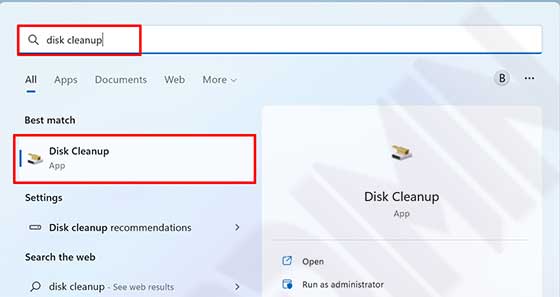
- Press the Windows key to open Start. Type disk cleanup in the search bar. Select the matching utility from the results.
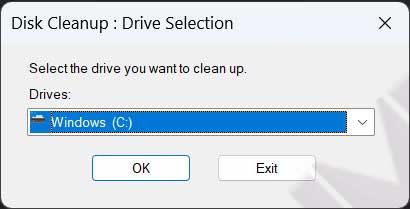
- Review the Drive Selection window that appears. Target your primary installation drive. Usually, this drive uses the C letter. Click OK to initiate the initial scan.
- Click Clean up system files to reveal advanced options. Confirm the same drive in the prompt. The system performs a deeper scan. It locates obsolete update packages and system logs.
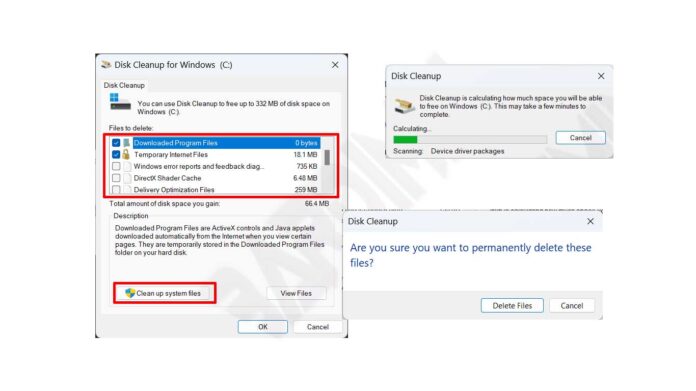
- Check boxes next to unwanted categories. Recommended selections include Temporary files, Recycle Bin, and Windows Update Cleanup. Press OK. Confirm deletion when prompted.
Critical Note: The Windows.old directory holds previous OS installations. Delete this folder only after verifying you do not need downgrade options. Removal frequently recovers tens of gigabytes instantly.
Decoding File Categories for Safe Removal
Disk Cleanup organizes removable data logically. Understanding each category prevents accidental loss. Review these standard classifications. Each entry serves a specific system function. Removing them safely requires basic technical awareness.
- Temporary Files: Applications generate these during active sessions. The system clears most automatically. Manual removal remains safe.
- Recycle Bin Contents: Deleted items reside here until permanent removal. Empty only when recovery is unnecessary.
- Windows Update Cleanup: Superseded update packages accumulate over time. Removing them frees substantial space. The system retains current versions.
- Delivery Optimization Files: These caches accelerate peer-to-peer updates. Deletion triggers fresh downloads when needed later.
- Thumbnail Cache: File Explorer stores preview images here. Windows regenerates these files automatically upon demand.
Consult official documentation for advanced drive space management techniques. Microsoft provides detailed explanations for each category. Technical teams rely on these references. Professionals verify deletion impacts regularly. This practice ensures zero data loss.
Automating Maintenance via Storage Sense
Manual scanning works reliably. Automated solutions save time. Windows 11 includes Storage Sense for this exact purpose. Configure it to run on a schedule. You eliminate repetitive tasks. The feature monitors capacity thresholds continuously. Background processes handle monitoring efficiently. The utility triggers cleanup automatically when space drops. System stability remains consistent.
Navigate to Settings. Select System. Open Storage. Toggle Storage Sense to active. Click Configure Storage Sense. Adjust deletion timelines. Set Recycle Bin cleanup after thirty days. Define Downloads folder rules. The system executes these rules silently. Refer to the official Storage Sense configration guide for detailed parameters.
Automated routines benefit busy professionals. Technicians deploy standardized profiles across workstations. Gamers configure aggressive cleanup for temporary game assets. Custom thresholds adapt to specific hardware limitations. The system learns usage patterns over time. Maintenance intervals optimize automatically.
Advanced Strategies for IT Specialists and Gamers
Experienced technicians prefer granular control. Execute cleanmgr /sageset:1 through the Run dialog. This command unlocks hidden categories. You customize deletion profiles extensively. Schedule these profiles via Task Scheduler. The system runs maintenance during idle hours. Command line tools bypass interface limitations. Scripting enables enterprise deployment. Administrators push policies through Group Policy.
Gamers benefit from dedicated storage architectures. Migrate game libraries to secondary drives. Platforms like Steam support custom library folders. This separation isolates heavy assets. The primary drive focuses on OS operations. Load times decrease noticeably. Frame pacing stabilizes. High-speed NVMe drives handle game streaming efficiently. SATA drives manage archival content cost effectively.
“Combining manual cleanup, automated sensing, and strategic drive allocation creates a resilient computing environment.”
Always secure important data before bulk deletions. Safety protocols prevent irreversible mistakes. Backup critical configurations first. Restore points offer additional insurance. Technical teams follow this standard. Gaming enthusiasts protect save files similarly. Cloud synchronization provides redundant copies. Local backups guarantee offline access. Redundancy ensures business continuity.
Mastering these procedures transforms system maintenance. You clean hard disk Windows 11 efficiently. Storage pressure disappears. Performance metrics improve significantly. Professional environments run smoothly. Technical workflows execute faster. Gaming sessions remain uninterrupted. Implement these practices immediately. Observe measurable performance gains today.
