

Changing MAC address on Windows enables network administrators to manage devices precisely, enhance privacy, and overcome access restrictions using tested technical procedures that remain safe for deployment.
MAC address serves as unique physical identity for every network adapter. Administrators often need to change MAC address Windows for device management purposes. This procedure benefits IT professionals, technicians, and gamers requiring flexible network control. This guide delivers validated technical steps for Windows 10 and 11 environments.
Understanding MAC Address Function and Characteristics
MAC address represents a 12-digit hexadecimal code embedded in network hardware. This identifier differs from dynamic IP addresses assigned by DHCP servers. MAC address remains static unless manually modified through system tools. Therefore, this address proves ideal for permanent device identification within local networks.
Changing MAC address becomes necessary when replacing faulty hardware components. Furthermore, some public networks restrict access based on registered MAC addresses. Thus, the ability to change MAC address Windows represents essential knowledge for field technicians. However, such modifications require careful security consideration beforehand.
Important notice: Modifying MAC address may violate certain network policies. Always ensure you possess proper authorization before altering settings on devices not personally owned.
Method 1: Change MAC Address via Device Manager
This method offers safest approach for Windows 10 and 11 users. The procedure requires no additional software installation. However, not all network drivers support this native feature. Therefore, verify adapter compatibility before proceeding with modification steps.
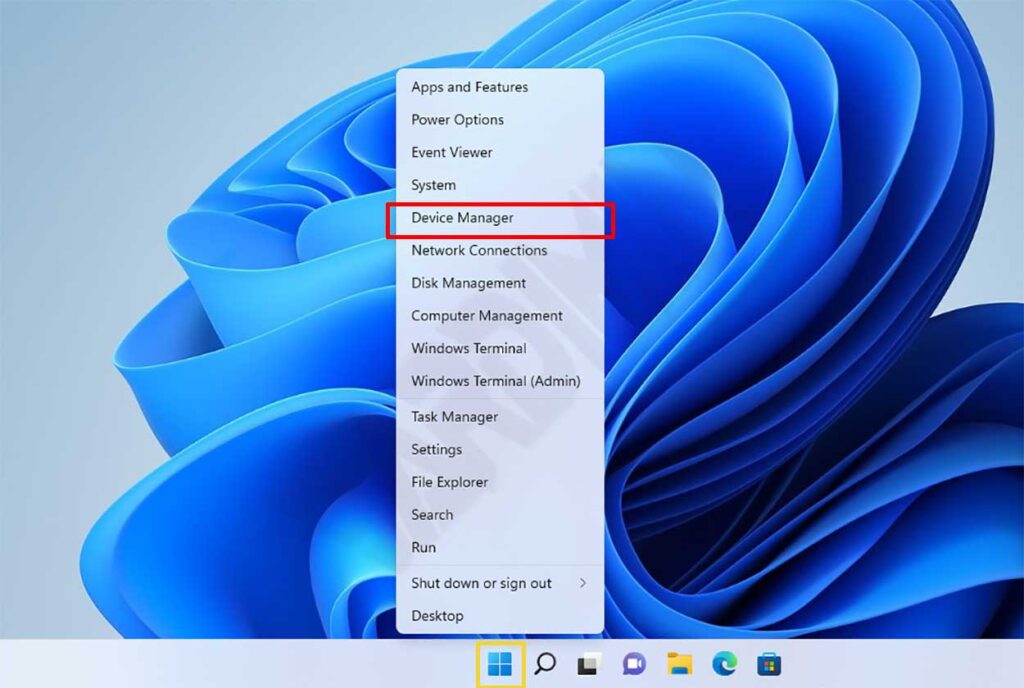
- Launch Device Manager by right-clicking the Start button.
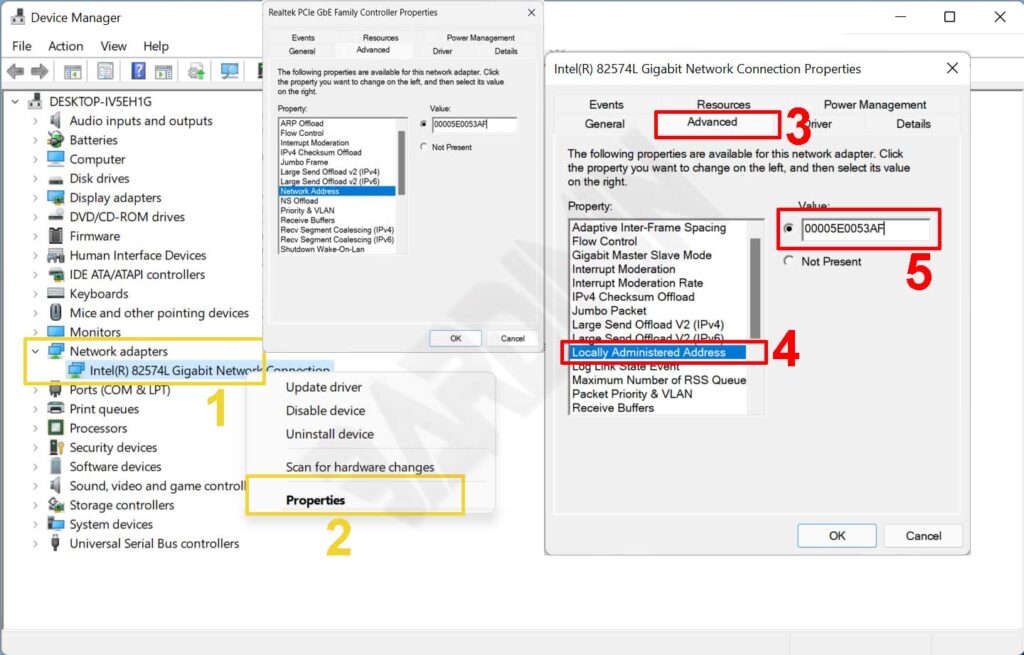
- Expand the Network adapters section to display connected devices.
- Right-click target adapter, then select Properties from context menu.
- Navigate to Advanced tab and locate Locally Administered Address option.
- Enter new 12-digit hexadecimal value in Value field without separators.
- Click OK to save changes, then restart system for activation.
Valid hexadecimal format includes digits 0-9 plus letters A-F only. Avoid special characters such as colons or hyphens during input. Incorrect formatting may cause adapter initialization failure. Therefore, double-check your code before saving any modifications permanently.
Method 2: Random MAC Address for WiFi Connections
Windows 10 version 1703 and Windows 11 include built-in privacy enhancement feature. This function randomizes MAC address during public WiFi connections. Thus, hardware-based tracking by third parties becomes significantly more dificult to accomplish.
- Open Settings using keyboard shortcut WIN + I.
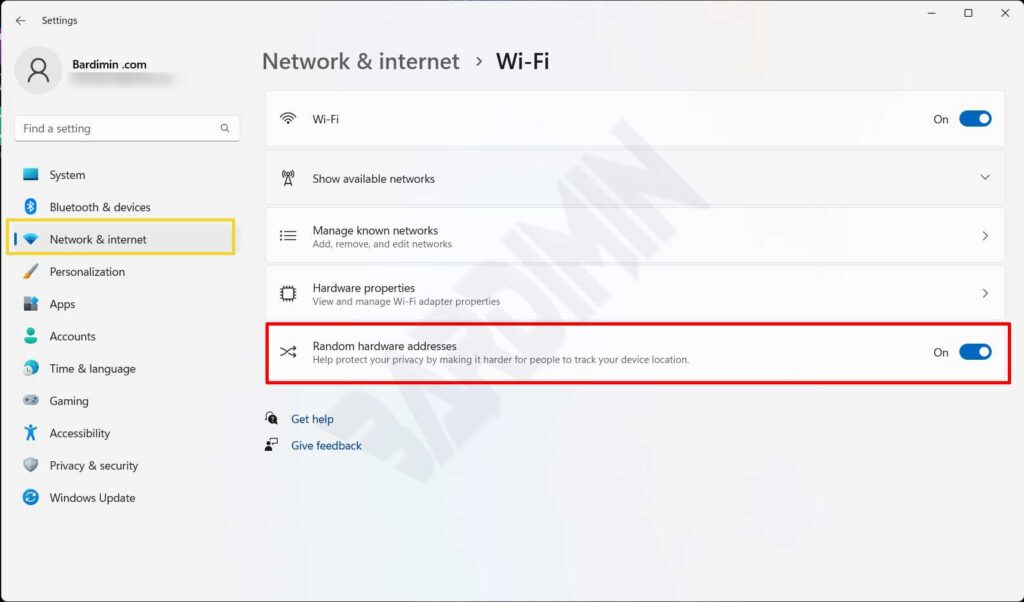
- Navigate to Network & internet > Wi-Fi menu section.
- Enable Random hardware addresses toggle for automatic privacy protection.
- For per-network configuration, select specific WiFi name then adjust MAC preferences.
However, this feature remains unavailable on certain WiFi adapters. Legacy drivers might not support randomization functionality. Besides, some enterprise networks block clients presenting randomized MAC addresses. Therefore, test connectivity thoroughly after enabling this privacy option.
Method 3: Registry Editor Modification for Advanced Users
Advanced users may modify MAC address through Windows Registry directly. This method works with drivers lacking Device Manager options. However, incorrect registry edits can compromise system stability. Therefore, create complete registry backup before attempting any modifications.
Registry steps: Launch regedit, navigate to HKEY_LOCAL_MACHINE\SYSTEM\CurrentControlSet\Control\Class\{4d36e972-e325-11ce-bfc1-08002be10318}. Locate subkey containing matching DriverDesc value for target adapter. Create new string value named NetworkAddress then input 12-digit hexadecimal MAC address.
Restart system after completing registry modification procedure. Verify changes using ipconfig /all command within Command Prompt interface. Ensure Physical Address value reflects your new input correctly. If not, restore registry to previous state immediately.
Troubleshooting Common Issues and Security Considerations
Some users report adapter detection failure after MAC modification. Common causes include invalid format entries or driver incompatibility issues. Initial solution involves restoring default settings via Device Manager. Furthermore, updating drivers to latest version often resolves compatibility problems effectively.
Network security considerations matter when you change MAC address Windows. Certain intrusion detection systems flag MAC changes as suspicious activity. Therefore, apply this technique solely for legitimate purposes like hardware replacement or isolated environment testing.
Professional recommendation: Document every MAC address change on corporate assets. This record-keeping simplifies security audits and network troubleshooting efforts in future operations.
Online gamers should exercise caution when modifying MAC addresses. Several gaming platforms utilize hardware addresses for multi-account detection. Undocumented MAC changes might trigger account sanctions unexpectedly. Thus, consult platform policies before implementing any hardware modifications.
Verification and Validation Procedures for Changes
After completing procedures, verify changes through multiple validation methods. Execute getmac /v command in Command Prompt to view active MAC addresses. Alternatively, run ipconfig /all then examine Physical Address field values. Ensure no address conflicts exist within local network environment.
For external validation, utilize tools like Wireshark for network traffic monitoring. This application displays MAC addresses at data-link layer packets. Thus, you can confirm network packets utilize your new hardware identity correctly. Document verification results for future technical reference purposes.
This change MAC address Windows procedure has been tested across various hardware configurations. However, results may vary depending on driver versions and Windows releases. Therefore, always test within non-production environments before full-scale implementation. Phased deployment approach minimizes potential network downtime risks effectively.
