

Remote Desktop on Windows 11 grayed out and unresponsive blocks critical workflows for technicians managing servers and gamers streaming resource-heavy titles to portable devices. This condition rarely demands a full system reinstall. The root causes are precise: an unsupported Home edition license, a closed fDenyTSConnections registry switch, or overly restrictive group policy mandates. With targeted adjustments to Group Policy and the Registry Editor, full RDP functionality can be restored within minutes.
Encountering a frozen “Enable Remote Desktop” toggle in the Settings app triggers immediate frustration. The feature appears tantalizingly close yet remains untouchable. For IT professionals, RDP serves as the scalpel for remote operations. For gamers, RDP, or alternative protocols built upon its framework, bridges the gap between a high-end desktop’s horsepower and a lightweight portable screen. This guide dissects the specific Windows 11 configuration layers that enforce the Remote Desktop lockout. You will not need convoluted third-party software. The primary requirements are Administrator privileges and a clear understanding of the system navigation outlined step by step below.
Troubleshooting Map: Licensing to the Registry Switch
Before altering sensitive settings, identification is key. Visualize the operating system as having three security gates for this feature. The first gate is the Windows edition. The second gate is administrative direction (Policy). The third gate is the master switch (Registry). The grayed-out option occurs when any one of these gates is closed. Understanding this hierarchy prevents wasted effort on ineffective repair attempts.
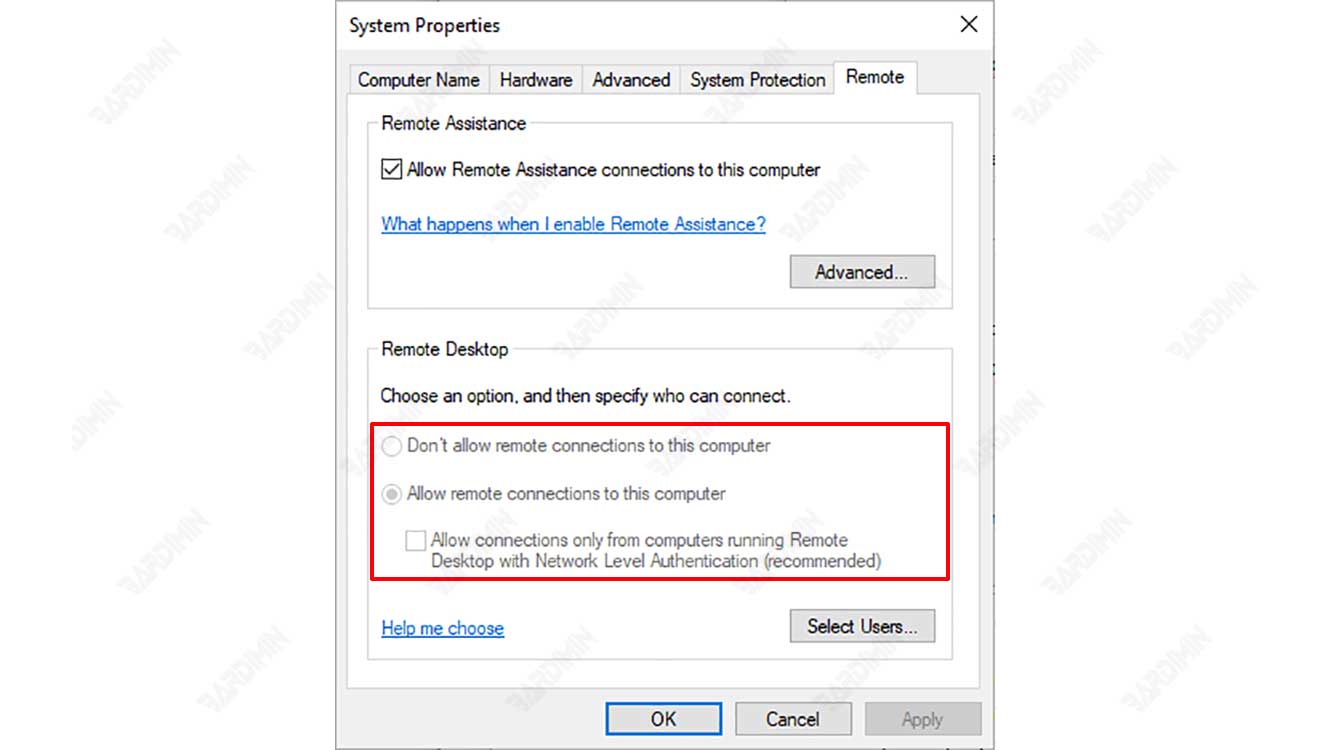
📌 Common Scenarios Encountered by the Audience:
- Gamer: Attempting to stream AAA titles from a Windows 11 Pro gaming rig to a MacBook or a Windows 11 Home tablet using an RDP client. The host PC suddenly becomes inaccessible.
- Technician: Deploying a Windows 11 Pro image. After joining a domain, the RDP option remains grayed out due to misapplied corporate security policies.
- Professional: Setting up a new laptop and unaware that Windows 11 Home lacks the native RDP host component entirely.
Detailed Technical Procedure: Unlocking RDP
Follow this guide meticulously. Each step is designed to minimize the risk of misconfiguration. If one method fails to resolve the issue, proceed to the next method in accordance with the system hierarchy.
Method 1: Verify System Package Completeness
The first step is ensuring you are not taking a race car off-roading. Windows 11 Home lacks the Terminal Services server component required to function as an RDP host. If you are on the Home edition, neither Registry Editor nor Group Policy will provide a solution.
- Right-click Start and select System.
- Check the line labeled Edition.
🔍 If Windows 11 Home is listed: The most logical solution for high technical demands is an upgrade to Pro (via Microsoft Store > Upgrade). Alternatively, consider third-party alternatives optimized for graphics and latency, such as Parsec or Moonlight (if an NVIDIA GPU is present).
If Pro/Enterprise/Education is listed: Proceed to Method 2.
Method 2: Group Policy Intervention (Fastest Route)
This method is highly effective for technicians managing computers within a domain network. Group Policy acts as a central command that overrides the toggle in the Settings app. Modifying it will immediately unlock the interface.
- Press Windows + R, type
gpedit.msc, and press OK. - In the left pane, expand the directory tree gradually:
Computer Configuration➔Administrative Templates➔Windows Components➔Remote Desktop Services➔Remote Desktop Session Host➔Connections. - In the right pane, locate the policy named: “Allow users to connect remotely by using Remote Desktop Services”.
- Double-click the policy. Select Enabled.
- Click Apply then OK.
If the option is already “Not Configured” but the toggle remains gray, select “Enabled”, click Apply, then revert back to “Not Configured”. This trick often forces a registry refresh.
Field Technician Tip
Now, revisit Settings ➔ System ➔ Remote Desktop. The toggle should be movable without requiring a system restart.
Method 3: Surgical Touch on the Registry
If Group Policy is unavailable (for example, on a standalone Windows 11 Pro machine) or ineffective, target the nerve center of Windows directly. The registry key fDenyTSConnections is the final determinant of whether this computer will service incoming connection requests. Its value is strictly binary: 0 opens the door, 1 seals it shut.
⚙️ Registry Execution Steps:
- Open Registry Editor by typing
regeditin the Run dialog (Windows + R). - Copy and paste the following path into the top navigation bar for accuracy:
HKEY_LOCAL_MACHINE\SYSTEM\CurrentControlSet\Control\Terminal Server - In the right pane, locate the entry named fDenyTSConnections (type REG_DWORD).
- Double-click it and change the Value data to 0.
- Click OK.
Important Note for Gamers: Changing this value to 0 not only activates the toggle but also opens port 3389. Ensure that Windows Defender Firewall is properly configured to prevent unauthorized access from public networks.
Method 4: Reviving the Service Engine
The toggle is no longer gray, but connections consistently fail? Or is the option still gray after the previous three methods? The heart of RDP, the TermService service, may be in a dormant state. This service is occasionally disabled by aggressive system “optimizer” utilities.
- Press Windows + R, type
services.msc. - Locate the service named Remote Desktop Services.
- Ensure the Status column shows Running. If blank, right-click and select Start.
- Right-click again, select Properties. Change Startup type to Manual. This setting allows Windows to invoke the service only when RDP is activly enabled.
Advanced Tuning for Remote Gaming Experience
Once the issue of Remote Desktop grayed out is resolved, the connection session may still not be smooth for gaming. Native Windows RDP excels at text rendering and office interfaces but is not inherently designed for 60 FPS rendering. Below are final adjustments to maximize bandwidth and reduce stutter:
- Disable High-Level Encryption (Local Network Only): Navigate to Group Policy ➔
Computer Configuration\Administrative Templates\Windows Components\Remote Desktop Services\Remote Desktop Session Host\Security. Enable “Set encryption level” and select “Low” or “Client Compatible”. This reduces CPU overhead during frame encoding. - Enable RemoteFX (If GPU Supported): This is the key to hardware acceleration within an RDP session. Ensure the latest graphics drivers are installed.
- Network Optimization: Verify that port 3389 is open in any specialized firewall. Use a wired connection whenever possible to avoid WiFi signal interference.
💡 Recommendation for Gamers: If the primary need is low-latency game streaming, consider layering Parsec or Moonlight on top of the enabled RDP connection. Their protocols are specifically optimized for higher frame rates and more adaptive image compression compared to standard RDP.
Conclusion and Verification
The key to fixing a grayed-out RDP option lies in a systematic, phased approach. Start by verifying the Windows edition, intervene in Group Policy, and execute commands in the Registry Editor. By applying this guide, you will no longer face uncertainty when encountering a locked Remote Desktop menu.
Always create a System Restore Point before modifying the Registry Editor. This is a professional safety net that should never be overlooked.
Administrator Best Practice
Immediately after the toggle becomes active, perform a connection test from another device on the same local network. This verifies that there is no blocking occurring at the firewall level. With RDP fully restored, remote work productivity and gaming enjoyment from any location can resume without meaningful interruption. For technicians, mastery of these corrective steps is a high-value asset that distinguishes a general technician from a reliable systems expert.
