

Windows Server Update Services centralizes Microsoft patch distribution, reduces network bandwidth consumption, and accelerates software deployment across enterprise environments.
Managing system patches requires precision and control. Windows Server Update Services provides a reliable framework for enterprise environments. IT professionals deploy this solution to manage hundreds of endpoints efficiently. Large operating system updates often exceed several gigabytes in size. Downloading these files individually consumes excessive internet bandwidth. A centralized architecture resolves this bottleneck effectively.
Key Fact: Microsoft continues supporting WSUS through Windows Server 2025. The platform remains essential for on-premises patch management strategies.
Hardware specifications dictate deployment success. Processors must deliver at least four cores running at two gigahertz. Memory allocations should exceed eight gigabytes for production workloads. Solid state drives require two hundred gigabytes of free space. This capacity accommodates cached update files comfortably. Network infrastructure demands strict firewall configurations. Outbound traffic must pass through ports eighty and four hundred forty-three. Administrators must whitelist Microsoft update domains explicitly. Multi-site organizations benefit from hierarchical deployment models. Upstream servers connect directly to Microsoft endpoints. Downstream nodes synchronize with internal upstream servers. This topology minimizes external internet dependency significantly.
Installation Procedure for WSUS
- Launch Server Manager from the administrative dashboard.
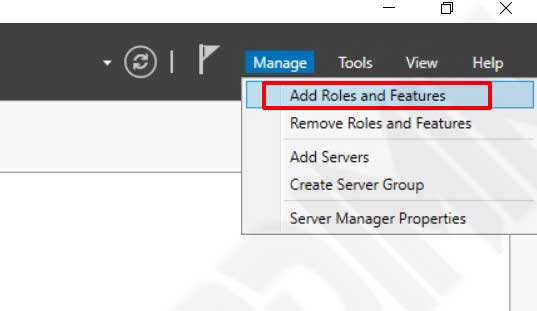
- Navigate to Manage and select Add Roles and Features.
- Advance through the wizard until reaching the Server Roles section.
- Select Windows Server Update Services and confirm feature dependencies.
- Review the Role Services page and maintain default selections.
- Specify a dedicated storage path for update content files.
- Initiate the installation and monitor the progress indicator.
Post-installation tasks require immediate attention. Click Launch Post-Installation tasks in the summary window. This process initializes the internal database structure. The system creates necessary directory hierarchies automatically. Wait for the configuarion routine to complete fully. The server will restart automatically if core components change. Database initialization often consumes significant CPU cycles. Allow the background process to finish without interruption.
Initial Configuration Steps
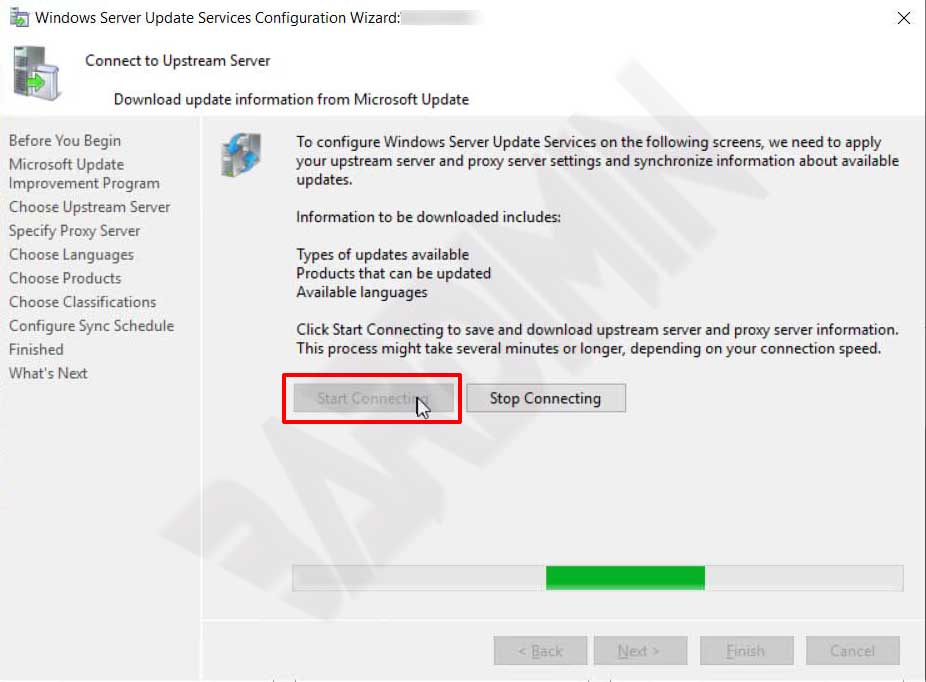
The configuration wizard guides administrators through essential settings. Access the console via Tools > Windows Server Update Services. The setup wizard launches automatically during initial access. Review the introductory information carefully. Click Next to proceed to the improvement program selection. Opt out of telemetry collection based on corporate policy. Maintain the default upstream server synchronization option. Configure proxy credentials only if your network requires authentication. Initiate the connection test to validate upstream reachability. The system verifies certificate validity automatically.
- Review the introductory screen and advance.
- Select telemetry participation preferences.
- Confirm Microsoft Update synchronization settings.
- Enter proxy credentials if required.
- Execute the upstream connection validation test.
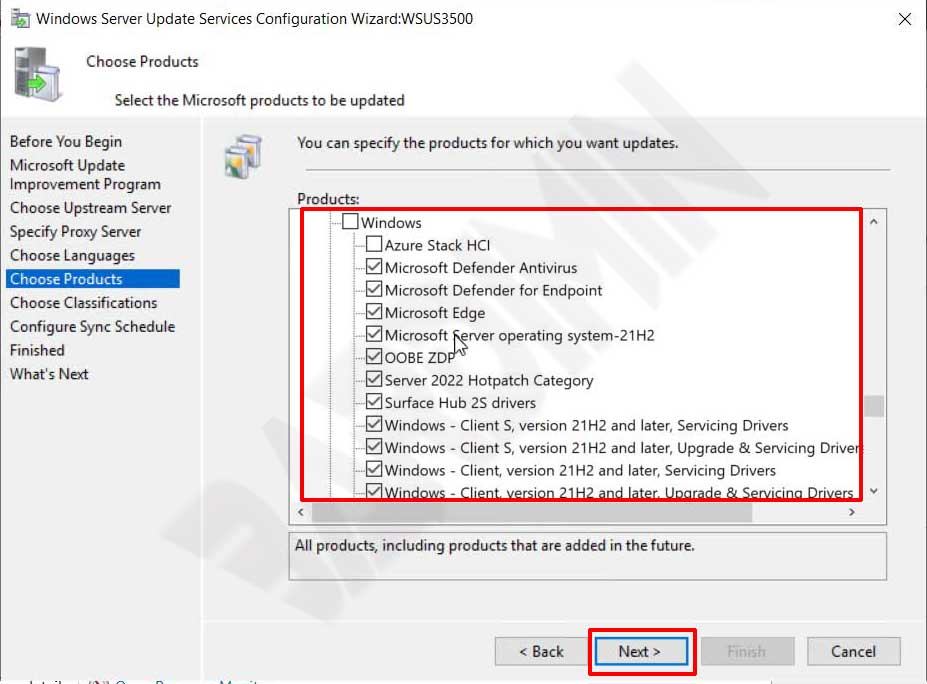
Language selection impacts storage requirements significantly. Download only locales actively deployed across your network. This restriction reduces disk consumption by approximately seventy percent. However, exclude critical regional languages at your own risk. Product and classification filtering determines operational efficiency. Select only software versions actively running on client machines. Prioritize critical patches and security definitions. Exclude driver packages and optional feature packs unless explicitly required. Automated synchronization schedules prevent manual intervention. Configure daily sync cycles during off-peak hours. Four daily synchronizations ensure rapid patch availability. Microsoft provides official guidance for advanced filtering strategies.
Best practice: Schedule automatic synchronizations during off-peak hours. Configure four daily sync cycles to ensure critical updates deploy with minimal latency.
TLS Security Implementation
Encrypted update delivery prevents network tampering. WSUS fully supports TLS for metadata and payload protection. Secure connections block malicious interceptors effectively. Obtain a valid SSL certificate before proceeding. Internal certificate authorities work perfectly for this purpose. Ensure the certificate matches the fully qualified domain name. Install the root certificate into the local trusted store. Configure Internet Information Services to enforce HTTPS. Secure virtual directories like SimpleAuthWebService immediately. Execute the wsusutil configuressl command to finalize bindings. Verify endpoint accessibility using a browser before client deployment. Microsoft details IIS binding procedures in official documentation.
Client Configuration via Group Policy
Group Policy delivers centralized configuration parameters. Open the Group Policy Management Console. Create a dedicated policy object for update settings. Link the policy to the appropriate organizational unit. Navigate to Computer Configuration > Administrative Templates > Windows Components > Windows Update for legacy systems. Enable the intranet service location policy. Enter the secure server URL in both configuration fields.
Windows 10 and Earlier
Administrators must configure the standard intranet location policy. The path remains consistent across Windows 10 builds. Apply the HTTPS endpoint address accurately. Verify policy application using the gpresult command. Client machines query the server every twenty-two hours by default. Reduce this interval through registry modifications if necessary.

Windows 11
Windows 11 introduces an additional policy node. Navigate to Manage updates offered from Windows Server Update Service first. Locate the intranet location setting within this new structure. The configuration syntax remains identical to previous versions. Microsoft streamlined the policy hierarchy for clarity. Adminisrator accounts require domain rights to apply these settings. Test policy inheritance before mass deployment.

Automatic update behavior requires explicit definition. Select the Auto download and schedule the install option. This setting balances automation with administrative control. Schedule installation windows outside core business hours. Client machines will query the server immediately after policy application. Execute gpupdate /force to accelerate replication. Monitor the Windows Update event log for confirmation. New clients appear in the console within twenty minutes. Regular detection cycles maintain compliance automatically. Bandwith consumption drops significantly after initial synchronization.

Maintenance and Performance Optimization
System performance degrades without routine maintenance. Decline superseded updates immediately. This action reduces database bloat significantly. Execute the Server Cleanup Wizard monthly. Remove orphaned content files from storage volumes. Consult official Microsoft documentation for advanced cleanup scripts. Database backend selection impacts long-term stability. Windows Internal Database suits small deployments efficiently. Migrate to SQL Server Express for enterprise scale. Custom indexing improves query response times dramatically. Rebuild indexes during maintenance windows.
Application pool tuning prevents unexpected recycling. Adjust the WSUSPool memory limits to unlimited. Increase the queue length to two thousand connections. These modifications accommodate large client fleets effectively. Enable XPress compression for metadata transmission. This feature reduces bandwidth consumption by sixty percent. Execute the provided compression script carefully. Monitor CPU utilization after enabling compression. Balance network savings against processor overhead. IIS optimization guides explain compression thresholds clearly.
Critical Note: Antivirus scanning of update directories causes severe performance degradation. Exclude the WSUS content path from all real-time protection modules immediately.
Proactive monitoring guarantees long-term stability. Automate synchronization reports using PowerShell. Configure email alerts for failed download events. Track database index fragmentation regularly. Rebuild indexes monthly to maintain query performance. Leverage built-in reporting tools for compliance verification. Review client health metrics weekly. Identify machines failing detection cycles promptly. Remote troubleshooting resolves connectivity issues rapidly. Document all customizations for future reference. Standardized procedures simplify disaster recovery operations. Automated patch approval workflows reduce administrative overhead. Create approval rules based on classification types. Route critical updates to testing groups first. Validate compatibility before broad deployment. This workflow prevents production environment disruptions.
Centralized patch management delivers measurable operational advantages. Windows Server Update Services reduces external bandwidth dependency. IT teams gain precise control over deployment windows. Security compliance improves through standardized update distribution. Implement these configurations carefully for maximum reliability. Enterprise networks benefit from predictable maintenance cycles. Proper configuration ensures long-term infrastructure stability. Technical staff can resolve client issues efficiently. Network traffic patterns stabilize after initial sync. Storage consumption remains predictable with strict filtering. Deploy updates confidently using established best practices.