

TCP UDP ports Windows 11 form the foundation of network connectivity enabling service multiplexing. This guide explains port classification, Resource Monitor techniques, and best practices for professionals, technicians, and gamers to manage connections securely and eficiently.
TCP and UDP protocols operate independently within the network stack. Ports enable multiple devices to connect to a single node through connection multiplexing mechanisms. The TCP stack interprets TCP ports while the UDP stack handles UDP ports separately.
Higher-level applications can use identical or different TCP and UDP port numbers. A single computer can communicate with two distinct services simultaneously using the same port number across different protocols. Web servers typically bind to TCP port 80 for standard HTTP trafic.
Key note: TCP and UDP ports sharing the same number remain unrelated. They function independently both technically and operationy.
TCP UDP Port Classification Based on IANA Standards
The Internet Assigned Numbers Authority or IANA manages global port allocation. Port registration follows strict procedures to prevent network service conflicts. Dividing port ranges simplifies infrastructure management and security for your systems.
Ports 0 to 1023: Well-Known Ports
This range contains the most common and recognized ports in networking. IANA assigns these ports to standard server services used universally. Port 80 serves HTTP, port 443 handles HTTPS, and port 22 manages secure SSH connections.
Using these ports requires administrator privileges on modern operating systems. This policy prevents unauthorized applications from binding to critical ports. Services like DNS on port 53, SMTP on port 25, and FTP on port 21 operate within this range.
Securing well-known ports becomes a top priority in enterprise firewall configuration. Ensure only trusted services bind to these ports. Regular audits help detect unauthorized or suspicious port binding attempts.
Ports 1024 to 49151: Registered Ports
Organizations can register ports in this range for their specialized services. Application developers often use registered ports for standardized client-server communication. Popular examples include port 3306 for MySQL database connections.
Port 8080 frequently serves as an alternative HTTP proxy or development server. Registering ports prevents conflicts with other applications on the same network. However, using these ports does not require IANA approval for internal deployments.
Verify port availability before implementing new services. Use netstat commands or Resource Monitor to check already occupied ports. Documenting internal port usage simplifies future troubleshooting efforts.
Ports 49152 to 65535: Dynamic Private Ports
This range remains available for client programs like web browsers and desktop applications. When you visit a website, your browser assigns a session port from this dynamic range. These ports function temporarily for the connection duration only.
Developers can freely use these ports for ephemeral or temporary connections. Dynamic ports reduce conflict risks because the operating system allocates them automatically. This mechanism enables hundreds of simultaneous connections without interference.
However, monitoring dynamic ports remains crucial for detecting suspicious activity. Malware often exploits dynamic ports for command-and-control communications. Therefore, watch for unusual connection patterns within this port range.
Dynamic ports enable simultaneous connections without conflicts. However, monitor their usage for optimal security and early threat detection.
Monitoring TCP UDP Ports on Windows 11 Using Resource Monitor
Windows 11 provides built-in utilities for real-time port monitoring. Resource Monitor enables supervision of processes and applications using network ports. This feature proves essential for connectivity troubleshooting and system performance optimization.
Resource Monitor displays network data in a structured, readable format. You can identify applications consuming excessive bandwidth. Moreover, this tool helps detect unauthorized connections running in the background.
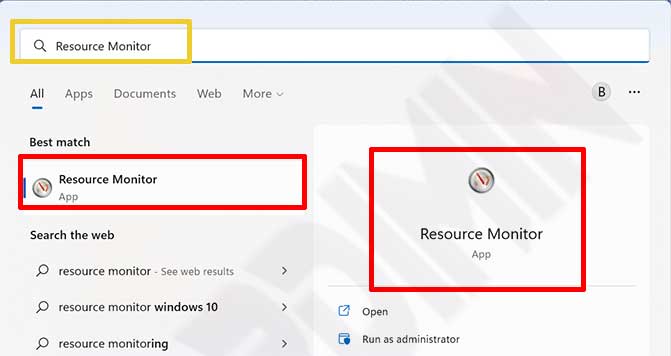
- Launch Resource Monitor. Click the Start button on the Windows 11 Taskbar. Type “resource monitor” in the search box without quotation marks. Select the Resource Monitor application from the displayed results.
- Wait for the application to load system data. This process takes a few seconds depending on current system load.
- Within the open application window, click the Network tab at the top. This tab displays all network activity in real-time.
- In the lower panel, locate and click “Listening Ports” to expand details. This section shows all ports awaiting incoming connections.
- Observe the “Image” column to see application names using specific ports. The Address column displays local and remote IP addresses involved in connections.
- The Port column shows used port numbers while Protocol indicates TCP or UDP. Firewall Status reveals whether Windows Firewall allows or blocks the connection.
- Right-click any port entry to view additional options. You can terminate the associated process or open the executable file location.
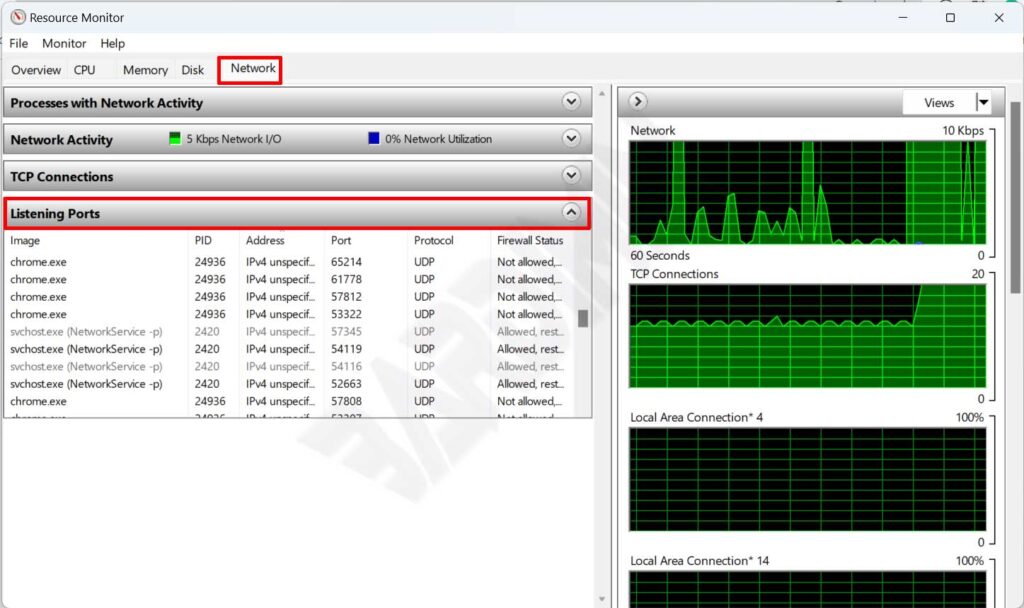
From this view you can identify applications using ports in the “Image” column. You also gain complete information from Address, Port, Protocol and Firewall Status fields. Filter data by port number to focus on specific services you want to analyze.
Resource Monitor also displays real-time network activity graphs in the upper panel. Monitor throughput, active TCP connections, and listening ports visually and interactively. This feature helps identify network performance bottlenecks quickly and accurately.
Best Practices for Port Management and Network Security
Monitoring TCP UDP ports on Windows 11 serves purposes beyond connectivity troubleshooting. Proactive port management practices significantly enhance system security and stability. Here are practical recommendations for IT professionals, technicians, and gamers.
- Audit open ports regularly using Resource Monitor or PowerShell. Schedule weekly checks for production systems.
- Block unnecessary ports through Windows Firewall to reduce attack surface. The least privilege principle applies to port configuration.
- Use non-standard ports for internal services to avoid automatic scanning by malicious bots.
- Monitor dynamic ports to detect malware using ephemeral connections for C2 communication.
- Document all ports used by internal applications in team wikis or ticketing systems.
Gamers should pay attention to port configuration for optimal multiplayer gaming experience. Online games often use UDP ports for low latency and high throughput. Ensure game ports remain unblocked by firewall for stable server connections.
However, limit port exposure to trusted and verified applications only. Do not open ports permanently for temporary gaming sessions. Use router Port Forwarding features wisely and disable them after playing.
Security tip: Disable unused listening ports. Every open port potentially becomes an attack vector if not properly patched.
For network technicians, documenting port usage simplifies troubleshooting and team handovers. Record ports used by internal and external applications in structured formats. Use official sources like the IANA Port Registry to verify standard port allocations.
Resource Monitor alternatives include PowerShell cmdlets Get-NetTCPConnection and Get-NetUDPEndpoint. These commands provide structured output suitable for automated scripting and programmatic monitoring. However, Resource Monitor remains more intuitive for quick visual analysis without scripting.
You can also use Command Prompt with the netstat -ano command for quick port listings. Output displays process IDs traceable in Task Manager. Combining built-in Windows tools offers flexibility matching your technical requirements.
Consistently monitoring TCP UDP ports on Windows 11 prevents service conflicts and security breaches. Therefore, integrate port checks into routine system maintenance schedules. Moreover, educate teams about port management importance to build proactive security cultures.
Conclusion: Understanding TCP UDP ports on Windows 11 proves essential for effective network management. Use Resource Monitor for accurate real-time monitoring. Apply port security practices to protect infrastructure from modern threats. Consistency in monitoring and documentation becomes the key to long-term system stability.