

You can change the Windows 11 taskbar date format from short date to long date (e.g., Friday, 08 April 2026) via Region settings or PowerShell. This technical guide suits professionals, IT technicians, and gamers who need full date information without hovering.
Windows 11 shows only a short date format on the taskbar’s bottom-right corner by default, such as “08/04/2026” or “4/8/2026”. To see the full weekday and month name, most users hover over the date area and wait a few seconds for a tooltip to appear. This method wastes time, especially for professionals tracking cross-team meeting deadlines, technicians recording system event log timestamps, or gamers who want accurate timestamps on screen recordings. Therefore, permanently changing the taskbar date format to a full display is a practical solution. This article provides step-by-step technical instructions, use cases, and troubleshooting methods.
According to a 2023 usability study by the Nielsen Norman Group, direct access to weekday and date information without extra interaction reduces scheduling errors by up to 22% in high-pressure work environments.
Why Full Date Format Boosts Work Efficiency
Displaying the weekday, day, month, and year fully on the taskbar offers measurable advantages. First, professionals working with project deadlines can instantly see the day without opening Outlook or Google Calendar. This saves an average of 3–5 seconds per glance, which accumulates to over 30 minutes of productive time monthly. Second, IT technicians debugging or analyzing Windows event logs can easily match timestamps because the dddd, dd MMMM yyyy format aligns with common incident report formats. Third, gamers who record gameplay using OBS Studio or NVIDIA ShadowPlay can ensure automatic screenshot filenames include complete date information, simplifying archiving.
Additionally, users with mild memory issues or numeric dyslexia benefit because they don’t need to recall or guess the day from numeric dates alone. With the format Friday, 08 April 2026, visual information is processed directly by the brain without cognitive conversion.
Method 1: Change via Region Control Panel (Most Common)
This method uses the built-in Windows graphical interface and does not require administrator rights. It is ideal for individual users who want full control without scripting.
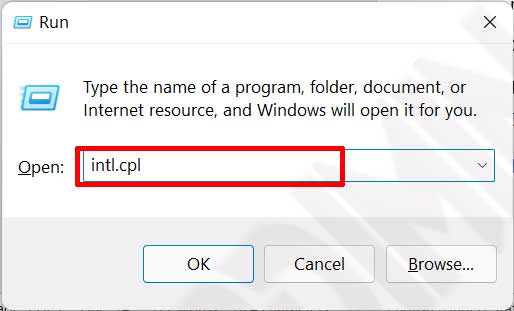
- Press Win + R to open the Run dialog. Type intl.cpl then click OK or press Enter. This command directly opens the Region panel without manually navigating Control Panel.
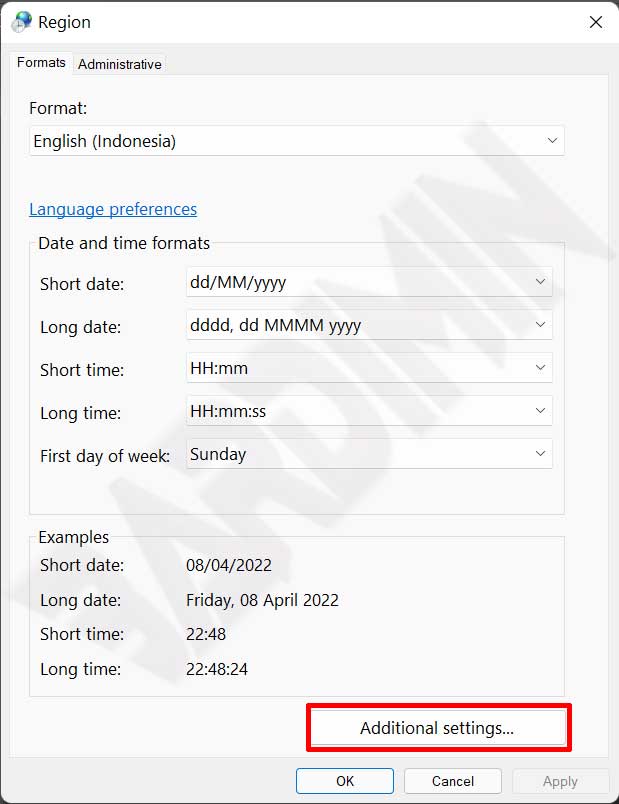
- In the Region window, ensure the Formats tab is active. Click the Additional settings button at the bottom. This button is often overlooked but is the gateway to detailed customization of number, currency, and date formats.
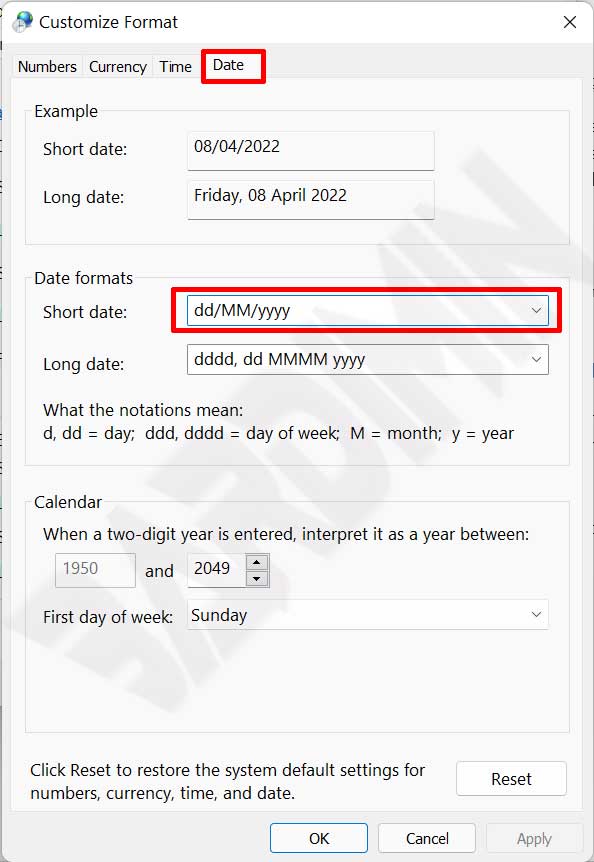
- The Customize Format window appears. Select the Date tab. In the Short date field, change the value to your desired format code. For the most complete and informative display, use: dddd, dd MMMM yyyy. After finishing, click OK on both windows (Customize Format and Region).
Quick reference for date format codes:
• d = Day without leading zero (8)
• dd = Two-digit day (08)
• ddd = Three-letter weekday abbreviation (Fri)
• dddd = Full weekday name (Friday)
• M = Month without leading zero (4)
• MM = Two-digit month (04)
• MMM = Three-letter month abbreviation (Apr)
• MMMM = Full month name (April)
• yy = Two-digit year (26)
• yyyy = Four-digit year (2026)
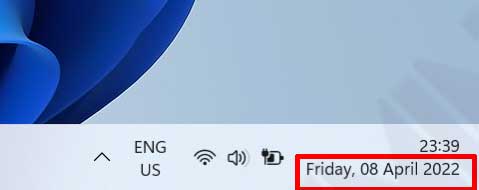
- The change takes effect immediately on the taskbar without restarting your computer. However, if the taskbar does not respond, proceed to the troubleshooting section below.
Method 2: Using PowerShell for Technicians and Mass Deployment
For technicians managing dozens or thousands of devices, manual clicking on each computer is inefficient. PowerShell provides a scripting method that can run locally or via Group Policy. Steps:
- Open PowerShell as Administrator (right-click Start menu, select Windows Terminal (Admin)).
- Run the following command to change the short date to long format:
Set-ItemProperty -Path "HKCU:\Control Panel\International" -Name "sShortDate" -Value "dddd, dd MMMM yyyy"This command directly modifies the current user’s registry. To make the effect visible without logging off or rebooting, you need to restart the Windows Explorer process:
Stop-Process -Name explorer -ForceWindows will automatically restart Explorer. This method is very useful for deployment through GPO (Group Policy Object) in Active Directory environments or using SCCM (Microsoft Endpoint Configuration Manager). You can also create a logon script that applies a uniform date format for all users within a domain.
Critical Info: Changing the date format via registry only affects the HKCU (Current User) hive. To apply for all new users who log in, modify HKU\.DEFAULT\Control Panel\International or use a logon script. Changes in HKLM have no effect on date format because this setting is per-user.
Use Case: Applying to Gamers and Content Creators
A professional game streamer often records long gameplay sessions. With the long date format on the taskbar, when they press the screenshot key (e.g., F12 in Steam or PrtScn), the resulting filename automatically includes the system timestamp. Example: screenshot_Friday_08_April_2026_143022.png. This simplifies video editing because editors can directly identify moments by weekday and date without opening file properties.
Additionally, streaming software like OBS Studio has a text source feature that can display the system time. By changing the short date format, any text using the %date% variable will automatically follow the long format. As a result, the streaming overlay shows “Friday, 08 April 2026” instead of just “08/04/26”, which looks more professional and is easier for viewers to read.
Troubleshooting: When the Date Format Does Not Change
Some users report that the taskbar does not immediately show the new format even after changing Region settings. Based on Microsoft forum analysis and technical experience, here are the causes and complete solutions:
- Taskbar icon cache: Windows caches taskbar appearance for performance. Solution: Open Task Manager (Ctrl+Shift+Esc), find Windows Explorer, right-click and select Restart. This reloads the taskbar without losing data from open applications.
- Conflict with customization apps: Software like StartAllBack, ExplorerPatcher, or RocketDock can override default taskbar behavior. Temporarily disable such applications, repeat the date format steps, then re-enable them. If the format changes after disabling, look for date format settings inside that application.
- Corporate Group Policy restrictions: If the device is managed by an organization, administrators may lock the date format via GPO. Open
gpedit.msc(only available on Windows Pro/Enterprise), navigate to User Configuration > Administrative Templates > Control Panel > Regional and Language Options. Check for any policy that sets the date format. Contact your IT team if needed. - Incorrect format code: Ensure you use valid codes. A common mistake is writing
dddd, dd mmmm yyyy(lowercase ‘m’) – Windows distinguishes case for month vs minute. M is for month, m is for minute. UseMMMMfor full month name. - Registry locked by third-party applications: Restart the computer in Clean Boot mode (disable all non-Microsoft services via
msconfig) and try again.
Recommended Date Formats by Profession
Not all users need the same format. Here are optimized formats for work efficiency in each profession:
- Finance professionals & accountants:
dd MMM yyyy(08 Apr 2026) – concise yet clear, suitable for matching monthly financial reports. - System technicians & DevOps:
yyyy-MM-dd(2026-04-08) – ISO 8601 standard, makes sorting log files chronologically easy. - Gamers & content creators:
dddd, dd MMMM yyyy(Friday, 08 April 2026) – informative for screenshots, video thumbnails, and streaming overlays. - Project managers:
dddd, dd/MM/yyyy(Friday, 08/04/2026) – combination of weekday and numbers for quick timeline checks. - Researchers or data scientists:
yyyy-MM-dd (dddd)(2026-04-08 (Friday)) – ISO format with weekday at the end, ideal for time-series datasets.
To apply any of the above formats, simply change the Short date value in the Date tab with the corresponding code. Remember, the Windows taskbar only reads the short date, not the long date. So you don’t need to change the Long date field.
Impact on Other Applications
Changing the short date registry also affects other applications that use system date format settings. Here is a list of affected applications:
- File Explorer: The “Date Modified” and “Date Created” columns will display the new short date format.
- Microsoft Excel: When you type a date in a cell with default formatting, Excel follows the system short date.
- Command Prompt and PowerShell: Commands like
date /twill show the new short date format. - Third-party applications: Software that pulls the system date (e.g., time tracking apps, task managers) will be affected. However, applications using internal date libraries (such as Chromium-based browsers) are usually unaffected because they manage their own formatting.
Therefore, if you work in an environment requiring consistent date formats across applications (e.g., exporting data to CSV), test this change on a test device first.
Conclusion and Next Steps
Changing the Windows 11 taskbar date format to a full display is a simple process with significant impact on comfort and productivity. By following the steps via Region (graphical) or PowerShell (scripting), users from professional, technical, and gaming backgrounds can customize time information according to their specific needs. Remember to restart Windows Explorer if the change does not appear, and be aware of potential conflicts with taskbar customization apps.
As a next step, you can also explore the time format settings on the Time tab in the same Customize Format window, for example changing from 24-hour to 12-hour format or adding AM/PM indicators. Further customization like this makes your taskbar an efficient information hub. Try it now and optimize your workflow.
