

VoidCallback sends a signal with no data, while Function Callback returns a value to the parent widget. This guide covers implementation, technical differences, and how to choose the right callback for Flutter apps of all sizes, including game dev and professional UIs.
In Flutter architecture, child-to-parent communication is a classic challenge. Two lightweight, built-in solutions are VoidCallback and Function Callback. Both let a child notify its parent without heavy state management like Provider or Bloc. However, many beginners pick the wrong type, leading to inefficient or hard-to-maintain code. This article explains the core differences, correct implementation, and ideal use cases—complete with ready-to-run code and performance comparisons.
Callbacks are simply functions passed as parameters. In Flutter, VoidCallback equals
void Function(), while Function Callback can bevoid Function(int)orvoid Function(String, double)as needed. Choosing the right one simplifies data flow and reduces bugs.
Understanding VoidCallback: Signal Without Payload
VoidCallback is a built-in Flutter typedef: typedef VoidCallback = void Function(). It takes no arguments and returns no value. Use it when a child widget only needs to tell its parent that an event occurred—without any extra data. Classic examples: a “Like” button, “Next” button, or a switch that toggles a boolean in the parent.
The main advantage of VoidCallback is simplicity. Code stays readable and doesn’t waste memory on unused data. But the limitation is clear: the parent receives no additional info. For instance, if you have multiple similar buttons, the parent cannot tell which one was pressed using only VoidCallback.
Function Callback: Sending Data Back to Parent
Unlike VoidCallback, a Function Callback (often called a callback with parameters) lets a child widget send one or more values back to its parent. It’s flexible: Function(int), Function(String), or even Function(double, bool). The sent data can be user input, player position in a game, or form values.
A real-world example: a volume slider inside a child widget sends a double value from 0.0 to 1.0 to the parent, which then updates the app’s sound level. Without Function Callback, the parent would never know the exact value the user selected. Therefore, interactive components like Slider, TextField, or DropdownButton practically require Function Callback.
When to use VoidCallback? When the parent only needs to know “that” something happened, not “what” or “how much”. Examples: navigation buttons, refresh buttons, or animation triggers.
When to use Function Callback? When the parent needs specific data from the child, like numbers, text, or objects. Examples: login forms, game controls, or search filters.
Setting Up a Flutter Project
Before implementing callbacks, ensure your Flutter environment is ready. Create a new project with flutter create callback_demo or use Android Studio. For installation details, refer to the official Flutter guide. After opening the project, clean up the default lib/main.dart and prepare the following file structure.
Recommended project structure for separation of concerns:
- main.dart – app entry point, theme, and routes.
- parent_widget.dart – parent widget holding state and callback functions.
- voidcallback_child_widget.dart – button with VoidCallback.
- function_child_widget.dart – button with Function Callback (sends integer).
- slider_child_widget.dart – (optional) extra example with Function Callback sending double.
First, modify main.dart as shown below.
import 'package:flutter/material.dart';
import 'parent_widget.dart';

void main() {
  runApp(const MyApp());
}

class MyApp extends StatelessWidget {
  const MyApp({Key? key}) : super(key: key);

  @override
  Widget build(BuildContext context) {
    return MaterialApp(
      title: 'Flutter Callback Deep Dive',
      theme: ThemeData(primarySwatch: Colors.indigo),
      home: const ParentWidgetPage(title: 'VoidCallback vs Function Callback'),
    );
  }
}
Building the Parent Widget with State
The parent widget holds a counter and provides two functions: _voidCallback (increments by 1) and _functionCallback(int i) (increments by the given value). These will be passed to child widgets as callback properties. We also add a reset button for clarity.
import 'package:flutter/material.dart';
import 'voidcallback_child_widget.dart';
import 'function_child_widget.dart';

class ParentWidgetPage extends StatefulWidget {
  const ParentWidgetPage({Key? key, required this.title}) : super(key: key);
  final String title;

  @override
  State<ParentWidgetPage> createState() => _ParentWidgetPageState();
}

class _ParentWidgetPageState extends State<ParentWidgetPage> {
  int _counter = 0;

  void _voidCallback() {
    setState(() {
      _counter++;
    });
  }

  void _functionCallback(int i) {
    setState(() {
      _counter += i;
    });
  }

  void _resetCounter() {
    setState(() {
      _counter = 0;
    });
  }

  @override
  Widget build(BuildContext context) {
    return Scaffold(
      appBar: AppBar(title: Text(widget.title)),
      body: Center(
        child: Column(
          mainAxisAlignment: MainAxisAlignment.center,
          children: [
            const Text('Total clicks (or accumulated value):',
                style: TextStyle(fontSize: 16)),
            Text('$_counter',
                style: Theme.of(context).textTheme.headline4?.copyWith(
                      fontWeight: FontWeight.bold,
                      color: Colors.indigo,
                    )),
            const SizedBox(height: 20),
            ElevatedButton.icon(
              onPressed: _resetCounter,
              icon: const Icon(Icons.refresh),
              label: const Text('Reset Counter'),
              style: ElevatedButton.styleFrom(backgroundColor: Colors.grey),
            ),
          ],
        ),
      ),
      floatingActionButtonLocation: FloatingActionButtonLocation.centerDocked,
      floatingActionButton: Padding(
        padding: const EdgeInsets.all(8.0),
        child: Row(
          mainAxisAlignment: MainAxisAlignment.spaceBetween,
          children: [
            VoidChildWidgetPage(voidCallback: _voidCallback),
            FunctionChildWidgetPage(functionCallback: _functionCallback),
          ],
        ),
      ),
    );
  }
}
In the code above, setState updates the UI each time a callback fires. The floating action buttons are placed in a row with two child widgets, each receiving the appropriate callback. The reset button helps demonstration without restarting the app.
Creating a VoidCallback Child Widget
The child widget for VoidCallback is very simple. It accepts a voidCallback property of type VoidCallback and calls it when the button is pressed. No data is sent back. To make it more informative, we add an icon and a tooltip.
import 'package:flutter/material.dart';

class VoidChildWidgetPage extends StatelessWidget {
  final VoidCallback voidCallback;

  const VoidChildWidgetPage({Key? key, required this.voidCallback})
      : super(key: key);

  @override
  Widget build(BuildContext context) {
    return Tooltip(
      message: 'Adds 1 to counter without sending data',
      child: ElevatedButton.icon(
        onPressed: () => voidCallback(),
        icon: const Icon(Icons.notifications_none),
        label: const Text("Void Callback"),
        style: ElevatedButton.styleFrom(backgroundColor: Colors.teal),
      ),
    );
  }
}
This button only notifies the parent that it was tapped. Each tap calls _voidCallback in the parent, increasing the counter by 1. In game scenarios, VoidCallback is great for actions like “jump” or “restart level” that don’t need parameters.
Creating a Function Callback Child Widget
Unlike VoidCallback, Function Callback allows data transmission. Here we use Function(int) so the child can send the integer 5 each time the button is pressed. The parent receives it as argument i in _functionCallback. For variety, you could also create a child that sends dynamic values from a slider.
import 'package:flutter/material.dart';

class FunctionChildWidgetPage extends StatelessWidget {
  final Function(int) functionCallback;

  const FunctionChildWidgetPage({Key? key, required this.functionCallback})
      : super(key: key);

  @override
  Widget build(BuildContext context) {
    return Tooltip(
      message: 'Adds 5 to counter by sending the number 5 to parent',
      child: ElevatedButton.icon(
        onPressed: () => functionCallback(5),
        icon: const Icon(Icons.data_usage),
        label: const Text("Fx Callback (+5)"),
        style: ElevatedButton.styleFrom(backgroundColor: Colors.deepPurple),
      ),
    );
  }
}
When “Fx Callback (+5)” is clicked, the child calls functionCallback(5). The parent then executes _functionCallback(5), adding 5 to the counter. The sent value can be dynamic (e.g., from a slider or text input), so the parent always gets fresh data. For game development, Function Callback is ideal for sending scores, positions, or health points to the parent widget.
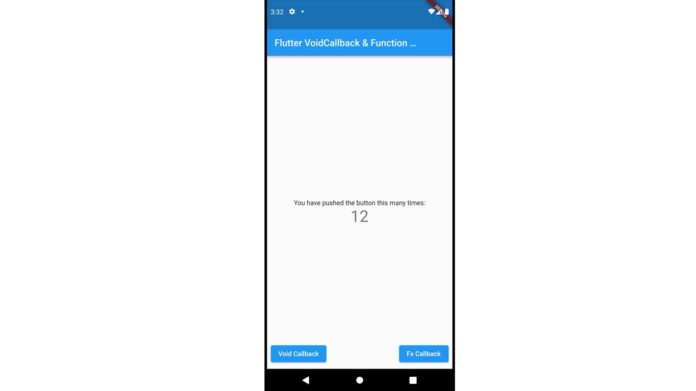
Run the project with flutter run or the play button in Android Studio. You’ll see two main buttons. Click “Void Callback” to increase the counter by 1, or “Fx Callback (+5)” to add 5 at once. This behavior proves that Function Callback can return values to the parent, while VoidCallback cannot. Use the reset button to start over.
Case Studies: Games and Forms
In a simple mobile guessing game, child widgets can be number buttons 1–9. Each button uses Function Callback with its number as a parameter. The parent then compares the number to the correct answer. Without Function Callback, the parent would never know which number was pressed.
Another example: a registration form. Each TextField can have a Function Callback that sends its text to the parent on every change. The parent validates and enables the submit button only when all fields are filled. This pattern is very common and forms the basis of lifting state up.
For developers used to event‑based architectures, Flutter callbacks are similar to JavaScript event listeners. However, they are type‑safe because Dart’s static type checking catches mismatches early.
Performance and Modern Alternatives
Both callback approaches are lightweight and easy to grasp, making them perfect for small projects or UI components that don’t need complex state management. However, in large‑scale apps, excessive callbacks can lead to callback hell (nested, hard‑to‑read code). Alternatives like ValueNotifier, InheritedWidget, or the Provider package offer more structure.
For mobile game development, VoidCallback is often used for actions like jump or shoot, while Function Callback is ideal for sending scores, player positions, or durations to the parent widget.
Performance‑wise, callbacks have almost no overhead because they are direct function calls. But if dozens of callbacks fire in a single frame (e.g., during gesture tracking), consider using ValueNotifier with AnimatedBuilder to rebuild only the parts that change.
Conclusion and Practical Recommendations
VoidCallback and Function Callback are fundamental yet powerful tools for widget communication in Flutter. Use VoidCallback when the child only needs to signal without data—like navigation buttons or animation triggers. Use Function Callback when the child must send back values—such as form data, game events, or slider values. Both are easy to implement, require no extra dependencies, and perfectly support the lifting state up pattern.
For larger projects, consider migrating to Provider or Bloc, but callbacks remain a must‑know foundation for every Flutter developer. Understanding these differences lets you build more responsive, maintainable, and bug‑free interfaces. Try modifying the example: create a Function Callback that sends a value from a Slider or TextField, then watch the parent react in real time. Happy coding!
