

Regularly clearing the cache, cookies, and browsing history restores Google Chrome’s speed, fixes broken page layouts, and protects your personal data from privacy risks.
Modern browsers like Google Chrome store a significant volume of local data during each browsing session. This includes cached files, site cookies, and a detailed browsing history. The mechanism is designed to accelerate repeat visits and maintain user preferences. However, as data accumulates, it can degrade performance, cause display issues, and expose sensitive information. For IT professionals, system technicians, and gamers who rely on a consistently responsive browser, understanding how to clear this data is a fundamental maintenance skill.
Chrome saves cached copies of page elements such as images, scripts, and stylesheets directly on your storage drive. Cookies retain authentication tokens and site settings, allowing you to stay logged in. The browsing history records every URL you have visited. Together, these three components shape your daily web experience. Without periodic cleanup, outdated caches may prevent a site from loading its latest version, leaving users with broken layouts or non-functional features. Corrupted cookies can disrupt login processes, causing repeated authentication prompts on platforms critical to your workflow.
Why Cache, Cookies, and History Need Regular Clearing
The performance impact becomes noticeable when Chrome’s storage footprint grows into the gigabyte range. Outdated cache files frequently cause rendering mismatches; you might see the old design of a website while the server already serves a new one. This frustrates users who need accurate, real-time data, particularly in dashboards and SaaS applications. In addition, corrupt cookies can silently break authentication flows, making you unable to log into email, administration panels, or cloud services without any visible error.
On the security front, cookies store session identifiers that, if hijacked on a public network, can be used to impersonate you. A browsing history that is never cleared leaves a traceable record of your online activities, which becomes a privacy issue on shared or corporate devices. Clearing this data periodically mitigates these risks and aligns with standard security hygiene practiced by enterprise IT teams.
Corrupt cache and cookie files are often the hidden culprits behind broken page layouts and login failures that evade quick diagnosis.
Google Chrome Help documentation
The Real-World Impact of Clearing Chrome’s Cache
While clearing your browsing data delivers clear benefits, you should understand the immediate trade-offs. Deleting the cache forces Chrome to re-download every asset from the web server on the next visit. A media-rich site that previously loaded almost instantly now takes a few extra seconds because the browser must reconstruct all local copies. This temporary slow-down is most pronounced right after the cleanup and normalizes as you revisit sites.
Removing cookies will log you out of virtually all web services. You will be prompted to re-enter usernames, passwords, and in many cases, two-factor authentication codes. For professionals who manage multiple client accounts, this adds a short but impactful step to your routine. It is essential to have your credentials at hand or ensure Chrome’s password manager is synchronized and backed up before you proceed. This precaution is equally important for gamers who access online game portals and storefronts through their browser.
Preparing Your Browser Before You Clear Cache and Cookies
Before you execute the procedure to clear cache and cookies in Google Chrome, review which data categories you actually need to wipe. Chrome’s dialog offers separate checkboxes for history, cookies, and cached files, giving you full control. Good preparation helps you avoid accidentally deleting saved passwords or site settings you rely on daily.
- Open Chrome’s password manager and verify that all essential credentials are saved correctly.
- Ensure you remember the master password for your Google account and other critical logins.
- Save any unsaved work in open tabs to prevent data loss during a forced reload.
- Confirm that your bookmarks and preferences are synced with your Google account.
For technicians handling multiple client accounts, this verification step is not optional. Accidentally wiping cookies without backup can lock you out of administrative backends, slowing down ticket resolution. Gamers who use browser-based authentication for platforms like Steam or Epic Games should also secure those sessions before clearing data.
How to Clear Cache and Cookies in Google Chrome
The following procedure works uniformly across Windows, macOS, and Linux. Chrome’s interface remains consistent, so you can follow these steps regardless of your operating system. Make sure your browser is updated to the latest stable version to access all privacy management features.
Technical note: The Advanced tab provides a granular selection of data types. This is especially useful when you only need to fix a specific site rendering issue and want to keep login sessions for all other sites intact.
Step 1: Launch Google Chrome on your device. Confirm that no active downloads are in progress, as clearing data may interrupt them.
Step 2: Open the Clear browsing data dialog. On Windows and Linux, press Ctrl + Shift + Delete. On macOS, use Command + Shift + Delete. The dialog will appear immediately.
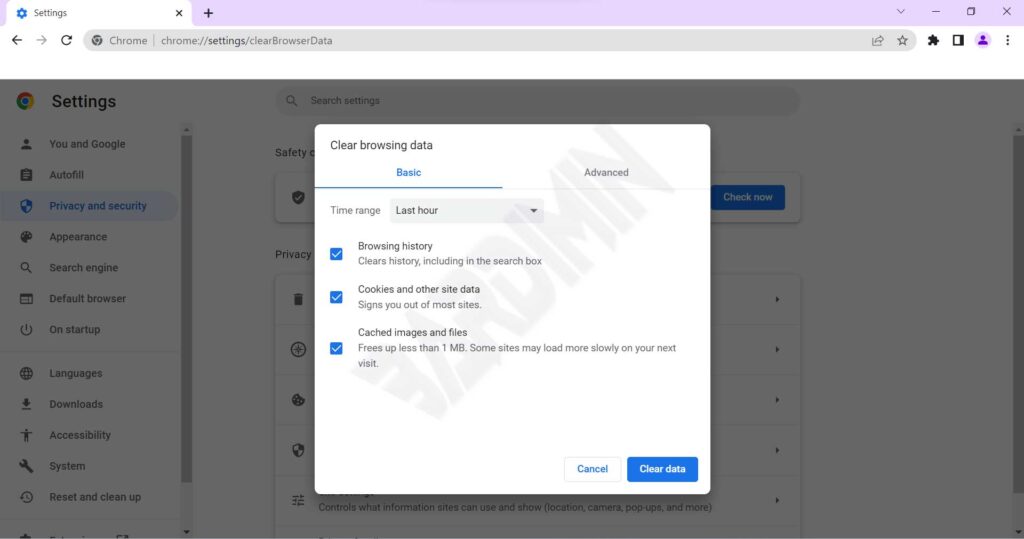
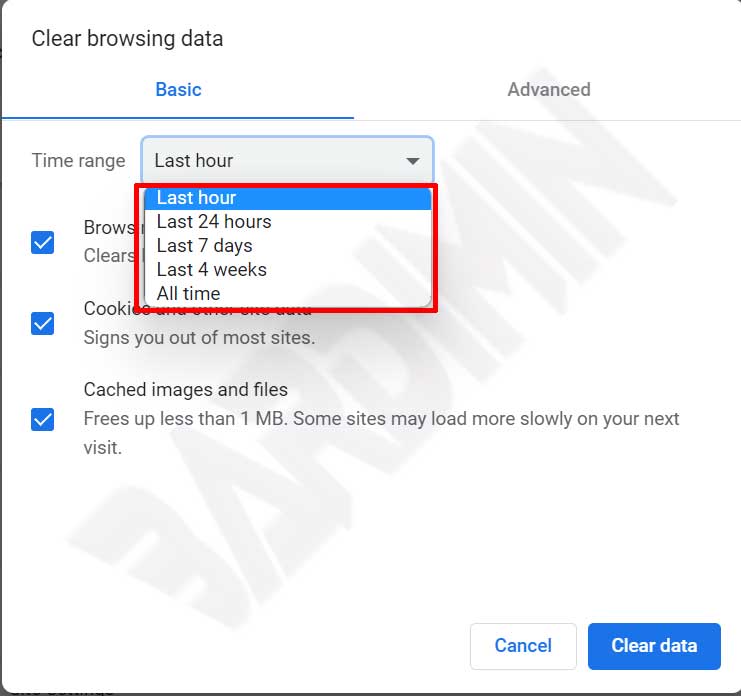
Step 3: In the Time range dropdown, select the period for which you want to remove data. Options include Last hour, Last 24 hours, Last 7 days, Last 4 weeks, and All time. To perform a full cleanup, choose All time. This flexibility allows a technician to target only the data generated after a certain issue began.
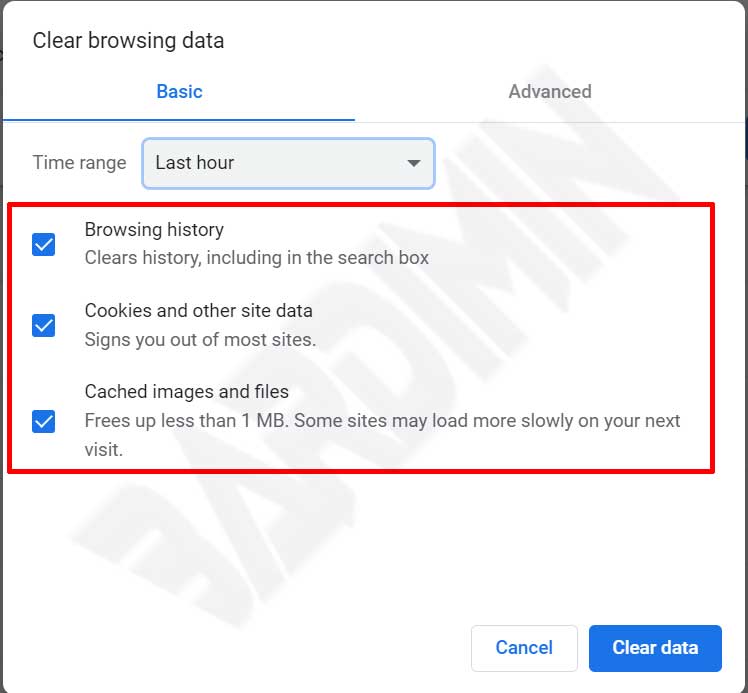
Step 4: Check the boxes for the data categories you intend to delete. The three main options recommended for a comprehensive cleanup are Browsing history, Cookies and other site data, and Cached images and files. You can fine-tune this selection. For instance, if you only need to fix a broken layout, uncheck browsing history to preserve your visited links.
Step 5: Click the Clear data button to start the removal process. The duration depends on how much data has been stored. Chrome will not show a completion notification, but you will immediately notice that page loads behave as if you were visiting sites for the first time, and any active logins will be reset.
If performance problems persist even after this procedure, examine your installed extensions. Some third-party plugins maintain their own cache layers that are not wiped by the standard Chrome dialog. You can access the extension manager by typing chrome://extensions in the address bar and disabling suspected culprits.
How to Clear Data for a Single Site Without Wiping Everything
There are scenarios where you need to purge only the information belonging to one problematic website while keeping all other sessions alive. This technique is invaluable for debugging a specific web application without affecting your entire browsing environment. Gamers troubleshooting a broken online game portal also benefit from this selective approach.
- Navigate to the site you want to clean in Chrome.
- Click the lock or info icon on the left side of the address bar.
- Choose Cookies and site data, then click Manage cookies and site data.
- Remove individual cookies or use the trash icon to delete all data for that site.
- Reload the page with Ctrl + F5 (Windows/Linux) or Command + Shift + R (macOS) to bypass the cache.
This method is far more precise and prevents the mass logout that occurs with a full cookie wipe. IT professionals who manage dozens of cloud accounts will appreciate the efficiency of this targeted data removal.
Clearing Cache Without Losing Your Saved Passwords
One of the most common concerns when running clear cache and cookies in Google Chrome is the fear of erasing saved passwords. You can avoid this by not selecting the Passwords and other sign-in data option located under the Advanced tab in the Clear browsing data dialog. This setting is stored independently from cookies, so leaving it unchecked ensures your credentials remain intact while you wipe everything else.
Pro tip: Use Chrome’s built-in password manager to audit saved credentials before a cleanup. Go to chrome://password-manager and confirm all important logins are present. A quick backup of this list can save you from a support call.
With the right checkbox selection, you can enjoy a clean, responsive browser without sacrificing the convenience of automatic sign-in. This balanced approach meets the needs of professionals who cannot afford repeated authentication delays.
Advanced Tips to Keep Chrome Fast for Gamers and Pros
Gamers and IT specialists demand browser responsiveness that goes beyond average usage. Browser-based gaming sessions, live SaaS dashboards, and monitoring consoles require stable rendering and immediate feedback. Integrating a few extra maintenance habits into your routine can sustain peak performace and reduce troubleshooting time.
Enable hardware acceleration in Chrome’s settings under Settings > System. This offloads graphics rendering to the GPU, a significant advantage for modern gaming rigs and workstations that already pack powerful discrete graphics.
Disable unused extensions. Every add-on consumes RAM and CPU cycles, even when it is not actively doing anything. Schedule a monthly review of your installed extensions and remove any that are no longer necesary. This simple housekeeping step can reclaim substantial system resources.
Leverage Incognito mode for tasks that should leave no permanent trace. Incognito windows do not save history, cookies, or cache after they are closed. This is ideal when accessing client dashboards from a shared or public machine, ensuring that no sensitive session token remains.
Schedule regular data purges. Make cache and cookie clearing a weekly habit. Technicians working across multiple web projects can benefit from using Google’s official guidance on managing cache and cookies to stay updated on new features. This routine prevents the gradual build-up that silently degrades the browsing experince.
Conclusion
Knowing how to clear cache and cookies in Google Chrome is an essential part of modern device maintenance. It is not just a reactive fix for errors but a proactive measure that preserves browser speed, ensures accurate site rendering, and upholds your digital privacy. By following the steps outlined above, technicians can resolve client issues more efficiently, gamers can enjoy smoother online play, and professionals can keep their workflow uninterrupted.
Take a moment to adjust the clearing settings to match your usage profile. Chrome’s flexibility in managing browsing data puts you in full control. A well-maintained browser forms the bedrock of a stable, secure online experience. For further details on managing your Google account and associated data, consult the official support page on managing your Google Account data.
