

Blocking internet access for specific applications via Windows Defender Firewall is the most efficient method to conserve bandwidth, prevent disruptive automatic updates, and close security gaps caused by unwanted background connections, all without installing third-party software.
In modern computing environments, almost every piece of software installed on a Windows system attempts to communicate with external servers. These activities range from license synchronization and security patch downloads to telemetry collection and advertisement loading. For IT professionals managing virtual machines or technicians performing system troubleshooting, an application’s tendency to “phone home” without explicit permission frequently becomes a source of frustration. The situation becomes even more critical for gamers who require low latency and stable ping rates, where every bit of background data can cause fatal lag spikes. Understanding how to block app internet access is a fundamental skill for maintaining network hygiene and optimal system performance.
Why Blocking Applications Outperforms Uninstalling Them
Users are often tempted to simply uninstall any application that appears to consume excessive data. This action is not always prudent. Certain essential applications may possess core features that remain necessary for offline use, while only their online components hinder productivity. By utilizing Windows Defender Firewall with Advanced Security, you can retain the software installation while completely severing its ability to interact with the external network. This approach offers granular control that standard uninstallation cannot provide. You can precisely dictate whether a specific executable (.exe) file is permitted to leave your device.
Technical Analogy: A firewall acts as a perimeter gatekeeper. Inbound Rules monitor traffic attempting to enter your PC from the internet. Conversely, Outbound Rules monitor traffic leaving your PC destined for internet servers. To prevent an application from sending data, intervention must be made on the Outbound side.
Technical Guide: Configuring Outbound Rules to Block App Internet Access
The following procedure is designed to create a permanent and effective block rule. This method is compatible with Windows 10, Windows 11, and recent editions of Windows Server. Ensure that the user account you are using holds Administrator privileges before beginning the configuration steps.
Step 1: Accessing the Advanced Management Console
The standard Windows Security interface does not display options for managing outbound rules in detail. You must use the Windows Defender Firewall with Advanced Security console. To open it quickly, press the Windows + R key combination on your keyboard. Once the Run dialog appears, type the command wf.msc and press Enter. This command serves as a direct shortcut that bypasses multi-layered navigation through the Control Panel.
Step 2: Initiating a New Rule Creation
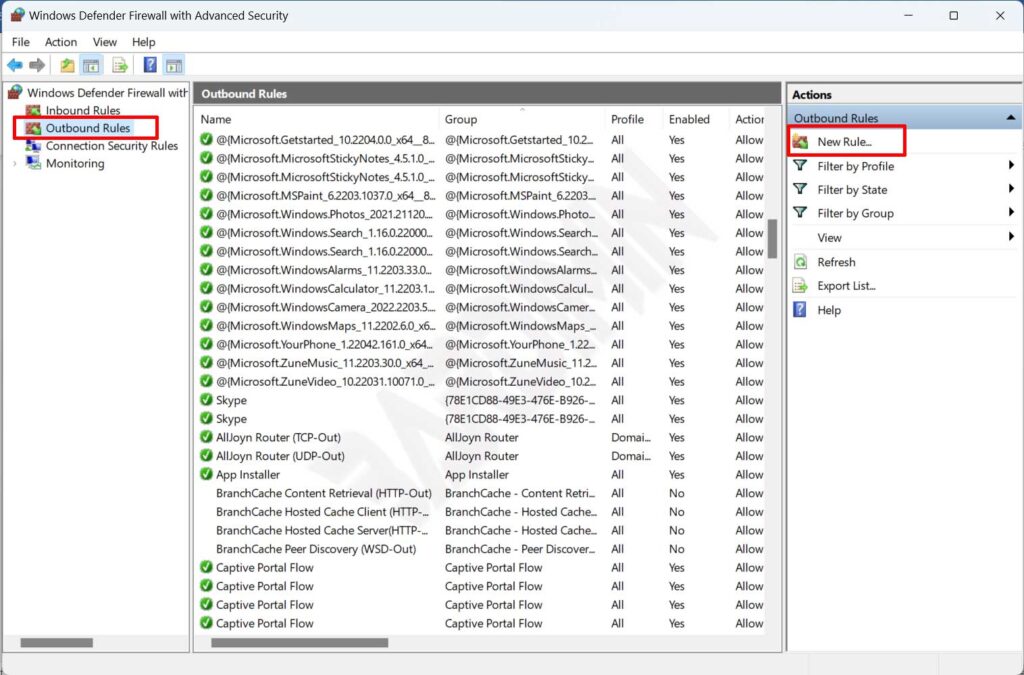
In the left navigation pane of the console, click on the Outbound Rules node. This node contains the entire list of policies governing outgoing data. Observe the Actions panel on the right side of the window. Click the New Rule… option to trigger the configuration Wizard.
Step 3: Selecting the Program Rule Type
The wizard will inquire about the desired rule type. Select the Program option because we intend to control the execution of a specific .exe file. This option offers the highest precision compared to blocking ports or Windows services. Afterwards, click Next.
Step 4: Specifying the Executable File Path
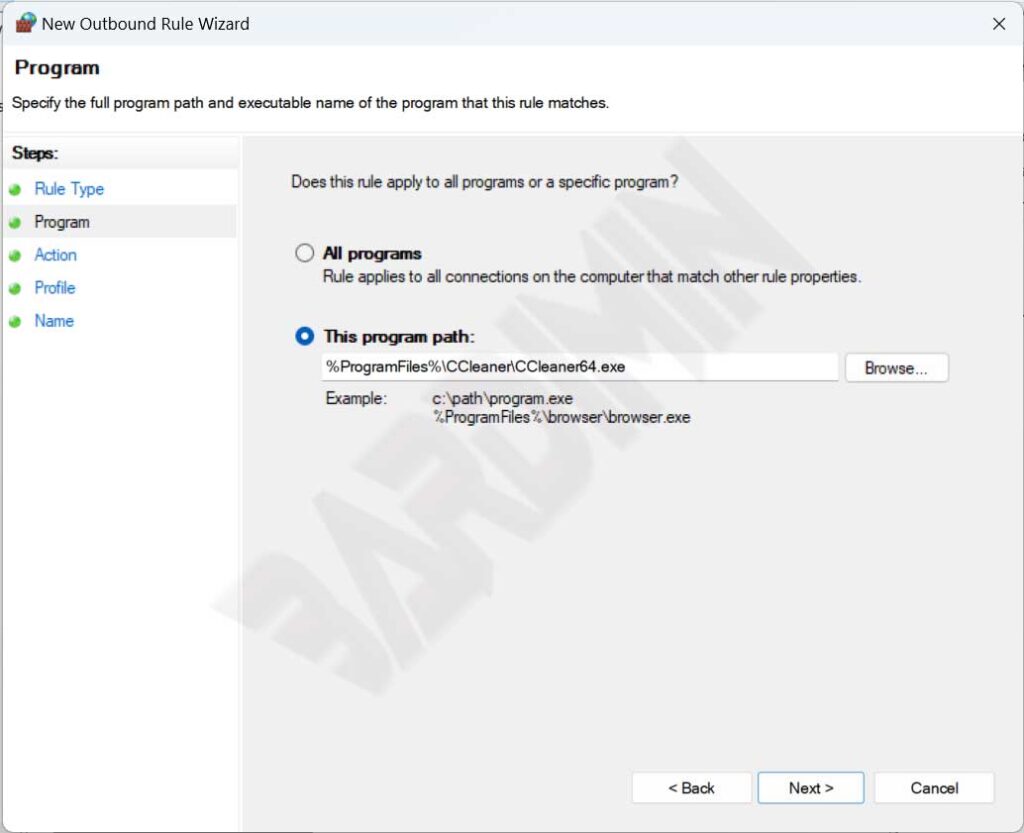
On the Program screen, choose the option This program path:. Click the Browse… button and navigate to the installation directory of the target application. Select its main executable file (e.g., photoshop.exe or game_client.exe). Ensure you select the correct file, as Windows Firewall will block all outbound connections originating from that process. Once the path is populated, click Next.
Step 5: Choosing the Block Action
In the Action stage, you are presented with three fundamental options. Select Block the connection. Choosing this option issues a firm instruction to the Windows networking stack to drop all data packets that the process attempts to send. Disregard the other two options (Allow and Allow if secure). Click Next.
Step 6: Configuring Network Profiles
The Profile section determines on which network types this rule will be enforced. There are three categories: Domain (office/corporate networks), Private (trusted home networks), and Public (hotspot or cafe networks). For maximum effectiveness and to ensure you block app internet access under all conditions, check all three profiles. Consequently, the application will not be able to bypass the rule simply because you switched Wi-Fi networks. Click Next.
Step 7: Naming and Describing the Rule
The final stage involves assigning an identity. In the Name field, enter a descriptive title that is easily recognizable in the future. Avoid generic names like “Rule 1”. Use a format such as BLOCK - Adobe Creative Cloud - Outbound or BLOCK - Game XYZ - Telemetry. The Description field is optional but highly recommended for audit purposes. Document the reason for creating the rule and the date of modification. Finally, click the Finish button.
Success Indicator: A red circle icon with a prohibition sign will appear next to the newly created rule name in the Outbound Rules list. This rule is active immediately and takes effect in real-time without requiring a system restart.
Visual Verification of Active Rule
Verification and Troubleshooting Firewall Rules
After applying the rule, verification is an absolute necessity in standard technical procedures. Open the application you have blocked and attempt to use its online features. If the application fails to load web content, cannot check for updates, or displays a network error message, your configuration has been successful. However, what if the application still manages to access the internet? Below are some common causes and their solutions.
Common Causes of Blocking Failure
- Incorrect Execution Path: Modern applications often run through separate launchers or services. For instance, blocking
game.exemay be insufficient if data downloads are handled bydownloader_helper.exe. Utilize Resource Monitor to identify the actual process consuming network resources. - Alternate Protocol (IPv6 vs IPv4): Ensure your rule applies to both protocols. By default, the Wizard covers both. However, if editing rules manually, verify the settings under the Protocols and Ports tab.
- Overriding Allow Rules: Windows Defender Firewall processes rules based on priority. A more specific Allow rule can override a Block rule. Check for other existing rules that might be permitting access for the same file.
Usage Scenarios for Gamers and Professionals
Implementing this method to block app internet access is crucial in two specific domains. First, for gamers playing legacy titles. It is not uncommon for master servers of games released in the 2000s to be permanently offline, yet the game client continually attempts to ping those addresses. Repeated failed ping attempts can cause the application to momentarily freeze or stutter. Blocking the game’s .exe file in the Firewall bypasses the search for defunct servers, allowing the main menu to load significantly faster. Second, for creative professionals using Adobe or Autodesk software. By creating a block rule, you can prevent update notifications that disrupt workflow or conserve bandwidth during important presentations conducted via cellular tethering.
Advanced Rule Management
To maintain a tidy system, cultivate the habit of disabling rules rather than deleting them. Simply right-click on the rule listed under Outbound Rules and select Disable Rule. This allows you to re-enable the block at a later date without repeating the file browsing process from scratch. This feature is particularly useful when temporary internet access is required for license activation or urgent data syncronization. Furthermore, you can export a set of rules via the Export Policy option for deployment on other computers within the same work environment. This ensures consistency in security policies across the fleet of devices you manage.
Conclusion
Mastering the configuration of Outbound Rules in Windows Defender Firewall grants you full control over software behavior on your machine. This method serves not only as a bandwidth saving tool but also as an additional security layer that blocks hidden telemetry and potential data leaks. The process is straightforward, requiring only precision in selecting the correct executable file. By applying the step-by-step instructions outlined above, you can create a more efficient computing environment, free from unwanted update interruptions, and better optimized for high-performance activities such as gaming or video editing.
