

This technical guide shows you how to use Rufus (latest version) to create a Windows 11 installation USB that bypasses TPM 2.0 and Secure Boot requirements. Perfect for technicians, gamers, and IT pros who need to install Windows 11 on unsupported hardware or virtual machines.
Rufus is more than a simple formatting tool. This lightweight, open-source utility turns any USB flash drive into bootable media within minutes. Unlike Microsoft’s Media Creation Tool, Rufus delivers faster write speeds, flexible MBR/GPT partition schemes, and a built-in bypass for Windows 11’s strict hardware checks.
Since its launch, Windows 11 has required Trusted Platform Module (TPM) version 2.0 and Secure Boot to be active. This policy blocks many older PCs, custom-built machines, and virtual environments. Fortunately, the Rufus developer introduced a practical solution starting with version 3.18. The current Rufus 4.6 (released December 2024) fully supports Windows 11 24H2 and still includes the option to disable TPM and Secure Boot checks.
One single change in the Image option menu: your Windows 11 USB is ready for any device, even without TPM 2.0.
This updated article walks you through every step: preparation, Rufus configuration, and the actual installation. You will also find critical notes about security and system stability after bypassing these protections. Read carefully.
Preparation: What You Need Before Starting
- USB flash drive of 8 GB or larger. All data on it will be permanently erased. Backup important files to a safe location first!
- Rufus 4.6 or newer. Download it from the official website https://rufus.ie. Choose the portable version to avoid installation.
- Windows 11 ISO file. Get it legally from Microsoft Software Download (official and free).
- Know your target computer’s firmware type: legacy BIOS (MBR) or UEFI (GPT). This determines the correct partition scheme.
Step-by-Step: Creating the Bypass USB Drive
The entire process takes only 5–10 minutes. Run Rufus as administrator to avoid access errors.
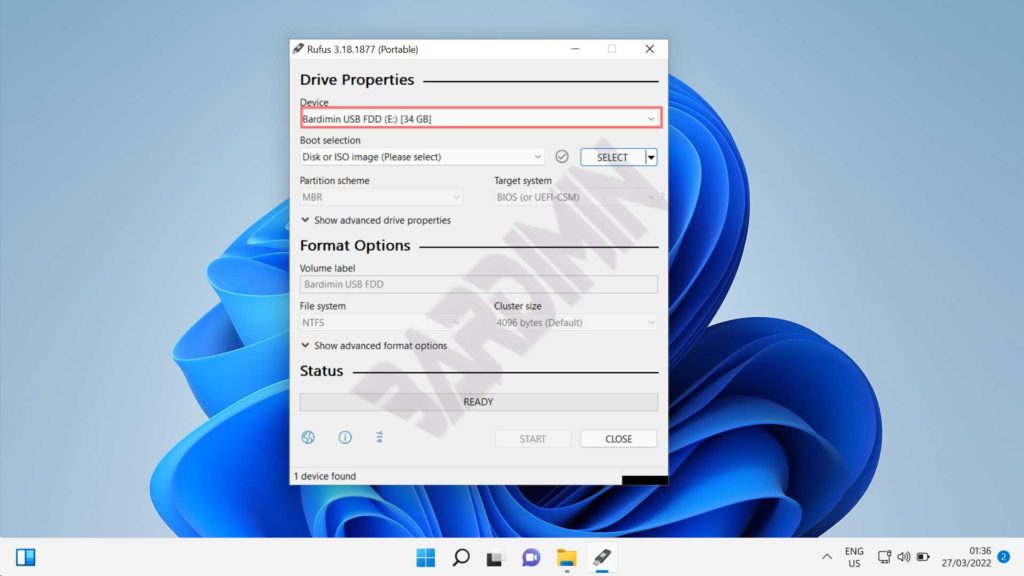
- Insert your USB flash drive. Launch Rufus.exe. Make sure the Device dropdown shows your USB drive (not your internal hard disk).
- Click SELECT and browse to your Windows 11 ISO file. If you don’t have one, click DOWNLOAD – Rufus will fetch it directly from Microsoft servers (requires a stable internet connection).
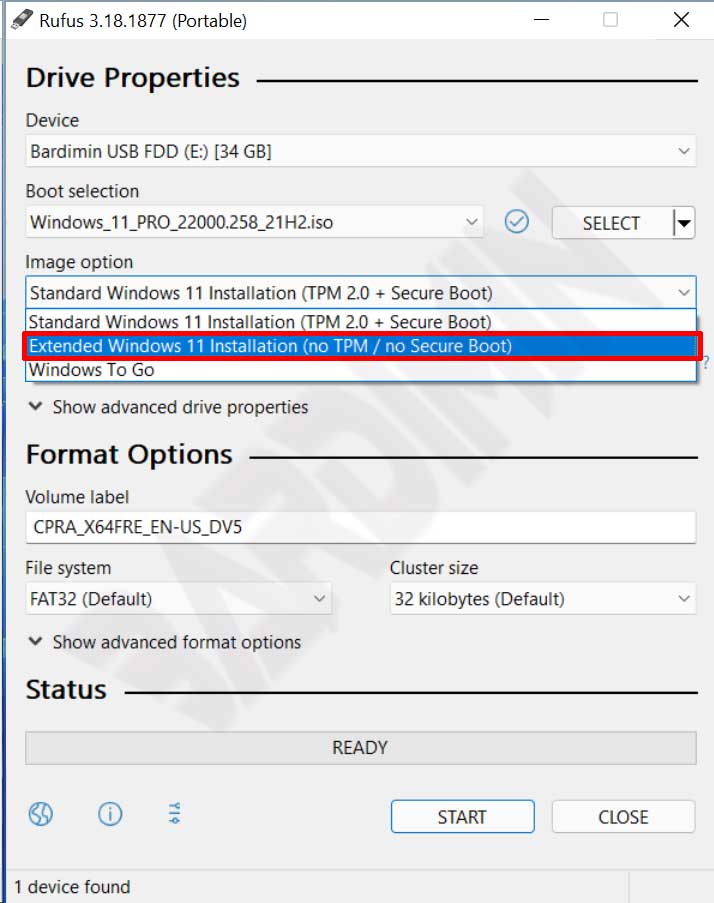
- After the ISO is loaded, Rufus auto-fills several options. Under Image option, change it to Extended Windows 11 Installation (no TPM / no Secure Boot).
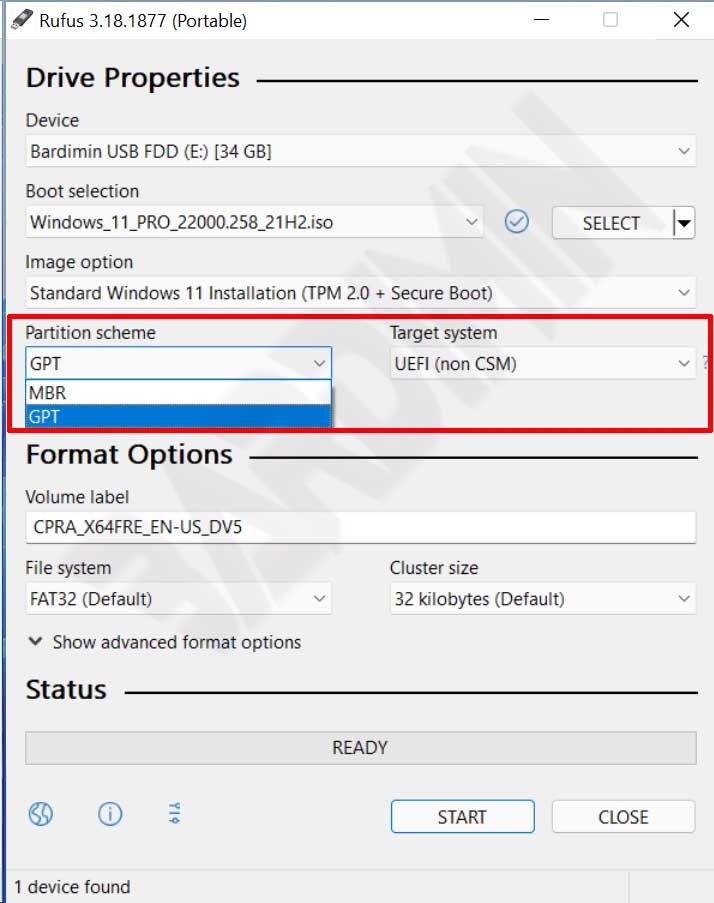
- Choose the Partition scheme:
- GPT + UEFI (non-CSM) for modern PCs (2012 and later).
- MBR + BIOS or UEFI-CSM for older computers or virtual machines.
- You can change the Volume label to something memorable, like “WIN11_BYPASS”. The file system is set automatically by Rufus.
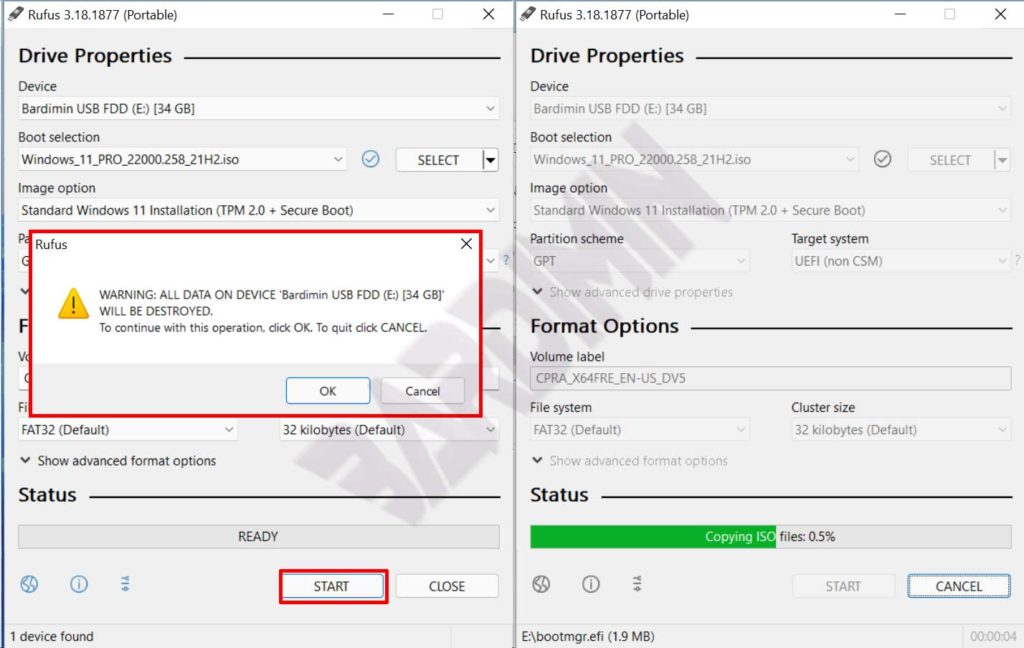
- Click START. Rufus will warn you that all data on the USB will be destroyed. Click OK to proceed.
The write process runs in several stages: formatting, copying files, and verification. With USB 3.0, it typically finishes in 3–5 minutes. Do not remove the USB drive until completion.
Installing Windows 11 on a Non-Compliant Device
Once your USB is ready, it’s time to boot from it. Restart the computer and press F2, F12, DEL, or ESC (depending on your motherboard brand) to enter BIOS/UEFI. Change the Boot Order so the USB flash drive is first. Save changes and restart.
Windows 11 setup will run without checking for TPM 2.0 or Secure Boot. You can still create partitions, choose an edition, and complete user account setup as usual. However, be aware: major feature updates (for example, from 23H2 to 24H2) may re-check hardware requirements. For those updates, you might need to bypass again or use an additional script like Flyby11.
The Rufus bypass is permanent on the installation media, but it does not modify the installed system. Large updates may detect non-compliance again.
Security Risks: What You Are Giving Up
TPM 2.0 and Secure Boot are not decorative features. TPM provides hardware-based encryption and secure key storage. Secure Boot prevents malicious code from loading during the boot process. By bypassing them, you expose your system to potential threats:
- Bootkit attacks that are hard for standard antivirus to detect.
- BitLocker may not function correctly.
- Increased vulnerability during the early boot stages.
For gamers: some games with kernel-level anti-cheat (e.g., Valorant’s Vanguard) require Secure Boot to be enabled. If you bypass it, those games may refuse to launch. For standard games, performance remains unaffected.
For IT professionals and technicians: create a standard (non-bypass) installation media for compliant devices. Keep the bypass media seperately for emergencies or legacy hardware. Document this procedure as part of your standard operating environment.
Alternatives and Final Thoughts
Besides Rufus, you can bypass TPM by editing the registry during installtion (Shift+F10 → regedit), using a Skip_TPM_Check_on_Dynamic_Update.cmd script, or tools like Ventoy with bypass plugins. However, Rufus remains the fastest and least error-prone method because it automates all changes.
Final warning: Microsoft does not officially support installing Windows 11 on non-compliant hardware. You may lose access to some security updates via Windows Update. Always back up your data before installation. A partition mistake can wipe your entire hard drive.
With this guide, you can now install Windows 11 on old PCs, virtual machines, or custom builds lacking TPM 2.0. Work and play with confidence. Share this article with fellow technicians who need a reliable bypass solution.
