

Did you know that 94% of malware infiltrates through unrecognized apps in Windows 11? Without the right security settings, your PC can be an easy target for ransomware, spyware, or other malicious programs. Windows 11 has a hidden feature that allows you to easily blacklist or whitelist programs, even without additional software.
You can make sure only trusted apps are running on your computer, while suspicious programs are automatically blocked. Not only does it improve security, but it also saves RAM and CPU by preventing junk apps from running in the background.
In this guide, we’ll learn how to control which programs are allowed to run in Windows 11, either using Windows Defender or the Group Policy Editor.
Blacklist vs Whitelist in Windows 11: The Secret Weapon for Full Control of Your Programs
Think of your computer as an exclusive club. A blacklist is a list of “prohibited persons” who are prohibited from entering, while a Whitelist is a VIP invitation system; only those whose names are listed are allowed to enter.
What is Blacklist?
A blacklist is a list of programs that are completely blocked by the system. Once an app makes this list, Windows 11 will:
- Refusing to execute the program
- Prevent installation if it is not installed
- Stop a process that’s already running
Examples of smart use:
- Block keyloggers that infiltrate through pirated software
- Stop adware from browsers that have too many ads
- Restrict games or entertainment apps on your office PC
What is a whitelist?
A whitelist is a proactive security system that only allows trusted programs to run. The concept is simple but powerful:
- Only registered programs can be run
- All other apps are automatically blocked, even if they are not yet known as malware
Brilliant implementation examples:
- In enterprises, only allow Microsoft Office, Zoom, and official tools
- For children, create a whitelist of educational apps only
- On critical servers, lock down all programs except critical ones
How to Blacklist Programs in Windows 11
Want to prevent certain programs from running on Windows 11? One of the most practical solutions is to blacklist apps that are deemed harmful, annoying, or unwanted from running. Windows 11 provides built-in features that can be used for this, especially through Windows Security (Windows Defender).
Here’s a complete guide to blacklisting programs in Windows 11 using Windows Security, without the need for additional software!
Method 1: Using Windows Security (Defender)
This built-in security feature in Windows 11 not only protects against viruses, but it also provides advanced settings to block apps based on their reputation or malicious characteristics. Follow these steps:
Step 1: Open Windows Security
- Click the Start button, then type Windows Security and press Enter.
- Once opened, select the App & browser control menu on the left side.
Step 2: Enable Reputation-Based Protection
- In the App & browser control menu, click the Reputation-based protection settings section.
- Enable all reputation protection options, specifically:
- Check apps and files
- SmartScreen for Microsoft Edge
- Potentially unwanted app blocking → Enable the Block apps and Block downloads options
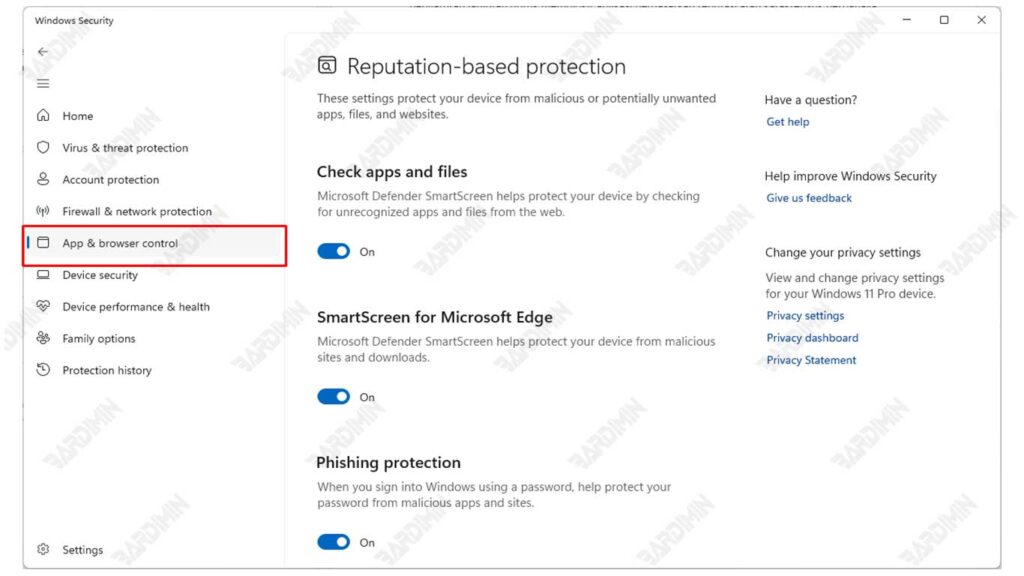
With this feature enabled, Windows will automatically block apps that are known to be potentially harmful or come from untrusted sources.
Step 3: Add Apps Manually via Exploit Protection
- Scroll to the bottom of the window and click Exploit Protection settings.
- Select the Program settings tab, and then click the + Add program to customize button.
- Click Choose exact file path and enter the full path of the .exe app file you want to block.
- Once added, you can set the parameters so that the app is restricted or prevented from running properly.
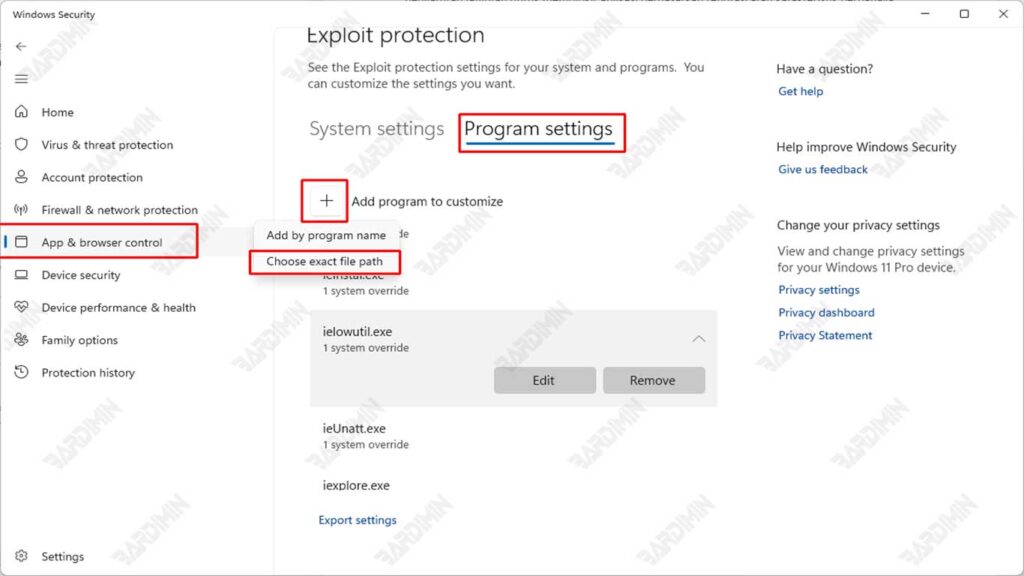
This method does not directly “remove” or “remove” the application from the system, but it significantly limits its execution and functionality.
Method 2: Using the Group Policy Editor (for Pro/Enterprise)
This feature is only available for Windows 11 Pro and Enterprise. If you’re using the Home version, see the alternatives at the end of the article.
Step 1: Open the Group Policy Editor
- Press Win + R (Windows key + R together)
- Type gpedit.msc and press Enter.
Step 2: Getting to AppLocker
Navigate through the following paths like a digital adventure:
Computer Configuration → Windows Settings → Security Settings → Application Control Policies → AppLockerStep 3: Create a Rule to Block the Program
- Within the AppLocker folder, select the type of rule you want to create, for example:
- Executable Rules → for .exe files (main programs)
- Windows Installer Rules → for .msi file (installer)
- Script Rules → for .vbs, .ps1, etc. files
- Right-click on that rule type, and then select Create New Rule.
- Follow the wizard that appears, then select:
- Deny (not Allow) as an Action
- Specify the users or user groups that will be subject to the rule.
- Enter the file path of the program you want to block manually, for example: C:\Program Files\UnwantedApplications\app.exe
- Click Next until you’re done, then click Create.
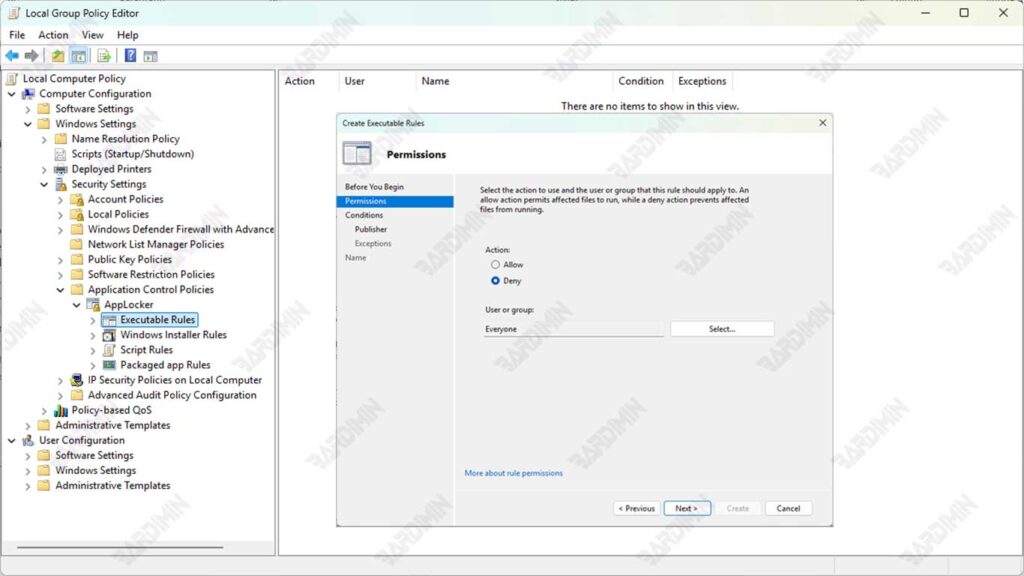
Step 4: Fine-Tuning Rules (Expert Tips!)
In the rule creation window, take advantage of these advanced features:
- Publisher Condition: Block/allow based on digital certificates (more secure!)
- Path Condition: Block entire folders (e.g., C:\Games\)
- File Hash: Block certain versions of the program, even if the name is changed
Example:
- Action: Deny
- Path: %USERPROFILE%\Downloads\.exe
- → Block all .exe files from the Downloads folder!
Additional Steps: Run the “Application Identity” Service
For AppLocker rules to be active, you must make sure the following services are running:
- Press Win + R, type services.msc, and then press Enter.
- Look for a service named Application Identity.
- Right-click and select Start.
Without running this service, AppLocker rules will not work.
How to Whitelist Programs in Windows 11
If you want to make sure that only certain programs are allowed to run on Windows 11-based computers, such as at work, school, or public computers, then the best solution is to whitelist your apps. One of the safest and most efficient ways to do this is to take advantage of the Software Restriction Policy (SRP) feature available in the Windows 11 Pro and Enterprise editions.
Step 1: Go to Local Security Policy
- Press the Win + R button to open the Run window.
- Type the following command: secpol.msc and then press Enter. Then a window will open the Local Security Policy.
Step 2: Access Software Restriction Policies
- In the left panel, navigate to:
Security Settings → Software Restriction Policies- If you don’t already have a policy, right-click on Software Restriction Policies, then select New Software Restriction Policies.
Once the policy is active, you’ll see new folders like “Security Levels” and “Additional Rules.”
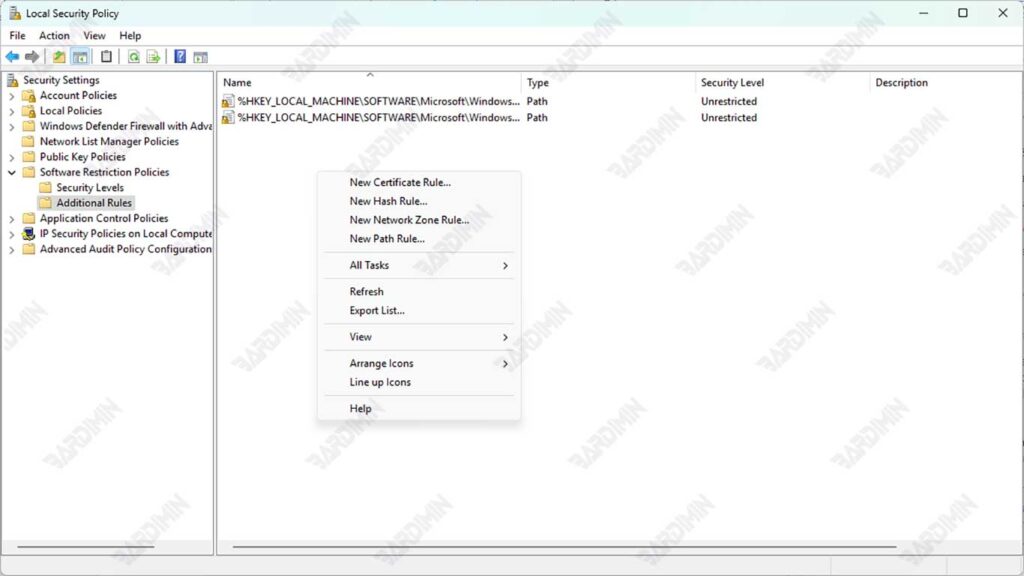
Step 3: Create Additional Rules to Allow Specific Apps
- Click on the Additional Rules folder.
- Right-click → select New Path Rule or New Certificate Rule.
- Enter the file path or folder location of the program you want to allow. For example:
C:\Program Files\OfficialApplication\- In the Security Level section, select Unrestricted for the program to run.
- Click OK to save the rule.
This rule will allow only the apps that are in that path to run, while others will be automatically blocked.
If you want to make sure only certain versions of an app can run (e.g., an unmodified official version), you can use the Hash Rule.
How: Right-click → New Hash Rule → Select the file .exe → The system will calculate its hash → Save as a rule.
Before applying this policy to the main computer, it is highly recommended to test it on a Virtual Machine (VM) first.
