

Do you often lose your mouse cursor on a Windows 11 screen full of windows? Or perhaps, the default cursor alone has made your eyes tired after a long day of work? You’re not alone! 67% of Windows users admit to having trouble keeping track of pointers when multitasking, and it’s time to change that.
Cursor personalization isn’t just about style! From size and color to unique schemes, this customization can increase productivity by up to 40% (based on a 2023 UX study by Microsoft). Imagine: a large, neon-colored cursor that’s easy to track, or a minimalist design that makes the desktop look more aesthetic.
“But isn’t the default cursor enough?” Wait! After trying out high-contrast cursors or custom animations, you’ll be aware: the experience of operating Windows 11 can be much more efficient and personalized. Scroll down, in 5 minutes, your cursor will be the coolest among your friends!
How to Resize a Mouse Cursor in Windows 11
Adjusting the mouse cursor size in Windows 11 is a very useful first step to improve the visibility and comfort of using the device, especially for users with visual impairments or those who work in low-light environments.
Here are the practical steps to resize the mouse cursor in Windows 11:
- Click the Start button, then go to the Settings menu.
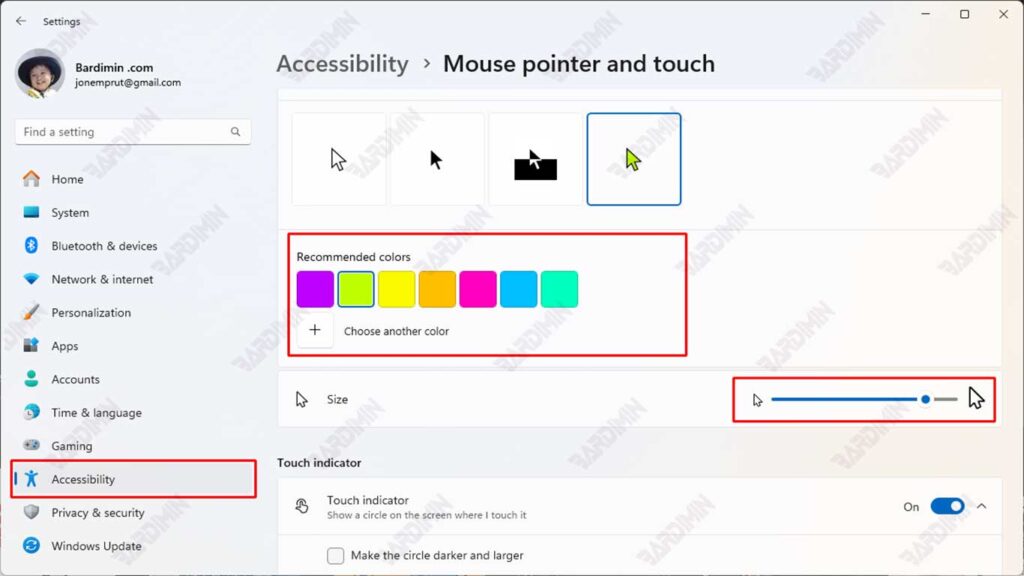
- Navigate to the Accessibility tab in the left panel.
- Select the Mouse pointer and touch option.
- In Size, slide the slider to the right to increase the size of the cursor, or to the left to reduce it as needed.
The main benefit of a large cursor is improved readability and faster recognition of the pointer’s position, especially when opening multiple windows or working with touchscreen devices. Elderly users or those with reduced vision will be greatly helped by this feature, as it allows for easier and more efficient navigation.
Windows 11 Mouse Cursor Size Based on Slider Level
| Level | Approximate Size (px) | Information |
| 1 | ± 32 px (default) | Windows default size |
| 2 | ± 48 px | Slightly larger |
| 3 | ± 64 px | Medium size |
| 4 | ± 80 px | Quite large |
| 5 | ± 96 px | Convenient for visually weak users |
| … | … | Scale incrementally every +16 px |
| 15 | ± 512 px | Maximum size of the slider |
Default Size: Standard-sized cursor, ideal for general users.
Maximum Size: The cursor looks much larger and dominant on the screen, ideal for users with visual impairments or for screen presentation.
How to Change the Color of the Mouse Cursor in Windows 11
In addition to size, the color of the mouse cursor also plays a significant role in enhancing the comfort and efficiency of using the device. Colors that are too pale or do not contrast with the background of the screen can make the cursor difficult to find, especially for users with visual impairments or those who work in low-light environments.
Windows 11 provides several cursor colors that you can choose from:
- White – This is the default Windows cursor color that is suitable for most common uses.
- Black – Suitable for light backgrounds and provides sharp contrast.
- Inverted – The cursor color will automatically adjust to the background it is passing through, providing optimal visibility in a variety of situations.
- Custom – Gives users complete freedom to specify the cursor color as per personal preference.
Steps to Change the Cursor Color:
- Open Settings through the Start menu.
- Select the Accessibility tab.
- Click the menu Mouse pointer and touch.
- In the Mouse pointer style section, choose one of four options: White, Black, Inverted, or Custom.
- If you choose Custom, click Choose another color, then select the desired color from the palette or enter a custom color code (HEX/RGB).
Tips for Optimal Color Selection
Avoid pale or close to background colors, such as light gray or white, on light themes.
Use colors that match the eye condition or visual impairment. Bright colors such as orange, red, or neon green are often recommended for users with mild to moderate vision difficulties.
For Productivity:
- Use light blue (ADD8E6) to reduce eye fatigue
- Black-and-white combination for maximum contrast
For Designers/Gamers:
- Neon green RGB (0.255.0) color is easy to track
- Bright red (FF0000) for important markers
Special Benefits for Various Needs
| Necessity | Recommended Colors | Reason |
| Low Vision | Neon yellow (FFFF00) | High visibility in all conditions |
| Programming | Cyan (00FFFF) | Does not interfere with syntax highlighting |
| Presentation | Magenta (FF00FF) | Stand out on various slide backgrounds |
Replacing the Mouse Cursor Scheme: Further Customization
If changing the size and color of the cursor isn’t enough, Windows 11 also allows you to change the cursor scheme entirely.
Difference Between Color and Cursor Scheme
- Color: Only changes the color of the pointer without changing the shape/animation
- Schema: Change the entire cursor set (arrows, loading, text select, etc.), including shapes and behaviors
Steps to replace the mouse cursor scheme:
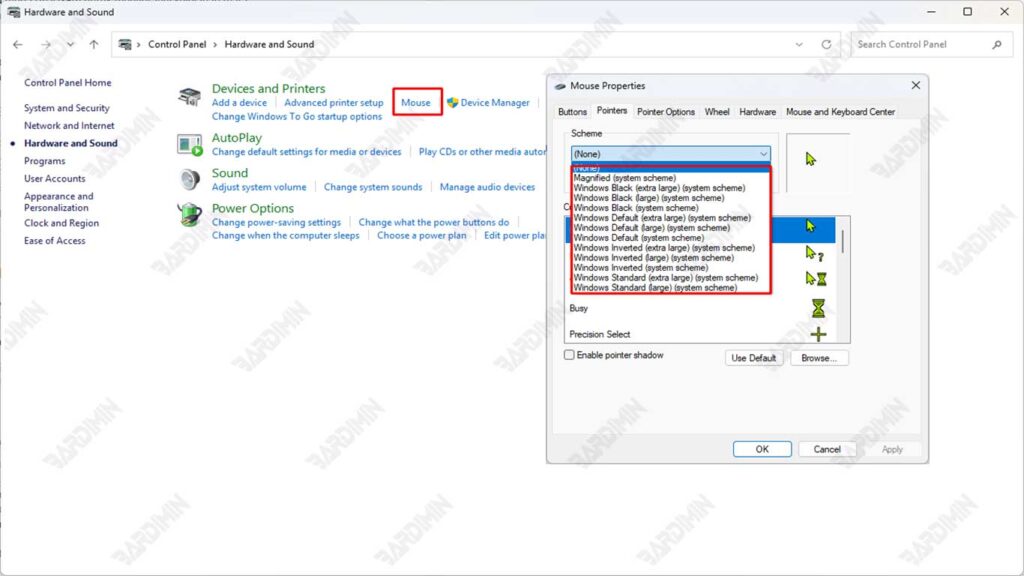
- Open Control Panel via the Start menu.
- Select Hardware and Sound, and then click Mouse.
- In the Mouse Properties window, go to the Pointers tab.
- In the section Scheme, choose from the list of available schemas, for example:
- Windows Default
- Windows Black (system scheme)
- Windows Inverted
- Magnified
- Click Apply, then OK to apply the changes.
If you prioritize efficiency and work performance, use a minimalist and contrasting color pointer scheme. Schemes like Windows Black or Inverted are proven to increase visibility without disrupting the interface display.
The Best Combination of Sizes, Colors, and Schemes for Various Needs
Choosing the right combination of mouse cursor sizes, colors, and schemes can have a huge impact on the user experience, productivity, and eye health. Here are the settings recommendations based on user needs:
Users with Visual Impairment
- Size: Maximum (Levels 13–15)
- Color: Bright yellow or neon green (Custom)
- Schematic: Windows Black or Windows Inverted
Pros: High contrast, easy to find in any setting, very helpful for users with visual limitations.
Graphic Designer & Visual Worker
- Size: Medium (Level 5–7), so as not to disturb the work area
- Color: Solid black or dark gray (Custom)
- Schematic: Minimalist schematic or static custom pointer (.cur)
Pros: Doesn’t interfere with visual focus, ideal for working with pixel details.
General Users
- Size: Default or slightly larger (Levels 2–4)
- Color: White (default) or light pastel color
- Schema: Windows Default or Windows Black
Pros: Provides a fresh and personalized look without losing basic functionality.
