

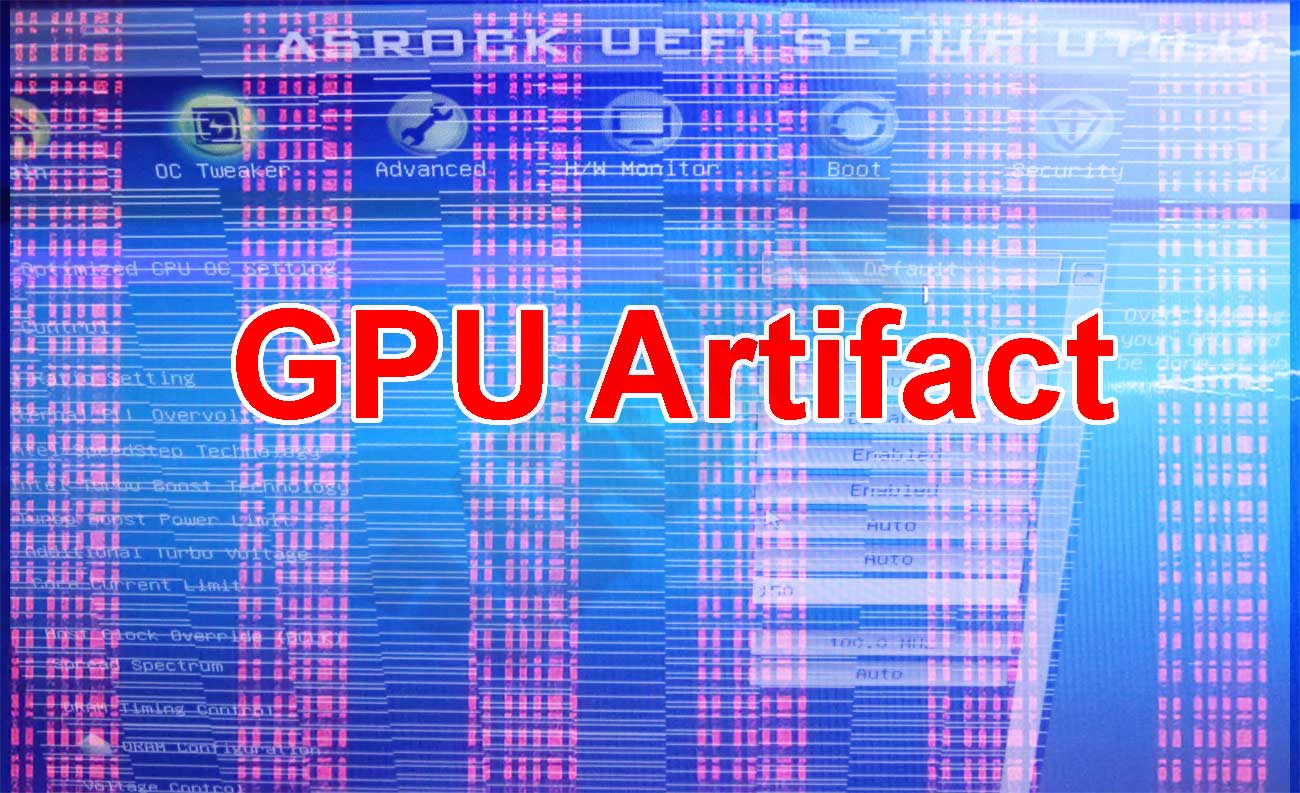
When your screen displays random lines, stretched textures, or oddly colored pixels that shouldn’t be there, you’re witnessing a GPU artifact. It is a critical signal of hardware instability, misconfiguration, or potential permanent damage that demands immediate diagnosis before total failure sets in.
GPU artifacts are not a superficial glitch. They are early evidence of data corruption inside the graphics pipeline. Every pixel rendered on your monitor results from intense computation by the GPU and its memory. When instructions are mistranslated, or image data becomes damaged along the way, the output is no longer the intended scene but a visually defective representation. For technicians, gamers, and creative professionals, the ability to distinguish between a software-induced artifact and a hardware-level defect is an essential skill that prevents unnecessary spending and downtime.
An artifact is a direct message from your hardware signaling that something is operating beyond its tolerance limits.
Identifying the Visual Forms of GPU Artifacts
Early detection heavily relies on your ability to recognize the physical appearance of artifacts. Their manifestations are varied and often unique to each failure scenario. Below are the most common visual forms of GPU artifacts that you need to be aware of:
- Mismatched lines: Bright horizontal or vertical streaks, often red, blue, or green, that appear without a discernible pattern and may flicker unexpectedly.
- Stretched textures: Objects in games or 3D applications lose their intended shape, appearing elongated and covering areas they should not occupy.
- Color sparks or snow: Random pixels flashing in high-contrast colors, resembling analog TV static, a phenomenon commonly referred to as “snow artifacts.
- Dull and blurry display: A substantial drop in image quality without any clear cause, where the entire screen loses sharpness and contrast.
- Hatch patterns: Faint grids or checkerboard textures overlaying the picture, frequently occurring in dark areas while gaming.
- Geometry corruption: 3D model polygons fail to render correctly and form uncontrollable triangles or abstract shapes.
The severity of these symptoms can be dynamic. An artifact might only appear under heavy GPU load, such as during gaming or video rendering, and then vanish under light usage. This is an immediate clue that the issue is related to voltage, temperature, or memory stability.
Root Causes: Why GPU Artifacts Appear
Tracing the cause of a GPU artifact requires a systematic approach because the trigger can be rooted in either software or hardware. Neglecting a thorough root cause analysis will only lead to temporary fixes that ultimately fail.
1. Frequency and Voltage Outside Safe Limits
Overly aggressive overclocking is the most dominant trigger. Pushing the GPU core clock or memory clock beyond the manufacturer’s standard limits without adequate voltage and cooling adjustments directly produces calculation errors. Even a factory overclock profile can sometimes become unstable on certain card batches if the silicon quality is below average. The most fundamental solution is to revert all settings to default values using software such as MSI Afterburner.
2. VRAM Module Degradation or Failure
Video RAM (VRAM) is responsible for holding textures, frame buffers, and geometry data. If one of these memory modules becomes physically damaged, the stored data will be corrupt. The classic symptom of faulty VRAM is the appearance of artifacts, such as colored dots, even before the operating system loads, or a scrambled display as soon as the graphics driver initializes. This condition typically results in the need for component replacement by a professional technician.
3. Excessive Operating Temperature
Modern GPUs have a thermal protection mechanism. However, before that mechanism throttles performance, extreme temperatures above 90°C on the core or VRAM often trigger artifacts first. Common causes include dried-out thermal paste, worn thermal pads, dust accumulation on the heatsink, or a dead cooling fan. Cleaning the cooling assembly and replacing the thermal interface material is a mandatory maintenance procedure.
4. Incompatible or Corrupted Drivers
On the software side, the graphics driver acts as a translator of instructions for the hardware. Beta driver versions, failed installations, or conflicts with leftover old driver files can cause artifacts identical to hardware faults. Using a utility like Display Driver Uninstaller (DDU) to completely clean out old drivers before installing the latest version is a standard practice that often resolves the issue at no cost.
5. Inadequate Power Supply
A weakened Power Supply Unit (PSU) that can no longer deliver clean current on the 12V rail will cause unstable voltage to the GPU. This fluctuation forces the GPU to operate outside its specifications and is highly effective at triggering artifacts, especially during peak load when power draw spikes dramatically.
Technical GPU Health Testing Procedure
One of the most effective ways to confirm a graphics card’s condition is to apply a controlled maximum workload. This method forces the GPU and VRAM to operate at full capacity to uncover instability that may not surface during light usage. The process is known as stress testing or stability benchmarking. Proper testing will isolate whether the problem originates from the GPU core, memory, or cooling system.
To perform this work, there are specialized utilities designed to deliver an extreme synthetic load. Two of the most reliable and widely recognized applications among technicians and enthusiast gamers are OCCT and FurMark (often bundled as MSI Kombustor). Both have distinct strengths in diagnosing GPU artifacts with high precision.
MSI Kombustor: Rapid Core Instability Detection
MSI Kombustor is a graphical interface for an OpenGL/Vulkan engine that places extreme stress on the GPU. The tool is purpose-built for thermal stability testing and visual artifact detection. Its key advantage lies in its ability to generate maximum heat load quickly, making it ideal for identifying cooling problems or extremely aggressive overclocks.
Steps for testing with MSI Kombustor are as follows:
- Download and install the application from the official MSI portal.
- Run the application with administrator privileges to ensure full access to hardware sensors.
- Select the “FurMark-donut” test at your native screen resolution without initially enabling extreme anti-aliasing.
- Monitor the temperature indicators provided by the software in real time. If the core temperature immediately spikes past 85°C within seconds, stop the test at once because a cooling problem is definitely present.
- Observe the screen carefully for 15 to 30 minutes. Focus on the appearance of hot spots, random lines, or abnormal screen flickering.
The ideal testing duration with Kombustor ranges from 30 minutes to 1 hour. A test that is too short may fail to trigger temperature-bound artifacts, while a multi-hour test without breaks creates constant thermal stress that can potentially shorten component lifespan if the cooling system is in poor condition. One hour strikes a balanced point for validation without meaningful degradation risk.
Download MSI Kombustor from the official site
OCCT: Precision Diagnostics with Automatic Error Detection
OCCT offers a more holistic approach compared to a simple load tester. The application not only stresses components but also features an internal error detection mechanism that is extremely sensitive to calculation mistakes. This capability is crucial for capturing artifacts that are not always visible to the human eye, giving it very high accuracy.
The primary advantage of OCCT is its ability to test a headless GPU, which is highly relevant for cryptocurrency mining rigs. Additionally, it can limit the 3D test load to stay below your defined thermal threshold. You can configure the test to detect errors on the GPU core and VRAM modules independently.
Stress Testing Procedure Using OCCT:
- Run the portable version of OCCT without installation.
- Under the “GPU: 3D” tab, select Variable mode and enable “Error Detection.”
- Set the shader complexity according to your GPU and start the test.
- Monitor the voltage and temperature graphs. OCCT will automatically halt the test if it steps outside your pre-set safety limits.
- Let the test run for 30 to 45 minutes. Observe whether the detection panel logs any errors.
The portable version of OCCT is a major draw for field technicians. You can store it on a USB flash drive and run it directly on a client’s machine without leaving an installation footprint. This is highly efficient for diagnostics across many different systems. All test modules, including CPU, system memory, and power supply, are integrated into a single dashboard, enabling a holistic cause analysis if artifacts turn out to be triggered by another component.
Download the latest OCCT version
Interpreting Test Results and Corrective Actions
After testing, you need to read the generated data. The absence of visual artifacts and no errors logged by OCCT’s detection module indicates a fundamentally healthy GPU. However, if artifacts appear or error detection is triggered, the following are more detailed diagnostic steps based on specific findings:
- Artifacts appear at the start of the test (temperature still low): A strong indicator of VRAM trouble or excessively high memory clock settings. Reduce the VRAM frequency by 100–200 MHz using MSI Afterburner and retest.
- Artifacts appear after the temperature exceeds 80°C: This points to a thermal degradation issue. Clean the heatsink and replace the GPU’s thermal paste. Ensure the fan curve is aggressive enough to contain the heat buildup.
- Artifacts accompanied by a black screen or system restart: A serious issue on the power delivery side. The PSU may no longer be capable of delivering the required peak power, or the VRM module on the GPU is beginning to fail.
- Artifacts disappear after lowering in-game settings or underclocking: Confirmation that the GPU chip has already suffered permanent degradation. The device can still be used by lowering performance targets, but its remaining lifespan is no longer optimal.
The decision to continue using a GPU already exhibiting permanent symptoms must be balanced with implementing an underclock and strict temperature limits to slow further degradation.
A GPU artifact does not automatically mean a death sentence for your graphics card. With the right testing method and the ability to interpret data in a structured manner, problems can be isolated to a specific point. Whether it is merely a driver issue, dried thermal paste, or actual silicon degradation, knowing the root cause saves you from unnecessary expenditure on a premature new unit. However, if in-depth testing reveals a failure in a VRAM module or cracked solder balls on the GPU package (BGA), then reballing intervention or component replacement by a specialist technician becomes the only viable path to resolution.
