

Dealing with a slow or error-prone Windows system featuring “Not Responding” prompts and Blue Screens of Death (BSOD) is a common frustration. This article details two primary methods to fix Windows errors without a full reinstall: System Restore and Reset this PC. We provide an up-to-date, step-by-step guide for Windows 10 and 11, helping you safely restore system performance while preserving your critical personal data.
A noticeable drop in Windows performance and the emergence of various errors is a widespread issue. This condition can stem from multiple factors. For instance, driver conflicts, problematic system updates, or corrupted system files. Additionally, installing incompatible third-party software can also be a trigger.
Performing a clean installation is often seen as a quick fix. However, this process is time-consuming and risks deleting data and applications. Therefore, you are advised to try internal recovery methods first. The two main options provided by Microsoft are System Restore and Reset this PC.
Fixing Windows Errors Using System Restore
System Restore is a feature that reverts your system configuration to a previous restore point. These points are created automatically by Windows before major events, like updates. You can also create them manually. Its key advantage is that this method does not delete your personal files.
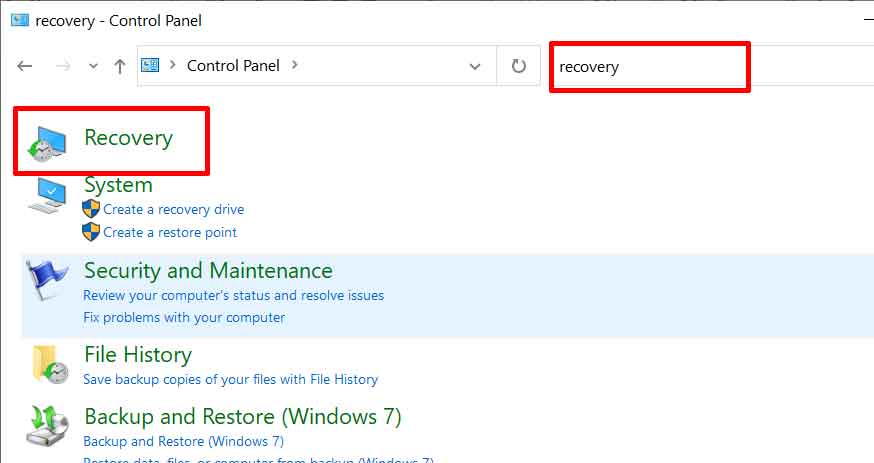
- Open the Control Panel. Use the search box in the top-right corner and type “recovery“. Next, select the Recovery option.
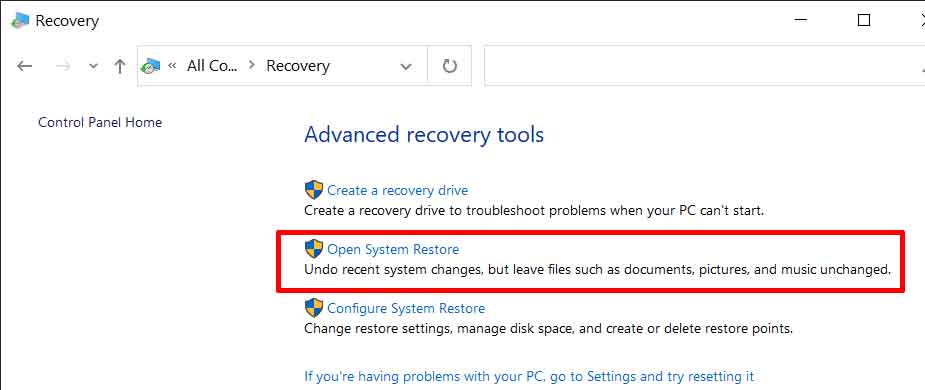
- In the Recovery window, select Open System Restore to begin the process.
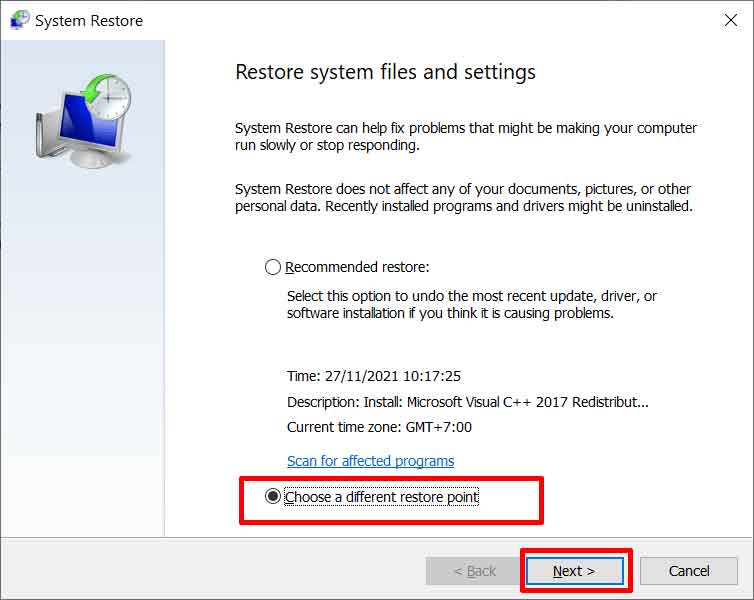
- Choose the Choose a different restore point option. Then, click the Next button.
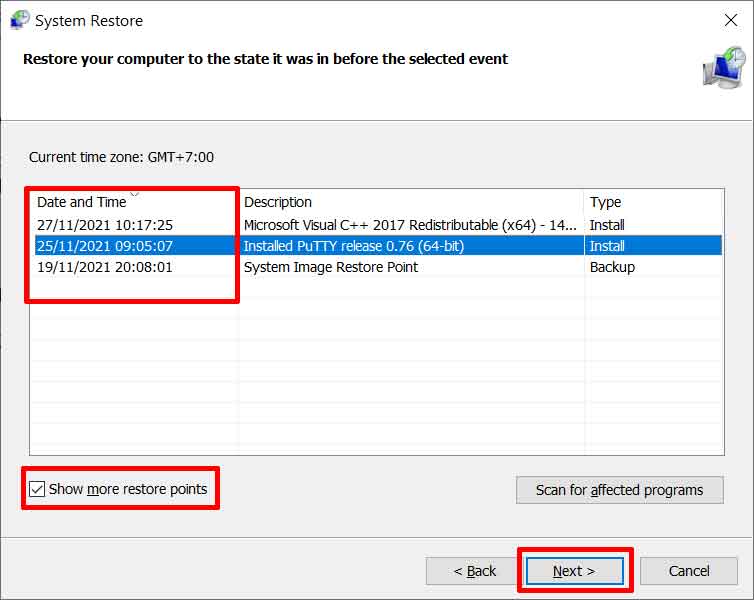
- Select the date of a restore point when the system was stable. Check Show more restore points to view additional options. Click Next after making your selection.
Important Note: System Restore does not affect personal files in folders like Documents or Pictures. However, apps, drivers, and Windows updates installed after the restore point date will be removed. Always create a manual restore point before installing new software. Official information from Microsoft Support.
- Confirm your choice and click Finish. The restore process will run and your computer will restart.
Reset Windows to Fix Severe System Errors
If System Restore is unsuccessful, the second option is Reset this PC. This feature will reinstall Windows. You can choose to keep your personal files or remove everything. This method is more effective for fixing Windows errors caused by core system file corruption.
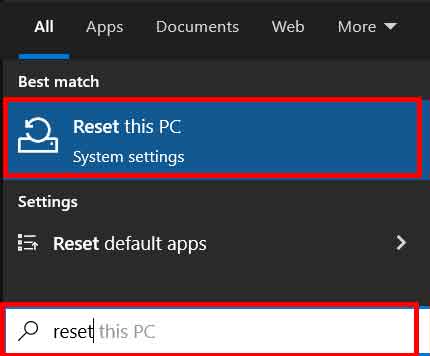
- Open Settings (Windows + I). Go to System > Recovery. In the “Recovery options” section, click the Reset PC button.
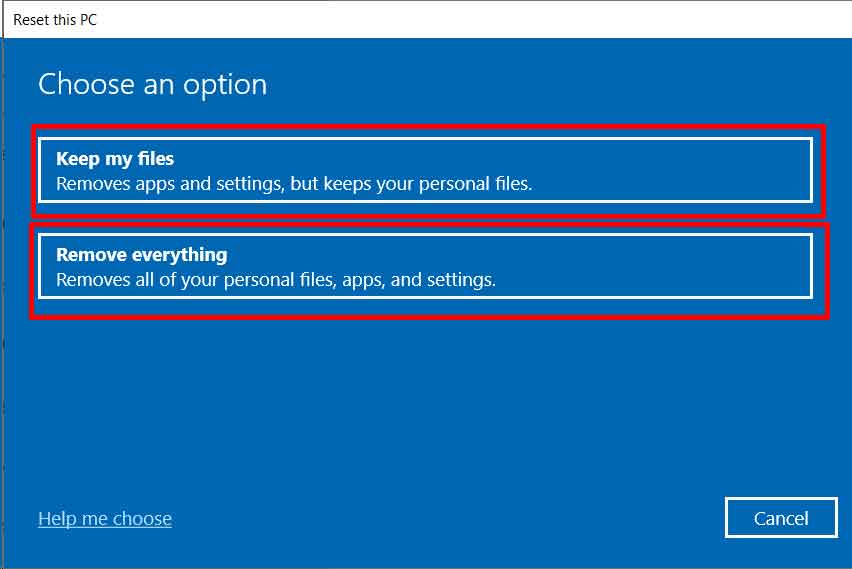
- You will be presented with two choices: Keep my files or Remove everything. Choose “Keep my files” to retain your personal data.
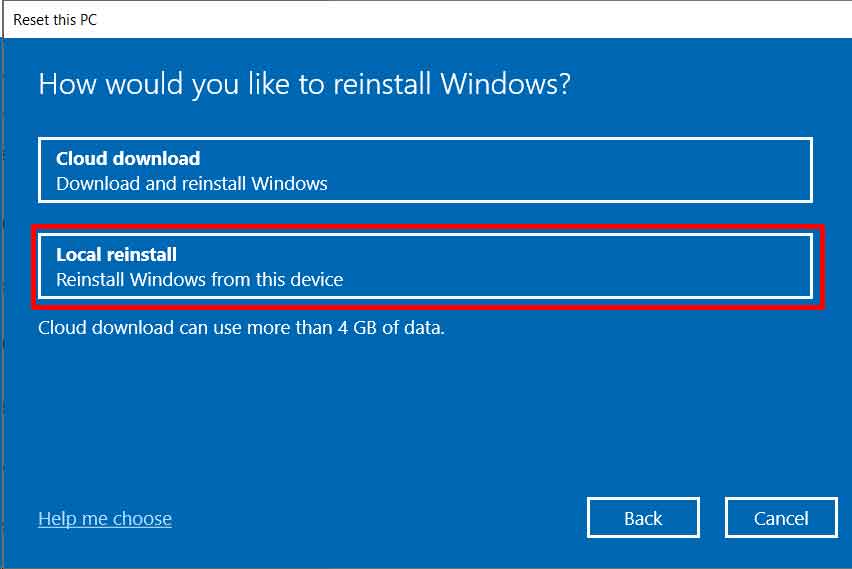
- Next, choose Local reinstall to use the installation files already on your computer. This option is faster than downloading from the cloud.
- Review the changes that will be made. Then, click Reset to start the process. The computer will restart several times during this operation.
The reset process takes approximately 20 to 60 minutes. Upon completion, you will have a clean Windows system. Previously installed applications will be removed, but personal files will remain if you selected the corresponding option.
Conclusion: Both System Restore and Reset Windows are powerful tools for fixing Windows errors. Always try System Restore first as it is less invasive. If that fails, Reset Windows with the “Keep my files” option is an effective solution before considering a manual clean install. Remember to back up your data regularly as a primary preventative measure.
