

Encountering the “USB Device Not Recognized” or “Device Descriptor Request Failed” error on Windows? This guide provides comprehensive solutions, from basic checks to advanced system settings, to resolve these frustrating USB connection issues.
USB devices are essential for data transfer and peripheral connections. However, the sudden appearance of a USB Device Not Recognized error or the specific Device Descriptor Request Failed message can disrupt your workflow. These errors indicate that Windows is unable to properly identify or communicate with the connected USB hardware.
The core of the problem often lies in the system’s failure to read the device’s descriptor—a set of data that tells Windows what the device is and which driver it needs. This guide walks you through proven methods to fix this issue, ensuring your ports and peripherals work correctly again.
Common Causes of USB Recognition Errors
Understanding what triggers the Device Descriptor Request Failed error is the first step toward a fix. Typical culprits include:
- Hardware Issues: Damaged USB ports, faulty cables, or a defective device itself.
- Driver Problems: Outdated, corrupted, or incompatible USB drivers.
- Power Management Settings: Windows power-saving features like “USB Selective Suspend” interrupting power to ports.
- System Conflicts: The “Fast Startup” feature or recent Windows updates causing instability.
- Registry or System File Corruption: Deeper Windows system issues affecting hardware recognition.
How to Fix USB Device Not Recognized Error
Follow these troubleshooting steps in order. Begin with simple fixes before moving to more advanced solutions.
- Perform Basic Hardware Checks
- Run the Windows Hardware Troubleshooter
- Update or Reinstall USB Drivers
- Disable Fast Startup
- Disable USB Selective Suspend Setting
1. Perform Basic Hardware Checks
Eliminate simple physical causes before diving into software settings. A quick check can often resolve the USB device not recognized issue.
- Try a different USB port: Connect the device to another port on your computer. If it works, the original port may be faulty.
- Restart your computer: A reboot can clear temporary glitches causing the error.
- Test on another PC: Plug the device into a different computer. If it fails there too, the USB device itself is likely damaged.
- Inspect cables and connectors: Look for bent pins or physical damage. Try a different cable if possible.
2. Run the Windows Hardware Troubleshooter
Windows includes an automated tool designed to diagnose and fix common hardware problems, including USB errors.
- Press Win + R to open the Run dialog box.
- Type
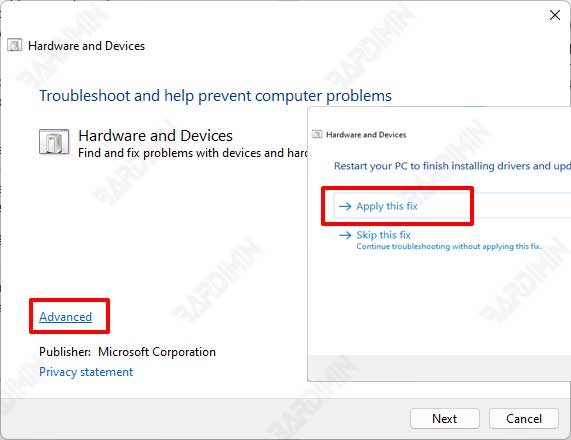
msdt.exe -id DeviceDiagnosticand press Enter. - In the troubleshooter window, click “Advanced” and ensure “Apply repairs automatically” is checked.
- Click “Next” and follow the on-screen instructions.
- Apply any recommended fixes and restart your computer.
3. Update or Reinstall USB Drivers
Driver issues are a leading cause of the Device Descriptor Request Failed error. Keeping them updated is crucial.
- Right-click the Start button and select “Device Manager”.
- Expand the “Universal Serial Bus controllers” section.
- Look for any device with a yellow exclamation mark (often labeled “Unknown Device”).
- Right-click it and select “Update driver”.
- Choose “Search automatically for updated driver software”.
If updating doesn’t work, try uninstalling the driver. Right-click the device, select “Uninstall device”, then restart your PC. Windows will attempt to reinstall a fresh driver upon startup.
4. Disable Fast Startup
This feature can prevent devices from initializing correctly during boot, leading to recognition problems.
- Open Control Panel > Power Options.
- Click “Choose what the power buttons do” on the left.
- Click “Change settings that are currently unavailable”.
- Scroll down and uncheck “Turn on fast startup (recommended)”.
- Click “Save changes” and restart.
5. Disable USB Selective Suspend Setting
This power-saving setting can mistakenly put USB ports into a low-power state, making them unresponsive.
- Navigate to Control Panel > Power Options.
- Next to your active plan, click “Change plan settings”.
- Click “Change advanced power settings”.
- Find and expand “USB settings” > “USB selective suspend setting”.
- Set both “On battery” and “Plugged in” to “Disabled”.
- Click “Apply” and “OK”, then restart your computer.
If the USB Device Not Recognized error persists after all these steps, consider checking for Windows updates, updating your motherboard’s BIOS/UEFI (with caution), or performing a system restore. For complex hardware issues, consulting the official Microsoft Support website or a professional technician is recommended.
