

This article provides a comprehensive guide to performing a factory reset on Windows 10 and Windows 11. You will learn the right time to reset, essential preparations, the difference between the “Keep my files” and “Remove everything” options, and detailed technical steps. A factory reset of Windows is an effective solution for addressing performance issues, system errors, or preparing a PC for sale.
After prolonged use, the Windows operating system often experiences performance degradation. Issues such as slowdowns, freezes, or “blue screen” errors may appear. The causes vary, ranging from driver conflicts and corrupt system files to the accumulation of unnecessary software.
Before deciding on a factory reset, there are several initial solutions. You can run System File Checker (sfc /scannow via Command Prompt) or perform a System Restore. However, if problems persist, a Windows reset becomes the best option.
When Should You Factory Reset Your PC?
- Windows is extremely slow and unresponsive.
- Frequent crashes or stop errors (blue screen).
- Heavy malware infection that is difficult to remove.
- Planning to sell or give the PC to someone else.
- Experiencing undiagnosed system errors.
Essential Preparations Before Resetting Windows
Preparation steps are crucial to prevent data loss. First, backup all important files to an external drive or cloud storage. Second, prepare product licenses and activation keys for paid software. Third, ensure you have your Microsoft account login credentials to regain access. Finally, download the latest drivers for critical components like chipset and network, then save them to an external drive.
Steps to Factory Reset Windows 10 and 11
The process for a factory reset on Windows 10 and Windows 11 is very similar. Follow this step-by-step guide.
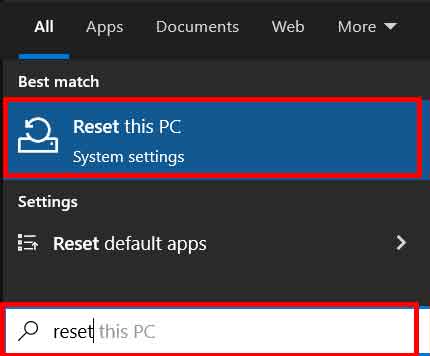
- Open Settings > System > Recovery.
- Under “Recovery options”, click the Reset PC button.
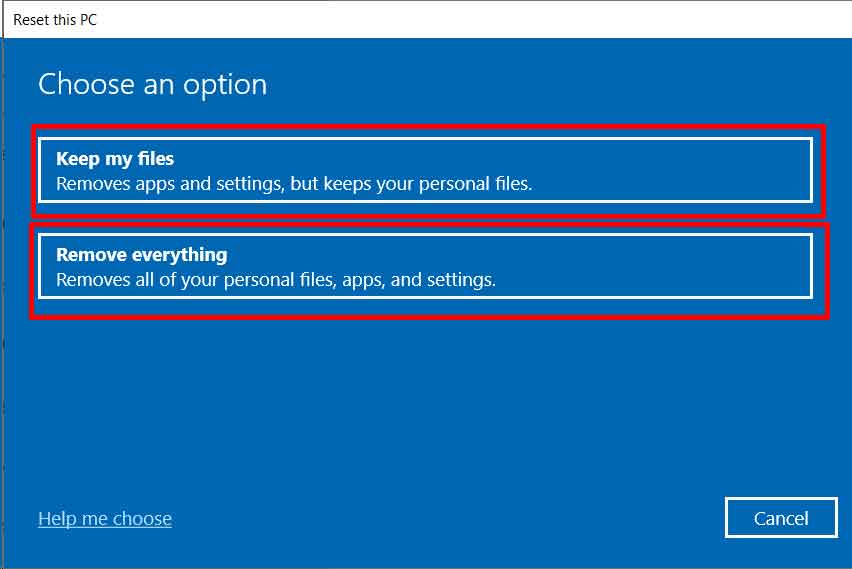
- You will be presented with two main choices:
- Keep my files: Removes apps and settings, but preserves personal files in User folders (Documents, Pictures, etc.).
- Remove everything: Deletes all files, apps, and settings. Use this option if you are selling the PC or want a completely clean installation.
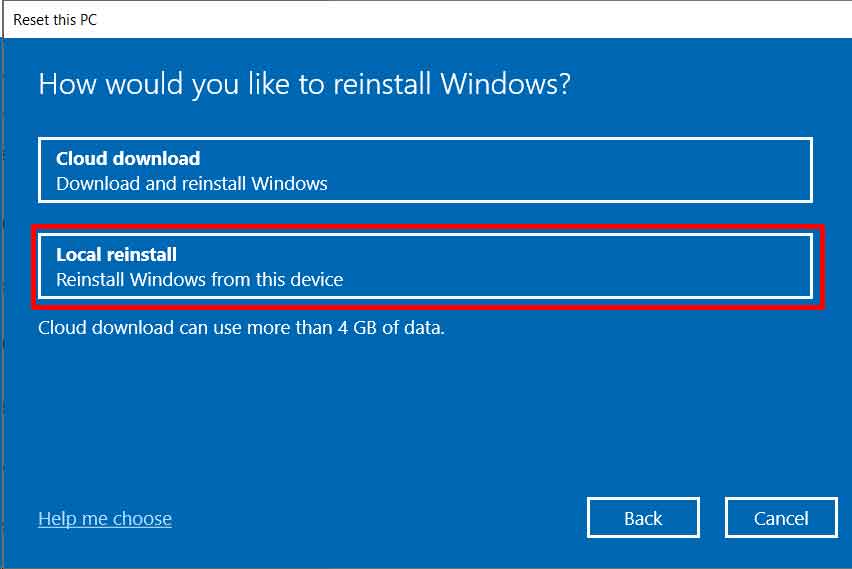
- Next, choose the installation method. For most users, select Local reinstall. The “Cloud download” option requires a stable internet connection to download the latest Windows files.
- Review the final settings. The system will display a list of apps that will be removed. Click Reset to begin the process.
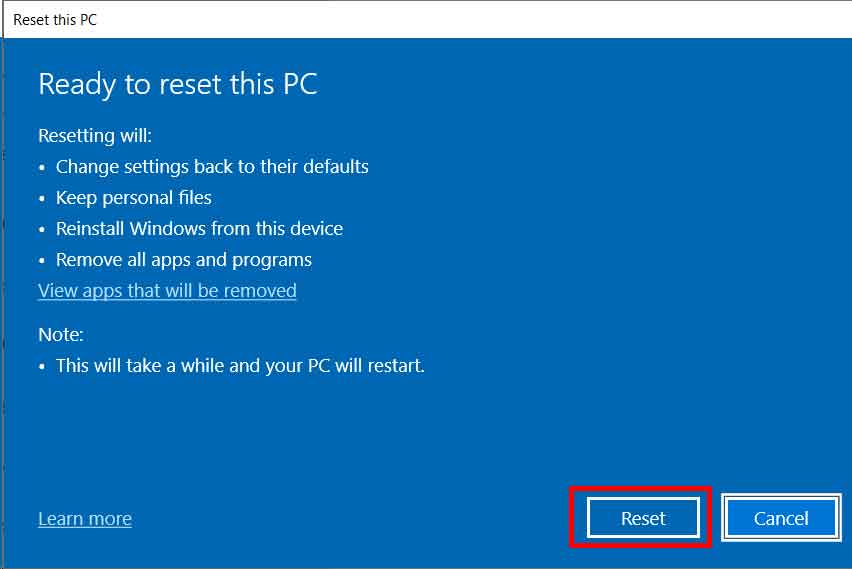
- The PC will restart several times. This Windows factory reset process can take from 30 minutes to several hours. Ensure the laptop battery is sufficient or the PC is connected to a power source.
In-Depth Understanding: Keep my Files vs. Remove Everything
| Option “Keep my files” | Option “Remove everything” |
|---|---|
| Saves personal files in user folders. | Deletes ALL data on the system drive (C:). |
| Resets Windows settings to default. | Restores Windows to its factory state. |
| Removes all installed apps and programs. | Safest choice before selling or giving away a PC. |
| Suitable for fixing errors without data loss. | Requires a complete external data backup. |
As a note, for maximum security, the “Remove everything” option in Windows 11 offers a “Clean data” setting that overwrites the drive. This feature prevents data recovery and is highly recommended if the PC will change ownership.
Conclusion
A Windows factory reset is a powerful recovery tool. This process effectively resolves many complex system issues. The key to success lies in preparing data backups and choosing the correct option. Always remember to save important files in a secure location before starting. For detailed official information, you can refer to the Windows recovery support page from Microsoft.
By following this guide, you can perform a Windows reset with confidence. A fresh and stable system performance can be restored promptly.
