

Resetting Windows Update components or removing a faulty update can solve most update-related issues. This guide is written for IT professionals, technicians, and gamers who need reliable, actionable steps.
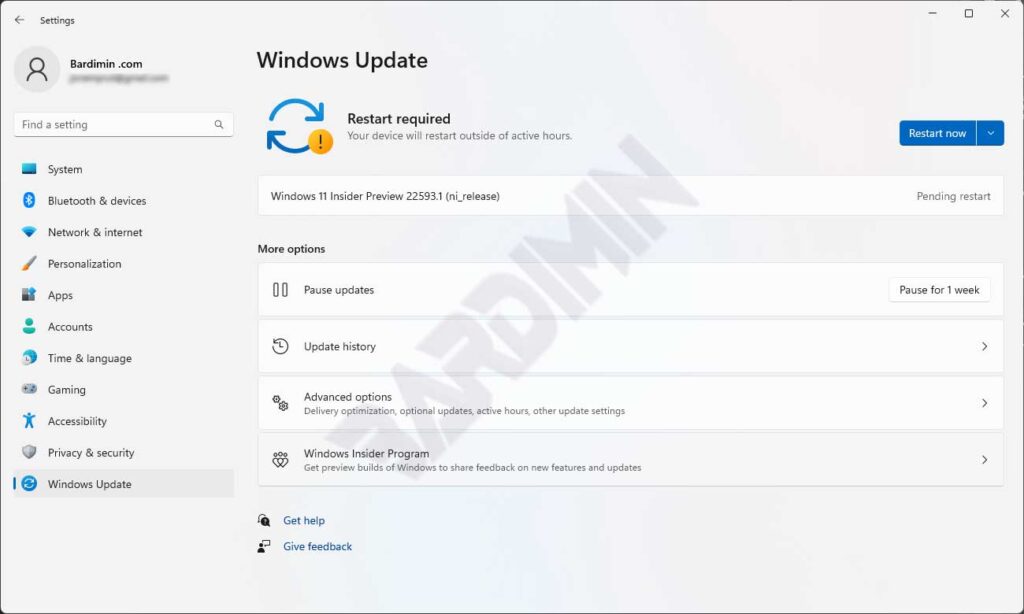
Windows Update is critical for security, new features, and system performance. But it frequently fails: downloads hang, installations crash, or errors appear after a restart. These problems usually come from a corrupted Windows Update cache, stopped services, or driver conflicts. This article presents two proven methods to reset windows update: using Command Prompt (batch file) and a dedicated GUI tool. You will also learn how to remove a problematic update that makes your system unstable.
Before starting, ensure you have administrator access. If your PC won’t boot normally, use Safe Mode with Command Prompt. Back up important data first because the reset process stops services and deletes cache folders. These methods work on Windows 10 and Windows 11, and they are safe for high-performance gaming rigs.
Method 1: Reset Windows Update Using Command Prompt (Batch File)
This approach is highly recommended for technicians and professionals because it gives full control. You will create a batch (.bat) file that runs a series of commands to stop services, clean the cache, and re-register system files.
Open Notepad. Copy the batch code below. Save the file as reset_windows_update.bat. Make sure the extension is .bat, not .txt. Run the file as administrator (right-click → Run as administrator).
@echo off
:: Reset Windows Update Script
:: Stop related services
net stop bits
net stop wuauserv
net stop appidsvc
net stop cryptsvc

:: Delete cache and temporary files
del /s /q /f "%ALLUSERSPROFILE%\Microsoft\Network\Downloader\qmgr*.dat"
del /s /q /f "%SYSTEMROOT%\Logs\WindowsUpdate\*"
rmdir /s /q "%SYSTEMROOT%\SoftwareDistribution"
rmdir /s /q "%SYSTEMROOT%\system32\Catroot2"

:: Reset registry policies
reg delete "HKLM\SOFTWARE\Policies\Microsoft\Windows\WindowsUpdate" /f
reg delete "HKCU\SOFTWARE\Microsoft\Windows\CurrentVersion\Policies\WindowsUpdate" /f
gpupdate /force

:: Re-register DLL files
cd /d %windir%\system32
regsvr32.exe /s atl.dll
regsvr32.exe /s urlmon.dll
regsvr32.exe /s wuapi.dll
regsvr32.exe /s wuaueng.dll
regsvr32.exe /s wucltui.dll

:: Reset Winsock and proxy
netsh winsock reset
netsh winhttp reset proxy

:: Restart services
net start bits
net start wuauserv
net start appidsvc
net start cryptsvc

echo Reset complete. Please restart your computer.
shutdown /r /t 10
After running the batch file, your computer will restart automatically in 10 seconds. Save your work before proceeding. This method also fixes common errors like 0x80070002, 0x80073712, and 0x8024401c that often appear on gaming systems.
Method 2: Use the Reset Windows Update Tool
If you are not comfortable with the command line, the Reset Windows Update Tool offers a practical graphical solution. This open-source tool, created by Manuel Gil, does more than resetting update components. It can scan and repair corrupted system files, clean the registry, and reset Winsock policies.
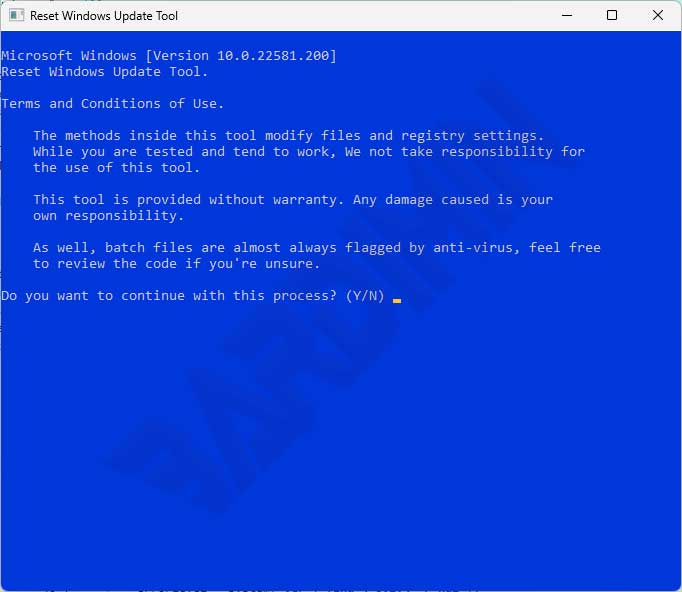
Download the tool from its official repository at github.com/ManuelGil. Pick the latest version (ResetWindowsUpdateTool.exe). Run it as administrator. You will see several options:
- Reset Windows Update components – clears cache and resets services.
- Delete temporary files – removes system temp files.
- Scan and repair system files – runs SFC and DISM.
- Restore Windows Update policies – returns policies to default.
Check the first and third options, then click Run as administrator. The proccess takes 2–5 minutes. After completion, restart your computer. This tool is especially helpful for gamers who frequently face failed GPU driver updates from NVIDIA or AMD.
How to Remove a Problematic Windows Update
If reset windows update does not solve the issue — especially if you see blue screens or a major performance drop — you may need to uninstall a specific update. This step is useful when the latest update conflicts with hardware or gaming software.
Go to Settings → Windows Update → Update history → Uninstall updates. Look for the update by installation date. Select the suspicious update and click Uninstall. Alternatively, use Command Prompt as administrator:
wusa /uninstall /kb:xxxxxxxx
Replace xxxxxxxx with the Knowledge Base (KB) number. Example: wusa /uninstall /kb:5021234. After uninstalling, restart your computer and pause automatic updates for up to 35 days via Windows Update settings.
For technicians and gamers, resetting Windows Update components every six months prevents cache corruption and maintains system stability.
Prevention and Maintenance of Windows Update
To avoid frequent update problems, adopt these habits:
- Back up drivers before a major feature update. Use tools like Double Driver.
- Run Disk Cleanup regularly, including Windows Update temporary files.
- Monitor free space – updates need at least 20GB of free storage.
- Use a stable connection – interrupted internet is a common cause of update failure.
- Never force shutdown your PC during an update. This damages Windows Update components.
For professional environments, apply Group Policy to defer updates until they are proven stable. Open gpedit.msc → Computer Configuration → Administrative Templates → Windows Components → Windows Update → Configure Automatic Updates. Set it to “Notify for download and notify for install”.
Conclusion and Recommendations
Reset windows update is the first and most effective step to fix installation errors, download failures, or post-update instability. The two methods described — batch file and GUI tool — are reliable for technicians, IT pros, and gamers. If problems persist, remove the offending update through Control Panel or Command Prompt. With regular maintenance, you can minimize Windows Update disruptions and keep your computer running smoothly.
Finally, always back up your data before resetting or removing updates. Some users report that resetting windows update also speeds up boot time on systems older than two years. Give it a try!
