

Knowing the location of apps and tools in Windows 11 is essential for several reasons. First, it allows users to access the features and functions they need quickly and efficiently, without the need to search around or feel frustrated about not knowing where to find things.
Secondly, this knowledge helps troubleshoot and manage the system better, as many built-in tools are designed for system maintenance and setup. Third, a good understanding of the location of applications and tools can improve user productivity, as they can set up and customize their work environment as needed.
This article aims to provide a complete and detailed guide regarding the location of all the apps and tools available in Windows 11. With this guide, you’ll be able to easily find and access various apps and tools, whether for daily needs, system maintenance, or advanced setup.
Bardimin will discuss various ways to access apps and tools, from the most basic ones like Start Menu and Taskbar to more specific methods like using Run Command and Search Bar.
Windows 11 Built-in App Locations
Start Menu
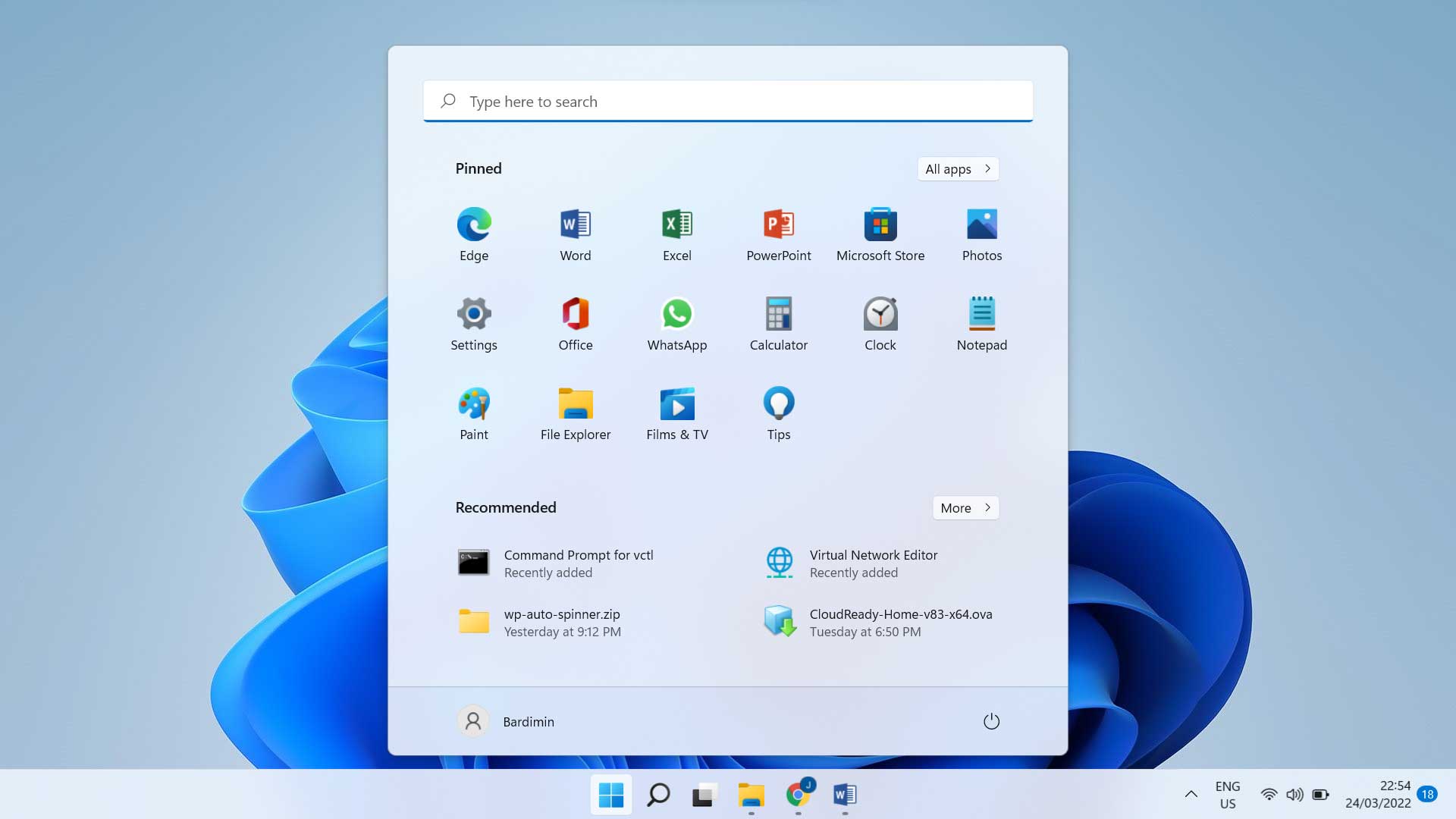
The Start Menu is the main control center in Windows 11 for accessing various apps, tools, and settings. With an updated look, the Start Menu in Windows 11 is now located in the center of the taskbar by default, providing easier and faster access. The Start Menu incorporates elements such as installed apps, app recommendations, and quick access to important folders and features.
To access the app from the Start Menu, you can follow these steps:
- Click the Start Menu icon located in the center of the taskbar.
- You’ll see a list of Pinned Apps at the top of the Start Menu.
- If the app you’re looking for doesn’t appear in the Pinned Apps list, click the button “All Apps” in the top right corner of the Start Menu.
- Scroll through the list of existing apps or use the search feature by typing the name of the app in the search bar at the top of the Start Menu.
Pinned Apps vs All Apps
Pinned Apps are frequently used or selected apps to appear in the main part of the Start Menu for easy access. You can add or remove apps from the Pinned Apps list as per your needs.
All Apps is a complete list of all the apps installed on your computer. This list is accessed by clicking on the “All Apps” button in the Start Menu, providing an alphabetical view of all available apps. This is especially useful if you don’t find the app you’re looking for in the Pinned Apps list.
Taskbar
The Taskbar is an area at the bottom of the screen (or on the side, depending on your settings) that displays running app icons, pinned app icons, and notification areas. The taskbar makes it easy to switch between currently open apps and gives you quick access to frequently used apps.
To add and access apps from Taskbar, follow these steps:
- Adding Apps to the Taskbar:
- Go to the Start Menu and search for the app you want to pin to the taskbar.
- Right-click on the app icon, then select “Pin to taskbar”.
- The app icon will appear on the taskbar and be ready to be accessed at any time.
- Accessing the App from the Taskbar:
- Click the app icon on the taskbar to open or start it.
- If the app is already running, clicking on its icon will take the app window forward.
System Tools Location in Windows 11
Settings
Settings is the main control center for configuring different aspects of the Windows 11 operating system. To access Settings, you can follow some of the following methods:
- From the Start Menu:
- Click the Start Menu icon in the middle of the taskbar.
- Select the Settings icon, which is usually in the shape of a gear, in the list of pinned apps.
- Using the Search Bar:
- Click the Search icon in the taskbar.
- Type “Settings” and select Settings app from the search results.
- Using Keyboard Shortcuts:
- Press Windows + I simultaneously to directly open the Settings.
Important Tools in Settings
Settings have different categories of tools that are essential for organizing and managing your system. Here are some of the main categories and essential tools within them:
- System:
- Display: Set screen resolution, text scale, and screen orientation.
- Sound: Manage audio output and input, as well as volume settings.
- Notifications & Actions: Set up notifications and quick actions that appear in the action center.
- Power & Sleep: Manage power and sleep settings to improve energy efficiency.
- Devices:
- Bluetooth & Devices: Set up Bluetooth devices, printers, and other connected devices.
- Printers & Scanners: Manage printers and scanners connected to your system.
- Mouse: Adjust mouse and touchpad settings.
- Network & Internet:
- Wi-Fi: Manage available Wi-Fi connections.
- Ethernet: Manage cable network settings.
- VPN: Sets up a VPN connection for better network security.
Control Panel
Control Panel is still available in Windows 11 although many of its functions have been replaced by Settings. Here’s how to access it:
- Using the Search Bar:
- Click the Search icon in the taskbar.
- Type “Control Panel” and select the Control Panel app from the search results.
- Using Run Command:
- Press Windows + R to open the Run dialog.
- Type “control” and press Enter to open the Control Panel.
Difference and Relationship between Control Panel and Settings
Control Panel is a classic interface for setting various system settings in Windows. Many of the features in Control Panel are gradually being moved to Settings in Windows 11 for a more modern and unified user experience. However, some advanced tools and settings are still only accessible through the Control Panel.
- Settings offers a more user-friendly and well-organized interface, perfect for daily tasks and basic settings.
- Control Panel remains important to access more in-depth and advanced settings that are not yet available in Settings.
Windows Tools
Windows Tools is a collection of administrative tools provided by Windows 11 to help users manage and maintain their systems. These tools are especially useful for advanced users who need to access and manage various technical aspects of the system.
List of Important Tools in Windows Tools
Here are some of the essential tools included in Windows Tools:
- Disk Cleanup:
- Used to clean temporary and unnecessary files from the hard drive to free up space and improve performance.
- Event Viewer:
- Displays a system event log that records information about various events and errors that occur in the system. It is very useful for diagnosing problems.
- Task Scheduler:
- Allows users to schedule automated tasks to be executed at specific times or intervals. Useful for routine maintenance and task automation.
How to Quickly Access Apps and Tools in Windows 11
Search Bar
Search Bar is a very useful tool in Windows 11 that allows users to quickly find apps, tools, files, and settings just by typing a few keywords. This Search Bar is located on the taskbar and can be accessed easily.
Use Cases for Various Applications and Tools
- Accessing Settings:
- Click the Search Bar in the taskbar.
- Type “Settings” and press Enter.
- Settings will open.
- Open Microsoft Word:
- Click the Search Bar in the taskbar.
- Type “Word” and press Enter.
- Microsoft Word will open if it is installed on your system.
- Finding the Command Prompt:
- Click the Search Bar in the taskbar.
- Type “cmd” and press Enter.
- Command Prompt will be unlocked.
- Searching for Files or Folders:
- Click the Search Bar in the taskbar.
- Type the name of the file or folder you’re looking for.
- A list of search results will appear, and you can select the file or folder you want.
Run Command
Run Command is a quick tool that allows you to run various applications, tools, and system commands directly by typing their names or commands. This is especially useful for users who are familiar with certain commands and want to save time.
List of Important Commands
- msconfig:
- Opens System Configuration which is useful for setting up startup and system services.
- How to use: Press Windows + R, type “msconfig”, then press Enter.
- regedit:
- Open Registry Editor to edit the Windows registry.
- How to use: Press Windows + R, type “regedit”, then press Enter.
- cmd:
- Open Command Prompt to execute a line command.
- How to use: Press Windows + R, type “cmd”, then press Enter.
- control:
- Opens Control Panel.
- How to use: Press Windows + R, type “control”, then press Enter.
- taskmgr:
- Opens Task Manager to monitor running applications and system performance.
- How to use: Press Windows + R, type “taskmgr”, then press Enter.
Keyboard Shortcuts
Keyboard shortcuts allow you to quickly access various features and tools in Windows 11, without having to use a mouse. Here are some important shortcuts:
- Windows + I:
- Open Settings.
- Windows + R:
- Unlocks Run Command.
- Windows + E:
- Unlocks File Explorer.
- Windows + L:
- Lock your computer screen.
- Windows + D:
- Display the desktop by minimizing all open windows.
- Windows + Tab:
- Open the Task View view to switch between applications and virtual desktops.
- Windows + A:
- Unlocks Action Center.
- Windows + S:
- Unlocks Search Bar.
Conclusion
This article has taken you through the different aspects of Windows 11, from the introduction of the updated user interface to the location of built-in apps and tools. Bardimin has explored the Start Menu and Taskbar, as well as providing tips for advanced app management and personalizing your Windows experience.
By understanding where and how to access apps and tools in Windows 11, you can improve your work efficiency and take full advantage of the features that this operating system has to offer. This knowledge allows you to save time and speed up your daily workflow.
