

The internet has become a part of our daily lives, and choosing the right browser is crucial for accessing the necessary information. Today’s new browsers not only provide a way to browse the internet but also offer additional features that help us perform tasks or search for specific information. One of the new browsers today is Microsoft Edge.
Microsoft Edge is a web browser designed to provide a fast, secure, and efficient internet browsing experience. The browser has advanced features such as a private browsing mode, integration with Microsoft services like Office 365, and support for extensions that extend its functionality. Microsoft Edge is also known for its strong security, with features such as protection against malware and phishing.
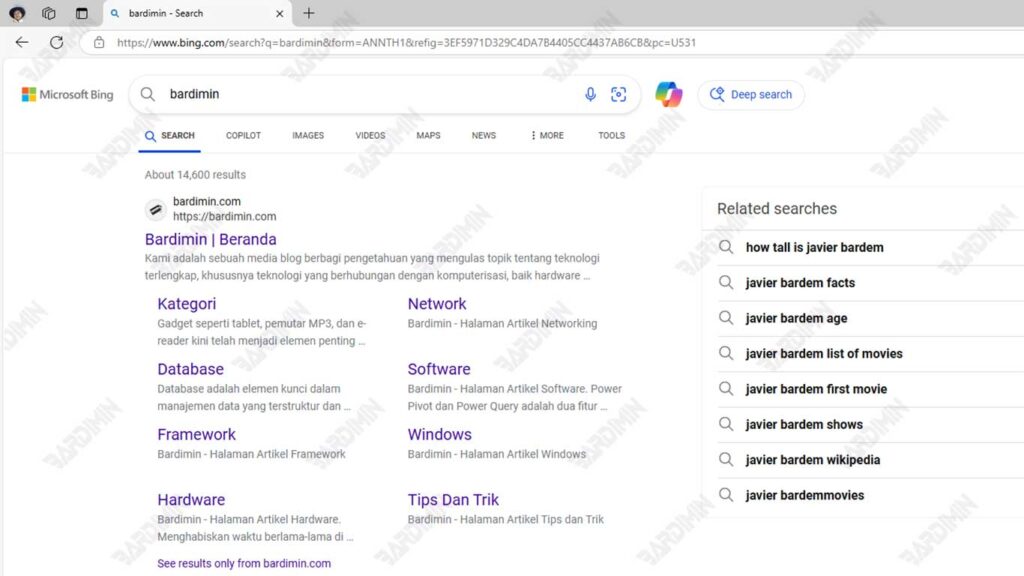
Understanding the Basics of Effective Browsing in Microsoft Edge
The Microsoft Edge interface is designed to provide an intuitive and efficient user experience. At the top of the browser window, there’s an address bar that serves as a place to enter the URL or search keyword. Below the address bar, users can view open tabs, allowing for easy navigation between pages. In the upper right corner, a menu provides access to settings, history, and other additional features.
What the Address Bar Does and How to Use It
The address bar in Microsoft Edge is not only used to enter URLs, but it also serves as a search tool. When the user types in an address or keyword, Edge will automatically display search suggestions. To use the address bar:
- Type the website address or search term in the address bar.
- As you type, search suggestions will appear; users can select one or press Enter to continue.
- After entering the URL or selecting a suggestion, the webpage will load.
Quick Navigation Techniques
Microsoft Edge provides several quick navigation techniques that make it easier for users to browse the internet:
- Using navigation buttons: The Back and Forward buttons allow users to quickly navigate between pages they have visited.
- Using tabs: Users can open multiple tabs by pressing Ctrl + T to open a new tab and Ctrl + Tab to move between tabs.
- Zoom in/out: To zoom in or out on a web page, users can use Ctrl + plus sign (+) to zoom in and Ctrl + minus sign (-) to zoom out.
- Bookmark favorites: Users can add pages to their favorites list by clicking on the star icon in the address bar or pressing Ctrl+D, making it easy to access favorite sites at a later time.
Professional Search Strategy
Bing Search, as the default search engine in Microsoft Edge, offers a variety of features that can help users find information more efficiently. To get the most out of your search experience on Bing:
- Entering more specific keywords will give you more relevant results. For example, type “best Italian restaurant in Jakarta” instead of just “restaurant”.
- After you’ve done your search, use tabs like Images, Videos, News, and Maps to narrow down the results to your needs.
- Results at the top and side of the page are often ads. Be sure to differentiate between organic results and ads to get more accurate information.
Understanding Search Result Types
It’s important to understand the different types of search results that may appear when using Bing:
- Organic Results: These are results that appear based on the relevance of the content to your search keywords. They are usually more trustworthy because they are not paid.
- Paid Ads: The results that appear at the top and side of the search page are ads. While they may be relevant, it is important to check the source before trusting the information.
- Local Results: If your search is location-related, Bing will show relevant local results. For example, if you search for “nearby cafes,” Bing will show you cafes around your location.
Sorting out Quality Information
In the era of abundant information, sorting out quality information is very important. Here are some tips to help you:
- Always check the credibility of the website. Trusted sources usually have a .edu, .gov, or reputable news site domain.
- If available, read reviews or comments from other users to get additional perspective on specific information or products.
- Don’t rely on just one source. Compare information from multiple sites to ensure accuracy and objectivity.
Maximizing Search Features in Bing
Explore the Search tab (Images, Videos, News)
Bing Search offers a variety of search tabs that allow users to find information more specifically. Here’s how to explore each tab:
- Image Tab: When you search for an image, click on the Image tab to see all relevant results in a visual format. It is very useful for finding photos, infographics, and illustrations.
- Video tab: If you’re looking for video content, select the Videos tab. Bing will display video footage from a variety of sources, allowing you to watch live or visit the provider’s site.
- News tab: To get the most up-to-date information, use the News tab. The results here will show you the latest articles from various news sources regarding the topic you are looking for.
Strategy for Finding the Right Information
To get more precise search results on Bing, consider the following strategies:
- Including more focused and specific keywords will help narrow down search results. For example, type “houseplant care tips” instead of just “plants”.
- Bing supports search operators such as AND, OR, and NOT. For example, if you’re looking for information about “cats” but not about “dogs,” you could type “cats NOT dogs.”
- Once you’ve got your search results, use the filters available to filter by date, location, or content type (such as images or videos).
- Be careful of the top results that are often ads, which are usually marked as “ads” or sponsored ads.
Avoiding the Ad Trap in Search
Ads often appear in search results and can interfere with the user experience. Here are some tips to avoid ad traps:
- Familiarize yourself with the appearance of ads on Bing. Ads are usually marked with an “Ads” label on them. Focus on results that aren’t labeled ads for more objective information.
- Always check the credibility of a source before trusting information. Official websites or reputable news sources are usually more reliable compared to lesser-known sites.
- Consider using an ad-blocking extension on your browser to reduce the number of ads that appear when searching.
- To block ads on web pages, you can install the Adblock Plus app from the Microsoft Store.
Favorite Site Management
How to Save Favorite Pages
Saving your favorite pages in Microsoft Edge is very easy and allows you to quickly access frequently visited sites. Here are the steps to save your favorite pages:
- Navigate to the website you want to add to your favorites list.
- To the right of the address bar, click the star icon (Add This Page to Favorites) or press Ctrl + D on your keyboard.
- In the panel that appears, you can rename the page if necessary and select the folder where you want to save it.
- Click the Add button to save the page to your favorites list.
Creating Folders and Organizing Bookmarks
Organizing bookmarks in folders helps keep your favorite list neat and accessible. Here’s how to create folders and manage bookmarks:
- Click the favorites icon (Ctrl + I) to open the favorites panel.
- Click on the Add Folder option in the toolbar of the favorites panel, then enter the desired folder name.
- To organize bookmarks, simply drag and drop bookmarks into the appropriate folder.
- You can also right-click on a bookmark to edit the name or remove it from the list of favorites.
Quickly Access Saved Sites
After saving and organizing bookmarks, accessing saved sites is very fast:
- Open the favorites panel by pressing Ctrl + I and select the site you want to visit from the list.
- Turn on the Favorites Bar so that your favorite sites appear below the address bar. Just click on the site name in the bar to access it right away.
- If you have a lot of bookmarks, use the search feature in the favorites panel to quickly find a specific site.
Browsing Privacy and Security
InPrivate Browsing is a feature in Microsoft Edge that allows users to browse the internet without saving browsing history, cookies, or other data after the session is complete. This feature is especially useful for those who want to maintain privacy when using a shared computer or when they don’t want their search information to be stored. When you open the InPrivate window, Edge will mark the session, so you know that all browsing activity will not be recorded.
Protecting Personal Data
Using InPrivate mode helps protect your data in the following ways:
- All sites you visit during an InPrivate session won’t appear in your browsing history after the window is closed.
- Cookies and other site data that would normally be stored for tracking will not be stored. This reduces the likelihood of targeted ads based on your browsing activity.
- This mode also helps prevent sensitive information, such as passwords and payment data, from being automatically saved by the browser.
When to Use Private Mode
There are several situations where using private mode is highly recommended:
- If you’re sharing your device with others, such as at work or home, InPrivate mode helps keep your browsing activity private.
- When looking for personal or sensitive information, such as health or finances, using this mode can provide an extra sense of security.
- If you’re a web developer or tester, InPrivate mode allows you to test sites without affecting your browsing history and cache.
Manage your search history.
Clearing your browsing history in Microsoft Edge is an important step to maintaining your privacy and controlling your stored information. Here are the methods to delete the history:
1. Using the Settings Menu:
- Open Microsoft Edge and click on the Settings and more icon (three dots) in the top right corner.
- Select History from the menu that appears.
- In the History panel, click on Clear browsing data.
- Select the time range you want to delete (for example, “Last hour”, “Last 24 hours”, or “All time”).
- Check the box next to Browsing history and any other options you want to delete, then click Clear now.
2. Using Keyboard Shortcuts:
- Press Ctrl + Shift + Delete simultaneously to open the Clear Browsing Data window.
- Select a time range and check the appropriate option, then click Clear now.
Controlling Digital Footprints
Controlling your digital footprint is essential for maintaining online privacy. Here are some ways to do it:
- When browsing, use InPrivate mode to prevent Edge from saving your browsing history. You can open the InPrivate window by pressing Ctrl+Shift+N.
- In Edge settings, you can control website permissions, such as access to location, camera, and microphone. This helps reduce the digital footprint left behind while browsing.
- In addition to your browsing history, be sure to periodically delete cookies and other site data that can track your online activity.
Dealing with Annoying Ads
Adblock Plus is one of the most popular extensions for blocking ads in browsers, including Microsoft Edge. Here are the steps to install it:
- Run the Edge browser on your device.
- Click on the three-dot icon in the top right corner and select Extensions. Then, click on Get Extensions from Microsoft Store.
- On the add-ons page, type “Adblock Plus” in the search field.
- Find Adblock Plus in the search results and click Get to install it. Follow the prompts to complete the installation.
- Once installed, make sure the extension is active by checking its settings in the Extensions menu.
Strategies for Cleaning Web Pages from Ads
After installing Adblock Plus, you can use several strategies to ensure your web pages are clean of ads:
- Go to the Adblock Plus settings and enable the option to block all ads, including ads that are not automatically detected.
- You can add custom block lists for specific ad types or sites that are still showing ads even though they’re already using Adblock Plus.
- If you find ads that are still appearing, use the reporting feature in Adblock Plus to help improve the effectiveness of your blocking.
A Cleaner Browsing Experience
By using Adblock Plus and applying the above strategies, you will experience a cleaner and more comfortable browsing experience. Here are some of the benefits of using an ad blocker:
- Without heavy ads, web pages will load faster, thus improving your browsing efficiency.
- By removing distractions from ads, you can focus more on relevant content and the information you’re looking for.
- Many ads contain malware or malicious links. By blocking ads, you also reduce your risk of being exposed to cyberattacks.
