

This comprehensive guide explains the official and safe method to perform a factory reset on Windows 11 without knowing the administrator password. Designed for IT technicians, professionals, and users facing login lockouts—such as on second-hand devices or after forgotten credentials—this article details the process using the Windows Recovery Environment (WinRE), explaining each option and its consequences.
Performing a Windows 11 reset without admin password is an advanced administrative procedure required in various technical scenarios. Common situations include receiving uncleaned second-hand IT assets, forgetting the local administrator password, or needing to recover a critically failed system without desktop access. Unlike resetting via Settings which requires authentication, this method utilizes the built-in system recovery interface.
Critical Warnings and Pre-Reset Considerations
- Data Backup: The reset process is destructive. If possible, remove the hard drive and connect it to another computer to backup critical data before proceeding.
- Legality: Ensure you have legal rights to reset the device. Do not use this method on systems owned by others without permission.
- Windows License: Digitally activated Windows 11 will reactivate automatically after reset. However, keep retail product keys as backup.
- Partition Impact: This process affects the system partition (C:). Separate data partitions may not be erased but remain at risk.
The core of this method to reset a PC with a forgotten admin password lies in accessing the Windows Recovery Environment (WinRE). WinRE is a minimal, separately booted Windows operating system designed specifically for troubleshooting and recovery. It can be accessed without logging into the main system, making it the ideal solution for authentication issues. The following is a detailed exploration of each technical step.
Detailed Analysis: Steps to Reset Windows 11 Without Credentials
This procedure assumes the device can boot to the login screen. If the system is too damaged, you will need Windows 11 installation media for deeper recovery.
- Accessing the Advanced Startup Menu from the Login Screen:
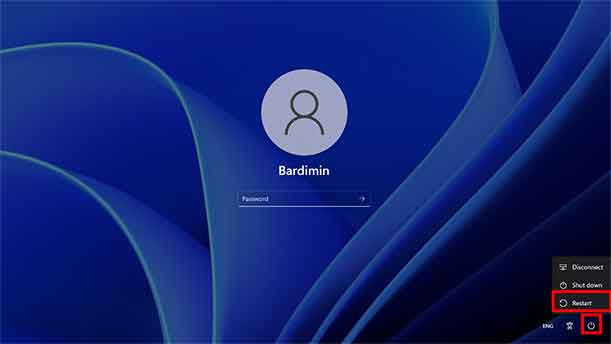
On the sign-in screen, click the Power icon in the lower-right corner. Hold the Shift key on your keyboard, then click Restart. ThisShift + Restartcombination is a command to restart Windows and force boot into the advanced options menu. - Navigating the Windows Recovery Environment (WinRE):
After restarting, you will enter the blue “Choose an option” screen. Select “Troubleshoot”. This menu contains system recovery tools. Then, choose “Reset this PC”.
- Choosing the Correct Reset Type (Consequences and Selection):
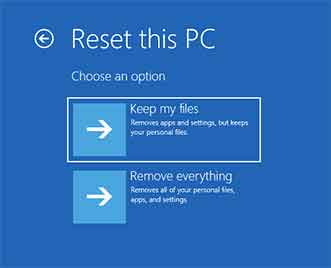
You will be presented with two choices with different data implications:- “Keep my files”: This option removes all apps and system settings but preserves personal files in the
C:\Users\[UserName]folder. - “Remove everything”: This option performs a true factory reset of Windows 11. All user data, apps, and settings will be permanently deleted.
- “Keep my files”: This option removes all apps and system settings but preserves personal files in the
- Selecting the Reinstallation Source:
Windows will ask how you want to reinstall the system.- “Cloud download”: WinRE downloads the latest Windows 11 image directly from Microsoft servers. Requires a stable internet connection (approx. 4-6 GB).
- “Local reinstall”: WinRE uses recovery files from the hidden recovery partition on the drive. Faster and requires no internet.
- Configuring Data Removal (Wiping Method):
This step determines the security level of data erasure.- “Just remove my files”: Performs a logical deletion (quick format). Data can be recovered with recovery tools until overwritten.
- “Fully clean the drive”: Performs a zero-fill write on all drive sectors. The process is slower but makes data recovery nearly impossible. Choose this if selling the device.
- Final Confirmation and Execution:
Windows displays a summary of your choices. After clicking “Reset”, the process cannot be canceled. The system will restart several times. Upon completion, you will enter the initial Windows 11 setup to create a new administrator account.
Advanced Scenarios and Troubleshooting
If the Shift + Restart method from the login screen doesn’t work, you can force boot into WinRE another way: Force restart the computer 3 consecutive times during the Windows boot process (hold the power button for 10 seconds to turn it off at the Windows logo). On the 4th boot, Windows will usually enter “Automatic Repair” and then WinRE.
For official and up-to-date information on Windows recovery tools, always refer to Microsoft documentation. Authoritative sources like the Microsoft Windows support page provide verified guidance. The Windows 11 reset without admin password process is a powerful tool. By understanding each step and its implications, technicians can execute it with precision, ensuring effective system recovery and responsible data handling.
