

Microsoft PowerToys delivers a native Always On Top utility that lets you pin any application window above all others. This open‑source tool is essential for multitasking professionals, system technicians, and gamers who need to keep critical information visible without interruption. With fully customizable keyboard shortcuts, it streamlines workflows and eliminates the need for third‑party scripts.
Always On Top PowerToys: The Definitive Window Pinning Solution for Windows
Windows has long lacked a built‑in mechanism to keep a specific window permanently on top. While some applications offer their own “always on top” flags, they are inconsistent and often absent. PowerToys Always On Top fills this gap as a lightweight, officially supported module from Microsoft. It requires no coding knowledge and integrates seamlessly with Windows 10 and 11.
Activation is instantaneous: press ⊞ Win+CtrlT and the active window instantly gains a prominent blue border. This border confirms that the window is now pinned to the topmost layer. The same shortcut toggles the feature off, restoring normal window stacking behavior.
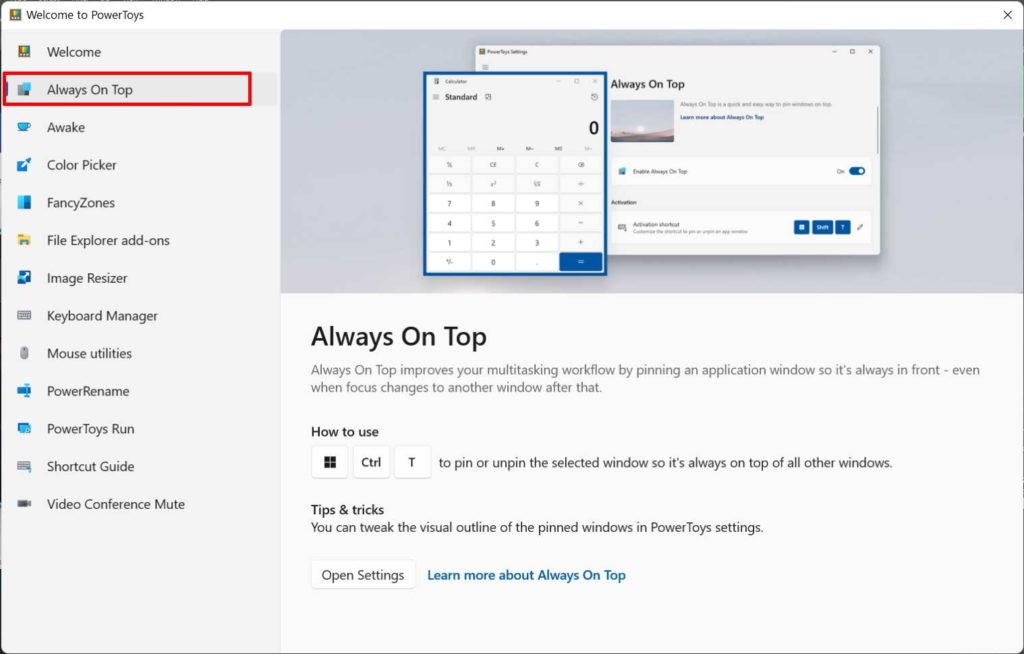
Technical Underpinnings: How Always On Top Really Works
Behind the scenes, PowerToys invokes the SetWindowPos function from the Windows API with the HWND_TOPMOST flag. This operation alters the window’s Z‑order instantly and does not persist after the application closes. The module runs in the background with negligible resource consumption and does not write to the Registry, making it completely reversible.
CRITICAL NOTE: Window pinning is not saved between sessions. Once you close the application, the topmost status is lost. This behavior is intentional—it prevents legacy applications from inadvertently remaining pinned and causing UI conflicts.
Customizing Shortcuts and Visual Feedback
Not everyone prefers the default Win+CtrlT combination. PowerToys offers a straightforward settings interface where you can remap the shortcut to any chord, such as Ctrl+ShiftSpace. You can also adjust the border color, thickness, and even enable distinct audio cues for activation and deactivation.
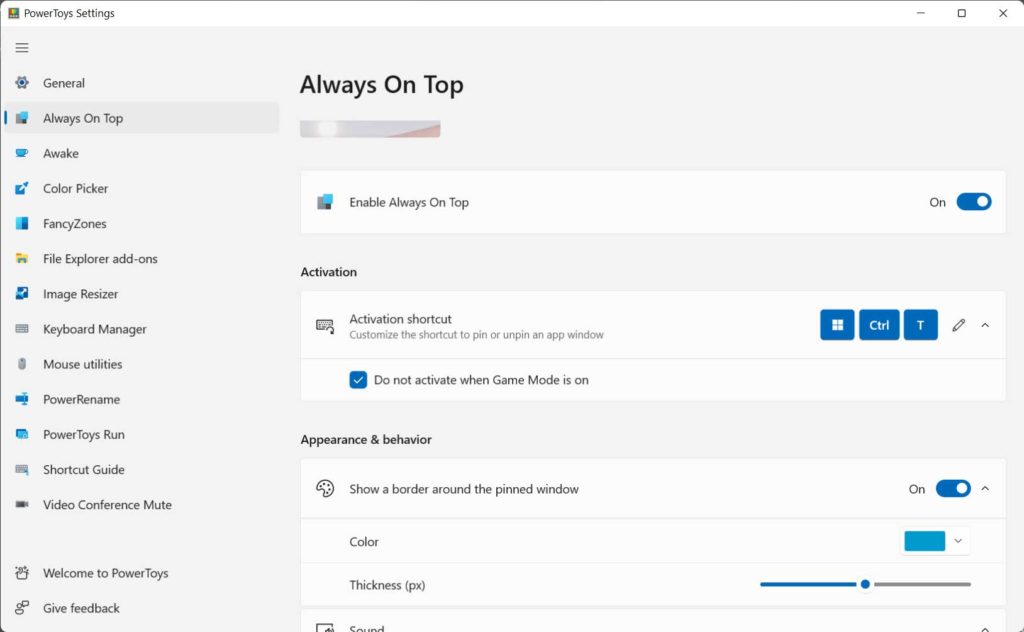
Deep Configuration for Power Users
Beyond the graphical interface, PowerToys stores its configuration in a settings.json file, enabling advanced tweaks. Below are the key parameters and their practical implications:
Real‑World Scenarios: Gamers and System Technicians
Competitive gamers often rely on hardware monitoring overlays (MSI Afterburner, RivaTuner) or communication apps like Discord. With how to keep a window always on top Windows solved by PowerToys, they can lock these overlays without resorting to borderless windowed mode. In‑game strategy guides or maps can also be pinned, eliminating the need to alt‑tab.
System technicians and developers frequently juggle documentation in a browser while working in a terminal or IDE. Pinning the reference material ensures it never gets buried under other windows. The Always On Top shortcut Windows 11 (customizable, of course) becomes a muscle‑memory booster that speeds up troubleshooting and coding sessions.
Always On Top has changed the way I multitask. I no longer waste time rearranging windows—I just pin what matters and keep working.
— Sarah Chen, Senior DevOps Engineer
PowerToys vs. Third‑Party Alternatives
Before PowerToys, users often turned to AutoHotkey scripts or paid utilities like AquaSnap. While those solutions work, they come with trade‑offs. PowerToys offers a native, Microsoft‑backed approach with regular updates and a transparent open‑source codebase. The table below highlights the key differences:
| Feature | PowerToys Always On Top | AutoHotkey Script |
|---|---|---|
| Setup complexity | One‑click GUI | Manual coding required |
| Visual indicator | Yes (customizable border) | Not built‑in |
| Exclusion list | Yes, with wildcard support | Must edit script |
| Game Mode integration | Automatic | Manual implementation |
| Maintenance | Auto‑updated via Store | User‑maintained |
Troubleshooting Common Issues
Some users report that the blue border does not appear even though the shortcut seems to work. This usually occurs in PowerToys versions prior to 0.55.0, where a rendering bug affected certain DPI scaling modes. Updating to the latest build resolves the issue. Additionally, verify that the target window is not running with higher integrity than PowerToys (e.g., an admin‑elevated process).
If the hotkey becomes unresponsive, the culprit is often another application that has registered the same chord. NVIDIA GeForce Experience, for example, uses Alt+Z. Open PowerToys Settings, navigate to Always On Top, and reassign the shortcut to a free combination.
QUICK FIX: When a particular app refuses to stay pinned, add it to the exclusion list, save, then remove it. This forces PowerToys to re‑evaluate the window and often clears the glitch without restarting the utility.
Conclusion and Best Practices
Always On Top PowerToys is more than a convenience—it’s a productivity multiplier for anyone who works with multiple windows. Its non‑intrusive design, deep customization, and active development make it superior to almost every alternative. Microsoft continues to refine PowerToys, adding features and squashing bugs with each release.
For the best experience, keep PowerToys updated via the official GitHub repository or the Microsoft Store. Explore the other modules too—FancyZones, PowerRename, and Keyboard Manager—to build a truly optimized Windows environment.
