

Changing the default “New Folder” name in Windows can be accomplished through the Registry Editor by adding a specific key. This process allows users to define the default text that appears when creating a new folder, enhancing workflow efficiency for professionals, technicians, and gamers who frequently manage multiple directories.
Why Modify the Default “New Folder” Name?
Every Windows user is familiar with the automatically generated “New Folder” name when creating a new directory. While this name is functionally harmless, it can become a minor productivity bottleneck for professionals juggling numerous projects, technicians performing repetitive installations, or gamers organizing game files. By customizing the default name to something more descriptive—like “Project_”, “Mod_”, or “Backup_”—you can immediately identify folder contents without manual renaming. This tweak aligns with broader principles of system customization and efficiency.
“Small customizations, such as altering the default folder name, can save significant time over the long run—especially for those handling dozens of folders daily.”
Precautions Before Editing the Registry
Warning: The Registry Editor is a powerful tool. Incorrect modifications can lead to system instability or boot failures. Always back up the registry before making changes. In Registry Editor, click File > Export, then save a .reg file in a safe location.
The method described below applies to Windows 10, Windows 11, and modern server editions. Ensure you are logged in with an account that has administrative privileges.
Step-by-Step Guide to Change the Default “New Folder” Name
- Open Registry Editor by pressing Windows + R, typing
regedit, and hitting Enter. If prompted by UAC, click “Yes”.
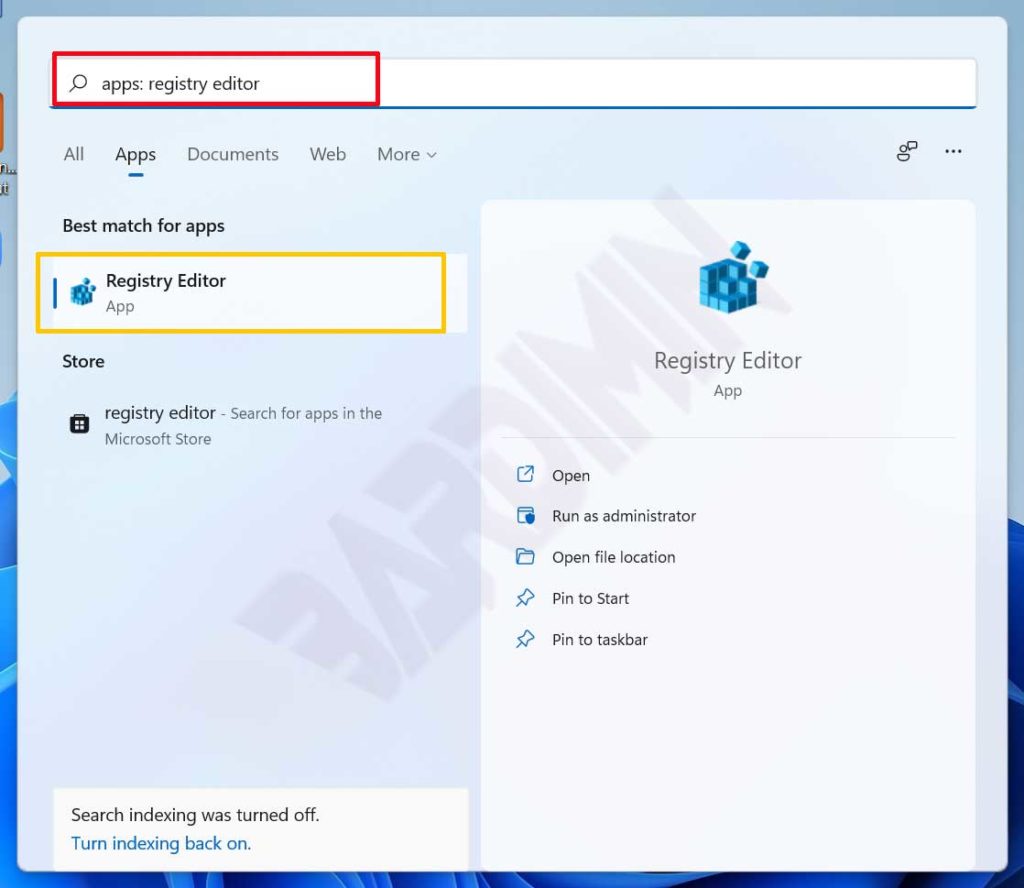
- In the Registry Editor window, navigate to the following path:
HKEY_CURRENT_USER\Software\Microsoft\Windows\CurrentVersion\Explorer. You can type or paste this path into the address bar.
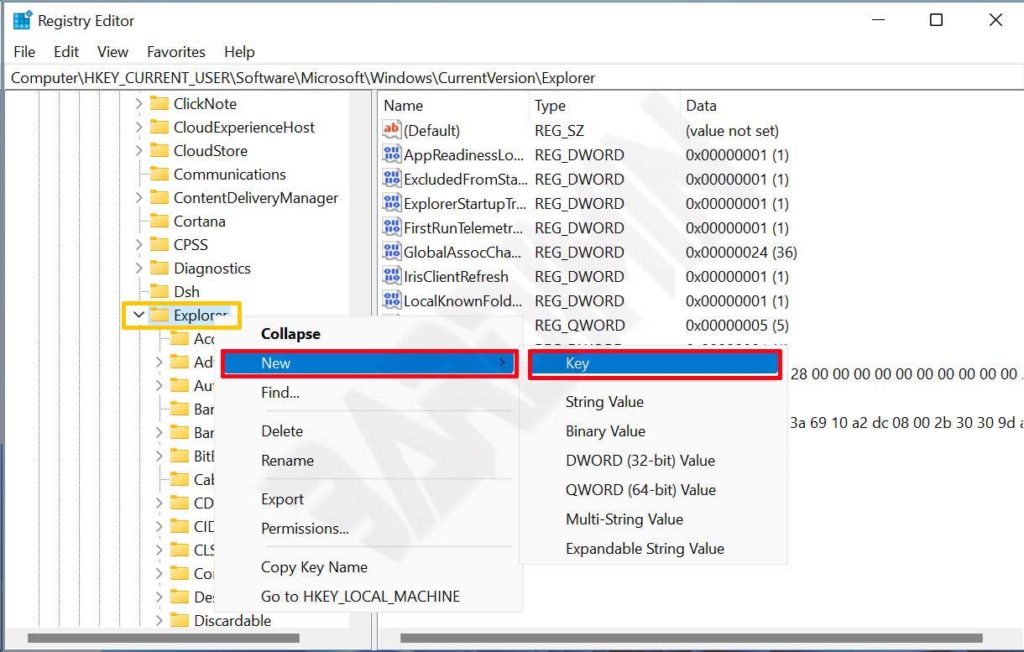
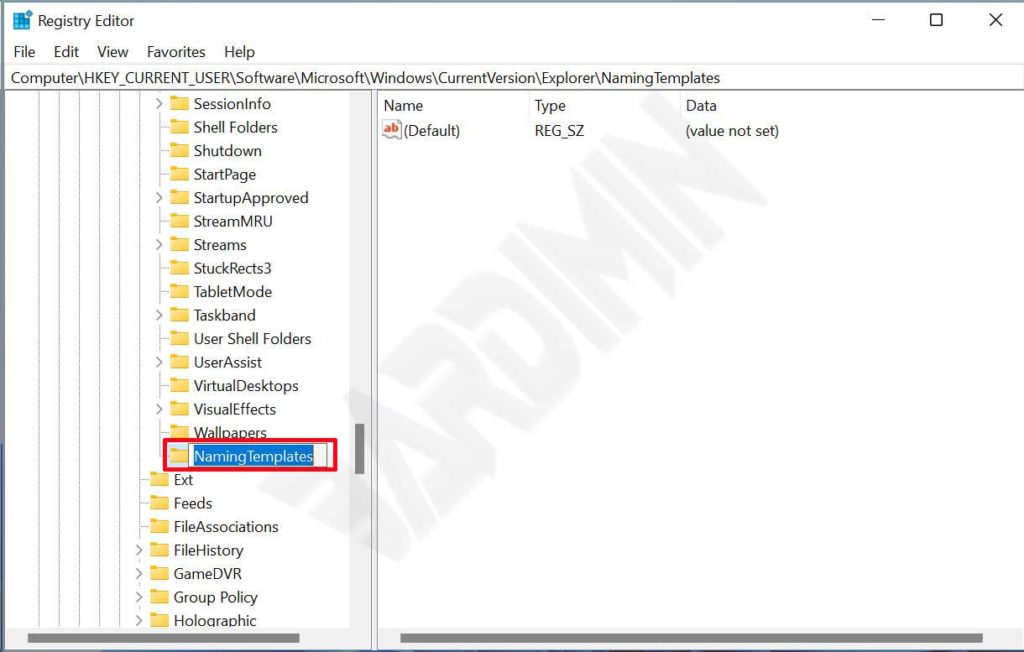
- Right-click on the Explorer folder, select New > Key. Name this new key NamingTemplates. Ensure the spelling is exact, including capitalization.
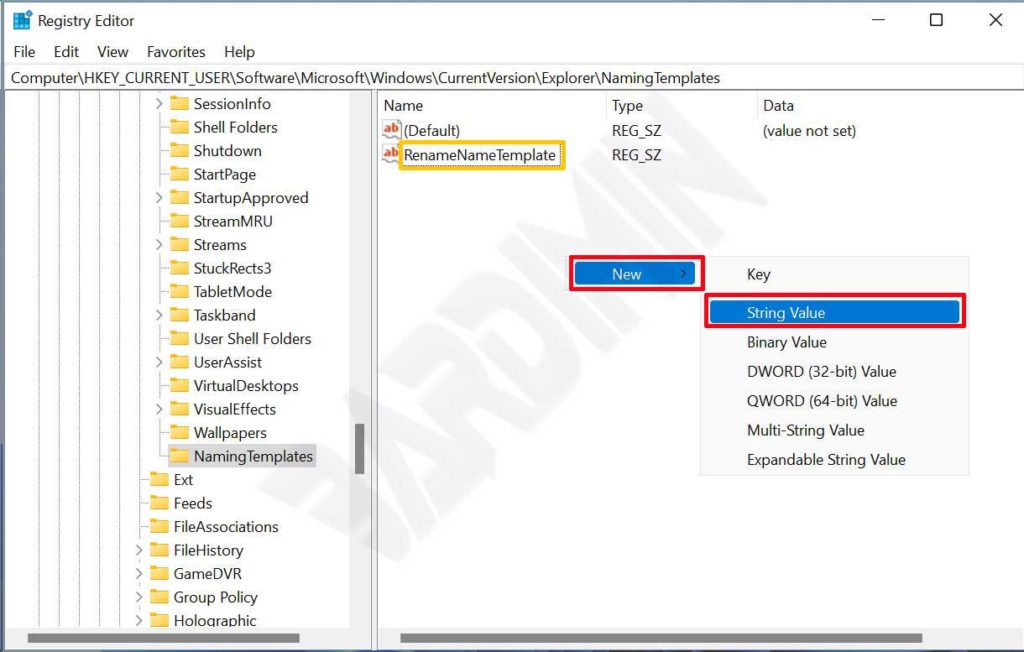
- With the NamingTemplates key selected, right-click in the right pane, choose New > String Value. Name this value RenameNameTemplate.
- Right-click on RenameNameTemplate and select Modify. In the Value data field, enter the text you want as the default new folder name. For instance, if you’d like every new folder to be named “Project_”, simply type Project_. Spaces are allowed, e.g., “New Bardimin Folder”.
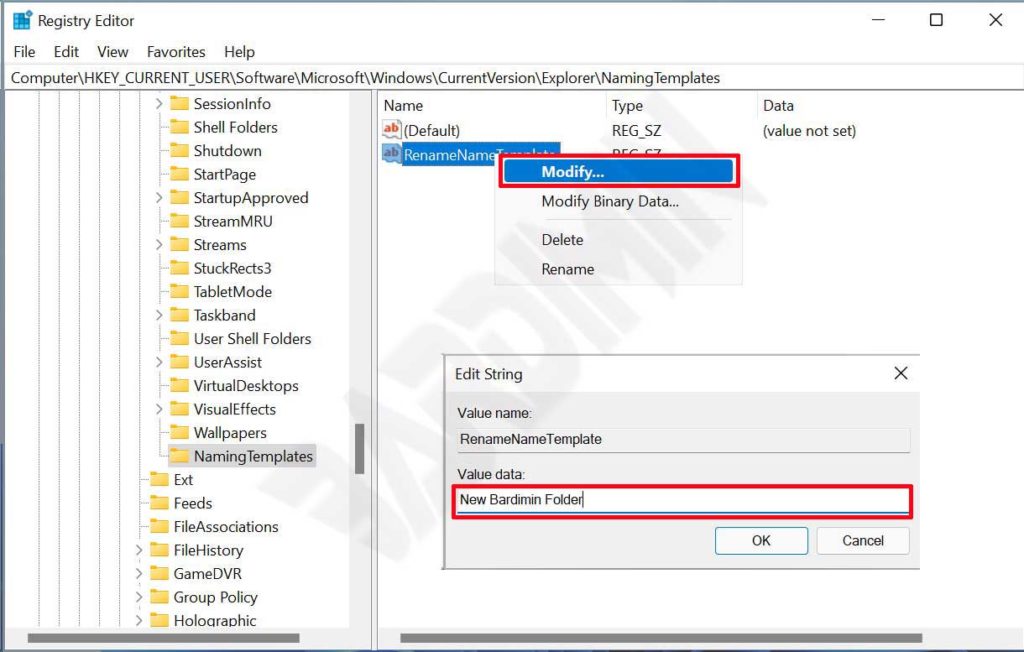
- Close Registry Editor. To apply the changes, you need to restart Windows Explorer or reboot your computer. A quick method: open Task Manager (Ctrl+Shift+Esc), find “Windows Explorer”, right-click, and choose Restart. If the change doesn’t take effect, try a full system restart.
Verification and Testing
After restarting, open File Explorer, right-click an empty area, and select New > Folder. The new folder should appear with the default name you set. If it still shows “New Folder”, double-check that the key and value are correctly named and that you’ve restarted explorer properly.
Technical Insight: How the Registry Modification Works
The NamingTemplates key under Explorer stores naming templates for new objects created in Windows. The RenameNameTemplate value specifically controls the default name for folders. This feature has been present since Windows Vista but remains underutilized. By editing it, you’re altering the default behavior of the Windows shell. For further details on registry structure, refer to Microsoft’s official shell documentation (nofollow) or Windows Support (dofollow).
Alternative Approaches
While the registry method is the most direct and permanent, advanced users sometimes employ PowerShell scripts to achieve similar results. However, the registry tweak remains the preferred approach for its simplicity and immediate effect. If you frequently reinstall Windows, consider exporting the NamingTemplates key as a .reg file for quick reapplication later.
Further Customization Possibilities
You can also experiment with other string values under the same key, such as NewFolderTemplate, though RenameNameTemplate is the most relevant for default naming. Registry exploration opens many personalization doors, but always proceed with caution.
Conclusion
Changing the default new folder name in Windows via the registry is a small but impactful tweak. By following the steps above, professionals, technicians, and gamers can save time and tailor their systems to their workflows. Always remember to back up your registry and excercise care when editing. With proper practices, you can master deeper Windows customization.
If you encounter issues, ensure your desired folder name contains no forbidden characters ( \ / ? : * ” > < | ) and verify your account permissions. Start optimizing your workflow today!
