

Ever experienced a printer suddenly not detecting on the network after the Windows 11 22H2 update? Or maybe the document that should have been printed is hanging for no reason? Don’t worry, you’re not alone!
Microsoft has indeed changed the default network printing protocol from RPC over Named Pipes to RPC over TCP on the latest version of Windows 11. These changes are intended to improve security, but unfortunately can cause compatibility issues, especially for:
- Users of legacy printers or local print servers
- Offices that rely on legacy Windows networks
- Systems that require a stable printing connection
Bardimin will unpack step-by-step ways to easily switch back to RPC over Named Pipes, either through Group Policy (for admins) or Registry Editor (for home users). Plus, we’ve included a simple explanation of when to use TCP vs Named Pipes!
Why Switch to Named Pipes? Here are the 3 main reasons!
You might ask: “If RPC over TCP is more modern, why go back to Named Pipes?” The answer lies in the compatibility factor and the real user experience. Here’s the explanation in relaxed but weighty language:
1. “Let’s Go Forward” – Compatibility with Legacy Systems
Imagine having a legacy office printer or a dedicated application that still relies on old protocols. It’s like trying to play a VHS tape on a Blu-ray player, it doesn’t connect, right?
- Reality: Many companies are still using legacy print servers (Windows Server 2012 R2/2016) or dedicated applications (such as ERP/accounting) that have not been updated.
- The effect: Documents fail to print, fake “offline” printer status, or “RPC Server Unavailable” error.
- Solution: Named Pipes act as a bridge that guarantees a stable connection with the old system.
2. “Windows 11 Update Makes It Complicated?” Post-22H2 Problems
After the Windows 11 22H2 update, many users reported:
- The shared printer suddenly disappeared from the network.
- Delay or hang mold without obvious errors.
- “0x00000709” (classic printer connection error) appears again.
The root of the Problem:
Microsoft changed the default RPC to TCP for security, but some firewall/network policies block dynamic RPC ports. Result? Printing becomes “slow” or a complete failure!
3. “TCP vs Named Pipes: Which One Is More Stable?”
RPC over TCP is powerful, but it doesn’t necessarily work in all environments:
| Criterion | RPC over TCP | RPC over Named Pipes |
| Compatibility | Not good with the old system | Optimal for hybrid networks |
| Firewall | Requires a dedicated port configuration | Use an open SMB (port 445) |
| Stability | Vulnerable network latency | Minimal overhead, suitable for LAN |
When to Switch?
- If the printer is often “disconnected” for no reason.
- It takes a print server that works 24/7 without interruption.
- There are special applications (such as SAP or database reporting) that fail to print.
How to Switch to RPC over Named Pipes via Group Policy (To Make Network Printing Smooth Again!)
Confused as to why the network printer suddenly crashed after the Windows 11 22H2 update? Don’t worry, the solution is only 5 minutes using Group Policy! Follow these super-detailed steps:
Step 1: Access Group Policy Editor
- Press Win + R (Windows key + R) to open the Run Box.
- Type gpedit.msc → Enter.
- Voila! You are now logged into the Windows system settings center controls.
If you see the error “gpedit not found”, it means that you are using Windows Home Edition (you must use the Registry Editor method).
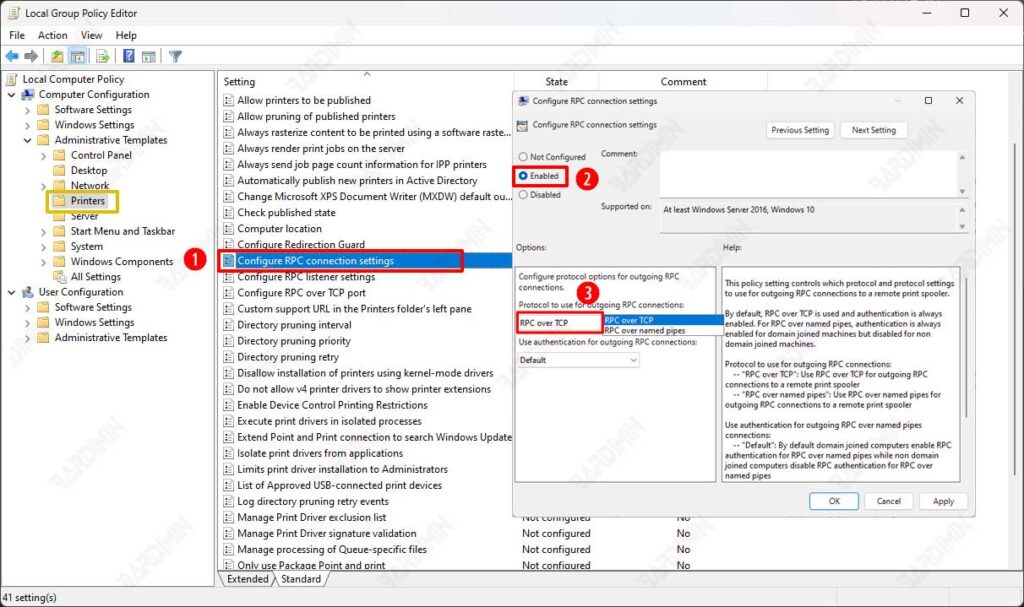
Step 2: Find the Printer Settings
- In the left panel, explore: Computer Configuration → Administrative Templates → Printers
- This is the “command room” where all printer policies are set.
Step 3: Change the Protocol to Named Pipes – 3 Simple Clicks!
Here we’ll “turn the clock” to a more compatible old protocol:
- Look for the Configure RPC connection settings option in the right panel.
- Double-click → Select Enabled.
- On Protocol dropdown, select: RPC over named pipes (here’s the magic choice!)
- Click OK to save.
Important Notes:
– Default: RPC over TCP (new setting of Windows 11 22H2).
– This option is not available on Windows 10/Server 2019 and below.
Step 4: Restart – Let the “Stick” Change Be Perfect
To make the setting fully active:
- Restart the computer, or
- Run this quick fix in CMD (Admin):
net stop spooler && net start spooler(This will restart the printer service without rebooting the PC.)
If you’re still having problems, try disabling the firewall temporarily or updating the printer driver to the latest version.
How to Switch to RPC over Named Pipes via Registry Editor (For Windows Home)
Don’t have Group Policy access in Windows 11 Home? Don’t worry! We can “hack” the registry to force Windows to use the older more stable protocol. Here’s the no-nonsense guide:
Step 1: Open CMD as Admin
- Right-click the menu Start → Select Terminal (Admin) or Command Prompt (Admin).
- If UAC appears, click Yes.
- Boom! You now have the superpower of administrators.
Commemoration:
An error in the registration process can lead to a system error. Follow these steps exactly as written.
Step 2: Execute the “Magic Command” Registry (Copy-Paste Only!)
This is the secret of IT Admins to change the RPC protocol without Group Policy:
reg add “HKLM\SOFTWARE\Policies\Microsoft\Windows NT\Printers\RPC” /v RpcUseNamedPipeProtocol /t REG_DWORD /d 1/f
Means:
- /d 1 = Enable RPC over Named Pipes
- /f = Force overwrite without confirmation
If you want to go back to RPC over TCP, change /d 1 to /d 0.
Step 3: Restart the Printer Service
Don’t forget these final steps:
- Restart the PC, or
- Run this life hack on the same CMD:
net stop spooler && net start spooler
Important Notes:
This solution is 100% legal and recommended by Microsoft in their family planning documents.
Suitable for:
– Windows 11/10 Home Edition
– Users who can’t access gpedit.msc
– Systems with corrupt Group Policy errors
