

This article provides a technical, step-by-step tutorial on repositioning the Windows 11 taskbar, from its default center alignment to the classic left-aligned layout. Learn the configuration process, explore related taskbar behaviors, and discover productivity considerations for professionals and power users.
Changing the Windows 11 taskbar position is a common customization sought by users transitioning from Windows 10 or those prioritizing efficient screen real estate. While the centered design offers a modern aesthetic, many professionals and technicians find the left-aligned position faster for muscle memory and workflow. Fortunately, Microsoft provides a straightforward setting to adjust taskbar alignment without advanced tools.
This feature is part of the Taskbar behaviors menu in Windows 11 Settings. The process is simple and safe, requiring no registry edits or third-party software. Understanding the available options, however, allows for a more optimized desktop experience tailored to your needs.
Step-by-Step Guide to Adjust Taskbar Alignment
Follow this detailed technical guide to move the Windows 11 taskbar to the left side or revert it to the center.
- Access Taskbar Settings
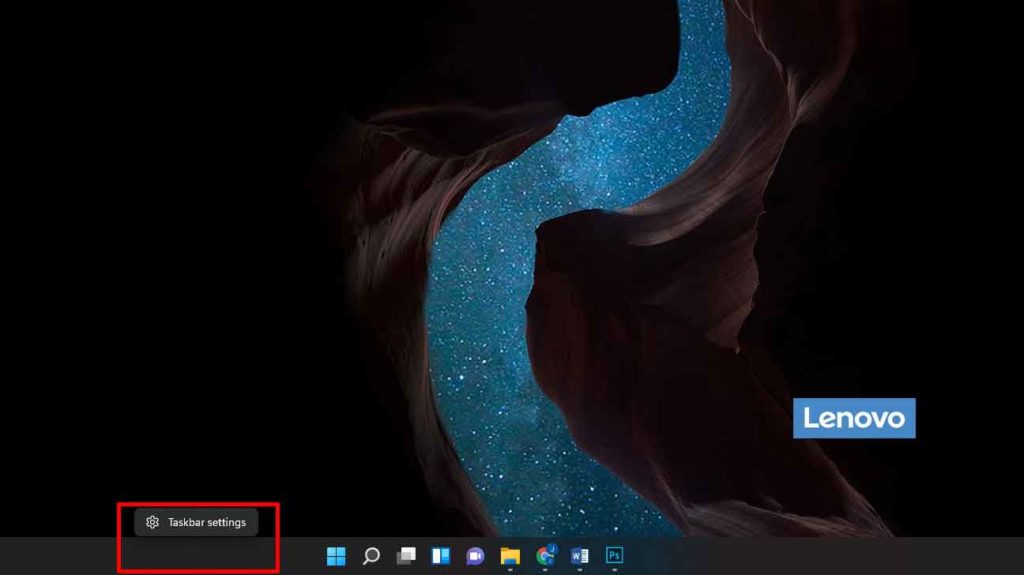
Right-click on any empty area of the Taskbar. From the context menu that appears, select “Taskbar settings”. This is the quickest route to the main configuration panel.
- Open Taskbar Behaviors Options
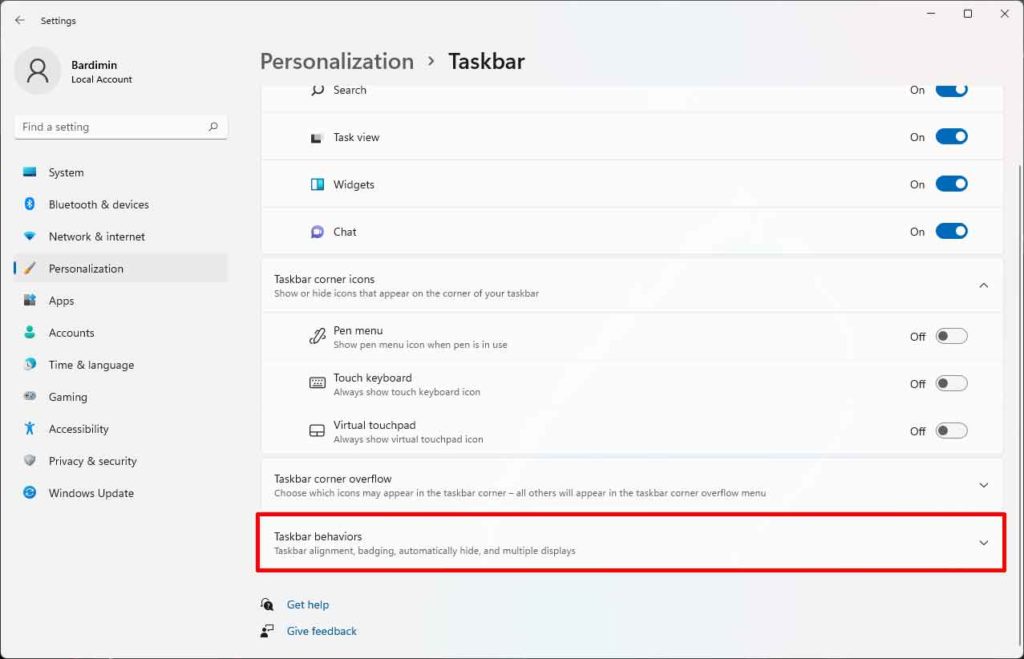
The Settings app will open focused on the Taskbar section. Scroll down the right-hand panel until you find the section labeled “Taskbar behaviors”. Click on this text to expand it and view all advanced settings related to taskbar functionality, including the alignment option.
- Change the Taskbar Alignment Setting
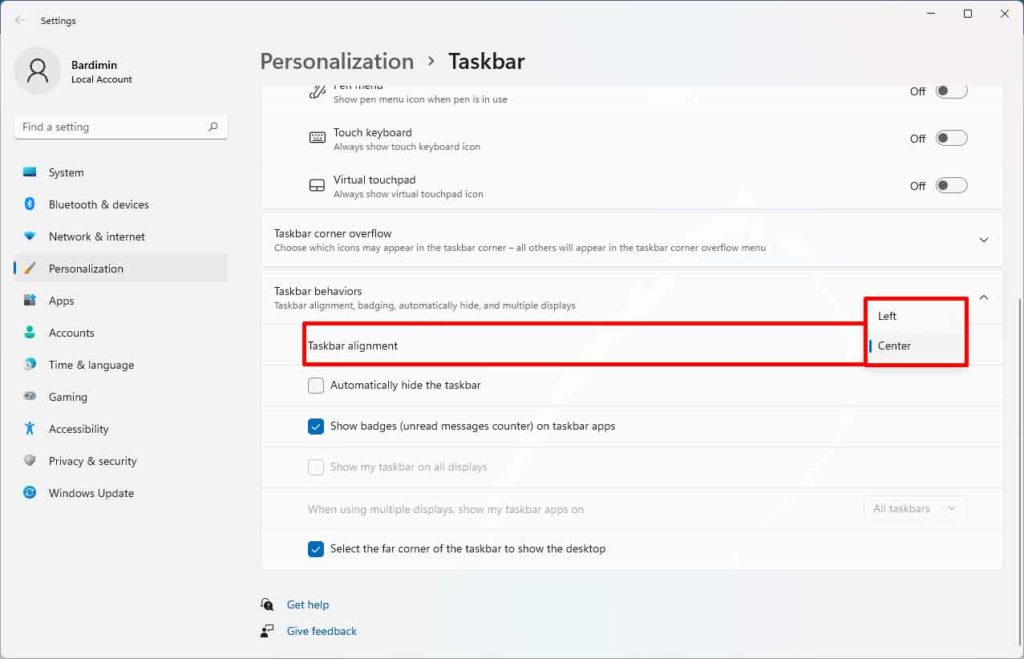
Once expanded, find the item labeled “Taskbar alignment”. Next to it, you’ll see a dropdown menu defaulting to “Center”. Click this dropdown, and you will be presented with two choices: “Left” and “Center”. Select “Left” to shift all taskbar content (including the Start button and pinned icons) to the left side of your screen. The change takes effect imediately without requiring a system restart.
What Changes After This Adjustment?
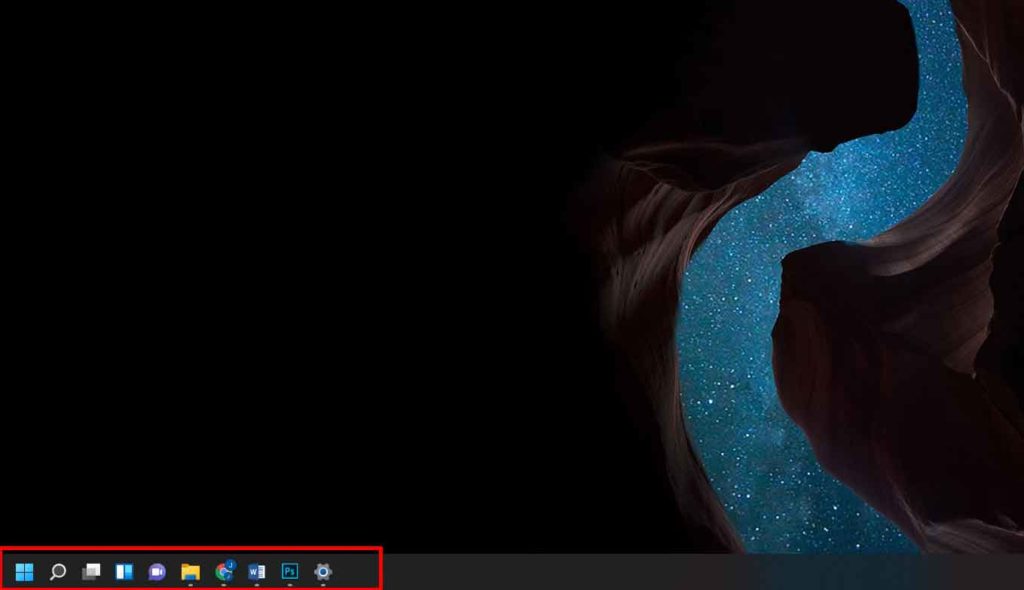
Selecting the “Left” option transforms the Windows 11 taskbar to resemble the classic Windows 10 layout. All pinned icons and the Start button align to the left. This can significantly improve screen space utilization, especially on ultra-wide monitors, as the central taskbar area becomes clear and unobstructed.
Should you wish to return to the default view, simply repeat step 3 and choose the “Center” option. This flexibility allows users to experiment and find the configuration that best suits their productivity style and visual preference.
Additional Considerations and Pro Tips
Beyond the core Windows 11 taskbar alignment settings, several other options within the Taskbar behaviors menu are worth exploring for a optimized experience:
- Automatically hide the taskbar: This setting hides the taskbar, making it appear only when you move your mouse pointer to the bottom edge of the screen. It’s ideal for maximizing workspace, especially for designers or gamers seeking full immersion.
- Show badges (unread count) on taskbar apps: Enables notification counters on app icons, such as unread email counts. Useful for managing alerts efficiently.
For gamers, moving the taskbar to the left may have less impact during exclusive full-screen gameplay. However, for multitasking or windowed gaming, this configuration can free up valuable screen space. Technicians and IT professionals who regularly work with multiple application windows will also apreciate the more efficient use of vertical space.
Microsoft officially supports this customization. For further details, you can refer to the official Microsoft support documentation. The design changes in Windows 11 are significant, but with options like these, users retain control to create a personal and effective computing environment. By following this guide, you have successfully learned how to change the Windows 11 taskbar position to better fit your preferences and enhance your daily workflow.
