

Windows 11 offers two primary methods to automatically lock your screen when you step away from your PC: the classic screen saver and the Bluetooth-based Dynamic Lock feature. Both techniques help safeguard your data and privacy, especially for professionals, technicians, and gamers who frequently leave their desks. This guide provides step-by-step technical instructions to enable auto‑lock and resolve common issues.
Physical security of your device is often overlooked, yet leaving an unlocked PC in an office, café, or shared space can expose sensitive information to unauthorized access. Windows 11 includes built‑in capabilities that automatically lock the screen after a period of inactivity or when a paired device (like your smartphone) moves out of range. By activating these features, you no longer need to remember the Win + L shortcut every time you get up.
Beyond data protection, automatic locking benefits gamers who want to keep their game sessions secure while grabbing a drink, and technicians who leave workstations with critical applications open. Below are two reliable methods to implement.
1. Automatic Lock via Screen Saver
The first approach uses the classic screen saver, a feature present in Windows for decades. By enabling the “On resume, display logon screen” option, the screen saver triggers the lock screen after a specified idle period.
Configuring the Screen Saver
- Open Screen Saver Settings. Click the Start button, type “screen saver,” and select “Change screen saver” form the results. Alternatively, press Win + R, enter “control desk.cpl,,@screensaver,” and hit Enter.
- In the Screen Saver Settings window, choose a screen saver from the drop‑down list (e.g., “Ribbons” or “Blank”). Set the wait time (in minutes) before the screen saver appears—for example, 5 minutes.
- Check the box “On resume, display logon screen”. This ensures that after the screen saver runs, Windows returns to the lock screen and requires authentication (PIN, password, or biometrics) when you move the mouse or press a key.
- Click Apply and OK to save the settings.
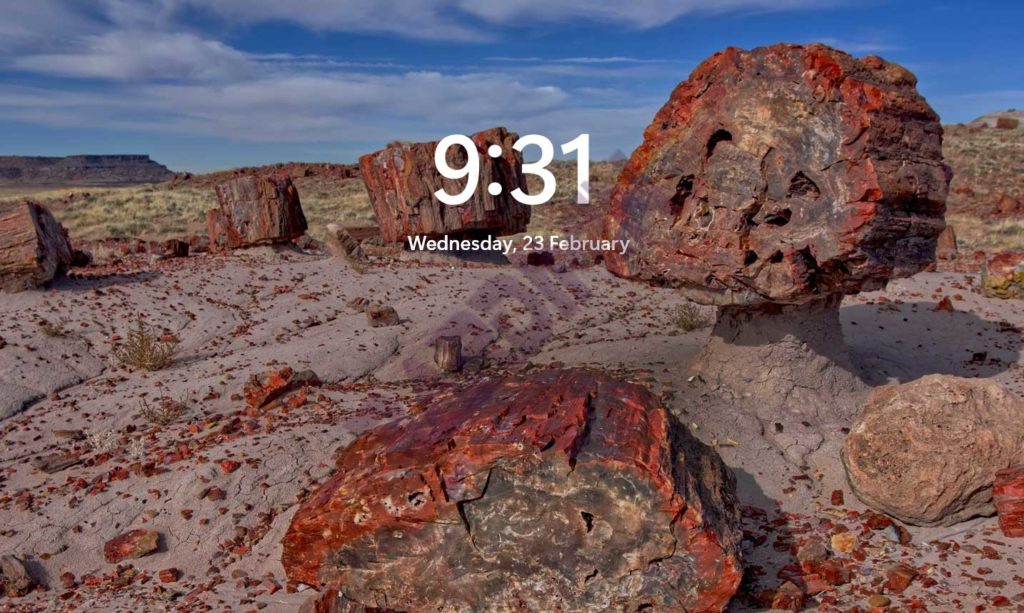
With this configuration, your PC locks automatically after the set idle time. This method is robust because it doesn’t depend on external devices. However, the screen saver may still activate while you’re watching videos or giving presentations, so adjust the wait time accordingly.
“Screen saver with lock-on-resume is a simple, effective solution for all Windows 11 users—no extra hardware needed.”
2. Automatic Lock with Dynamic Lock
Dynamic Lock is a smart feature in Windows 11 that uses Bluetooth connectivity with your smartphone. When your phone moves out of Bluetooth range, Windows detects your absence and locks the PC automatically. This is particularly convenient for users who always carry their phones.
Prerequisites and Bluetooth Pairing
Before enabling Dynamic Lock, ensure your PC has a Bluetooth adapter and your phone supports Bluetooth. Pair the devices through Windows Bluetooth settings:
- Go to Settings (Win + I) > Bluetooth & devices > Add device.
- Choose “Bluetooth” as the device type and follow the on‑screen instructions to complete pairing.
- Once connected, verify the connection by checking the “Connected” status in Bluetooth settings or by transferring a small file.
Activating Dynamic Lock
- Open Settings (Win + I) > Accounts > Sign-in options.
- Scroll down to the Dynamic Lock section.
- Check the box “Allow Windows to automatically lock your device when you’re away”. Windows will use the Bluetooth signal from your paired phone as a prsence indicator.
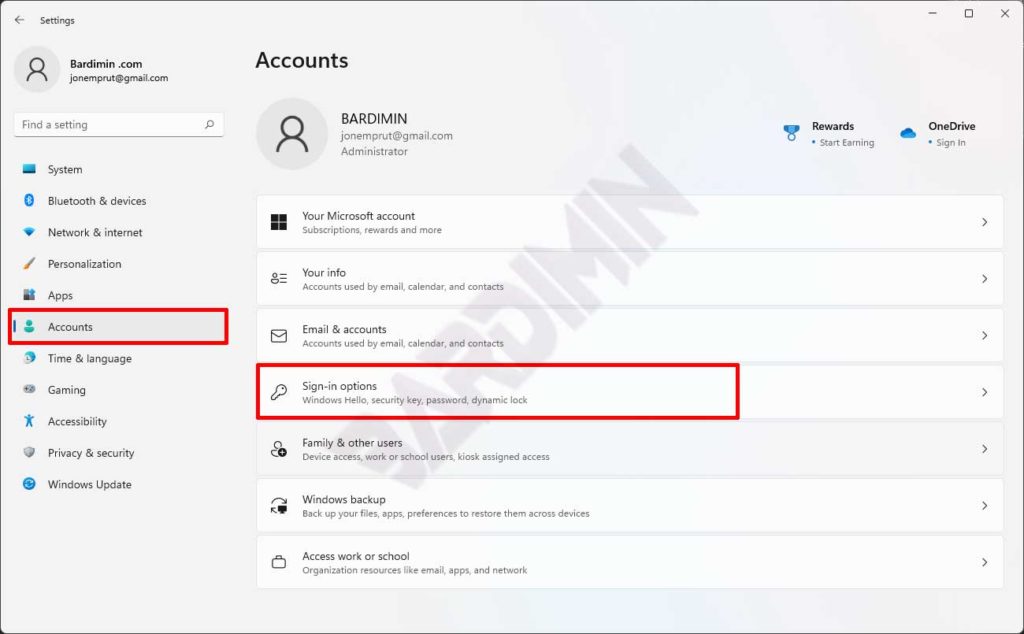
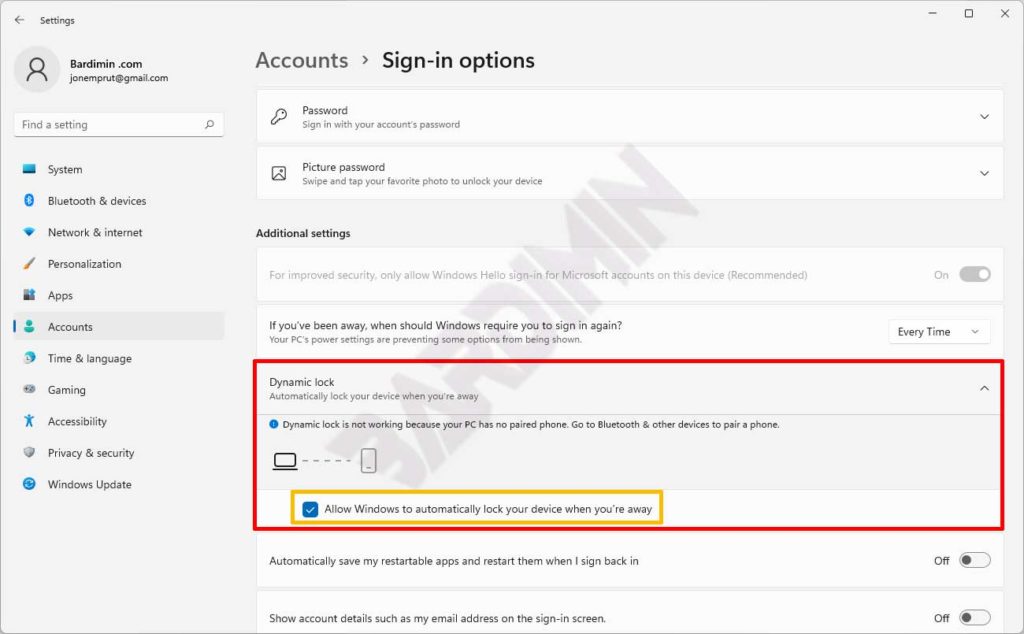
Once enabled, whenever your phone moves out of Bluetooth range (for example, you leave the room), Windows will lock the screen within about 30 seconds to a minute. Note that this isn’t instantaneous, as it depends on Bluetooth scanning intervals.
Important Note: Dynamic Lock only works if your phone stays connected via Bluetooth. If the phone’s battery dies or the connection drops due to interference, Windows might not lock automatically. Therefore, consider combining it with the screen saver method as a backup.
Tips for Gamers and Professionals
For gamers, automatic locking is invaluable during online sessions. For instance, if you need a quick bathroom break and don’t want your character to die or your game data exposed, Dynamic Lock can secure the PC when you carry your phone away. However, ensure your game isn’t running in full‑screen mode, which might delay the lock screen. Most games continue running in the background, so you can simply re‑enter your PIN upon return.
Professionals handling sensitive data should use both methods together. Set a short screen saver timeout (e.g., 3 minutes) and keep Dynamic Lock active. That way, if you forget your phone, the screen saver will still lock the PC.
Troubleshooting Common Issues
Some users report that Dynamic Lock doesn’t work as expected. Try these troubleshooting steps:
- Ensure Bluetooth drivers are up to date. Visit the Microsoft support site for more information on Bluetooth drivers.
- Check the distance between your PC and phone. Bluetooth typically reaches up to 10 meters, but walls can reduce signal strength.
- Disable and re‑enable Dynamic Lock, then restart your PC.
- Make sure your phone isn’t in power‑saving mode, which may turn off Bluetooth.
- Coba pasangkan ulang perangkat Bluetooth.
If the screen saver doesn’t trigger the lock, double‑check that “On resume, display logon screen” is checked. Also, ensure no application (like a video player or presentation) is preventing the screen saver from starting.
Conclusion
Enabling automatic screen locking in Windows 11 is a simple yet crucial step to protect your data and privacy. Whether you prefer the classic screen saver or the Bluetooth‑powered Dynamic Lock, you can choose the method that best fits your habits and devices. For maximum security, combine both features and keep your system updated. This way, you can work or game with peace of mined, knowing your PC locks itself when you step away.
