
A complete download package for the Epson XP-445 Adjustment Program. This file allows qualified technicians and advanced users to reset the printer’s internal waste ink counter, clear the “Service Required” error, and perform essential maintenance functions. The download is a ready-to-use ZIP archive containing the executable tool and is secured with the password “imin”.
The Epson Expression Home XP-445 is a reliable and compact all-in-one printer favored by home offices and small businesses. However, like many inkjet printers, it tracks the amount of ink used for cleaning cycles. This waste ink accumulates in a set of absorbent pads inside the printer. An internal counter monitors this accumulation. When the counter reaches its manufacturer-set limit, the printer will stop functioning and display a “Service Required” or similar error message. The printer hardware itself is often in perfect working order. It is simply locked by a software limit. This is a design feature to prevent ink overflow, not a sign of mechanical failure. The solution, therefore, involves resetting this counter with a specialized tool: the Epson XP-445 Adjustment Program.
This utility, often referred to as a service program or resetter, communicates directly with the printer’s firmware. It allows you to read and clear the waste ink pad counter. Performing this reset can immediately restore normal printing capabilities. This process is far more cost-effective than replacing the printer or sending it in for service. For professional technicians, this tool is an essential part of the repair workflow. It also provides access to other low-level functions for print head alignment, ink charging, and motor heat protection control. This ensures the device continues to operate efficiently after maintenance.
📌 IMPORTANT NOTICE FOR USERS: This software is intended for technicians and advanced users familiar with printer hardware. Resetting the waste ink counter without addressing a physically saturated ink pad can lead to ink leakage and damage to the printer. Always inspect the waste ink pads and replace them if they are saturated before performing a counter reset.
Understanding the "Service Required" Error on Epson XP-445
When the Epson XP-445's waste ink counter reaches its threshold, the printer stops. You will see an error on the control panel. This is often accompanied by blinking lights. The error is a safety mechanism. It prevents a messy and potentially damaging ink overflow from the saturated pads inside the printer. The printer is essentially locked to protect itself. The good news is that the physical pads are rarely full when this happens. The counter is an estimate. The printer uses an algorithm to calculate ink usage during cleaning cycles. It does not use a physical sensor to measure pad saturation.
Because the trigger is a software counter, the fix is also software-based. By using the Epson XP-445 Adjustment Program, you can set the counter back to zero. This removes the software lock. The printer can then be used again for printing and scanning. However, it is crucial to understand the potential risks. If the pads are genuinely full and you only reset the counter, the ink will eventually overflow. This can damage the printer's internal components and create a mess. Therefore, a physical inspection of the waste ink pads is a recommended best practice before performing a reset.
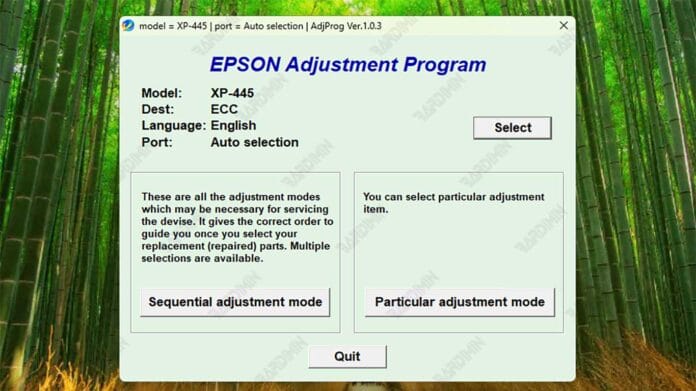
 Figure 1: The main interface of the Epson Adjustment Program, showing model selection and key maintenance options.
Key Functions of the Epson XP-445 Adjustment Program
Beyond resetting the waste ink counter, this utility provides a suite of service functions. These are invaluable for maintaining optimal printer performance. Technicians use these features for diagnostics and fine-tuning. Some of the primary functions include:
- Waste Ink Pad Counter Reset: This is the primary function. It clears the “Service Required” error and allows the printer to resume operation.
- Print Head Cleaning and Ink Charging: The program can initiate powerful cleaning cycles. It can also perform an initial ink charge after replacing the print head or dampers.
- Mechanical Adjustments: This includes Bi-Directional (Bi-D) adjustment, Top Margin alignment, and PF (Paper Feed) band adjustment. These settings correct print misalignment and banding issues.
- EEPROM Operations: It allows for backing up and restoring the printer's EEPROM data. This chip stores vital printer settings and usage information.
- Diagnostic Checks: Users can perform paper feed tests and print a final check pattern. These tests help verify that the printer’s mechanisms are functioning correctly.
Accessing these functions requires connecting the printer to a Windows PC via a USB cable. The software communicates with the printer in service mode. It is important to follow the correct procedure to avoid communication errors or firmware issues.
Step-by-Step Guide to Using the Adjustment Program
Follow these steps carefully to perform a successful reset on your Epson XP-445. The process is straightforward but requires precision. Ensure you have a stable USB connection before you begin. Interruptions during the process can be problematic.
1. Preparation and Download
First, obtain the necessary software. The file you need is named Resetter EPSON XP-445. The download link for this file is provided below. The file is compressed in a ZIP archive. You will need a utility like WinRAR or 7-Zip to extract it. The file is secured with a password to prevent unauthorized use.
🔑 Archive Password
imin
The password for the "Resetter EPSON XP-445.zip" archive is shown above.
Before extracting, temporarily disable your antivirus software. Some security programs may falsely identify the utility as a threat. This is because of how it interacts with system hardware. You can re-enable it after the process is complete. Also, ensure your printer is connected to your computer with a USB cable and is powered on. The printer should be in a ready state, not showing a paper jam or fatal error.
2. Running the Adjustment Program
Once the file is downloaded and extracted, follow these sub-steps precisely:
- Navigate to the folder where you extracted the files.
- Locate the executable file, often named
AdjProg.exeor similar. - Right-click on the file and select “Run as administrator”. This is a crucial step to ensure proper access rights.
- The program window will open. Click the “Select” button to choose your printer model and port. From the model list, choose your specific printer, and from the port list, select the USB port where the printer is connected (e.g.,
USB001,EPSON XP-445 Series). - After selecting the model and port, click “OK”.
3. Performing the Counter Reset
With the main interface ready, you can now proceed with the reset. This part is where the actual fix happens. The process is quick and the results are immediate.
- In the main program window, click on the “Particular adjustment mode” button.
- A new list of functions will appear. Scroll down until you find the option labeled “Waste ink pad counter”. Select this item.
- Click the “OK” button to enter the counter menu.
- You will see two main buttons: “Check” and “Initialization”.
- Click “Check” first. The program will read the current counter value and display it. It should show a high number or indicate the counter is full.
- After checking, click the “Initialization” button. A confirmation prompt will appear asking if you want to proceed.
- Click “Yes” to confirm the reset. The program will execute the command.
- A message will appear confirming that the counter has been reset. Click “OK”.
- Finally, turn off the printer using its power button. Wait for about ten seconds and then turn it back on.
The “Service Required” error should now be cleared. The printer is ready to accept print jobs again. Run a test print to confirm that everything is functioning normally. If the error persists, re-check the USB connection and ensure you ran the program with administrator privileges.
 Figure 2: Navigating to the Waste Ink Pad Counter option within the program's "Particular adjustment mode".
Important Considerations and Best Practices
Using a resetter like the Epson XP-445 Adjustment Program is a powerful maintenance action. It carries some responsibility. Here are several critical points to keep in mind to ensure a successful and safe outcome. These practices are followed by professional technicians to avoid common pitfalls.
- Physical Inspection: As stated earlier, always check the physical condition of the waste ink pads. If they are visibly saturated with ink, they must be replaced. Replacing the pads involves disassembling the printer. This is a complex task best left to a technician. If you are not comfortable doing this, seek professional help.
- Antivirus Interference: It is common for antivirus software to block or quarantine the adjustment program. To prevent this, add an exclusion for the program's folder before running it. Alternatively, run the program in Windows Safe Mode. Remember to turn your antivirus back on after the procedure.
- Firmware Version Compatibility: The adjustment program is compatible with specific firmware versions. If Epson has released a newer firmware for your XP-445, there is a small chance the utility may not work. In such cases, using an alternative tool like the WIC Reset Utility is a reliable backup option. WIC Reset is another widely used tool for this purpose.
- Legal and Warranty Status: Using unofficial service software may void any remaining warranty on your printer. This software is intended for out-of-warranty devices. If your printer is still under warranty, the best course of action is to contact Epson support for service.
💡 Pro Tip: Perform a nozzle check after the reset. If the print quality is poor, run a print head cleaning cycle from the printer's own maintenance menu. A single reset is often all that's needed to extend the life of the printer for many more months.
Troubleshooting Common Issues
Even with careful steps, you might encounter minor hiccups. Most issues are related to communication or user permissions. Here are quick fixes for the most common problems technicians face when using the adjustment program for Epson XP-445:
| Problem | Likely Cause | Solution |
|---|---|---|
| Program cannot detect the printer | Driver issues or incorrect port selection. | Reinstall Epson drivers. Try a different USB port and cable. Ensure the printer is not in sleep mode. |
| Error message "Communication Error" | USB connection unstable or program not run as admin. | Close other printer software. Right-click the program and select "Run as administrator". Use a shorter, high-quality USB cable. |
| Reset fails or counter remains high | Incompatible firmware or software version. | Try an alternative utility like WIC Reset. Ensure you are using the version for the European (EURO) model. |
| "Service Required" returns quickly | Waste ink pads are physically saturated. | This is a critical sign. The printer must be opened and the ink pads must be replaced or cleaned. |
In most scenarios, the process is smooth. The ability to reset the waste ink counter can easily add years to the life of an Epson XP-445. This tool provides a practical solution for a common problem. It empowers users to maintain their hardware without needing to rely on expensive service centers for a simple software reset. The financial and environmental benefits of repairing instead of replacing are significant.
Remember that this utility is a specialized tool. Using it with a clear understanding of its function and risks is essential. For further reading on the technical aspects, you may find resources on official Epson support pages or professional printer technician forums helpful. A reliable external reference for this process is available at the 2Manuals knowledge base.
File Download Information
Below is the direct download link for the utility. The file is provided as-is for educational and maintenance purposes. The tool is essential for resolving the common "Service Required" error on the Epson XP-445 printer. Ensure you have the archive password ready. The password is required to extract the files from the RAR archive.
By downloading files from bardimin.com, you agree that:
- Files are obtained from the internet, and copyrights remain with their respective owners.
- Files are for educational, reference, and personal use only.
- bardimin.com does not guarantee that files are free from viruses or malware.
- Any risks, damages, or legal claims arising from the use of files are the sole responsibility of the user.
- bardimin.com is released from any and all claims or liabilities.
If you do not agree, please do not download the file.
