

Windows Clipboard History is a powerful productivity feature that stores multiple items—text, code, or images—after you copy them. This article explains how to enable, use, sync, and clear your clipboard history efficiently, offering technical insights to streamline workflows for IT professionals, technicians, and gamers.
Every professional, technician, and gamer relies on the classic Ctrl + C and Ctrl + V shortcuts. While basic copy-paste functionality is indispensable, most users are unaware of a more powerful tool built directly into Windows: the Clipboard History. This feature elevates a simple action into a comprehensive workflow enhancer by storing a history of everything you copy, allowing you to paste items you copied hours or even days later.
Instead of losing your previous copy when you copy something new, Clipboard History retains it. This is particularly useful when you are compiling data from multiple sources, writing code, or managing various pieces of information for a project. By integrating this tool into your daily routine, you eliminate the repetitive task of switching back and forth between documents or browser tabs to recopy information. This guide provides a deep dive into mastering this built-in Windows utility.
How to Enable Clipboard History
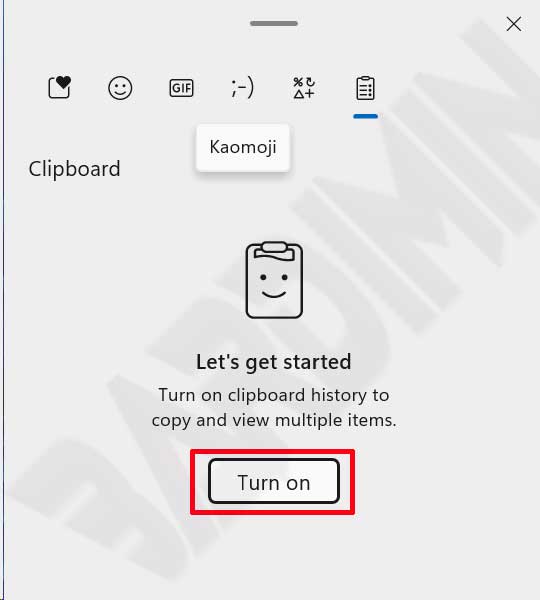
Clipboard History is disabled by default in Windows 10 and 11. To activate it, simply press the keyboard shortcut Win + V. A small panel will appear at the bottom of your screen, prompting you to turn the feature on. Click the “Turn on” button. Once activated, pressing Win + V will display a list of your recently copied items, which you can then select to paste.
Important Note: By default, your clipboard history is stored locally on your device. It is only uploaded to the cloud if you specifically enable synchronization across your devices. Exercise caution when copying sensitive information, such as passwords, if you share your computer.
A Practical Guide to Using Clipboard History
Using Clipboard History is seamless and integrates with your existing habits. You continue to copy items—text, snippets of code, or images—using Ctrl + C. The difference is that each copied item is now logged in your history. When you need to paste something that isn’t your last copy, press Win + V to open the history panel. This panel displays a scrollable list of your 25 most recent items, complete with a preview.
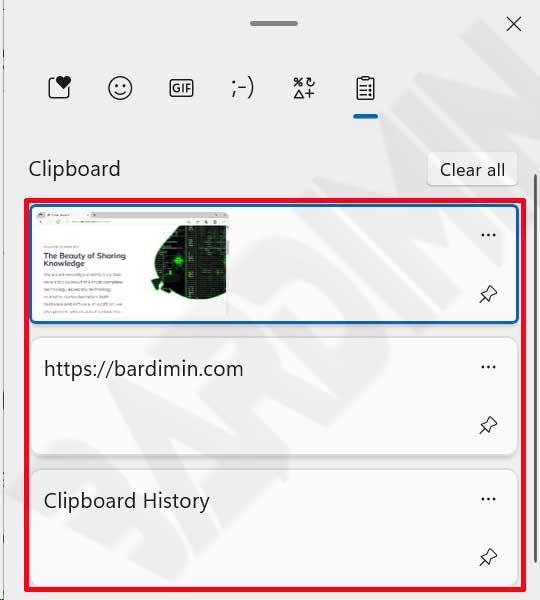
Simply click on any item in the panel to paste it into your active window. A particularly useful feature is the ability to “pin” items. Click the three-dot menu next to any entry and select “Pin”. Pinned items will persist in your history even when you clear it, making them ideal for storing frequently used code blocks, email templates, standard responses, or important addresses.
Pinning critical items like code snippets or standard replies ensures they are always accessible, eliminating the need to retype them constantly.
Syncing Your Clipboard History Across Devices
For professionals working on multiple machines, the synchronization feature is a game-changer. By signing into your devices with the same Microsoft account, you can access the same clipboard history on your work laptop and your home PC. To enable this, navigate to Settings > System > Clipboard. Under “Sync across devices”, select “Automatically sync text that I copy”. A stable internet connection is required for this feature to function reliably, ensuring your copied data is available wherever you are.
Managing Privacy: How to Clear or Disable Clipboard History
Maintaining digital hygiene and protecting your privacy requires periodic cleaning of your clipboard history. To clear all unpinned items, open the history panel with Win + V, click the three-dot menu in the top-right corner of the panel, and select “Clear all”. If you decide you no longer need the feature, you can disable it completely. Go to Settings > System > Clipboard and toggle the “Clipboard history” switch to the “Off” position.
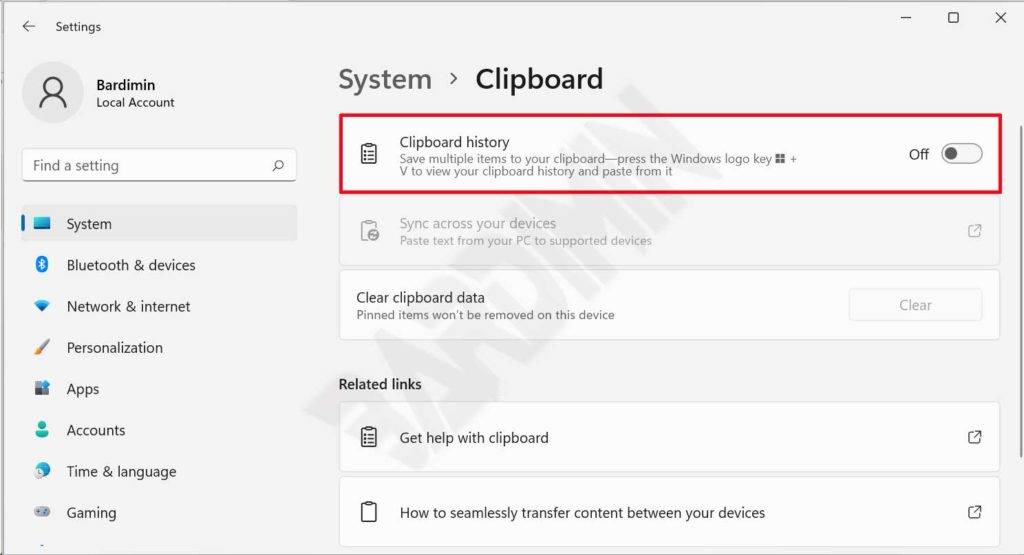
You can access these settings quickly by pressing Ctrl + I to open the main Settings window and searching for “Clipboard settings”. From this dedicated page, you can also manually clear the data stored in the cloud if you have sync enabled. For users highly concerned with data privacy, routinely clearing the history or disabling the feature entirely are prudent security practices.
Troubleshooting Common Clipboard History Issues
Occasionally, you might encounter issues where Clipboard History doesn’t work as expected. The most common problem is the Win + V shortcut not responding. First, double-check that the feature is actually enabled in the Settings menu. Second, ensure your Windows operating system is up to date, as Microsoft often releases bug fixes through regular updates. Conflicts with third-party clipboard managers or specific monitoring software can also cause problems. Try temporarily disabling such applications to determine if they are the source of the conflict.
Another issue users sometimes face is images not appearing in the history. Clipboard History supports common raster formats like PNG and JPEG, but it may not support vector graphics or images copied through proprietary application methods. For IT professionals working in remote desktop environments, verify with your network administrator that clipboard sharing is permitted, as group policies can sometimes restrict this functionality for security reasons.
Optimizing Clipboard History for Gamers and Technicians
The utility of Clipboard History extends beyond the office. Gamers can use it to store game codes, in-game trade items, or strategy notes without alt-tabbing out of their game. For technicians and programmers, it is an indispensable tool. You can sequentially copy multiple code snippets, terminal commands, or IP addresses and paste them in order without fear of losing the previous entries. Pinning complex command-line instructions or common boilerplate code can drastically speed up system configurations and debugging sesions.
To fully leverage this tool, make a conscious effort to replace your standard Ctrl + V reflex with Win + V. This simple habit shift gives you complete control over what you paste and when. When combined with other organizational strategies like virtual desktops, the Clipboard History feature becomes a cornerstone of a highly efficient and distraction-free digital workspace.
Mastering Windows Clipboard History is a minor adjustment with major payoffs in productivity. This built-in feature, when used to its full potential, can save professionals hours of redundant work each week. Enable it today and experience a more fluid, efficient, and powerful way to manage information across your digital tasks.
