

Upgrading to Windows 11 offers a more modern and secure computing experience. However, this process requires strict hardware compatibility checks. This article details the technical steps to check your PC’s eligibility and the official upgrade methods from Microsoft, enabling a smooth and secure transition.
Microsoft released Windows 11 as the successor to Windows 10 with significant enhancements. This new operating system offers a more modern interface, hardware-based security improvements, and performance optimizations. For Windows 10 users, Microsoft provides a free upgrade to Windows 11 option. However, the hardware compatibility requirements for Windows 11 are much stricter than its predecessor.
Before starting the upgrade process, you must ensure your PC or laptop meets the minimum system requirements. Key requirements include an 8th Gen Intel or AMD Ryzen 2000 series or newer processor, 4 GB RAM, 64 GB storage, UEFI firmware with Secure Boot, and TPM 2.0 support. Therefore, performing a compatibility check is a critical first step.
How to Check PC Compatibility for Windows 11 Using PC Health Check
The PC Health Check app is Microsoft’s official tool for verifying device eligibility. This tool will scan your system configuration and provide a detailed report on components that meet or do not meet the requirements.
- Visit the PC Health Check download page on Microsoft’s official website.
- Download and run the installer file, then follow the simple installation process.
- Open the app and click the “Check now” button located in the “Introducing Windows 11” section.
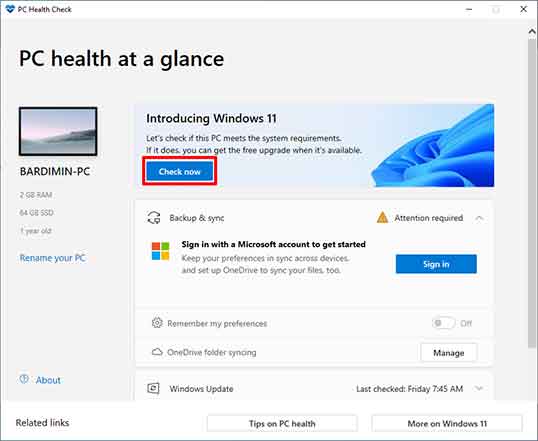
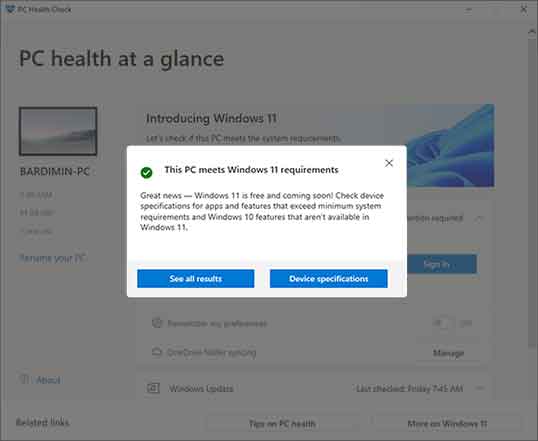
After the scan completes, the app will display the results. If your PC is compatible, you will see a “This PC meets Windows 11 requirements” notification. This means you can proceed with the upgrade to Windows 11 process.
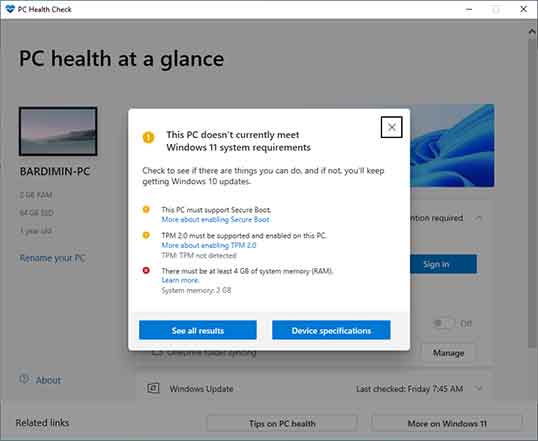
Conversely, if the PC does not meet the requirements, the report will show the specific components causing the issue, such as inactive TPM 2.0 support or an unsupported processor. You must adress these issues first before proceeding.
Method to Upgrade to Windows 11 Via Windows Update
For devices declared compatible, the most recommended upgrade method is through Windows Update. This method is directly integrated with the system and usually offers the most stable experience. Microsoft distributes Windows 11 updates gradually through this channel.
- Open the Settings app in Windows 10.
- Select the “Update & Security” menu and then click “Windows Update”.
- Click the “Check for updates” button. If the upgrade is available for your device, you will see the “Upgrade to Windows 11” option.
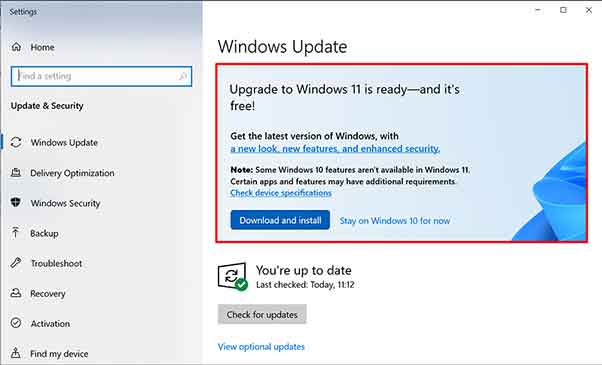
Click “Download and install” to begin the process. It is highly recommended to back up important data first and ensure sufficient battery power or that the PC is connected to a power source. The download and installation process can take a considerable amount of time, depending on your internet speed and device specs.
Alternative Upgrade Method Using Windows 11 Installation Assistant
Not all compatible PCs immediately receive the upgrade offer via Windows Update. If this is the case, you can use the Windows 11 Installation Assistant. This tool allows users to manually initiate the upgrade process without waiting for Microsoft’s distribution queue.
- Download the Windows 11 Installation Assistant from the official Microsoft site.
- Run the Windows11InstallationAssistant.exe file with administrator privileges.
- The tool will verify compatibility once more. Afterward, click “Accept and Install” to begin.
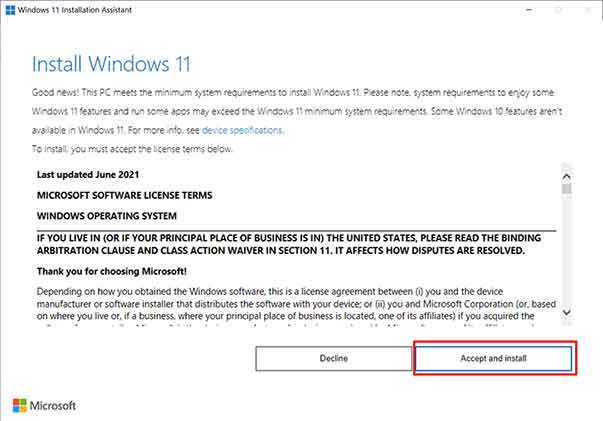
The Assistant will download the Windows 11 installation files and perform an in-place upgrade, preserving your data, applications, and settings. Once installation is complete, you will be prompted to restart the computer. After rebooting, follow the initial setup steps to log into your new Windows 11 desktop.
By following this guide, you can perform the upgrade to Windows 11 with more confidence. Always ensure to back up data and check compatibility thoroughly before starting. For the most accurate technical information, always refer to the official Microsoft documentation.
