

Microsoft PowerToys is a suite of open-source utilitis from Microsoft designed to boost productivity on Windows. This article provides a technical deep dive into over fifteen core utilities, recent additions, and multiple installation methods including GitHub, Microsoft Store, and Windows Package Manager. Written for IT professionals, technicians, and gamers who want to optimize their Windows 10 and 11 workflows.
Originally introduced with Windows 95 and resurrected in 2019, Microsoft PowerToys delivers a collection of system-level tools that fill feature gaps left by the native operating system. Advanced users, developers, and gamers alike benefit from deep integration of these modules into daily routines. The latest stable release, version 0.84, introduces performance refinements and additional utilities that further enrich the Windows ecosystem.
System requirements for running Microsoft PowerToys currently include Windows 11 or Windows 10 version 2004 (build 19041) and later. Before installation, verify that your operating system meets these criteria. All utilities are modular—you can enable or disable each feature independently without consuming unnecessary background resources.
Core Microsoft PowerToys Utilities
The latest stable build ships with more than fifteen utilities. Below is a technical explanation of each feature, with emphasis on relevance for professionals, technicians, and gamers.
1. Always on Top
This utility pins any window above all others using the global hotkey ⊞ Win+Ctrl+T. A subtle colored border highlights the pinned window, providing clear visual feedback. Ideal for keeping reference materials or monitoring tools visible while working in other applications.
2. PowerToys Awake
PowerToys Awake prevents the computer from entering sleep mode without altering system power plans. Users can specify a duration or select indefinite awake mode. This tool proves essential during video rendering, lengthy code compilation, or large downloads that require the system to remain active.
3. Color Picker
Activated by ⊞ Win+Shift+C, Color Picker captures any pixel on the screen and copies its color value to the clipboard in HEX, RGB, or HSL format. An integrated editor stores previously picked colors and allows fine-tuning, making it indispensable for designers and front-end developers.
4. FancyZones
FancyZones is a window manager that lets users define custom screen regions. Dragging a window into a zone automatically resizes and positions it according to the preset layout. The utility significantly enhances multitasking efficiency, especially on ultra‑wide monitors and multi‑display setups.
5. File Explorer Add-ons
These extensions add preview rendering and thumbnail support for SVG, Markdown, and PDF files directly within File Explorer’s Preview Pane. Activate the pane via the View tab—no need to open separate applications for quick file inspections.
6. Image Resizer
A Windows Shell extension that resizes one or multiple images instantly from the right‑click context menu. Users can choose from predefined sizes or enter custom dimensions. The tool processes images in the background without launching a graphics editor.
7. Keyboard Manager
Keyboard Manager enables key remapping and creation of custom keyboard shortcuts system‑wide. For instance, you can repurpose the CapsLock key as Ctrl or rebind Ctrl+C to launch a specific application. Multiple profiles can be saved and switched on demand.
8. Mouse utilities
This bundle includes Find My Mouse, which highlights the cursor with a spotlight when you double‑tap Ctrl, a crosshair overlay for precise alignment, and Mouse Highlighter that visualizes left/right clicks—particularly useful during presentations or tutorial recordings.
9. PowerRename
PowerRename offers batch file renaming with support for regular expressions. A live preview shows the results before execution, and an undo history allows rollback if needed. It handles complex renaming patterns that Windows native rename cannot.
10. PowerToys Run
Press Alt+Space to instantly summon PowerToys Run, a launcher that finds applications, files, folders, and even system commands. Its modular architecture supports community plugins such as calculator, dictionary lookup, and unit converter.
11. Shortcut Guide
Holding the ⊞ Win key displays an overlay of all available keyboard shortcuts relevant to the current desktop context. The delay and appearance of this guide are customizable, helping users discover and memorize Windows hotkeys more effectively.
12. Video Conference Mute
With ⊞ Win+Shift+Q, you can globally mute your microphone and camera regardless of which conferencing app is in the foreground. A system tray icon provides clear visual confirmation of the mute state.
13. Peek
Added in version 0.78, Peek lets users preview files without opening them. Select a file in File Explorer and press Ctrl+Space; a lightweight preview window appears, supporting images, text documents, and videos.
14. Mouse Without Borders
Control multiple computers using a single mouse and keyboard. Move the cursor off one screen edge to transition seamlessly to another machine on the same network. Mouse Without Borders also enables drag‑and‑drop file transfer across devices.
15. Text Extractor
This OCR utility recognizes text from any screen region. Activate it, draw a selection rectangle, and the extracted text is automatically placed in your clipboard. Ideal for capturing text from images, error dialogs, or locked‑down interfaces.
How to Install Microsoft PowerToys
Users can choose from several installation methods depending on technical preference and environment.
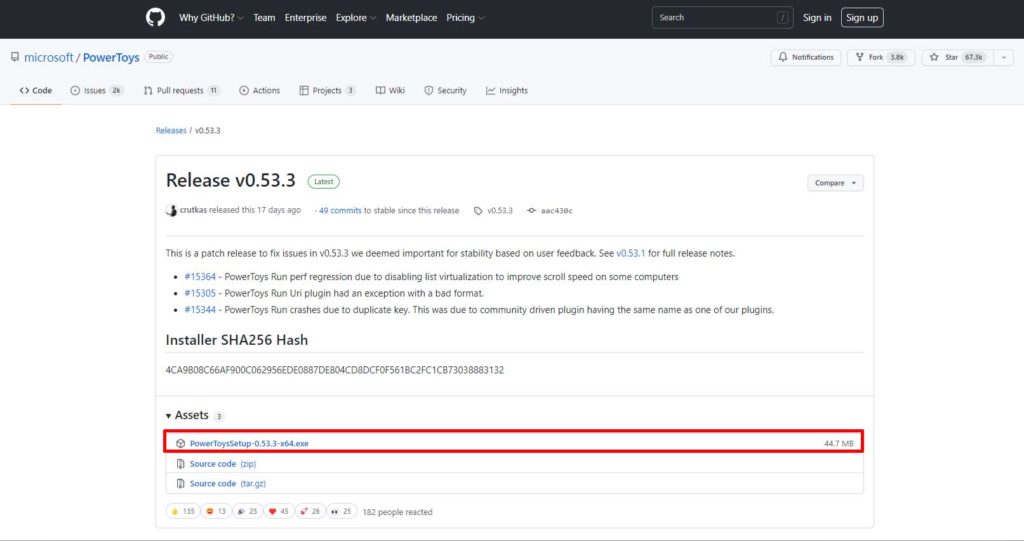
Install via GitHub
- Navigate to the official PowerToys releases page on GitHub.
- Download the file named
PowerToysSetup-0.#.#-x64.exe(replace with the latest version). - Run the downloaded executable and follow the setup instructions.
Install via Microsoft Store
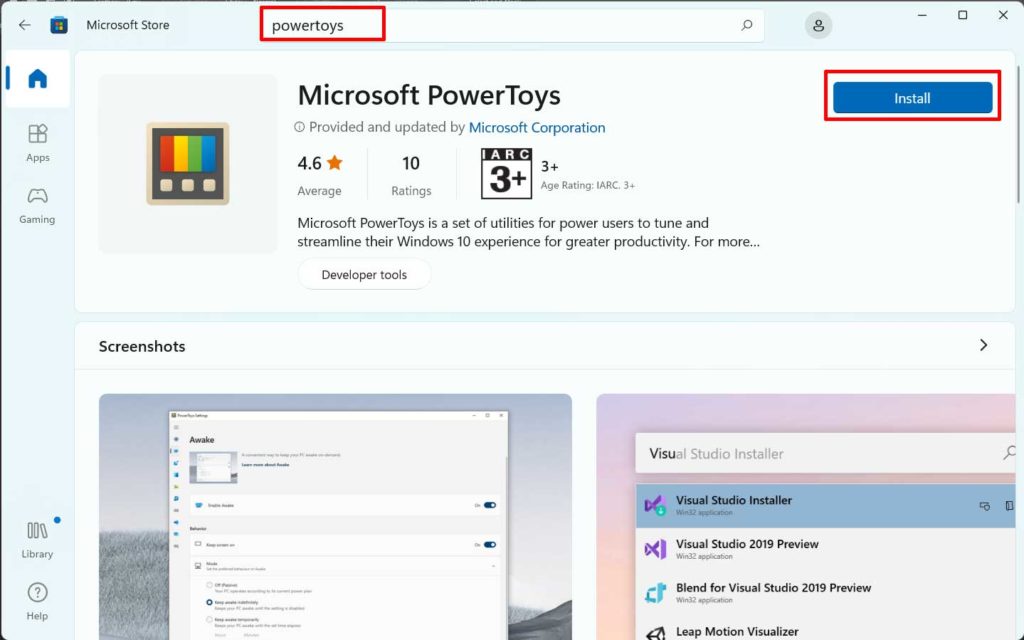
- Open the Microsoft Store application.
- Search for “PowerToys”.
- Select Microsoft PowerToys from the results and click the “Install” button.
Install via Windows Package Manager (winget)
For command‑line enthusiasts, winget offers the fastest method. Open Windows Terminal or Command Prompt and execute:
winget install Microsoft.PowerToysThe package manager automatically downloads and installs PowerToys together with all required dependencies.
Microsoft PowerToys is actively developed by Microsoft in collaboration with the open‑source community. Each release includes bug fixes, performance improvements, and expanded compatibility with the latest Windows versions.
— Official Microsoft Documentation
Optimizing PowerToys for Professionals and Gamers
Microsoft PowerToys extends beyond traditional office scenarios; it delivers tangible benefits for gamers. For instance, FancyZones can arrange performance monitoring overlays (like MSI Afterburner) on the edge of the screen without obscuring gameplay. Mouse Without Borders enables a single set of peripherals to control both a streaming PC and a gaming rig seamlessly.
For IT technicians and system administrators, PowerRename and PowerToys Run slash the time spent on repetitive file operations and application launching. Keyboard Manager proves invaluable when working with virtual machines or remote desktops that use different keyboard layouts.
Every utility can be fine‑tuned via the PowerToys Settings window. Features can be toggled on or off individually, and all hotkey combinations are fully customizable.
Microsoft PowerToys is now considered essential software by many technology communities. Therefore, Windows users are encouraged to install it and explore its full potential.
Technical note: Microsoft PowerToys periodically checks for updates automatically. Users can also manually verify the latest version on the official GitHub releases page.
A Microsoft internal study indicated that consistent use of PowerToys reduced multitasking task completion time by up to 23% among the same user group (Microsoft Learn, 2024).
