

Widely known as the champion of pocket-saving printing, EPSON’s L-series printers (such as the L130, L220, L310, L360, and L365) have become the go-to choice for students, small industries, and home offices. The PrecisionCore technology does promise high print quality with very minimal ink consumption. However, behind its reliability, there is a hidden “protection system” that often makes users panic: suddenly, the printer displays an error flashing light or the message “Service Required” and refuses to print.
Don’t rush to blame the printer or take it straight to a costly service technician! In 99% of cases, this problem is not a fatal hardware malfunction. This is a “subtle protest” of a component called Waste Ink Pad Counter that has reached its maximum limit. This is the time when you, as the owner, go from being a regular user to a “mainstay technician” for your own printer.
Using the Adjustment-Program is not just a trick to save on service costs. This is a wise step in taking care of your valuable assets. Performing a reset safely and correctly will extend the life of the printer and prevent more severe damage.
Getting to Know the EPSON L-Series Printers: Economical and Resilient Printing Specialists
The EPSON L-Series printers are no ordinary product; they are the next generation of the tank printer revolution that changed the printing paradigm from a cost-cutting one to a highly efficient one. The series is built on one key philosophy: high-volume printing at a very low ink cost. Let’s discuss the uniqueness and target users of each of these flagship models.
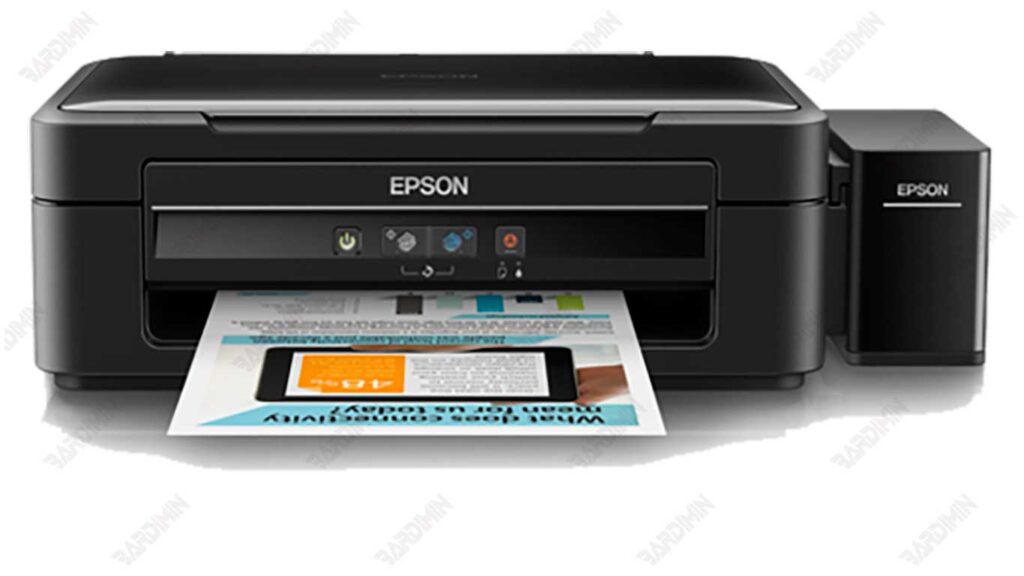
1. EPSON L130: Minimalist and Economical Document Printing Specialist
Function: A single-function printer that focuses on only one task: printing perfectly.
Target User: It is suitable for students, college students, or anyone whose main need is to print plain text and image documents without the need for scan or copy features.
Added Value: This model is often the most economical option in terms of both initial price and operating costs. Its large enough ink tank capacity ensures that you don’t have to refill frequently.
2. EPSON L220: The First Very Affordable All-Rounder
Function: An all-in-one printer that offers three basic functions: print, scan, and copy in a single unit.
Target Users: The perfect solution for home and small office (MSMEs) that require the flexibility to print schoolwork, scan important documents, or copy files without leaving home.
Plus: The L220 delivers convenience and multifunctionality without abandoning the main advantage of the L series, which is exceptional ink efficiency.
3. EPSON L310: The Reliable Workhorse for Fast and Bulk Printing
Function: Single-function printer optimized for speed and productivity.
Target Users: Designed for users with medium to high print volumes, such as small-scale document printing businesses, offices that often print thick reports, or content creators who need to print a lot of material.
Pros: The L310 typically has a higher print speed (pages per minute/IPM) than the L130, making it an “unsung hero” that gets the print job done in no time.
4. EPSON L360: All-in-One Series Enhancer with High Stability
Function: All-in-one printer (print, scan, copy), which is the big brother of the L220.
Target Users: For home and office users who want more stable and robust performance from the L220. Suitable for those who often print both documents and photos with good quality.
Plus: L360 often offers improvements in terms of speed, output quality, and durability, providing a smoother experience for intensive use.
5. EPSON L365: Gateway to Modern Wireless Productivity
Function: All-in-one printer with featured feature: Wi-Fi connectivity.
Target Users: Modern offices and smart homes where everything is connected. The L365 is the solution for those who want to print directly from a laptop, smartphone, or tablet without the hassle of a USB cable.
Plus: The Wi-Fi Direct and Epson Connect features allow you to print from anywhere within the same network, even from social media or cloud storage, offering the highest convenience and flexibility in the series.
Common Problems of Epson L-Series Printers
Even though it is known as an ink-saving and durable printer, the Epson L-Series is inseparable from the technical problems that are quite often experienced by its users. One of the most common is the appearance of the message “Service Required” on a computer screen or printer indicator.
1 Service Required due to Full Waste Ink Pad Counter
This message appears when the system detects that the Waste Ink Pad Counter (ink drain pad) has reached its maximum limit. In fact, in many cases, the actual ink pads are not yet full, but the printer’s internal count has reached the specified limit.
2 Error “Ink Pad is at the End of Its Service Life”
This error is a standard warning from Epson. The message indicates that the printer considers the ink pad to be no longer suitable for use. As a result, the printer will refuse to print even if the physical condition of the device is still good.
3 Common Symptoms
Some signs that your Epson L-Series printer is experiencing this problem include:
- The ink and paper indicator light flashes alternately.
- The printer stops working suddenly.
- Cannot perform print commands, even if the driver is installed correctly.
- A “Service Required” or “Ink Pad is at the End of Its Service Life” on the computer screen.
4 Why does this happen?
Epson equips the L-series printers with an internal counting system to maintain the quality and safety of the device. Every time the printer cleans or disposes of ink, the waste ink will be directed to the absorbent pad (waste ink pad). The system then calculates the amount of accumulated ink discarded.
- When this count reaches a certain limit, the printer will automatically lock the print function.
- The goal is to prevent waste ink from overflowing and damaging internal components.
- In other words, this error is not fatal damage, but rather a protection system designed by Epson.
This problem can be solved with the help of EPSON-L130-L220-L310-L360-L365 Adjustment-Program, which is software that resets the count of Waste Ink Pad Counter so that the printer can be used again.
Steps to Use the EPSON-L130-L220-L310-L360-L365 Program Steps
Using the EPSON-L130-L220-L310-L360-L365 Adjustment-Program requires precision to make the process successful and the printer return to normal. Here’s a step-by-step guide that you can follow:
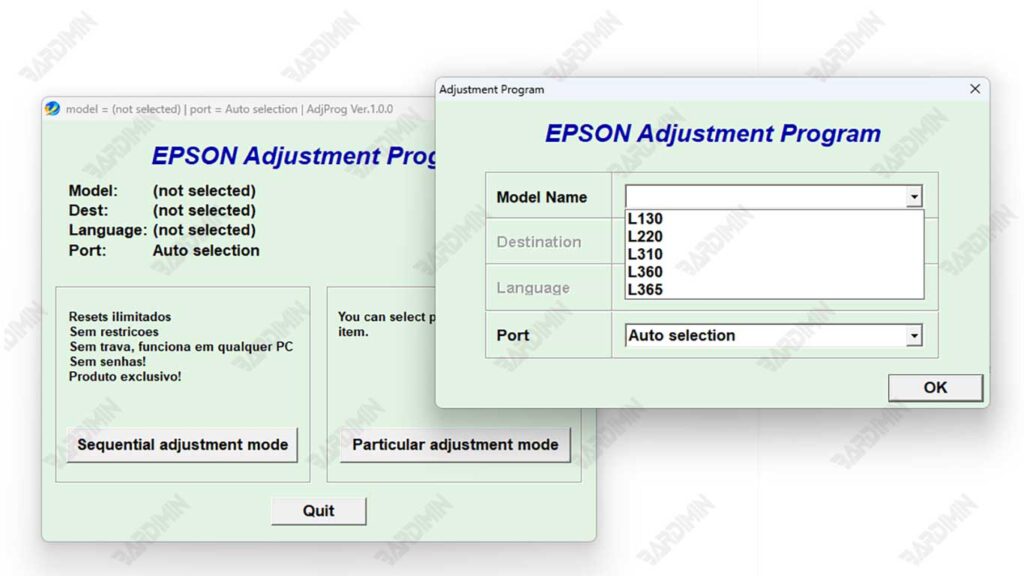
1. Download Software
2. Extract Files and Run AdjProg.exe
Once the file has been successfully downloaded, extract the ZIP/RAR folder. Find the AdjProg.exe file, then right-click and select Run as Administrator. This is important so that the program has full permission to access the printer system.
3. Select Printer Model
On the program’s main view, select your printer model. The software supports different types, such as:
- Epson L130
- Epson L220
- Epson L310
- Epson L360
- Epson L365
Choosing the right model is essential for the reset process to run smoothly.
4. Go to the Particular Adjustment Mode Menu
After selecting the printer model, click the Particular Adjustment Mode button. This menu contains a variety of technical adjustment options to fix errors on Epson printers.
5. Choose a Waste Ink Pad Counter
In the menu, select the option Waste Ink Pad Counter.
- Check the Main Pad Counter box.
- Click the Check button to verify the status of the counter.
If the system shows that the counter is full, then the printer does need to be reset.
6. Click Initialization
After checking, continue by clicking Initialization. This process will reset the Waste Ink Pad Counter to its original value. Wait a few moments for a notification to appear that the process was successful.
7. Restart Printer
Turn off your Epson printer, then turn it back on. After the restart, the printer should be back to normal and ready to print as usual.
Important Notes:
- Perform the reset process only when the printer actually shows an error Service Required.
- If the printer is still problematic after resetting, there is likely physical damage to the ink pads or other components that require repair at the Epson Service Center.
