

The Epson L3110 printer is known as one of the most reliable, economical, and widely used multifunction printers in both homes, schools, and offices. However, with long-term use, users often encounter common issues, such as the appearance of the “Service Required” message, full ink indicators, or constant flashing printer lights. This condition is typically caused by a waste ink pad counter that has reached its maximum limit.
To solve this problem, Epson provides a special tool called the Adjustment-Program Epson L3110. This software serves as an official resetter that is able to restore the printer system to its normal state with just a few simple steps. By using this program, you no longer have to panic when the printer stops working due to waste ink pad full errors.
What is the Epson L3110 Program Adjustment?
Adjustment-Program Epson L3110, or often referred to as the Epson L3110 (AdjProg.exe) resetter, is an official software specifically designed to solve error problems on Epson printers, especially those related to the waste ink pad counter. This program is a practical solution when the printer stops working due to the appearance of the message “Service Required” or the indicator light that flashes continuously (blinking).
Technically, AdjProg.exe works by resetting the waste ink pad on the printer. Each time the printer is used, some of the residual ink will be absorbed by the absorbent pad (pad). When the counter reaches the maximum limit, the system will automatically stop the printer’s performance to prevent ink leakage. This is the reason why users need the Adjustment-Program Epson L3110 to return the counter to zero.
The main functions of this software include:
- Reset the waste ink pad counter so that the printer can print normally again.
- Resolves the “Service Required” error message that often appears after long-term use.
- Extends the life of the Epson L3110 printer because the device can be used again without a hitch.
Unlike unofficial generic reset software, Adjustment-Program Epson L3110 is designed specifically for this type of printer so that it is more stable, accurate, and safe to use. Generic software usually only provides a temporary reset and can even potentially carry viruses or malware.
When to Use the Epson L3110 Adjustment Program?
As an Epson L3110 printer user, it’s important to understand when it’s the right time to use the Adjustment Program Epson L3110. Not all errors require a resetter, but there are some specific symptoms that are a sign that it’s time for your printer to be reset.
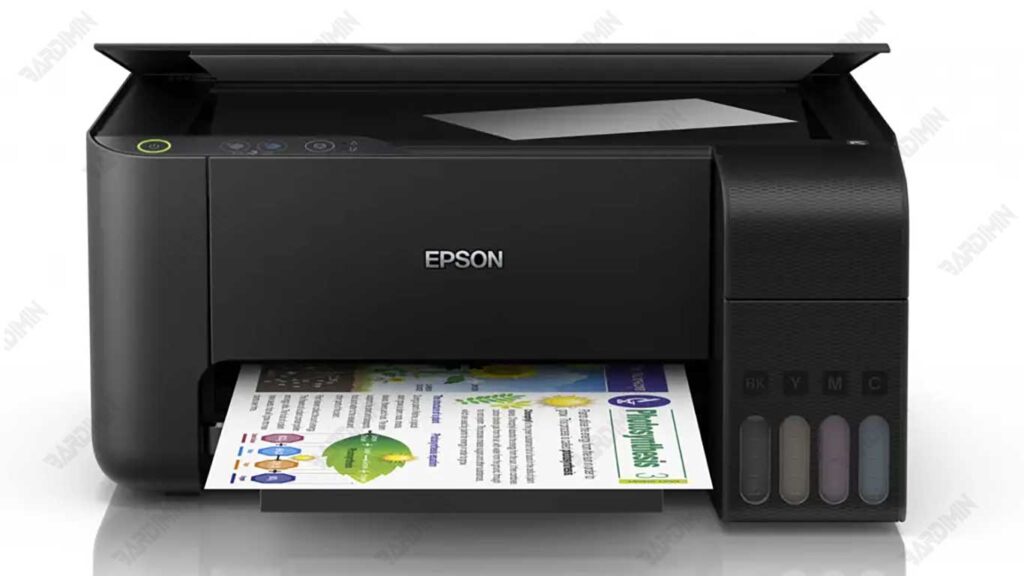
Common Symptoms of a Printer That Needs Reset
1. The message “Waste Ink Pad Counter Full” appears
This message indicates that the waste ink counting system on the printer has reached its maximum limit. If it is not reset immediately, the printer will stop working.
2. The printer can not print, and the indicator light is blinking
When the Epson L3110 printer encounters an error, usually the ink and paper indicator lights flash alternately. This condition is a clear sign that the printer is locking its print function to prevent further damage.
3. “Service Required” notification on the computer screen
These notifications often appear when you try to print. The Windows system or Epson driver will detect an error at the waste ink pad counter, so the printer requests maintenance.
Download Adjustment-Program Epson L3110 (Latest Version)
How to Use the Epson L3110 Adjustment Program [Step by Step]
Warning: Make sure you have read and understood all risks beforehand. Make sure the printer is ON and connected to the computer via a USB cable. Temporarily disable your antivirus before starting.
Step 1: Extract the downloaded file
The file you downloaded is in ZIP format and was extracted by:
- Right-click on the ZIP file.
- Select “Extract All…” or use software such as WinRAR/7-Zip.
Extract it to a folder that you have easy access to.
Step 2: Run AdjProg.exe as an Administrator
This is a critical step to give the software the necessary permissions to communicate with the printer driver.
- Open the extracted results folder.
- Right-click on the AdjProg.exe file.
- Select Run as administrator from the menu that appears.
Step 3: Select Printer Model → Epson L3110
When the software window opens, the first step is to choose the right printer model.
- In the Select Model column, find and select L3110 from the list provided.
- Leave the Port option on the Auto Selection setting.
- Click OK to continue.
Step 4: Go to the Particular Adjustment Mode Menu
Once connected to the printer, you will be taken to the main menu of the software.
- Find and click the button or tab that says Particular Adjustment Mode.
- This menu is where you access a variety of specific reset functions.
Step 5: Select Waste Ink Pad Counter, Check Main Pad Counter, Click Check
In the Particular Adjustment Mode menu, you’ll see a list of items that can be reset.
- From the existing list, find and select the item Waste Ink Pad Counter.
- A new window will open. In it, check the box for Main Pad Counter.
- Before resetting, always click the Check button first. This button will display the current counter percentage (usually 100% or above 100%), ensuring that this is the case.
- After that, you’re ready to reset.
Step 6: Click Initialization, then Restart the Printer
This is the final step of the reset process.
- After making sure the counter is full, click the Initialization button.
- The software will process and display a successful message (usually “Please turn off the printer” or “The protection counter has been reset”) indicating a successful reset.
- FOLLOW INSTRUCTIONS: Turn off your printer using the power button.
- Wait about 30 seconds, then turn your printer back on.
Step 7: Done!
Once the printer is restarted, all indicator lights should have stopped flashing, and the printer has returned to its normal state. You can now try to print. Don’t forget to turn your antivirus back on.
