

Computers are among the most important devices in our daily lives, serving as a gateway to information, communication, and entertainment. However, like any other electronic device, computers can also experience various problems. From slowing down performance to annoying fan noises, every problem can be a barrier to productivity.
In this fast-paced era, time is precious, and the slightest distraction can affect work efficiency. Therefore, it is important to know how to solve common problems with your computer so that it can function properly again.
Bardimin will share six effective ways to overcome problems that computer users often face so that you can keep your device optimal and support your daily activities.
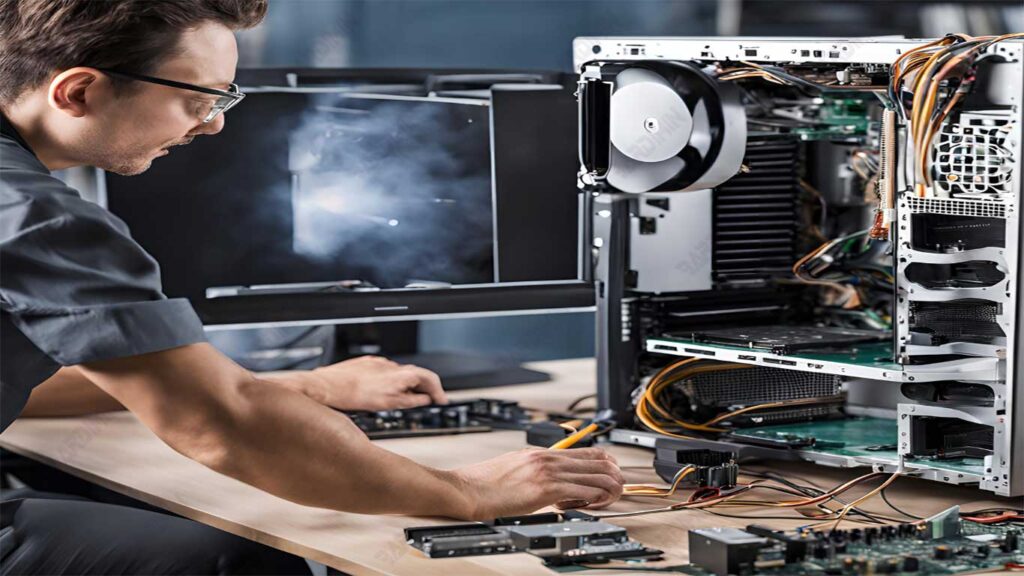
1. Causes and Solutions of Hot and Noisy Computers
A computer fan that makes a loud noise or a device that feels hot is an indication of a problem that needs to be addressed immediately. This condition not only interferes with comfort but can also damage important components inside the computer.
Common Symptoms:
- The temperature of the computer is higher than usual.
- The fan makes a noise indicating that it is working harder.
Quick Solution:
1. Reduces Processor Load:
Applications that require a lot of resources, such as high-graphics games or video editing software, can make the CPU work harder and generate more heat—close unnecessary apps through Task Manager (Windows) or Activity Monitor (Mac).
2. Improves Air Circulation:
Ensure your computer has enough space for good air circulation, especially around the fan vents. Avoid placing the device in an enclosed place such as a closet or too close to a wall. If possible, use a cooling pad for a laptop or an additional fan for a desktop PC.
2. Cleaning the Dust on Computer Components
Dust is one of the main threats to computers that can make fans work harder and cause components to become hot. Therefore, regular cleaning is essential to keep your computer’s performance optimal and prevent more serious damage in the future.
The Importance of Regular Cleaning:
Preventing Clogging of Fans and Heatsinks:
Dust buildup can impede airflow, preventing fans and heatsinks from cooling components effectively.
Reducing the Risk of Overheating:
Keeping the fans and heatsink clean allows the computer to operate without generating excess heat that can damage the hardware.
How to Clean:
1. Use a Compressed Air Can:
- Turn off the computer and open the case to access the inside.
- Spray compressed air on the fan and heatsink to remove any adhering dust.
2. Use a Soft Brush:
- For dust that is difficult to remove, use a small brush such as a paintbrush or a toothbrush that is no longer in use.
- Rub gently so as not to damage sensitive components.
3. Overcoming Noisy Hard Drives and the Risk of Data Loss
A hard drive that makes a sound like “chattering” or a subtle hum can be a sign of a serious problem. If not addressed immediately, this could potentially lead to the loss of valuable data.
Identifying the problem:
- “Chattering” sounds: The hard disk produces a light clicking or swiping sound that signals intense activity.
- Subtle Hum: It can be an indication that the internal components are wearing or damaged.
Preventive Measures:
1. Backup Files Regularly:
- Use cloud storage like Google Drive or IDrive to store important data.
- Choose an external hard drive as an alternative to save a copy of the file offline.
- Automatic backups can minimize the risk of data loss even if the primary hard drive fails.
2. Hard Disk Defragmentation:
- Over time, the data on the hard disk is broken down into small pieces that are scattered across different locations.
- Run the Disk Defragment feature in Windows to reorganize your data so that your hard drive works more efficiently.
- On Mac, the defragmentation process is not necessary because the macOS system handles fragmentation automatically.
4. Improves Slow Computer Performance
As you use it, computers tend to slow down due to unnecessary file buildup and hardware that is no longer adequate for modern applications. With a few simple steps, you can restore your computer’s performance to its optimum return.
Performance Tips:
1. Delete Unnecessary Files:
- Deleted files often remain stored in the Recycle Bin (Windows) or Trash (Mac), taking up valuable space.
- Empty the Recycle Bin or Trash regularly to free up storage capacity.
2. Run Disk Cleanup:
- Use Disk Cleanup‘s built-in feature in Windows to delete temporary files, system caches, and log files.
- This step helps free up space and speed up the performance of the computer.
Upgrade Hardware:
1. Add RAM:
- Random Access Memory (RAM) is important enough to support modern and multitasking applications.
- By increasing the RAM capacity, heavy applications such as video editors or games will run more smoothly.
2. Use a Solid State Drive (SSD):
If possible, replace traditional hard drives with SSDs. This component has much faster read/write speeds, which speeds up the booting and loading of applications.
5. How to Recover Deleted Files
Losing important files can happen at any time, but you can still recover them with the right steps. Acting quickly is essential to increase the chances of a successful recovery.
First Action:
1. Recover from Recycle Bin or Trash:
- Windows: Right-click on a file in the Recycle Bin, then select Restore to restore it to its original place.
- Mac: Drag the file from Trash to the location you want.
If the file is not found:
1. Use File Recovery Software:
- Download an app like Recuva (for Windows) or a similar program that works on your Mac.
- Perform a deep scan of the drive where the lost files are located to try to recover them.
2. Seek Professional Services:
- If your files are critical and can’t be recovered with software, consider using a professional data recovery service near you.
- The service comes with advanced tools to handle more complicated data loss issues, including damage to the hard disk.
6. The Importance of Backing Up Data Regularly
Data loss can happen at any time, either due to hardware damage, virus attacks, or user error. To protect your valuable data, backing up regularly is a crucial step.
Why is Data Backup so Important?
- Preventing Unrecoverable Loss: In the event of damage to the computer or hard disk, the data that has been backed up can be easily recovered.
- Protects from Outside Threats: Malware attacks like ransomware can encrypt files, but with backups, you’ll have a safe copy.
Recommended Backup Methods:
1. Take advantage of Cloud Storage:
- Choose a service like IDrive, Google Drive, or Dropbox to store your files online.
- Advantages: Automatic backups and files can be accessed from any internet-connected device.
2. Save Files on an External Hard Drive or DVD-R:
- External Hard Drive: Use a device with a large capacity to store all your important files.
- DVD-R: A more economical option with capacities of up to 4.7 GB per disc, ideal for small to medium-sized data backups.
- Make sure this storage is placed in a safe place to protect it from physical damage.
