

The motherboard is the main component of the computer, which connects all the other parts, such as CPU, RAM, hard drive, and more. The motherboard is also responsible for regulating the flow of electricity, data, and signals between these components. Without a properly functioning motherboard, your computer cannot operate.
However, motherboards are also prone to damage or failure, which can cause various problems on your computer, such as a blue screen of death, boot loop, no video signal, and others. Various factors, such as overheating, humidity, dust, unstable mains voltage, installation errors, and others, can cause motherboard damage.
In this article, Bardimin will discuss some common causes of motherboard damage, including how to prevent it, and how to fix it if it occurs. Bardimin will also give you some tips for choosing the right motherboard for your computer, so you can avoid problems in the future.
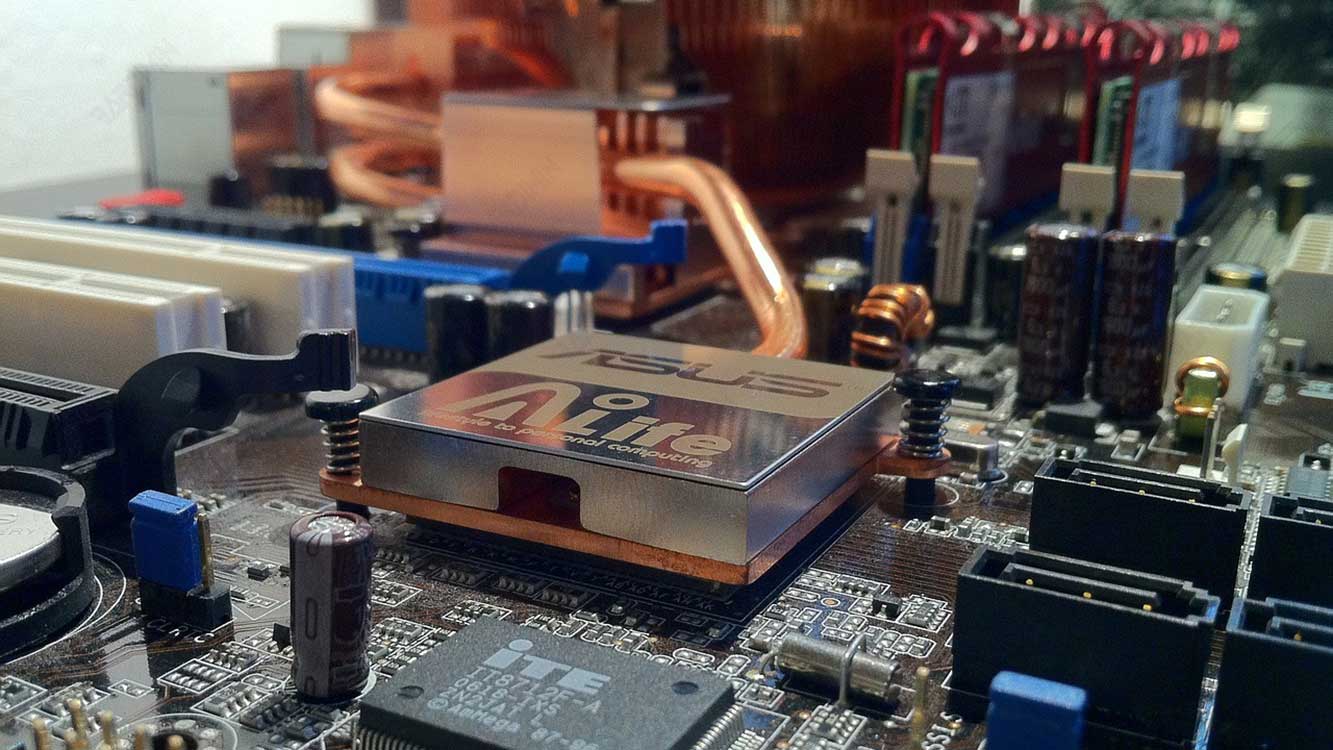
Common Causes of Motherboard Damage
Here are some common causes of motherboard damage, along with explanations and solutions.
Overheating
Overheating is one of the most common causes of motherboard damage. Overheating can damage sensitive components on the motherboard, such as chipsets, capacitors, resistors, and more. Overheating can also cause the motherboard to warp or crack, which can disrupt the connections between those components.
Overheating can be caused by several factors, such as:
- Lack of cooling. If your computer doesn’t have enough fans, heatsinks, or liquid cooling systems, then the heat generated by components like the CPU, GPU, and hard drive won’t be effectively removed. This can cause the temperature inside the computer case to rise, which can affect the motherboard.
- High ambient temperature. If you use your computer in a hot place, such as in direct sunlight, near a radiator, or in a room without air conditioning, then the temperature inside the computer case will also increase, which can affect the motherboard.
- Overclocking. Overclocking is increasing the speed or performance of components such as the CPU, GPU, or RAM by changing frequency, voltage, or multiplier settings. Overclocking can improve your computer’s performance, but it can also increase the heat generated by those components. If you do not have an adequate cooling system, then overclocking can cause overheating of the motherboard.
Solution:
To prevent damage to the motherboard because of overheating, you can do the following:
- Check and clean your cooling system periodically. Make sure your fans, heatsinks, and liquid cooling system are working properly, and that there is no dust, dirt, or hair blocking airflow. Replace worn or damaged thermal paste, fans, or heatsinks.
- Use your computer in a cool, well-ventilated place. Avoid using your computer in hot, humid, or dusty places, which can increase the temperature inside the computer case. Use air conditioning, fans, or air conditioners to lower the ambient temperature.
- Overclock carefully and according to your component specifications. If you want to overclock, make sure you know the maximum and safe limits of the components you are overclocking and do not exceed them. Use software that can monitor the temperature, voltage, and frequency of these components, and perform stability tests to make sure there are no problems. If you feel overheating, lower your overclocking settings, or turn off the feature.
Moisture
Humidity is a condition in which the air contains a lot of moisture, which can cause condensation or dew on the surface of objects. Moisture can damage the motherboard, as it can cause corrosion, rust, or short circuit of metal or electronic components on the motherboard.
Humidity can be caused by several factors, such as:
- Low ambient temperature. If you use your computer in a cold place, such as in an air-conditioned room, underground, or in winter, then the temperature inside the computer case can be lower than the ambient temperature. This can cause moisture in the air to condense on the surface of the motherboard, which can cause damage.
- Large temperature difference. If you move your computer from a cold place to a warm place, or vice versa, then the temperature inside the computer case can change drastically. This can cause moisture in the air to condense or evaporate on the surface of the motherboard, which can cause damage.
- Fluid leakage. If you have a liquid cooling system on your computer, or you accidentally spill a drink or other liquid on your computer, then the liquid can get into the computer case, and touch the motherboard. This can cause short circuits, corrosion, or rust of motherboard components.
Solution:
To prevent damage to the motherboard due to moisture, you can do the following:
- Use your computer in a dry, well-ventilated place. Avoid using your computer in damp places, such as in the bathroom, in the kitchen, or near a window. If necessary, use a dehumidifier, room dryer, or silica gel to lower the humidity of the air.
- Let your computer adapt to the ambient temperature before turning it on. If you move your computer from a cold place to a warm place, or vice versa, let your computer rest for a few minutes, so that the temperature inside the computer case can adjust to the ambient temperature. This can prevent condensation or dew on the surface of the motherboard.
- Check and repair your liquid cooling system periodically. Make sure there are no leaks, cracks, or damage to hoses, pumps, or reservoirs from your liquid cooling system. If there is, immediately replace or repair the problematic part, and dry your motherboard carefully.
- Avoid spilling liquid on your computer. If you accidentally spill a drink or other liquid on your computer, shut down your computer immediately, unplug the power cord, and open the computer case. Dry your motherboard carefully, and check for damaged or shorted components. If there are, replace or repair the component, or take your computer to a service center.
Dust
Dust is small particles consisting of various materials, such as skin, hair, pollen, fiber, soil, and others. Dust can damage the motherboard, as it can clog airflow, reduce cooling effectiveness, and cause short circuits in electronic components.
Dust can get inside the computer case through cracks, holes, or fans. Dust can also stick to the surface of the motherboard due to the presence of static electricity. Dust can build up over time, especially if you rarely clean your computer, or use your computer in dusty places, such as in a warehouse, in a garage, or near a highway.
Solution:
To prevent damage to the motherboard due to dust, you can do the following:
- Clean your computer periodically. At least once every three months, open your computer case and remove any dust that gets on the motherboard, fans, heatsinks, and other components. You can use a brush, cloth, or a soft vacuum cleaner to clean the dust. Make sure you turn off and unplug your computer before cleaning it, and don’t touch components with wet hands or metal objects.
- Use a dust filter on your computer case. You can install dust filters in holes or crevices in your computer case, which can prevent dust from entering your computer. You can buy a ready-made dust filter, or make it yourself from cloth, sponge, or paper. Make sure you clean or replace the dust filter periodically, so as not to block the airflow.
- Use your computer in a clean, well-ventilated place. Avoid using your computer in dusty places, such as in warehouses, garages, or near highways. Use a lid, box, or cabinet to protect your computer from dust. Also, make sure there is good air circulation around your computer so that heat can be removed effectively.
Unstable Electric Voltage
Unstable mains voltage is a condition in which the mains voltage entering your computer fluctuates or fluctuates suddenly, which can cause damage to the motherboard. Several factors can cause unstable electrical voltage, such as:
- Interference with the power grid. If there is a disturbance in the power grid, such as an outage, lightning, short circuit, or excessive load, then the mains voltage entering your computer can rise and fall drastically, which can damage the motherboard. This disruption can occur in the home, office, or public electrical network.
- Poor quality of electrical wiring. If the power cord you used to connect your computer to a power source is damaged, worn out, or doesn’t match the specifications, then the mains voltage entering your computer can be unstable, which can damage the motherboard. Poor electrical wiring can lead to lose connections, high resistance, or electric sparks.
- Poor quality of power supply. A power supply is a component that converts AC electric current into DC electric current, which is used by computer components. If the power supply you use for your computer is damaged, worn out, or does not match the specifications, then the mains voltage coming out of the power supply can be unstable, which can damage the motherboard. A poor power supply can cause inconsistent output, noise, or overheating.
Solution:
To prevent damage to the motherboard because of unstable voltage, you can do the following:
- Use a stabilizer or UPS. A stabilizer is a device that can stabilize the electrical voltage that enters your computer so that dangerous fluctuations do not occur. A UPS is a device that can store a backup of electricity, which can keep your computer on in the event of a power outage. You can install a stabilizer or UPS between the power source and your computer to protect your motherboard from interference with the power grid.
- Check and replace damaged or inappropriate power cords. Make sure the power cable you used to connect your computer to a power source is not damaged, worn, or not following specifications. If there is, immediately replace the power cable with a new and quality one. Also, make sure the electrical cable is tightly and securely attached, so that there are no loose connections or electric sparks.
- Check and replace damaged or inappropriate power supplies. Make sure the power supply you use for your computer is not damaged, worn out, or not following specifications. If there is, immediately replace the power supply with a new and quality one. Also, make sure the power supply has enough power to power all components of your computer, and has a good cooling system, so as not to overheat.
Physical or Mechanical Damage
Physical or mechanical damage can cause the motherboard to break, crack, flex, or scratch, which can damage the motherboard’s circuits, components, or coatings. Physical or mechanical damage can be caused by:
- Incareful shipping, storage, or handling, which may cause impacts, falls, or stress on the motherboard.
- Improper installation, replacement, or maintenance, may cause errors, violence, or strain on the motherboard.
- Components that don’t fit, are too large, or are too heavy, which can cause friction, sliding, or load on the motherboard.
To prevent physical or mechanical damage, you can do the following:
- Send, store, or handle motherboards carefully and securely. You can use a box, foam, or other protective material to protect the motherboard from affects, drops, or pressure. You can also mark boxes with “Fragile” or “Handle with Care” to tell others to be careful.
- Install, replace, or maintain the motherboard properly and carefully. You can follow the motherboard’s instruction manual or its manufacturer’s website to see the proper and safe way to do this. You can also use equipment, such as a screwdriver, tweezers, or eraser, to work with the motherboard. You can also avoid pressing, pulling, or turning the motherboard hard.
- Use components that fit, fit, and are lightweight for your motherboard. You can check the size, shape, and weight of the components before attaching them to the motherboard. You can also use screws, bolts, or brackets to secure components to the motherboard. You can also avoid stacking or sticking components too close to each other.
Virus or Malware Infection
Virus or malware infections can cause the motherboard to experience corruption, errors, or damage to firmware, drivers, or the operating system. A virus or malware is a malicious program that can infect, alter, or delete files, data, or programs on a computer. Viruses or malware can enter a computer through:
- Internet, such as unsafe websites, emails, or downloads, which can contain infected links, attachments, or files.
- Storage media, such as flash drives, hard drives, or CDs, can contain viruses or malware that spread when connected to a computer.
- Networks, such as Wi-Fi, Bluetooth, or LAN, can contain other infected devices or computers that can infect your computer.
To prevent virus or malware infection, you can do the following:
- Use a reliable, up-to-date, and protected antivirus or antimalware to protect your computer from viruses or malware. You can scan your computer periodically and remove any viruses or malware detected. You can also enable real-time protection, automatic updates, and firewall features on your antivirus or antimalware.
- Use the internet safely and wisely. You can avoid visiting suspicious, fake, or illegal websites, emails, or downloads. You can also check the security certificate, reputation, and website reviews before accessing it. You can also use a secure browser, like Chrome, Firefox, or Edge, and turn on privacy protection features, like incognito mode, block ads, or VPN.
- Use the storage medium carefully and cleanly. You can check the storage media before connecting them to your computer and make sure they do not contain viruses or malware. You can also format the storage media before and after use. You can also avoid borrowing or sharing storage media with others.
- Use the network safely and securely. You can check the networks before connecting to your computers and make sure they don’t contain any other infected devices or computers. You can also use strong passwords, encryption, and security protocols to protect your network. You can also avoid using public or unknown networks.
Age or Age
Age or age can cause the motherboard to decline, age, or die naturally. Motherboards, like other electronic components, have lifespan limits that are determined by various factors, such as quality, wear, and maintenance. Age or age can cause:
- Worn, weak, or damaged components, such as capacitors, resistors, or transistors, may reduce the performance, stability, or functionality of the motherboard.
- Faded, disconnected, or burned circuits, such as copper lines, solder, or lining, can interfere with the communication, transmission, or distribution of the motherboard.
- Outdated, incompatible, or unsupported firmware, such as BIOS, drivers, or operating systems, may cause conflicts, errors, or damage to the motherboard.
To extend the life or life of the motherboard, you can do the following:
- Use motherboards with good quality, brand, and warranty. You can check the motherboard’s specifications, features, and reviews before buying it and make sure they have good quality, brand, and warranty. You can also check the build or release date of the motherboard and choose the most recent or recent.
- Use the motherboard wisely and accordingly. You can avoid using the motherboard excessively, unnecessarily, or inappropriately. You can also avoid doing things that could damage or shorten the life of the motherboard, such as overclocking, undervolting, or modding. You can also shut down or restart your computer regularly to give it a break or refresh the motherboard.
- Take good and regular care of the motherboard. You can clean, lubricate, or replace worn, weak, or damaged components on the motherboard. You can also check, repair, or replace faded, disconnected, or burned circuits on the motherboard. You can also update, reinstall, or replace outdated, incompatible, or unsupported firmware on the motherboard.
Installation Error
An installation error is a condition in which you make a mistake while installing, replacing, or repairing components on your computer, which can cause damage to the motherboard. Several factors can cause installation errors, such as:
- Lack of knowledge or experience. If you do not have enough knowledge or experience in computer components, how they work, and how to install them, then you can make mistakes when installing, replacing, or repairing them, which can damage the motherboard. This error can take the form of installing a component that does not fit, installing a component the wrong way, or installing a component with excessive force.
- Lack of proper equipment or protection. If you don’t have the right equipment or protection when installing, replacing, or repairing computer components, then you can make mistakes that can damage the motherboard. These errors can include touching components with wet hands or metal objects, touching components without removing static electricity, or using inappropriate tools, such as screwdrivers, pliers, or solder.
- Lack of attention or concentration. If you do not pay attention or concentrate when installing, replacing, or repairing computer components, then you can make mistakes that can damage the motherboard. These errors can include installing a component in the wrong slot, reversing the direction of the component, or forgetting important wires or screws.
Solution:
To prevent damage to the motherboard due to installation errors, you can do the following:
- Learn and follow the instructions. Before you install, replace, or repair computer parts, study and follow the instructions in manuals, books, videos, or other resources that can explain how to do so correctly and safely. Make sure you understand the specifications, functions, and workings of the components you want to install, replace, or repair, so you don’t make fatal mistakes.
- Use the right equipment and protection. When you install, replace, or repair computer components, use the right equipment and protection, so you don’t damage the motherboard. You can use equipment such as screwdrivers, pliers, solders, or testers that match the size and type of components you are installing, replacing, or repairing. You can also use protection such as gloves, an anti-static wristband, or a rubber pad so that you do not touch components with wet hands or metal objects, or cause static electricity.
- Pay attention and concentrate on what you are doing. When you install, replace, or repair computer components, pay attention and concentrate on what you are doing, so that you do not make mistakes that can damage the motherboard. You can double-check the components you installed, replaced, or repaired, whether they are installed correctly, safely, and according to the instructions. You can also double-check the cables, screws, or other parts, whether they are connected or tightest properly.
How to Prevent and Repair a Faulty Motherboard
Once you know some of the common causes of motherboard damage, you can prevent them in the ways that Bardimin has described above. However, if you have already experienced damage to the motherboard, you can try to repair it in the following ways:
- Detection and diagnosis of problems. The first step you should take is to detect and diagnose problems that occur on your motherboard. You can do this by checking the symptoms that appear on your computer, such as a blue screen of death, boot loop, no video signal, and others. You can also use software or tools that can help you analyze the condition of your motherboard, such as BIOS, POST, or multimeter.
- Identification and isolation of problematic components. The second step you should take is to identify and isolate the problematic components on your motherboard. You can do this by removing the components connected to the motherboard, such as the CPU, RAM, hard drive, and others, and trying to turn on your computer with minimal components, such as the power supply, motherboard, and speakers. If your computer still doesn’t work, then it’s most likely your faulty motherboard. If your computer is working, then you can try reinstalling the components that you removed one by one, and check if any of them are causing the problem.
- Repair or replace damaged components. The third step you should take is to repair or replace faulty components on your motherboard. You can do this by repairing damaged components, such as capacitors, resistors, or chipsets, by soldering, replacing, or reattaching them. You can also replace damaged components, such as slots, sockets, or ports, by buying new components that match your motherboard’s specifications. If you are unsure or cannot repair or replace a defective component, you can take your motherboard to a service center, or buy a new one.
Tips for Choosing the Right Motherboard for Your Computer
Once you know how to prevent and repair a faulty motherboard, you can choose the right motherboard for your computer, so that you can avoid problems in the future. Here are some tips you can use to choose the right motherboard for your computer:
- Adjust it to your needs and budget. Before you choose a motherboard, you must first determine your needs and budget. Do you want to use your computer for everyday purposes, gaming, graphic design, or others? How much money are you prepared to buy a motherboard? These things can affect the choice of motherboard you choose because each motherboard has different features, performance, and prices.
- Choose the chipset that fits your CPU. The chipset is the component that manages communication between the CPU, RAM, and other components on the motherboard. The chipset you choose must match the CPU you are using so that your computer can function optimally. You can check the specifications of your chosen chipset and CPU, and make sure that they have the same sockets, pins, and architecture. You can also check the features, performance, and compatibility of your selected chipset and CPU, and compare them with other chipsets and CPUs.
- Choose a size that fits your case. The size of the motherboard you choose must match the case you are using so that you can install the motherboard easily and safely. You can check the specifications of the size of the motherboard and case you choose, and make sure that they have the same standards, such as ATX, micro ATX, mini ITX, or others. You can also check the dimensions, shape, and screw holes of your selected motherboard and case, and compare them with other motherboards and cases.
- Choose the feature that suits your needs. Motherboard features are an important aspect that you should pay attention to when choosing a motherboard that suits your needs. Motherboard features can include a variety of things, such as the number and type of RAM slots, PCIe slots, SATA ports, USB ports, audio ports, video ports, fan connectors, RGB connectors, and more. Motherboard features can affect your capabilities, compatibility, and comfort in using your computer.
Conclusion
The motherboard is an important component of a computer that can be damaged for many reasons, such as excessively high temperatures, short circuits or power surges, physical or mechanical damage, virus or malware infections, or age or age. Motherboard damage can cause the computer to not operate properly or even at all.
To prevent damage to the motherboard, you can take several preventive measures, such as using a good cooling system, using a quality PSU, using a reliable antivirus or antimalware, using compatible components, and taking good care of the motherboard. By doing these things, you can ensure your motherboard stays healthy, stable, and durable.
