

You just downloaded an EXE file, but you doubt whether it is safe or contains a virus.
In an era of increasingly sophisticated malware attacks, downloaded EXE files can be a ticking time bomb that threatens your data and privacy. But don’t worry, Windows 11 has a built-in solution called Windows Sandbox, an isolated virtual environment that allows you to test suspicious files without the risk of infection to the main system!
Many users are unaware that 30% of malware disguises itself as legal EXE files (Kaspersky data 2023). Careless clicks can lead to data theft, ransomware, or system damage. Well, how to make sure the EXE file you download is completely safe?
Bardimin will guide you step by step, utilizing Windows Sandbox in Windows 11 to check EXE files easily. No need to install additional software or become an IT expert, just 5 minutes, and you can browse and download with confidence again. Let’s get started!
What Is Windows Sandbox and Why Is It Important for Security?
Windows Sandbox is a built-in advanced security feature in Windows 11 (available in Pro, Enterprise, and Education editions) that functions like a “virtual enclosure” to test for suspicious apps or files. Think of this as a closed lab where you can run programs without worrying about infecting your main system.
This feature is designed to provide an extra layer of protection without the need to use third-party virtualization software.
Why is this feature important?
1. Risk-Free Real-Time Protection
- Whenever you run an EXE file, script, or unknown program, the Sandbox creates a completely isolated, clean environment.
- If a file turns out to contain malware, the threat will disappear once the Sandbox is closed, leaving no trace on your PC.
2. Key Advantages of Windows Sandbox
- Does not affect the main system. All changes (including software installation) only apply within the Sandbox.
- Self-destructing (automatically deleted after closing). There is no need to clear the cache or leftover files, the Sandbox always comes back “clean” when it is rerun.
- Compatible with Various Malicious Files. Not only EXE, but also PowerShell (.ps1) files, macro documents, or suspicious links.
How is Sandbox Different from a Regular Antivirus?
| Feature | Windows Sandbox | Traditional Antiviruses |
| Protection | Active isolation (live trial) | Virus database-based detection |
| Risk | 0% threat to the main system | Sometimes false-positive |
| Use | Manual (when needed) | Running in the background |
Steps to Check EXE Files with Windows Sandbox
1. Make sure Windows Sandbox is Active in Windows 11
Before you start, you’ll need to enable Windows Sandbox because this feature isn’t always installed by default. Here’s how:
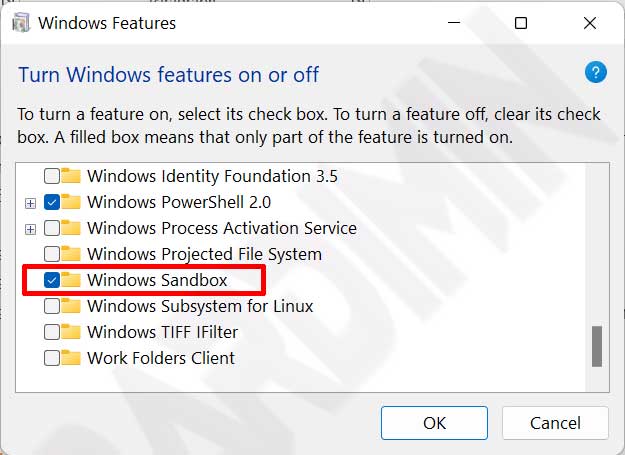
1. Open the “Turn Windows Features On or Off” Menu
- Press Win + R, type optionalfeatures, and then press Enter.
- Alternatively, search for “Turn Windows features on or off” in the Start Menu.
2. Check the Windows Sandbox Option
- In the window that appears, look for “Windows Sandbox “ in the list.
- Put a checkmark (✓) on the option.
- Click OK and wait for the installation process to complete.
3. Restart Your Computer
- Windows will prompt a restart to apply the changes.
- Make sure all your work is saved before restarting.
2. Copy the EXE File into Windows Sandbox
Once the Sandbox is active, the next step is to move the EXE file you want to check into this virtual environment.
1. Open the Windows Sandbox
- Search for “Windows Sandbox” in the Start Menu and run the app.
- The sandbox will open like a new PC in a separate window.
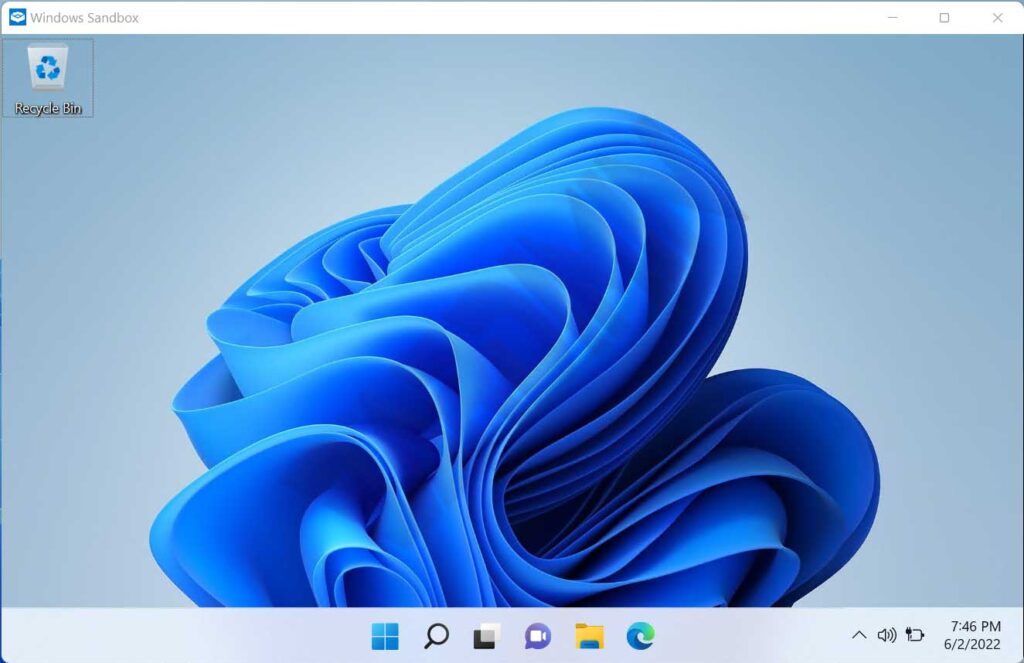
2. Copy EXE File to Sandbox
- Method 1 (Drag & Drop):
Open the folder where the EXE file is stored, and then drag the file to the Sandbox window.
- Method 2 (Copy-Paste):
Right-click the EXE file in the main system > Copy, and then Paste it inside the Sandbox.
3. Make Sure Files Are Transferred Successfully
- Check in the File Explorer Sandbox (usually stored in the Desktop or Downloads).
- If the file does not appear, repeat the copy process with an alternate method.
Commemoration:
– Don’t double-click an EXE file in the Sandbox before you’re ready to analyze it!
– If the file looks suspicious (example: random name, too small), it’s better to delete it immediately.
3. Run the EXE File and Observe Its Behavior
Once the EXE file has been successfully moved to the Windows Sandbox, it’s time to run a test run to check for potential malware. Here’s how to carefully analyze file behavior:
A. Check for Warnings from Windows Defender
- Double-click the EXE file to run it.
- Observe the security notifications that appear.
If Windows Defender raises a red warning (example: “This file contains a virus”), close the program immediately.
If there is no warning, continue observation.
B. Check Network Activity (Unauthorized Internet Access)
- Open the Task Manager (Ctrl + Shift + Esc) > the “Details” tab.
- Look for the process name of the exe file that is running.
- Right-click the process > “Analyze wait chain” to see if the file is trying to connect to the internet.
If there is a foreign IP address or a suspicious domain (example: 185.143.223.1), be aware of spyware/keyloggers.
C. Identify Suspicious Processes in the Task Manager
- Sort processes by CPU/Memory usage.
- Be aware of:
- A new process with a random name appears (example: xvgthb.exe).
- The process continues to run after the EXE file is closed.
- There are strange child processes that are executed automatically.
D. Detection of System Settings Changes
1. Monitor unexpected changes such as:
- A new registry file in HKEY_LOCAL_MACHINE.
- Modify the system file (check via C:WindowsSystem32).
- The firewall/Windows Defender settings are suddenly disabled.
2. Use Process Explorer (Microsoft tools) for deeper analysis.
E. Beware of Automatic Software Installation
1. If the EXE file suddenly opens another program installer (example: “Do you want to install XYZ Toolbar?”), immediately:
- Cancel the process.
- Close the Sandbox (all changes will be lost).
2. Check the Program Files folder in the Sandbox to see if any unknown software is installed.
Summary Table of Malware Signs
| Suspicious Behavior | Potential Threats | Action |
| Windows Defender blocks files. | Virus/ransomware detected | Delete files |
| Unauthorized internet access | Spyware/phishing | Disconnect |
| Hidden processes in the background | Keylogger/miner | Terminate process |
| Change the registry | Rootkit/persistent malware | Restore Sandbox |
Analyze Results and Take Action
After testing the EXE file in the Windows Sandbox, it’s time to analyze the results and make the right decision. Here’s the full guide:
If the file is safe (shows no red flags)
1. Re-Verify
- Make sure there are no warnings from Windows Defender or other antivirus software.
- Check the Task Manager again to make sure there are no suspicious processes still running.
2. Transfer Files to Primary System (If Required)
- If the file is completely safe, you can re-download it from the official source (it’s safer than moving it from the Sandbox).
- Avoid copy-pasting directly from the Sandbox, as this feature is designed for isolation, not file transfer.
3. Stay Alert While Running
- Run the file first on the main system with limited access rights (non-administrator).
- Monitor its activity using Windows Defender or a monitoring tool like Process Explorer.
If the File is Problematic (Malware or Suspicious Detected)
1. Immediately Stop Testing
- Close all related processes in the Task Manager (if they are still running).
- Turn off Windows Sandbox – All changes will disappear automatically.
2. Delete Files from the Main System
- If the file is stored in Downloads or another folder, permanently delete it (Shift + Delete).
- Empty the Recycle Bin to make sure the file is completely deleted.
3. Perform a Full System Scan
- Use Windows Defender Offline Scan (more effectively detects persistent malware).
- Alternative: Use a tool like Malwarebytes or HitmanPro for additional checks.
4. Report Suspicious Files (Optional)
- If the file is from a source that is supposed to be trusted (for example, an official website that may have been hijacked), report it to Microsoft Defender SmartScreen or VirusTotal.
