

Does a specific Windows update keep reinstalling even after uninstalling? This article explains how to permanently block specific Windows updates using the “Show or Hide Updates” tool, a solution for professionals and technicians requiring system stability.
Uninstalling problematic Windows updates, such as KB5005565 which once disrupted printer sharing, is often only a temporary fix. The system will automatically download and reinstall them, bringing back the same issue. This situation is frustrating, especially for users who need system stability for work or gaming.
To address this, Microsoft once released a tool called “Show or Hide Updates”. Its function is to hide or block specific Windows or driver updates, preventing them from being offered or reinstalled by Windows Update.
Although Microsoft has removed this tool from its official site to encourage users to always update their systems, it remains valid and useful. This is especially true when an update is proven to cause bugs, hardware conflicts, or specific performance issues. Here are the practical steps to use it.
Steps to Block Specific Windows Updates
- First, uninstall the problematic Windows update. Ensure the system is clean of that update before blocking it.
- Download the Show or Hide Updates tool (wushowhide.diagcab) from a trusted source. You can get it from the Microsoft archive.
- Extract the downloaded file (if it’s a ZIP) and run the
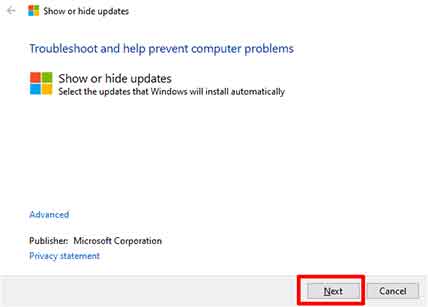
wushowhide.diagcabfile. Click Next to begin.
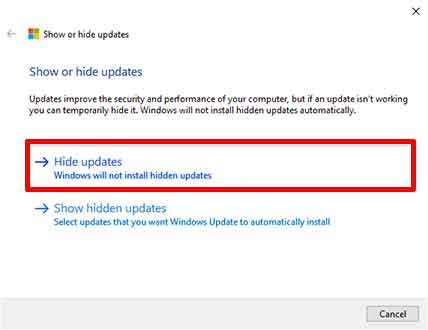
- In the next window, select the “Hide updates” option to hide the updates.
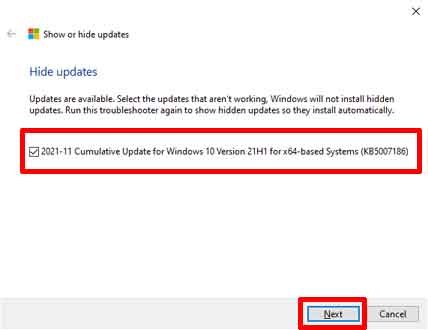
- The tool will scan and display a list of available updates. Check the specific update you want to block (e.g., KB5005565). Click Next to continue.Important: Ensure you only block updates that are truly causing issues. Blocking critical security updates can leave your system vulnerable.
- Wait for the process to complete. A confirmation will appear that the update has been successfully hidden.
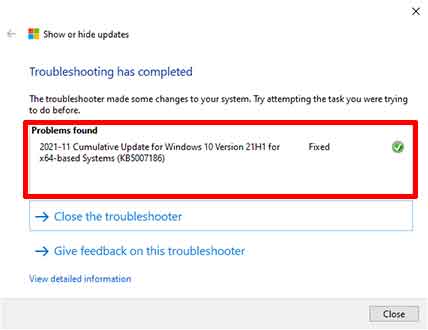
With the steps above, you have successfully blocked the Windows update you did not want. That update will no longer be downloaded and installed automatically by the system. However, this method still operates within the official Windows Update framework.
Restoring a Blocked Update
If you later wish to allow that update again, repeat the process from step 3. However, in step 4, select the “Show hidden updates” option. Then, check the update you want to restore and follow the instructions to completion. After that, the update will reappear and can be installed via Windows Update.
Controlling system updates is a crucial step in IT management. The Show or Hide Updates tool provides the flexibility to maintain system stability while still being able to choose the updates you truly need. Always consider the risks wisely and prioritize critical security updates.
