

Windows Service is a core background component of the Windows operating system. Properly understanding and managing it can significantly enhance computer performance for technical work, productivity, and gaming. This article explains its function, optimization methods, and tools for effective Windows service management.
A Windows Service is a background application run by the operating system. It does not require an active user session and operates without a direct interface. Its primary role is to support applications and system features. Many Windows components depend on these services. If a service encounters issues, related features may fail to funtion.
By default, Windows runs numerous services to ensure smooth operation. However, not every service is needed by every user. Therefore, performing Windows Service optimization becomes a strategic step to conserve system resources.
Is Running All Services a Good Practice?
Each active service consumes computer resources like CPU, memory, and disk usage. More running services lead to a higher system load. On computers with limited specifications, this can cause significant slowdowns, especially when running heavy applications like games or design software.
Thus, disabling unnecessary services is a wise approach. This method helps allocate resources more efficiently. Consequently, overall system performance can improve noticeably.
Strategic Steps for Windows Service Optimization
Optimization involves activating only services relevant to the user’s needs. For instance, you can disable the “Xbox Game Bar” service if you don’t play games. The “Bluetooth Support” service is also unnecessary if your device lacks a Bluetooth module. The principle is simple: deactivate what you don’t use.
However, extreme caution is advised. Disabling critical system services can lead to instability. Always verify a service’s function before making changes. Otherwise, the system may become unstable.
How to Access and Manage Windows Service Manager
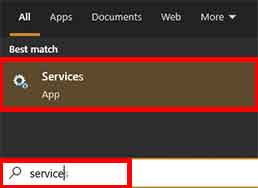
The Windows Service Manager is the built-in tool for service management. To open it, type “services.msc” in the Start Menu search bar or the Run dialog (Win + R). Then, select the “Services” application that appears.
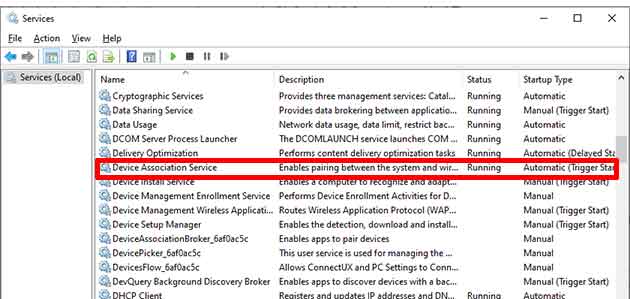
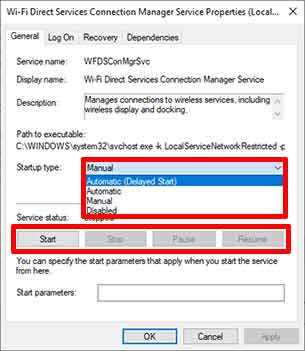
In the main window, you’ll see a list of all services along with their status and description. Double-click on a specific service to open its properties. Here, you can change the startup type (Automatic, Manual, Disabled) and control its state (Start, Stop, Pause, Restart).
Before disabling a service, it is highly recommended to create a system restore point first. This step allows you to revert the system to its previous state if any problems occur.
Supporting Utilities for Service Optimization
For users less familiar with each service’s function, using third-party utilities is a safe solution. One recommended tool is Easy Service Optimizer. This portable application provides pre-configured optimization templates.
You can download it directly from the official developer site: Easy Service Optimizer (Sordum.org). For official information on Windows service architecture, you can refer to Microsoft’s documentation.
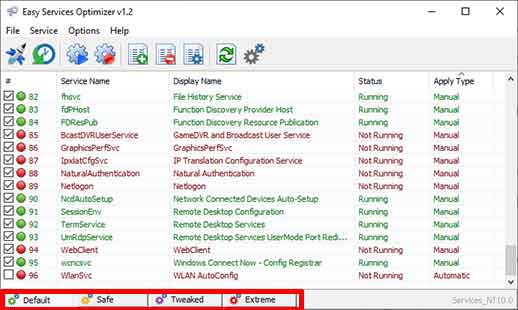
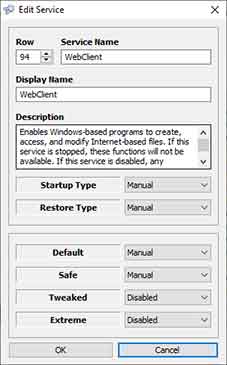
This application offers four main optimization profiles:
- Default: Maintains the current service configuration.
- Safe: Disables non-essential services with minimal risk.
- Tweaked: More agressive optimization for better performance.
- Extreme: Disables most services for maximum performance (for advanced users only).
You can choose a profile based on your needs. Additionally, individual customization is available for each service. Simply double-click on a service in the list to change its state.
By properly managing Windows Service, you can tune system performance according to your workload. As a result, the computer becomes more responsive for activities like gaming, rendering, or heavy multitasking. Always make changes carefully and start with the safest optimization profile.
