

Network folder in File Explorer suddenly empty? Don’t panic! This issue is common in Windows 11 users, where the network connection does not appear even though the internet functions normally. As a result, you can’t access shared files, printers, or LAN devices.
Why does this happen? The causes vary, ranging from registry errors, problematic network services, and damage after Windows updates. However, most cases can be fixed in a matter of minutes without the need to reinstall the system.
Bardimin will unpack a step-by-step solution based on Microsoft Certified Professional technical experience, including fixes via Command Prompt, secure registry edits, and network adapter resets. Watch till the end to get your Network Folder back quickly!
Why is the Network Folder in File Explorer Windows 11 Empty?
When you open File Explorer in Windows 11, and find the Network folder that is empty and doesn’t show network devices, other computers, or shared resources. This could be a sign of a serious problem in your network system. Let’s discuss in detail each possible cause:
1. Problematic Network Adapter Driver
Network drivers are vital components that serve as translators between the operating system and network hardware. When a driver encounters a problem, all network functions can be disrupted. Some of the most common scenarios:
- Corrupt drivers due to imperfect installation
- Outdated drivers that are not compatible with the latest version of Windows
- Driver conflicts occur when there are multiple versions of the driver installed
2. Essential Network Services Are Down
Windows 11 relies on several critical system services for network operations:
- Network Connections: Managing connection objects in Network and Dial-Up Connections
- Network List Service: Identify available networks
- Function Discovery Resource Publication: Enables device discovery on the network
- SSDP Discovery: Detecting UPnP devices
If the Network List Service service is stopped, Windows will not be able to detect or display the network that is active in File Explorer.
3. Network Adapter Down
This is an often overlooked cause. Network adapters can be disabled by:
- Accidental users
- Third-party apps
- Power management
- Failed Windows updates
4. Network Discovery Shut Down
This feature serves as Windows’ “eyes and ears” for local networks. When turned off:
- The computer can’t see other devices
- Other devices can’t see your computer
- But the internet connection may still work normally
5. Malware Attacks
Some specific types of malware target network components:
- Trojan that modifies TCP/IP settings
- A worm that disables network services
- Rootkit that hides network activity
6. Registry Corruption
The Windows registry stores all network configurations. Problems can arise in:
HKEY_LOCAL_MACHINE\SYSTEM\CurrentControlSet\Control\Network

HKEY_LOCAL_MACHINE\SOFTWARE\Microsoft\Windows NT\CurrentVersion\NetworkList
Causes of Damage:
- Overly aggressive cleanup apps
- Edit the wrong manual registry
- Power disconnection while the system is writing the registry
Solution 1: Restart Network Services to Restore Empty Network Folders
One of the most effective, and often overlooked, solutions to fix empty Network Folders in Windows 11 is to restart network-related services. These services work in the background to ensure that Windows can detect, manage, and display devices and network connections in File Explorer.
If one of these services stops responding, crashes, or doesn’t run properly, Windows may fail to display a list of network devices, even if your internet connection is active.
Steps to Restart Network Services
1. Open “Services.msc” (Windows Services Manager)
- Press Win + R, type services.msc, and then press Enter.
- This will open the Services window, where you can manage all the services of the Windows system.
2. Find & Restart These 3 Critical Services:
a. Network Connections (NetMan)
Function: Manage a list of network connections (Wi-Fi/Ethernet/VPN) in the system.
Impact if problematic:
- The Network folder is empty or unresponsive.
- Can’t change the network adapter settings.
How to restart:
- Right-click Network Connections.
- Select Restart (if it’s running) or Start (if it’s status “Stopped”).
b. Network List Service (NetProfm)
Function: Detects and lists available networks (Wi-Fi/LAN).
Impact if problematic:
c. Network Location Awareness (NlaSvc)
Function: Identifies the type of network (Private/Public/Domain) and sets its security policies.
Impact if problematic:
- Windows misrecognizes the network (for example, it thinks of the home network as “Public”).
- Network Discovery doesn’t work, so other devices don’t appear.
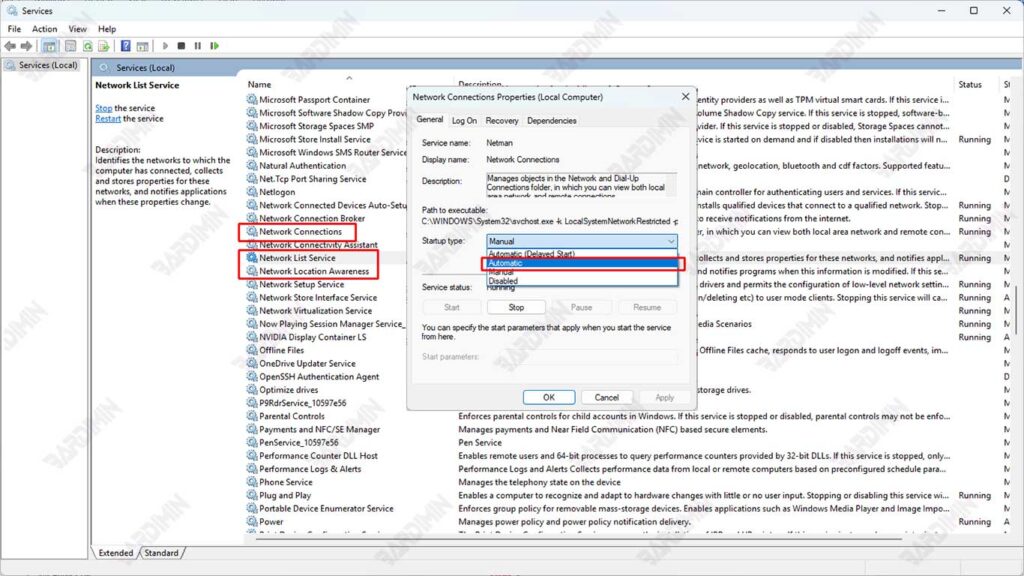
3. Set Startup Type to “Automatic”
To prevent the service from stopping again after a restart:
- Right-click on each > Properties service.
- In the General tab, change Startup type to Automatic.
- Click Apply > OK.
Solution 2: Fix Empty Network Folders with Command Prompt (Admin)
If restarting the network service hasn’t solved the problem, the next step is to run a series of CMD commands that can repair the Windows network configuration from the ground up. These commands work by:
- Clearing the DNS cache
- Reset the Windows network stack
- Update TCP/IP configuration
3 Essential Commands & Their Functions
1. netsh winsock reset
- Resets Winsock Catalog (a component that governs how programs communicate with the network).
- Fix errors such as:
- The network is connected, but can’t browse.
2. netcfg -d
- Deletes all network configurations and restores them to their default settings.
- Included:
- Remove corrupt network drivers.
- Reset all network adapters.
3. ipconfig /flushdns
- Clearing the Windows DNS cache.
- Fix the problem:
- The device does not appear in Network Explorer.
- Failed to access other computers via hostname.
How to Execute Commands Correctly
- Open CMD as Admin. Press Win + X → Select Terminal (Admin) or Command Prompt (Admin).
- Run Commands One by One
netsh winsock reset

netcfg -d

ipconfig /flushdns- Restart the computer. Changes only take effect after a restart.
Solution 3: Fix Empty Network Folder Issue via Registry Editor
If the previous solution has not worked, there may be a corruption in the Windows registry configuration that governs the network settings. The Registry is a central Windows database that stores all system settings, including information about network adapters, connections, and Network Explorer.
Registry Repair Steps
- Press Win + R, type regedit, and then press Enter.
- If you’re prompted for admin permission, click Yes.
2. Navigate to Problematic Key
- Enter the following path:
HKEY_LOCAL_MACHINE\SYSTEM\CurrentControlSet\Control\Network
- Here, you’ll see several subkeys, including Config.
3. Rename or Remove Key “Config”
- Right-click on the key Config.
- Select Rename and rename it to Config_Old (for automatic backup).
- Or select Delete if you’re sure you want to delete it (Windows will create a new one on reboot).
4. Restart the Computer
After restarting, Windows will automatically recreate the key Config with the default settings.
By following this step, 90% of Network folders that are empty due to registry corruption can be repaired!
Solution 4: Create a New User Account to Isolate the Issue
When all previous solutions fail to fix an empty Network Folder in Windows 11, the problem may not lie with the system, but rather with the corrupt user profile. By creating a new account, we can determine whether:
- The problem only occurs in the old account (meaning the damage is in the user’s profile)
- Problems persist in new accounts (indication of deeper system corruption)
Steps to Create a New User Account
1. Go to System Settings
- Press Win + I to open the Settings.
- Select Accounts > Family & other users.
2. Add a New Account
- In the section “Other users”, click Add account.
- Select “I don’t have this person’s sign-in information”.
- Click “Add a user without a Microsoft account” (for local accounts).
- Enter username and password (optional), then click Next.
3. Change Access Rights to Administrator
- Click on the new account created > Change account type.
- Select Administrator > OK.
4. Log in to a New Account
- Sign out from the old account.
- Sign in with a new account created.
By applying the solutions above, ranging from restarting network services, repairing registries, to creating new accounts, you should have succeeded in restoring the Network Folder that was empty in Windows 11. This problem is annoying, but now you know that the causes can be varied, from problematic system configurations to corrupt user profiles.
