

Have you ever felt like Windows 11 only gives you limited access to its true potential? There’s a hidden feature called Developer Mode that can open the door to a deeper world, from installing exclusive apps, executing advanced scripts, to advanced system management.
However, enabling this feature is not without risk. Without proper configuration, Developer Mode can become a dangerous security loophole that invites cyberattacks. Data from the Windows Security Report 2024 notes that users who don’t understand this mode have a 47% higher risk of being exposed to a zero-day exploit attack.
That’s why this article is a must-read. Not only will it guide you through how to safely enable and disable Developer Mode, but it will also uncover important facts that are often overlooked.
What Is Developer Mode in Windows 11? Check out the full facts!
Windows 11 turns out to have a “secret mode” that can turn a regular PC into a powerful development engine! This is called Developer Mode, a special feature that unlocks access to a wide range of advanced system tools and capabilities.
Developer Mode Is More Than Just An Ordinary Feature
It’s like a master key that gives you access to:
- Development tools – dedicated tools for creating and testing applications
- Sideloading – the ability to install apps from outside the Microsoft Store
- Debugging – tools to find and fix errors in the system
- Deeper system access – full control over various Windows settings
Who Needs Developer Mode?
Activation Developer Mode is not intended for everyone. The following are some user profiles that are feasible and recommended to use this feature:
- Programmers and Developers test your homemade apps directly in a Windows environment without going through Microsoft’s certification process.
- Tech EnthusiastAdvanced users who love to experiment and explore hidden features in the operating system.
- IT Professionals and System Administrators who require the flexibility of system access and advanced configuration for audit, deployment, or internal development purposes.
Important Warning: Be Aware of Developer Mode Risks
While it sounds interesting, keep in mind that Developer Mode isn’t a feature that should be enabled carelessly. This feature opens up a deeper and more sensitive layer of the operating system, which, if not managed properly, can pose a serious risk to data security and system stability.
Some risks to consider:
- Potential Security Exploits opening access to sideloading applications, you allow unverified software to run, which can be a malware entry point or a backdoor.
- System InstabilityCertain features in Developer Mode can change the standard behavior of the system, which may interfere with Windows compatibility or stability.
- IT Policy Violations in the Corporate Environment prohibit the use of Developer Mode for data security and internal policy compliance reasons.
How to Enable Developer Mode in Windows 11
Want to unlock the hidden potential of Windows 11? Developer Mode is key! Here’s an easy-to-follow step-by-step guide, complete with visuals to guide you.
Step 1: Go to the Developer Settings Menu
- Press the Windows + I key combination at the same time to open the Settings (Settings)
- In the left navigation pane, scroll down and select System (System)
- Then select For developers (For developers) at the bottom of the menu
You can also directly type “developer settings” in Windows Search for faster access!
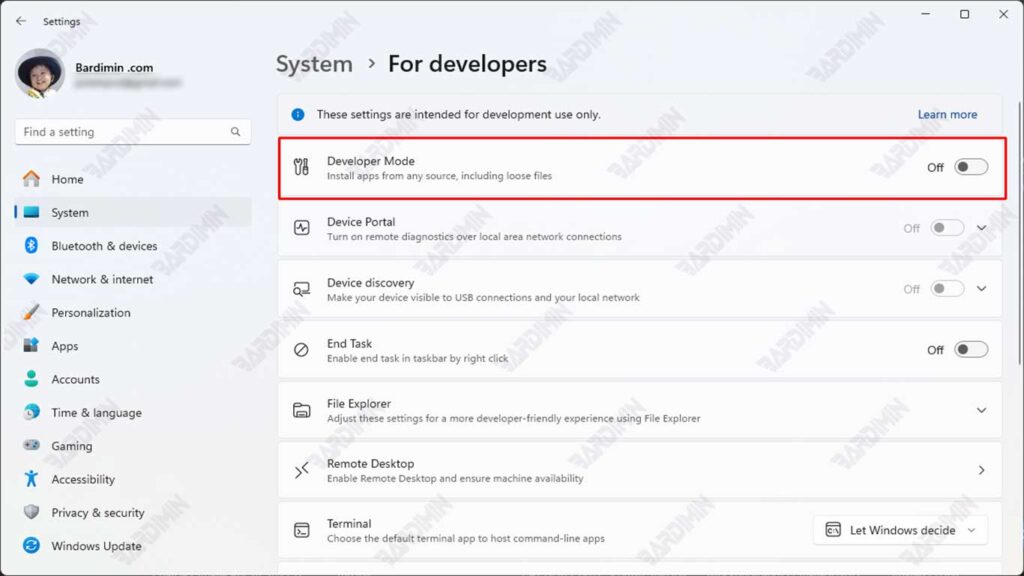
Step 2: Enable Developer Mode Safely
- On the Developer Mode option, slide the toggle to the On position
- Windows will display a security alert containing:
- Potential risks that may occur
- Impact on system protection
- Recommended use
- Click Yes to confirm activation
This process will download some additional components (about 50-100MB, depending on the Windows version).
Step 3: Process Completion
- The system may request a restart to complete the installation of the component
- If prompted, save all your work and select Restart Now
- After restarting, check again at Settings > System > For developers to make sure Developer Mode is active
What Happens When You Enable Developer Mode?
When you enable Developer Mode in Windows 11, the system secretly makes some significant changes behind the scenes. First, Windows will enable advanced features such as the Windows Subsystem for Linux (WSL) that allows you to run Linux environments natively, the Device Portal for IoT development, as well as remote debugging capabilities that are very useful for application developers.
Not only that, but the system will also unlock full access to PowerShell and Command Prompt with high-level administrator privileges, giving you more control over the operating system. Most crucially, Windows will automatically modify its security policies, which is what allows you to sideload apps from outside the Microsoft Store.
These changes happen automatically in the background, transforming Windows 11 from a regular consumer operating system into a full-fledged development platform. Keep in mind, however, that all of these over-access comes with a slight trade-off in the form of a slight reduction in Windows’ built-in security protections.
How to Safely Disable Developer Mode in Windows 11
Done experimenting with developer features in Windows 11? It’s time to return the system to safe mode by disabling Developer Mode. Here’s a complete guide that’s easy to follow:
Step 1: Disable Developer Mode
- Open Windows Settings by pressing Windows + I
- Select System > For developers in the left-hand menu
- Look for the Developer Mode option that is currently active
- Slide the toggle to the Off position to disable it
This will restore Windows’ default security policies. The system may take a few seconds to implement the changes
Step 2: Cleaning the Sideload Application (Highly Recommended)
If you previously installed the app via sideloading:
- Open Settings > Apps > Installed apps
- Search for installed apps via sideloading
- Click Uninstall for each of those apps
- Restart the computer to make sure the changes happen perfectly
Sideloading applications may be:
- Not compatible with Windows standard mode
- Potentially causing system conflicts
- Have different security requirements
FAQ: Frequently Asked Questions about Developer Mode
What’s the Difference Between Developer Mode and Sideloading?
- Developer Mode: Enables full access to development tools.
- Sideloading: Allows app installation beyond Microsoft Store, but does not require Developer Mode in the latest version of Windows 11.
Is Developer Mode Dangerous?
- Yes, if not used correctly. This feature opens system access that can be exploited by malware.
