

Music Mode for YouTube is a browser extension that lets you play YouTube audio without video, saving bandwidth, reducing CPU/GPU load, and perfect for professionals, technicians, and gamers who want to listen to music while working or playing games.
YouTube has become the go-to platform for video streaming, from music and podcasts to educational content. However, streaming video consumes significant data. When you’re working, writing reports, or gaming, you often only want the audio from YouTube—songs, interviews, or background noise. Unfortunately, YouTube doesn’t offer an official audio-only mode. As a result, bandwidth is wasted downloading video you’re not watching, and your device works harder to render unnecessary visuals. That’s where Music Mode for YouTube comes in, providing a simple yet powerful solution.
What Is Music Mode for YouTube?
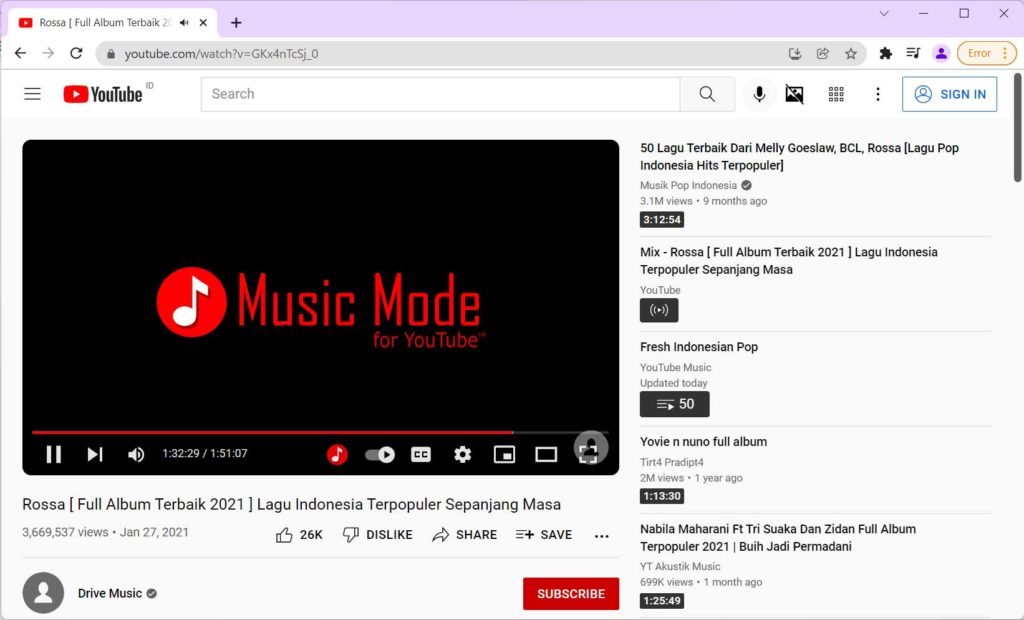
Music Mode for YouTube is a lightweight extension for Chromium-based browsers like Google Chrome, Microsoft Edge, and Brave. It automatically blocks video playback and hides visual elements on YouTube, including thumbnails, avatars, and other images. You get pure audio from any video you play. This not only conserves your internet quota but also reduces the strain on your CPU and GPU, making your system more responsive—especially when running resource-heavy applications like games or design software.
With Music Mode for YouTube, you can enjoy YouTube music while gaming—no lag, no video distractions.
Key Features of Music Mode for YouTube
- Audio-only playback: Video is fully blocked; only audio streams.
- CPU/GPU savings: No video rendering means lower resource usage and cooler hardware.
- Bandwidth saver: Drastically reduces data consumption by downloading only the audio track.
- Hide visual clutter: Removes thumbnails, channel avatars, and other images from YouTube pages.
- NSFW filter: Automatically hides potentially inappropriate content.
- Skip video ads: Option to bypass video advertisements (subject to configuration).
- Quick-access buttons: Two handy buttons on YouTube to toggle audio mode on/off instantly.
- Google Search integration: Hides video thumbnails when searching for songs or artists on Google.
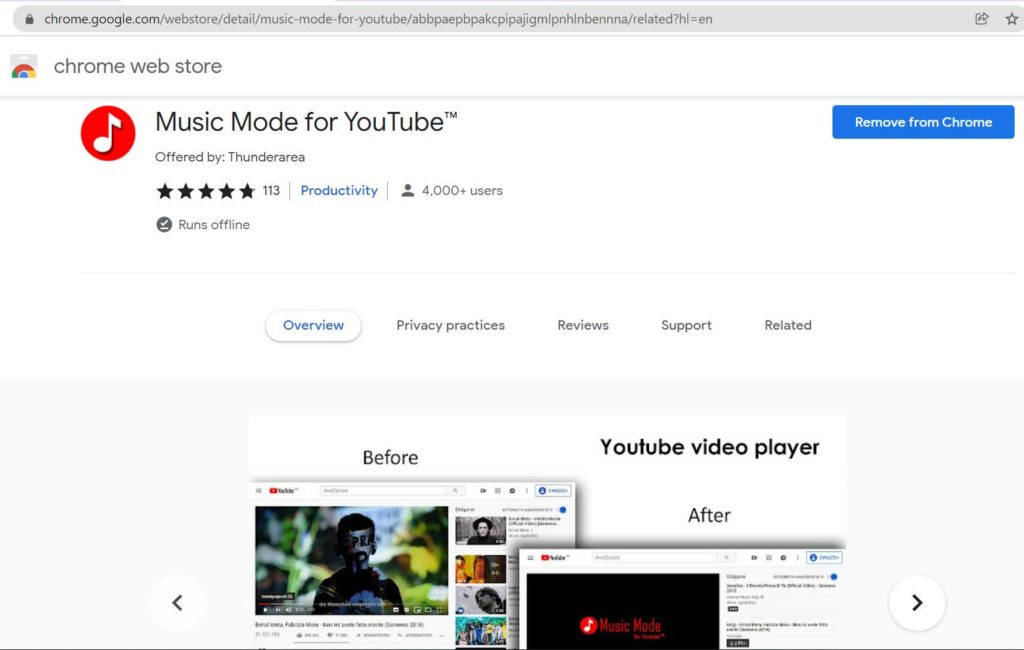
How to Install and Configure Music Mode for YouTube
Getting started with this extension is straightforward. Follow these steps:
- Visit the Music Mode for YouTube page on the Chrome Web Store.
- Click “Add to Chrome” (or “Get” for Edge).
- Once installed, click the extension icon in your browser toolbar to open settings.
- Adjust options as desired—you can keep defaults or customize, e.g., always block video or activate only on specific sites.
- Go to YouTube and play any video; the video will be blocked, and you’ll hear only the audio.
Note: The extension requires permission to access YouTube data solely for blocking video and images. It does not collect or share personal information.
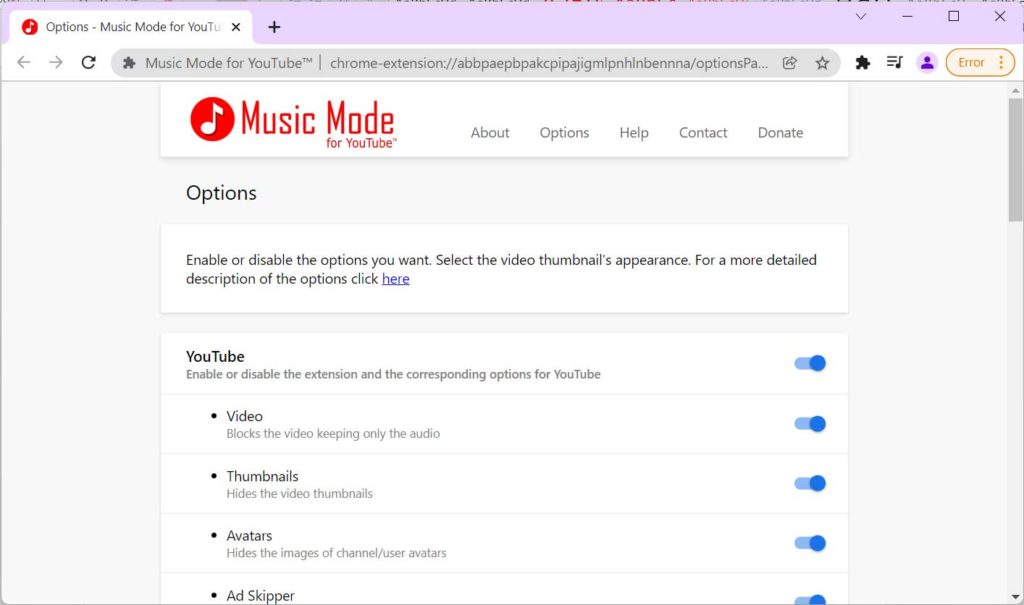
Benefits for Professionals, Technicians, and Gamers
Music Mode for YouTube offers specific advantages for different user groups:
- Professionals: When working remotely with limited bandwidth, this extension saves data for important tasks like video calls or large uploads. It also eliminates visual distractions, helping you maintain focus.
- Technicians: For those running virtual machines or remote desktops, reducing CPU/GPU load frees up resources for technical applications, improving overall efficiency.
- Gamers: Listening to music or podcasts from YouTube while gaming becomes lighter—the GPU isn’t tied up rendering video, reducing lag and maintaining stable frame rates.
Alternatives and Extra Tips
While Music Mode for YouTube is a top choice, alternatives like “Audio Only for YouTube” or “Stream Cleaner” exist. However, Music Mode stands out for its lightweight design, regular updates, and built-in NSFW filter. Here are some tips to get the most out of it:
- Use the quick-access buttons to switch between audio and video modes when you need to watch a tutorial.
- If you’re on Firefox, try similar extensions like “YouTube Audio” (features may vary).
- Combine it with your browser’s built-in data saver (e.g., Chrome’s Lite mode) for maximum bandwidth efficiency.
- Periodically check the extension settings for any policy updates or new features.
Pro tip: For users with extremely limited bandwidth, enable the “Block video on all sites” option to also stop embedded YouTube videos elsewhere.
Conclusion
Music Mode for YouTube is a practical tool for anyone who wants to enjoy YouTube audio without the video overhead. By saving bandwidth, reducing hardware load, and enhancing focus, it’s a must-have extension—especially for professionals, technicians, and gamers. Easy to install and flexible to configure, it transforms your YouTube experience. Try it today and feel the diference!
Have questions or tips of your own? Share them in the comments below. Remember to keep your extensions updated for the latest features and security improvements.
